
One grid for everything
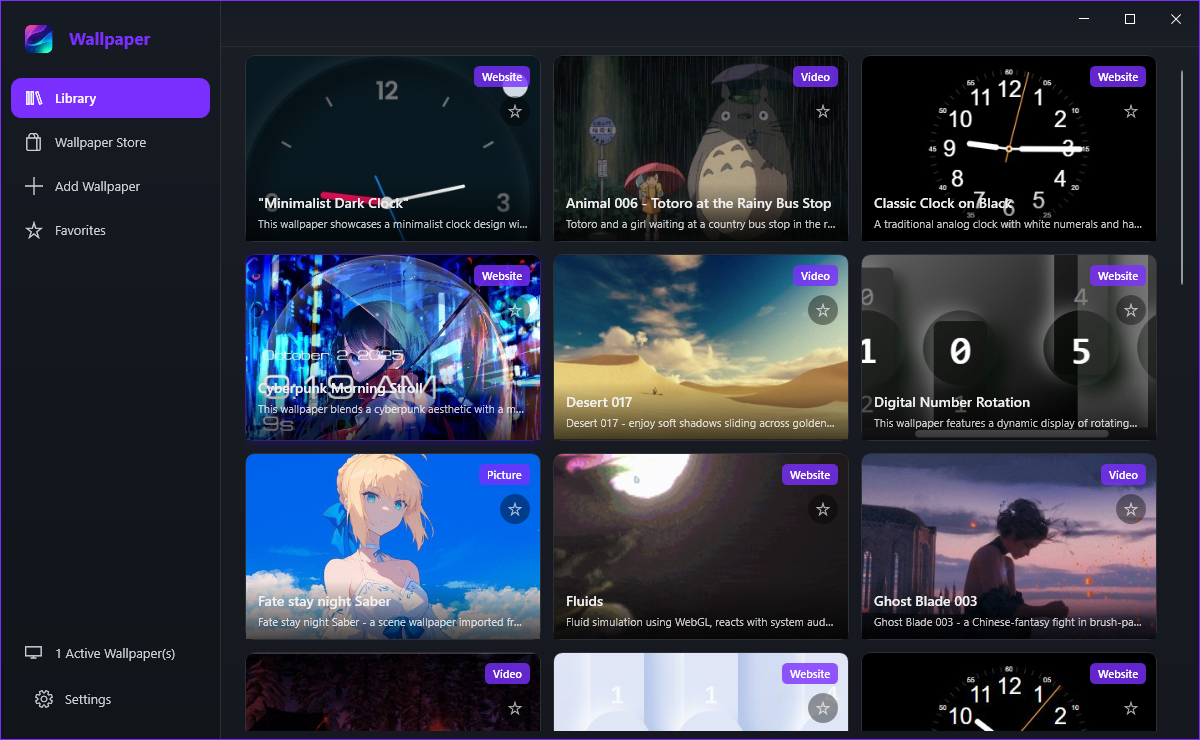
Library lists everything the app can play: what you downloaded from the store, what you added yourself and what you imported from a wallpaper zip. Tiles are ordered by name and the grid scrolls.
Finding a wallpaper
Type part of the name into the search box at the top of the Library and the grid narrows as you type; clear the box to see everything again. Because tiles are sorted by title, the same wallpaper keeps the same position instead of jumping around.
- Active, green, top left - this wallpaper is running right now.
- Type badge, purple, top right - Video, Website, Picture or Gif, so you know what will play before you set it.
- Star - the favourite state of the tile; a filled star also puts it on the Favorites page. Hovering the star shows the tooltip Toggle Favorite.
The right-click menu
Right-click any tile for the full set of actions, in this order:
- Set as Wallpaper - play it now.
- Preview - open a preview window without changing your desktop.
- Customise - the settings that wallpaper exposes, such as volume, speed or colour.
- Open File Location - open the wallpaper folder on disk in File Explorer.
- Export Wallpaper .zip - pack the wallpaper up to move to another PC.
- Edit - change its title, description, preview image and author.
- About - the details the wallpaper itself carries.
- Delete - remove it from the Library and from disk.
Delete removes the tile and the files behind it, and there is no undo inside the app - you would have to download or add the wallpaper again. Use Export Wallpaper .zip first if you are not sure you want to lose it.
Empty state and housekeeping
The page shows Your library is empty with Browse Store and Add File underneath. Browse Store jumps to the catalogue; Add File opens the picker for a video, picture, GIF, web page or wallpaper zip.
In the folder shown under Settings > General > Wallpaper Directory, by default %LOCALAPPDATA%\LivelyWPF\Library. Each wallpaper is a folder there with a LivelyInfo.json describing it, which is why moving that folder by hand moves the wallpaper with it.