
Settings, Misc and About
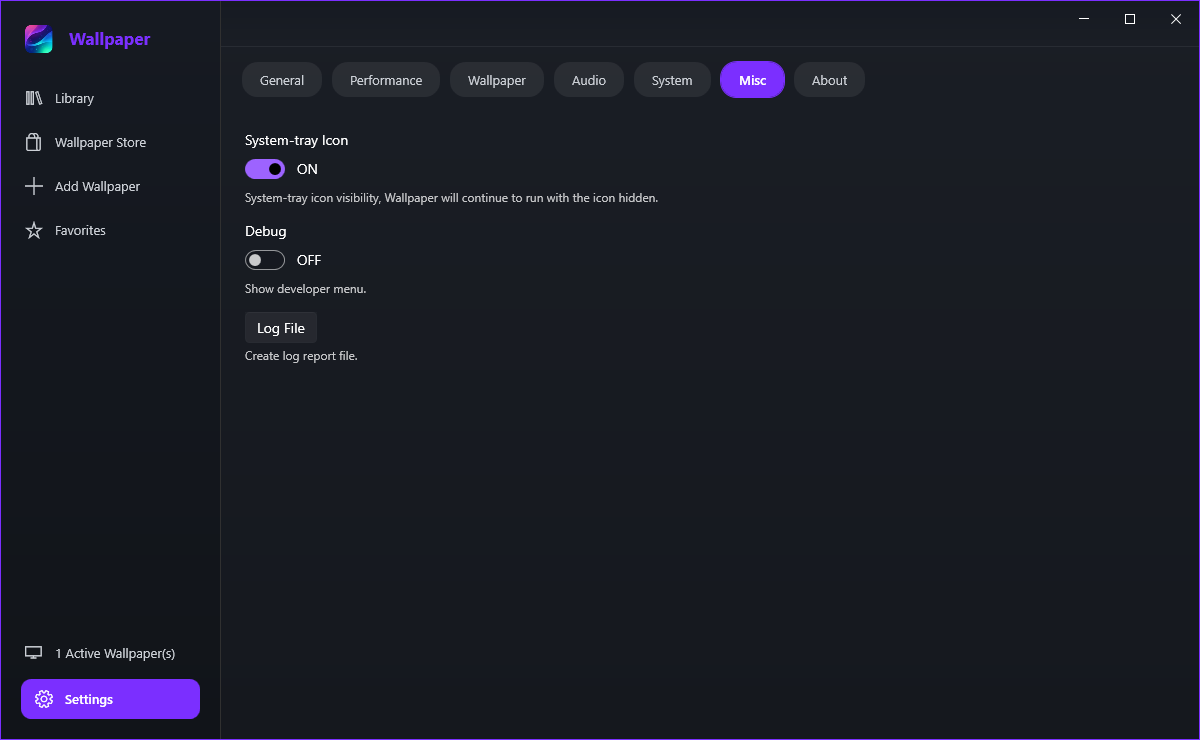
The last two tabs hold the small switches and the information about the app itself: Misc for the tray icon and logging, About for the version, the licence and the links to the tutorial, a review and support.
The Misc tab
- System-tray Icon - show or hide the notification-area icon; the app keeps running either way, and the wallpaper is unaffected.
- Debug - reveals the developer menu, which most people never need.
- Log File - writes a log report file and tells you where it was saved.
- Reproduce the problem once, without restarting the app.
- Open Settings > Misc.
- Click Log File and attach the file it creates.
Logging is off until you ask for the file, so nothing is recorded permanently in the background.
About: version, licence and support
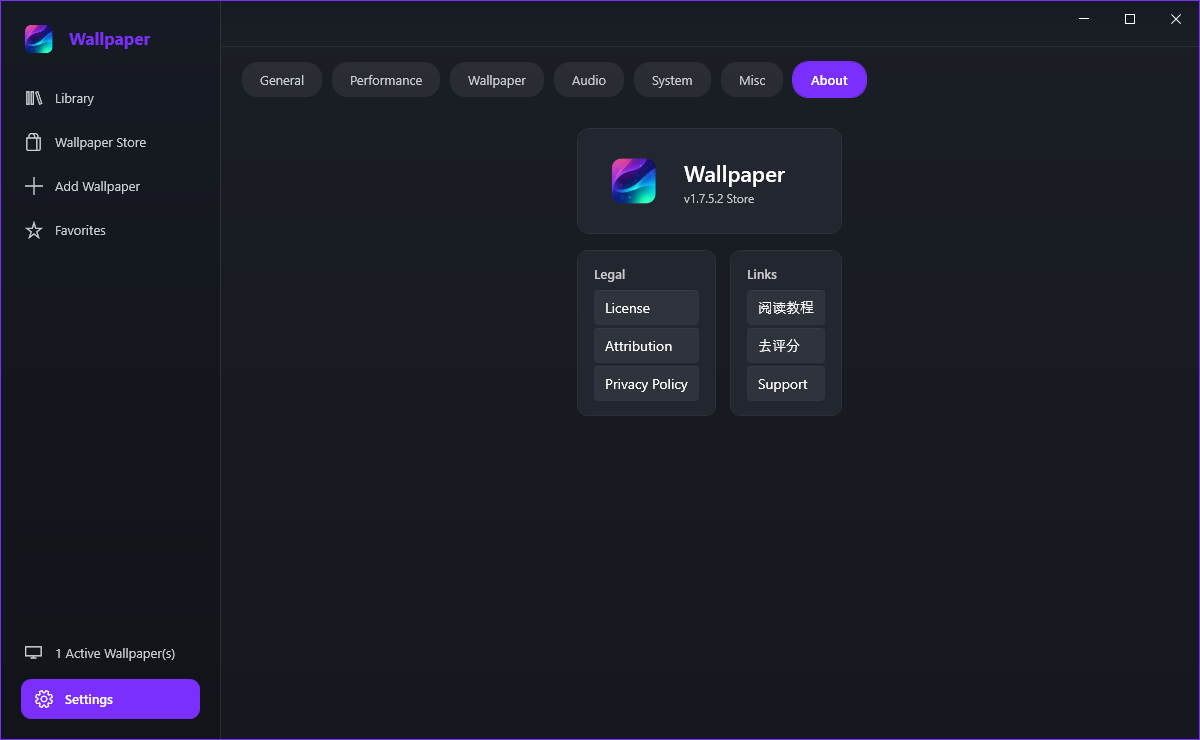
On the About tab: it is printed under the app name as a version such as v1.7.5.2 Store. Quoting that number is the fastest way to get help with a specific build.
In the Legal group on About. License and Attribution open the licence and credits shipped with the app, Privacy Policy opens the policy, and Source code & license opens the product page that carries the licence text and the source archive download - the source is offered alongside the binary, as the licence requires.
In the Links group on About: Read tutorial opens this tutorial, Rate now opens the Microsoft Store rating pane for Wallpaper Lively X, and Support opens the support page.
When something is wrong
Work through it in this order:
- Right-click the tray icon and check whether Pause Wallpapers is ticked - if it is, click it to resume.
- Open the Control Panel from the counter at the bottom of the sidebar and confirm a wallpaper is still assigned to the screen.
- Try a picture wallpaper. If pictures work and videos do not, the problem is video playback rather than the app.
- Turn GPU Decode off in Settings > Wallpaper and set the wallpaper again.
An unsupported codec is the most common cause. Try the other Video Player on Settings > Wallpaper. Note also that Windows N and KN editions ship without the media components and need the Microsoft Media Feature Pack installed. If the file plays in another program but not here, converting it to mp4 or webm usually settles it.
Check Start with Windows in Settings > General - without it, nothing is running at logon to restore the wallpaper. If it is already on, start the app once and give it a few seconds: it restores the previous wallpaper shortly after launch, and the active wallpaper counter confirms when it has.
Store downloads need a working connection to the Microsoft Store and to the wallpaper catalogue. Retry first; if it fails again, check that a proxy, firewall or metered connection is not blocking the download. If a Premium wallpaper is refused rather than failing, the plan may have lapsed - the Premium dialog shows the current status.
The data folder and resetting
In %LOCALAPPDATA%\LivelyWPF. Settings live in Settings.json there, logs in logs, the store cache in Store, and the wallpapers themselves in the Library subfolder - the path shown under Settings > General > Wallpaper Directory.
- Exit the app from the tray menu so nothing is writing to the folder.
- Open
%LOCALAPPDATA%\LivelyWPFin File Explorer. - Rename the folder, or delete
Settings.jsoninside it, to reset the settings. - Start the app again - it builds a fresh set of settings on the next launch.
Renaming keeps a copy you can put back. Deleting the whole folder also removes the downloaded wallpapers, the store cache and the logs, so export anything you want to keep first.