
Settings, General tab
Settings > General holds the app-wide preferences: starting with Windows, language, how large the library looks, how heavy the interface is, where wallpapers are stored, and the theme.
Language
- Select Settings in the sidebar and stay on the General tab.
- Find Language and open the dropdown.
- Pick the language you want.
- Let the app restart - it offers to do that for you.
The tab explains that the app has to restart before the new language appears, which is why the change is not instant.
No. The choice is stored with the rest of your settings, and the wallpaper that was playing is restored when the app comes back - including its tile order and its favourites.
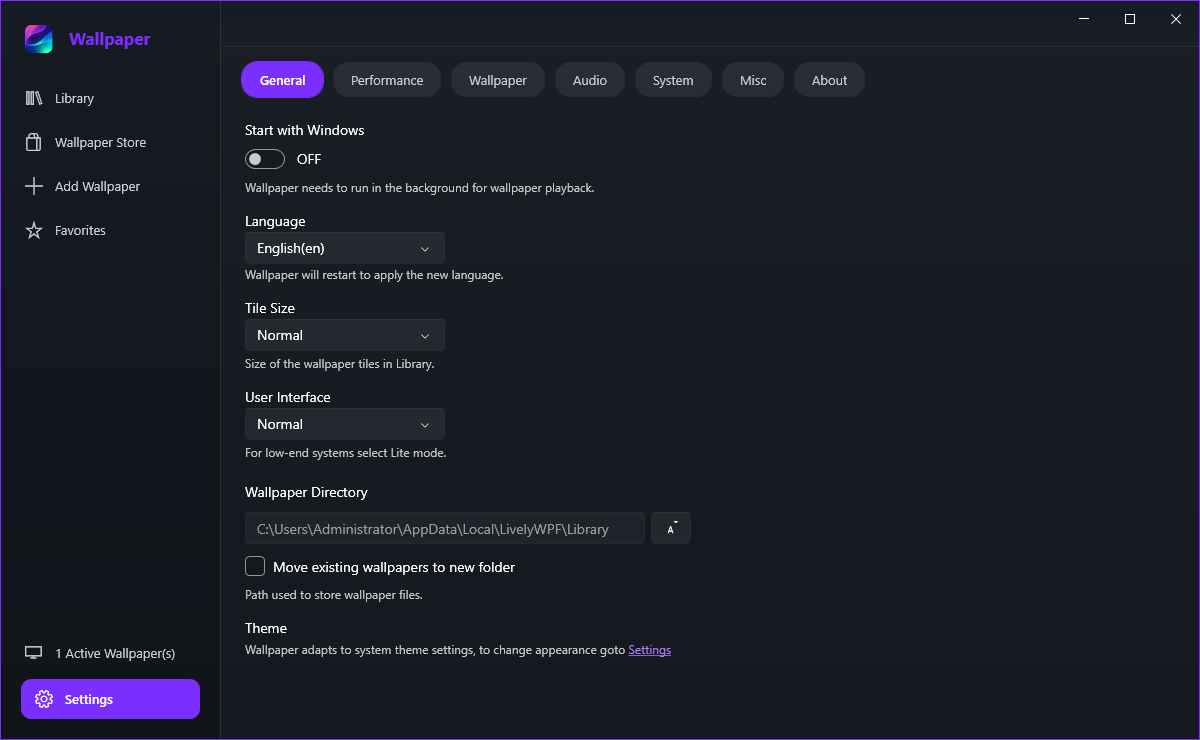
Theme, tile size and interface
The app follows your Windows theme - the Theme row says so and links straight to Windows Settings if you want to change the appearance there. There is no separate in-app switch, so the app and the rest of Windows stay consistent.
Yes: Tile Size offers Small, Normal and Large, and the Library grid redraws with the new size. Larger tiles show more of the preview image; smaller ones fit more wallpapers on screen.
It chooses between the full interface and a lighter one intended for low-end systems. The lighter mode renders fewer previews and animations in the Library, so it is worth trying if the app feels sluggish while a wallpaper is playing.
Starting with Windows
Turn on Start with Windows at the top of this tab. It lives on General rather than System because the app has to be running in the background from logon for the wallpaper to appear - the note under the switch says exactly that.