
Before you start
Wallpaper Lively X is a free Windows desktop app that plays video, web page, GIF and interactive wallpapers behind your desktop icons. This page gets it onto your PC and explains the first screen you will see.
Install from the Store
The app is published on the Microsoft Store, so there is nothing to configure and no separate installer to hunt down.
- Open the Wallpaper Lively X page in the Store - the download button on this page takes you straight there.
- Click Get or Install and wait for the download to finish.
- Click Open, or start Wallpaper Lively X from the Start menu later.
It is a Windows desktop app for Windows 10 and Windows 11, 64-bit; the Store page lists the exact minimum build for your region. Beyond Windows itself:
- Disk space: the app is small, but video and web wallpapers are stored on your PC, so leave a few gigabytes free if you collect them.
- Browser engine: web page wallpapers use either the CEFSharp engine that ships with the app or the WebView2 runtime already built into Windows 10 and 11 - either way there is nothing extra to install.
- Windows N or KN editions: video wallpaper playback needs the Microsoft Media Feature Pack, which those editions do not include.
- A GPU: hardware video decoding keeps the CPU free; there is a GPU Decode switch in Settings > Wallpaper if you ever need to turn it off.
The first launch
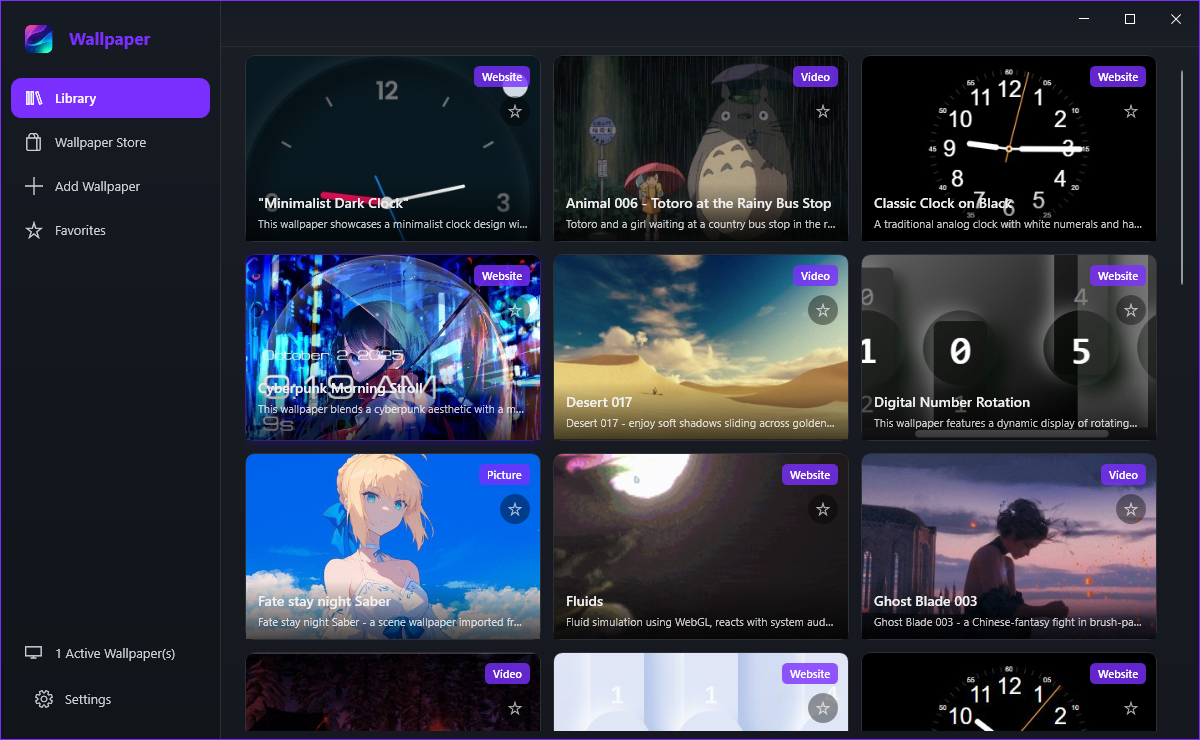
A welcome dialog offers to open the tutorial: choose Read tutorial or Later, and tick Do not show again if you would rather not be asked again. Behind the dialog is the main window - a sidebar with Library, Wallpaper Store, Add Wallpaper, Favorites and Settings, and the active wallpaper counter at the bottom.
A fresh install has no wallpapers of its own, so the app usually pulls a few free featured ones from the store so that the grid is not blank. If nothing has been added yet, the Library says Your library is empty and offers two buttons: Browse Store for the catalogue, and Add File for a video, picture, GIF, web page or wallpaper zip of your own.
Check that it is running
Three signals, all on screen at once:
- The counter at the bottom of the sidebar changes from 0 Active Wallpaper(s) to the number of screens that are playing.
- The Library tile of the running wallpaper gains a green Active badge.
- The notification-area icon stays in colour; it turns grey only while playback is paused.
Use Wallpaper Store to download something from the catalogue, or Add Wallpaper to point the app at a file you already own. The rest of this tutorial walks through both routes, the library, and every Settings tab.