
Settings, Performance tab
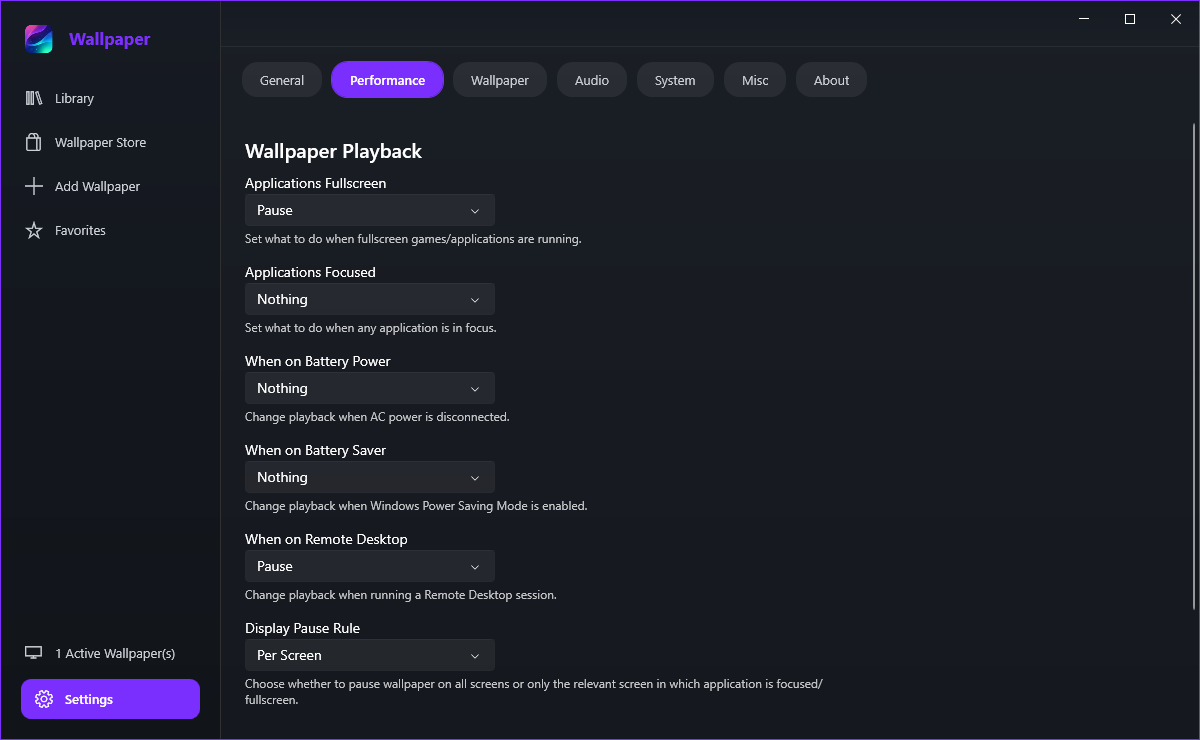
A video wallpaper decoding behind a game is wasted work. Settings > Performance decides when playback should get out of the way, and you can make the rules as broad or as specific as you like.
The playback rules
Every rule watches for a condition and then does one of three things:
- Pause - stop playback until the condition ends and then resume.
- Nothing - ignore the condition and keep playing.
- Kill - stop the wallpaper process outright to free memory, rather than just pausing it.
The conditions are Applications Fullscreen, Applications Focused, When on Battery Power, When on Battery Saver and When on Remote Desktop.
| Rule | Suggested |
|---|---|
| Applications Fullscreen | Pause |
| Applications Focused | Nothing |
| When on Battery Power | Pause |
| When on Battery Saver | Pause |
| When on Remote Desktop | Pause |
That keeps the wallpaper away from fullscreen games and keeps a laptop cooler, while leaving it alone during ordinary windowed work.
How the rules are applied
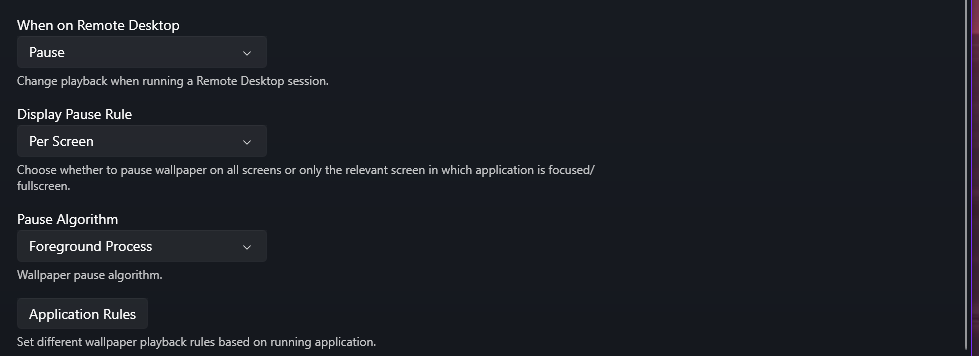
Per Screen pauses only the monitor that is showing the fullscreen application and leaves your other monitors playing. All Screen pauses everything. With a second monitor for music or chat, per screen is usually what you want - it is the default.
It is how the app works out that a program is fullscreen: Foreground Process watches the process that owns the focused window, All Process looks for a fullscreen window among every running process, and the Direct3D option uses the exclusive-mode signal from Direct3D itself. Foreground Process is the default and the least expensive.
Single programs and odd cases
- Open Settings > Performance.
- Click Application Rules.
- Add the program and give it its own rule.
Useful for an editor or a game that never reports itself as fullscreen to Windows, so the global rules never trigger for it.
Task Manager asks Windows to suspend the desktop's child windows, so wallpapers stop for as long as it is open. That is Windows behaviour rather than a fault, and playback returns when you close it.
Pausing a video wallpaper removes the decoding work, which is the expensive part, so yes - the When on Battery Power and When on Battery Saver rules are worth setting to Pause on a laptop.