
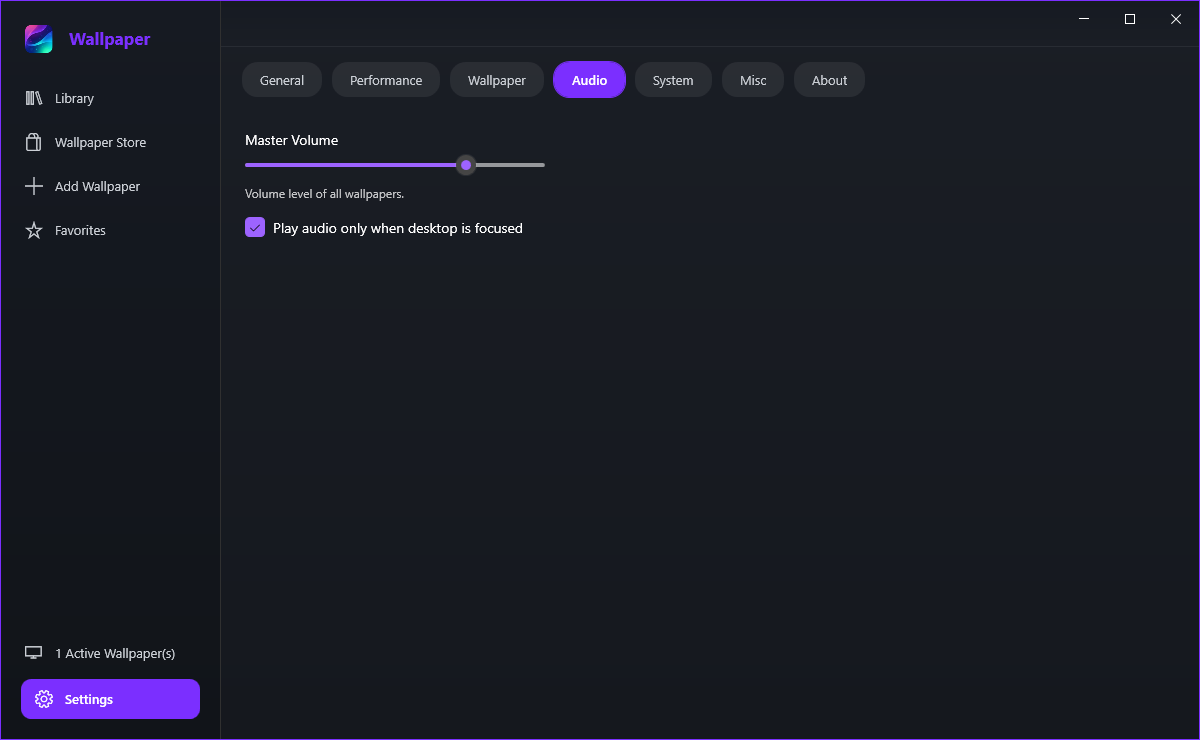
Settings, Audio tab
Live wallpapers can have sound. The Audio tab controls it globally, so one loud wallpaper does not have to be silenced tile by tile.
Master Volume
- Open Settings and select the Audio tab.
- Drag Master Volume to the level you want.
- Listen - the change reaches the wallpaper that is playing immediately.
Master Volume is the level of every wallpaper together; a single wallpaper can still be adjusted on its own in its Customise panel.
Set the master level for the average and then pull that one wallpaper down on its own: right-click its tile in the Library and choose Customise. That keeps the master level where you want it for everything else.
When the sound plays
Yes - turn on Play audio only when desktop is focused. Sound then plays only while the desktop is the window in front, so anything you open over it is silent automatically. For most people that is the switch that makes a sound wallpaper usable on a work PC.
Because the audio comes from the wallpaper players rather than from a separate application. Lowering or muting the app in the Windows volume mixer lowers every wallpaper along with the master level, which is a quick way to silence everything without opening the settings.