Downloading is not applying
Getting a wallpaper into your Library and putting it on the desktop are two separate steps. You can apply straight from the store, or from any tile in the Library, and switching wallpapers never removes the previous one.
Applying from the store
- Click the wallpaper so its detail window opens.
- Click Download and wait - the window reports Added to your library when it is done.
- Click Apply to Desktop, which sets the wallpaper and reports Applied to desktop.
Apply to Desktop stays disabled until the download has finished, because there is nothing to play before then.
Then its card carries the green Installed badge and the detail window applies it immediately. Nothing is downloaded a second time.
Applying from the library
- Open Library in the sidebar.
- Right-click the tile you want.
- Choose Set as Wallpaper.
The wallpaper starts playing within a second or two and its tile gains the Active badge.
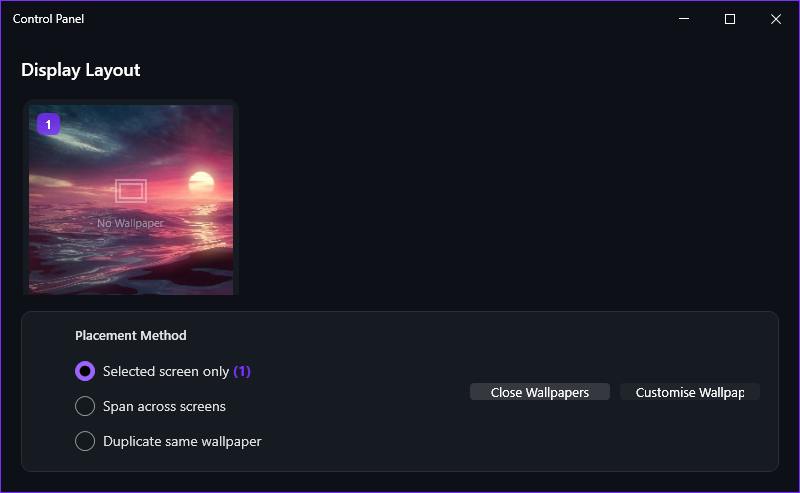
The screen currently selected in the app. With one monitor that is simply your display; with several, the Control Panel decides whether a wallpaper goes to one screen, spans them all or plays on each of them separately.
The Active badge
A tile showing Active is the wallpaper running on the desktop right now. Because one screen can play something different from another, it is perfectly normal for two or three tiles to carry the badge at the same time.
- Switch: set another wallpaper. The previous one stops and loses its badge.
- Pause everything: right-click the notification-area icon and choose Pause Wallpapers; the icon turns grey. Choose it again to resume, or use Change Wallpapers to load the next wallpaper in the Library.
- Stop one screen: open the Control Panel from the counter at the bottom of the sidebar, select that monitor and click Close Wallpapers.