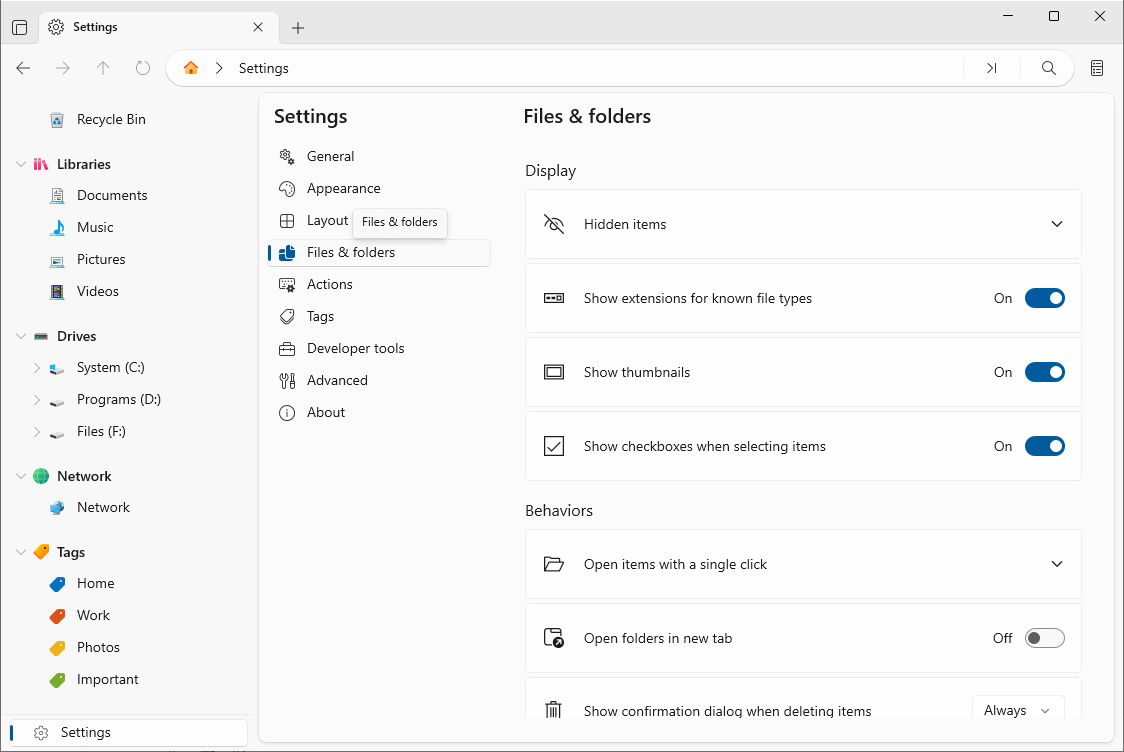
Show picture thumbnails
1. Open Settings → Files and Folders.
2. Turn on Show thumbnails.
3. Image files now display a preview thumbnail instead of a generic icon.
Tip: Thumbnails make it much easier to spot the image you are looking for at a glance.
Use the preview pane
Select a file to see a live preview without opening it:
1. Turn on the Preview pane from the Show menu.
2. Select a file — images, PDFs, audio, and more appear in the pane.
3. Move the selection to preview other files instantly.
Tip: For details such as size, type, and dates, use the Info pane (Ctrl+Alt+I) instead.
Enlarge the file view
To see files and images bigger, switch to a larger layout or item size:
1. Pick a layout from the view menu — Grid and Cards show large thumbnails.
2. Press Ctrl++ to increase item size or Ctrl+- to decrease it.
3. The file list updates instantly.
Quick preview popup
For a fast close-up, select a file and press Space (the Launch preview popup action) to open a floating preview window. This is useful when you want to peek at a file while keeping your place in the file list.