General settings & startup
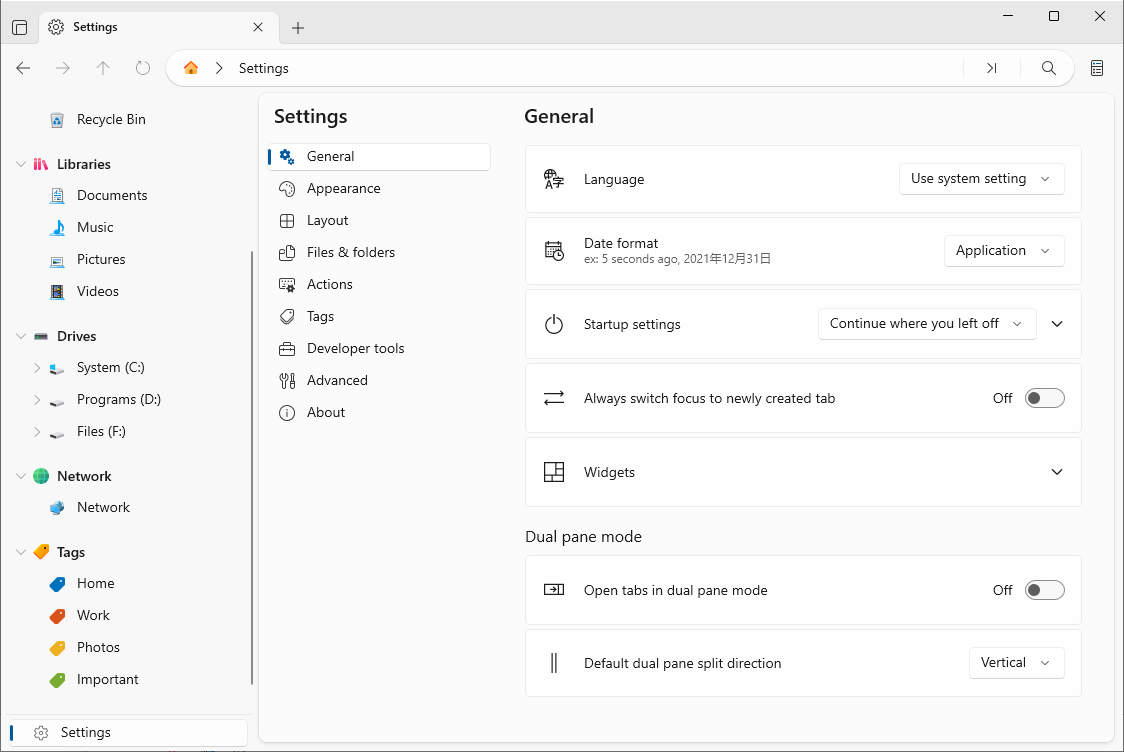
Settings → General controls how Files Manager starts and behaves:
- Language — change the app language (a restart is required).
- Date / time format — Application, System, or Universal.
- Startup settings — continue where you left off, or open a specific page on launch.
- Dual pane mode — open tabs in dual-pane mode and set the default split direction.
- Home widgets — show or hide Quick Access, Drives, Network locations, File Tags, and Recent files.
Properties & hashes
1. Right-click a file or folder and choose Properties (Alt+Enter).
2. View general details, and switch to the Hashes tab to compute checksums (e.g. MD5, SHA) of the file.
3. Use the checksum to verify that a downloaded file is complete and unmodified.
Run programs with elevation
- Run as administrator — launches the selected program with administrator privileges.
- Run with PowerShell — runs the item through PowerShell, useful for scripts.
- Run as another user — starts the program under a different Windows account.
Note: Elevation may show a Windows security prompt; approve it only for programs you trust.
Set wallpapers & rotate images
- Right-click an image and use Set as wallpaper to apply it to your desktop, lock screen, or both, or add it to a slideshow.
- Use Rotate left / Rotate right to fix the orientation of photos.
Install fonts, certificates & drivers
Right-click supported files to install them system-wide without leaving the app:
- Install font — add a new font to Windows.
- Install certificate — import a security certificate.
- Install driver — install an
.infdriver package.
Git integration
For developers, Files Manager includes basic Git operations on a folder:
- Clone a repository to a local folder, or Init a new repository.
- Fetch, Pull, Push, and Sync from the Git menu or the status bar.
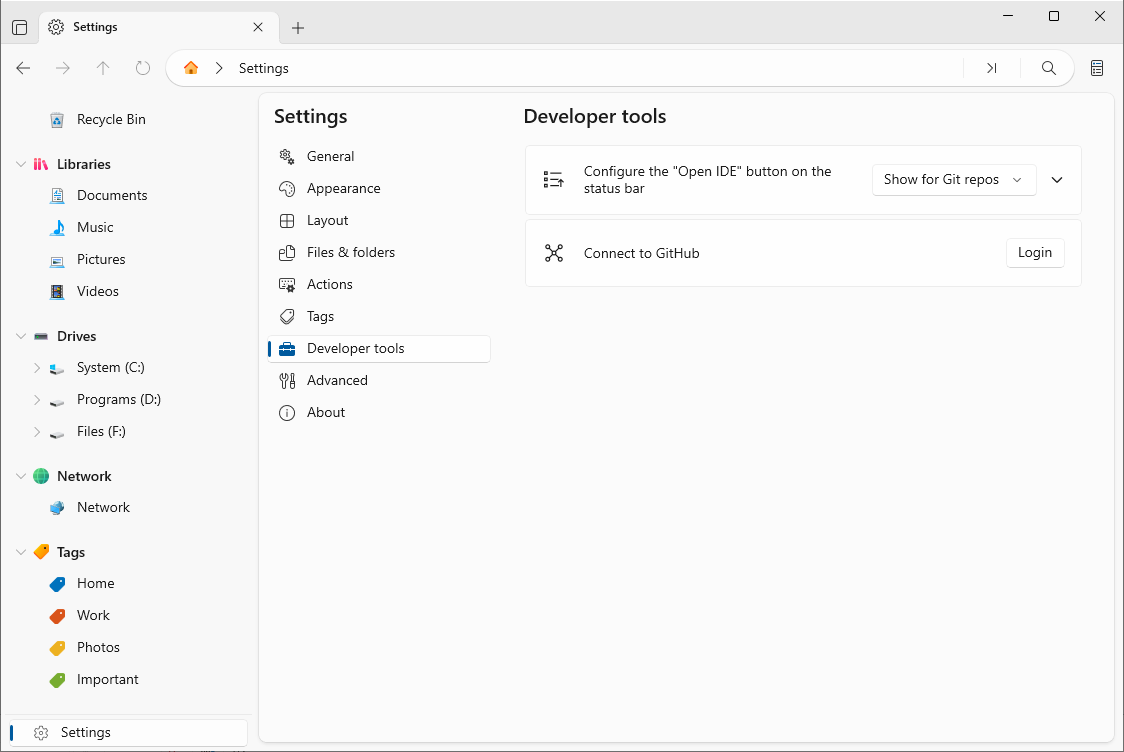
- The status bar shows the current branch; the DevTools settings let you connect GitHub credentials and set up an IDE to open repositories.
Tip: Combine Git with Open terminal here (Ctrl+`) to do even more.
Advanced & default file manager
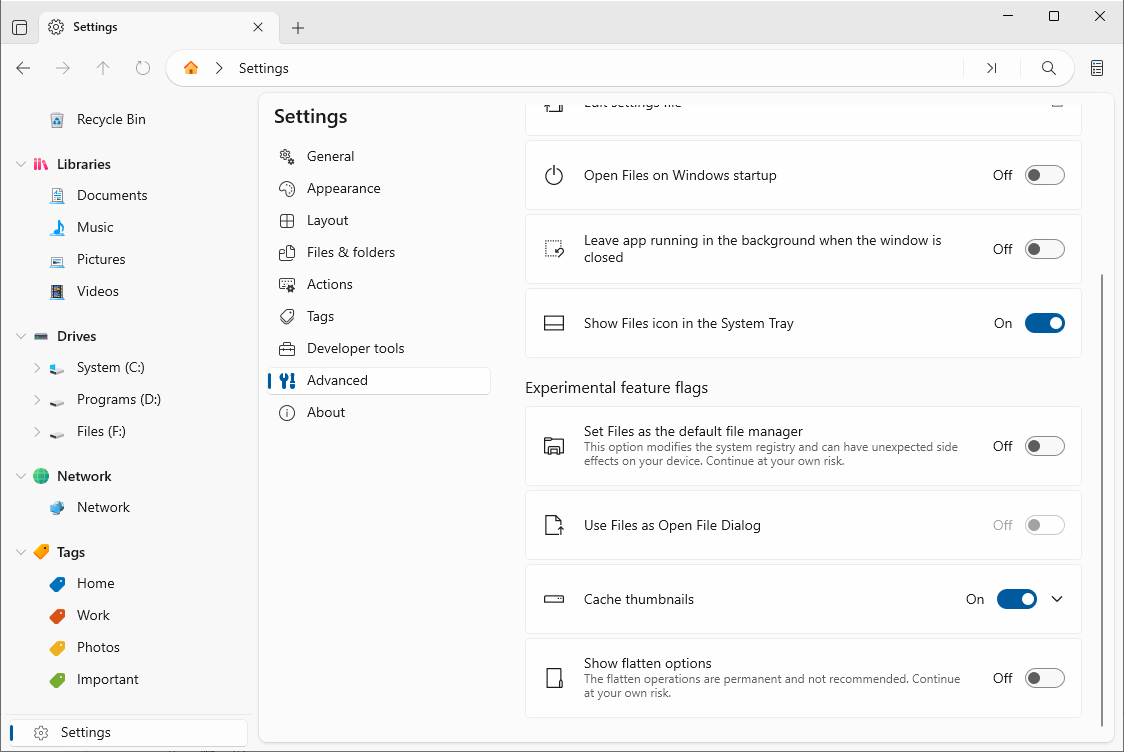
Settings → Advanced contains system-level options:
- Set as default file manager — make Files Manager your default for folders.
- Set as default open/save dialog provider — integrate with file dialogs.
- Open Files on Windows startup and leave the app running in the system tray.
- Thumbnail cache — enable it and set a size limit to speed up large folders.
- Export / Import settings — back up or restore your configuration as a ZIP.
About & support
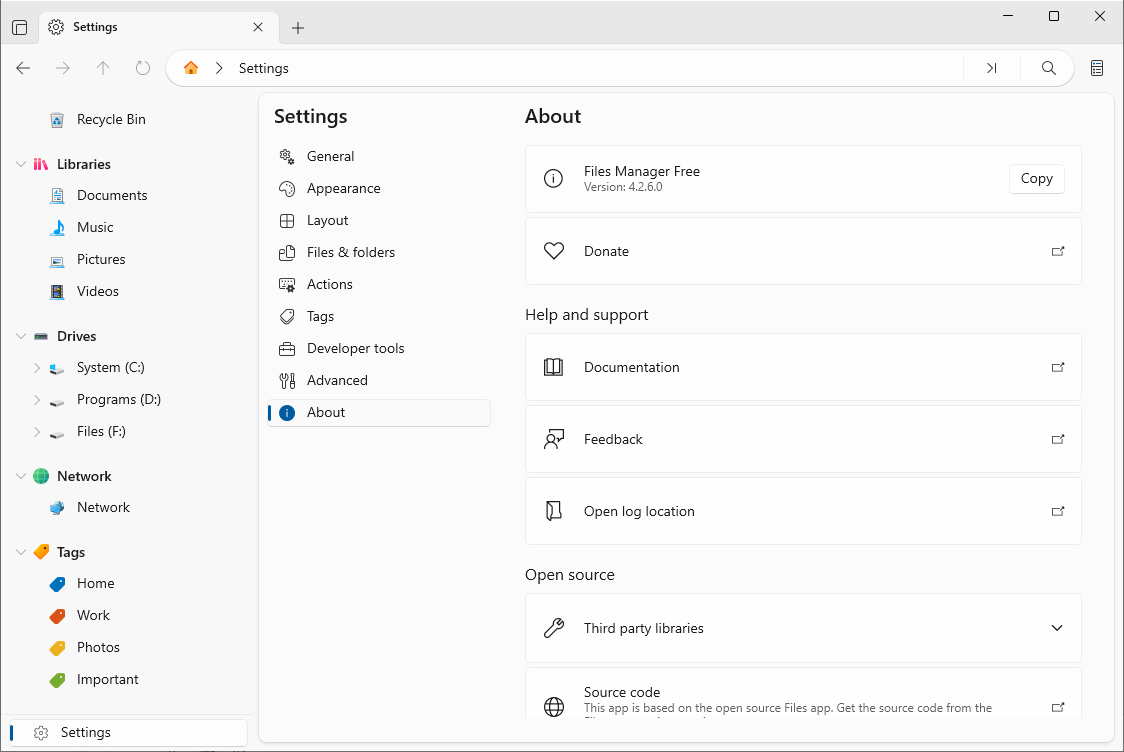
Settings → About shows version info and links:
- Copy the app version, Windows version, or your user ID.
- Open documentation, submit feedback, visit the source code, or read the privacy policy.
- Support the project, and see the open-source libraries it uses.
More handy commands
- Open terminal here (Ctrl+`) — open a command prompt or PowerShell in the current folder.
- Open terminal as admin (Ctrl+Shift+`).
- Open in IDE / Open repository in IDE — jump straight into your configured editor.
- Create shortcut and Copy path — handy for sharing and scripts.
- Empty Recycle Bin / Restore — manage deleted items.