Choose a file layout
Switch how the file list is presented using the layout menu (or the shortcuts):
- Details (Ctrl+Shift+1) — columns for working with many files.
- List (Ctrl+Shift+2) — compact rows.
- Cards (Ctrl+Shift+3) — large previews in cards.
- Grid (Ctrl+Shift+4) — icon thumbnails in rows; great for photos.
- Columns (Ctrl+Shift+5) — browse a folder hierarchy side by side.
- Adaptive (Ctrl+Shift+6) — Files Manager picks the best layout automatically.
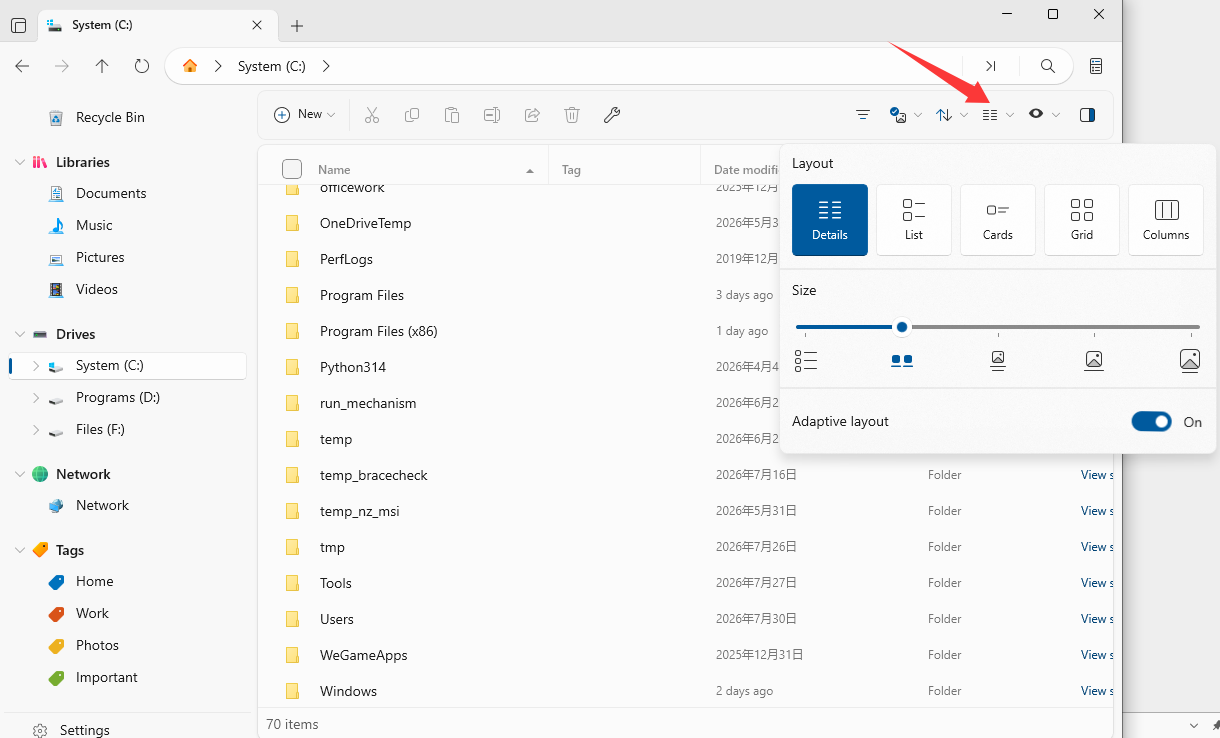
Tip: Adjust item size anytime with Ctrl++ and Ctrl+-.
Sort files
1. Click a column header to sort by that property.
2. Or use the Sort menu to sort by name, date modified, date created, type, size, sync status, file tag, or original folder.
3. Choose ascending or descending order, and whether folders or files appear first (or are sorted together).
Group files
1. Use the Group menu to organize files into labelled groups.
2. Group by name, type, size, date, sync status, or file tag.
3. Choose the group direction and, for dates, the grouping unit (day, month, or year).
Set defaults & sync preferences
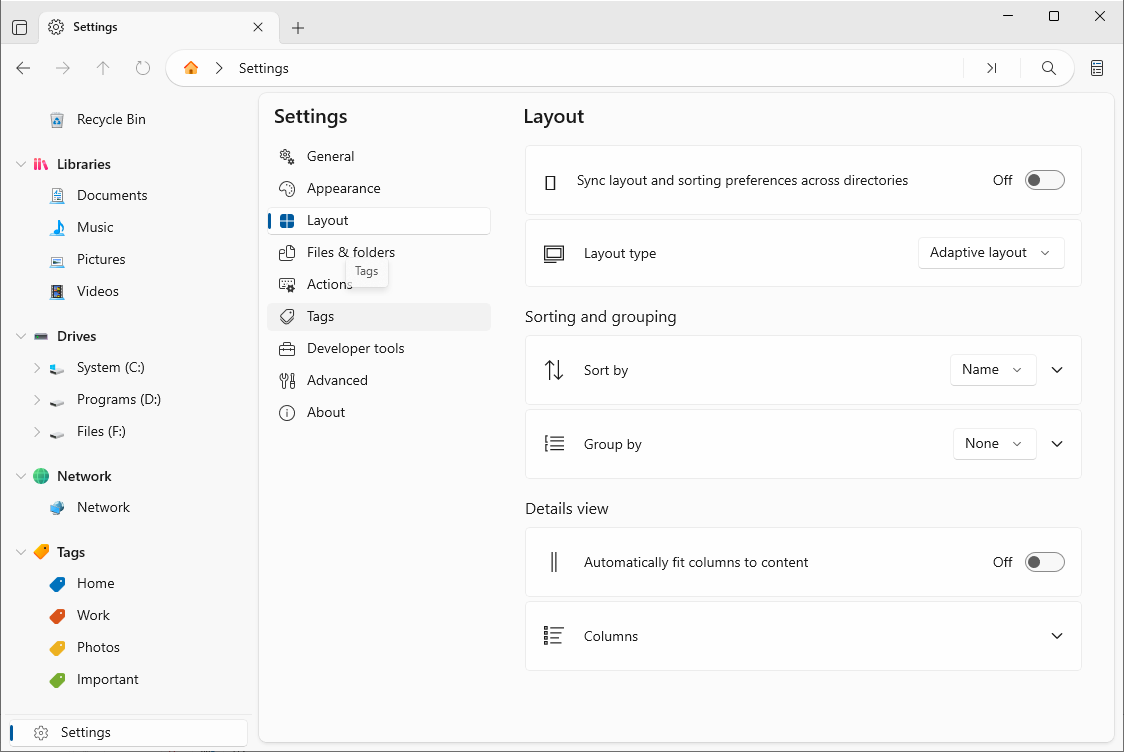
1. Open Settings → Layout.
2. Choose the default Layout type, default Sort by / Group by, and sort priority.
3. Turn on Sync layout and sorting preferences across directories to apply the same settings everywhere, or leave it off for per-folder preferences.
4. In the Details view, set the visible columns and turn on Automatically fit columns to content.