Step 1. Open Files Manager
1. Launch Files Manager from the Microsoft Store or your Start menu.
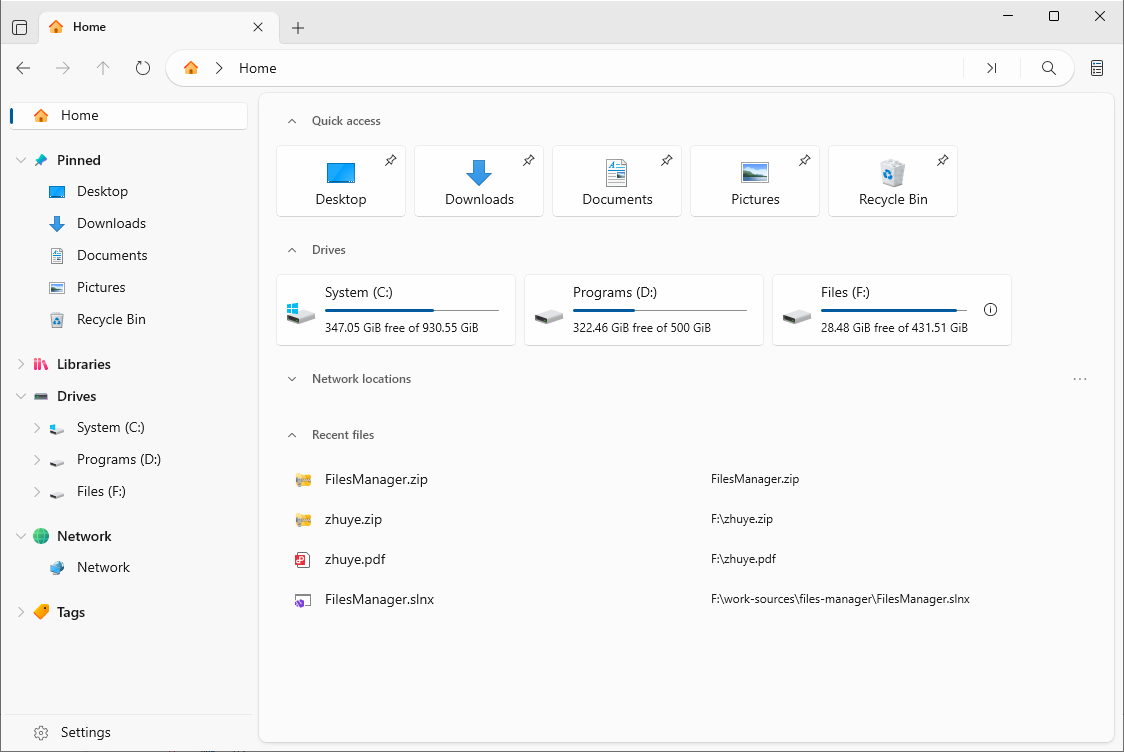
2. The app opens its main window. By default it shows the Home view with Quick Access, Drives, Network locations, File Tags, and Recent files widgets.
3. Click any drive or pinned folder to open it in the file manager.
Tip: To skip Home and always start directly in a folder, open Settings → General → Startup and choose what opens on launch.
Understand the main interface
- Toolbar (top) — quick commands such as New folder, Copy, Paste, Rename, Compress, and Search.
- Sidebar (left) — Home, Pinned, Libraries, Drives, Cloud Drives, Network, WSL, and File Tags.
- Tab bar — manage multiple open folders in separate tabs, just like a browser.
- File list (center) — the contents of the current folder, shown in your chosen layout.
- Address bar — shows the current path; click a segment to jump to a parent folder, or type a path.
- Preview / Info pane (right, optional) — a live preview or metadata for the selected file.
- Status bar (bottom) — item counts, selection summary, and quick actions such as opening a terminal.
Tip: Toggle any pane from the Show menu — sidebar (Ctrl+B), toolbar (Ctrl+Shift+B), preview pane, info pane (Ctrl+Alt+I), and shelf pane.
Open a folder as a file manager
You can also open a folder directly into Files Manager:
1. Right-click any folder in Windows Explorer.
2. Choose Open with Files Manager (or a similar entry) from the context menu.
3. The folder opens in a new Files Manager window or tab.
Tip: You can also pin a folder to the sidebar for one-click access later.