Select files & folders
Before copying, moving, or deleting, you usually select one or more items:
- Click to select a single item; Ctrl+click to add or remove an item from the selection.
- Shift+click to select a range of items.
- Select all (Ctrl+A), Invert selection, and Clear selection.
- Turn on item selection checkboxes from Settings → Files and Folders → Show checkboxes when selecting items.
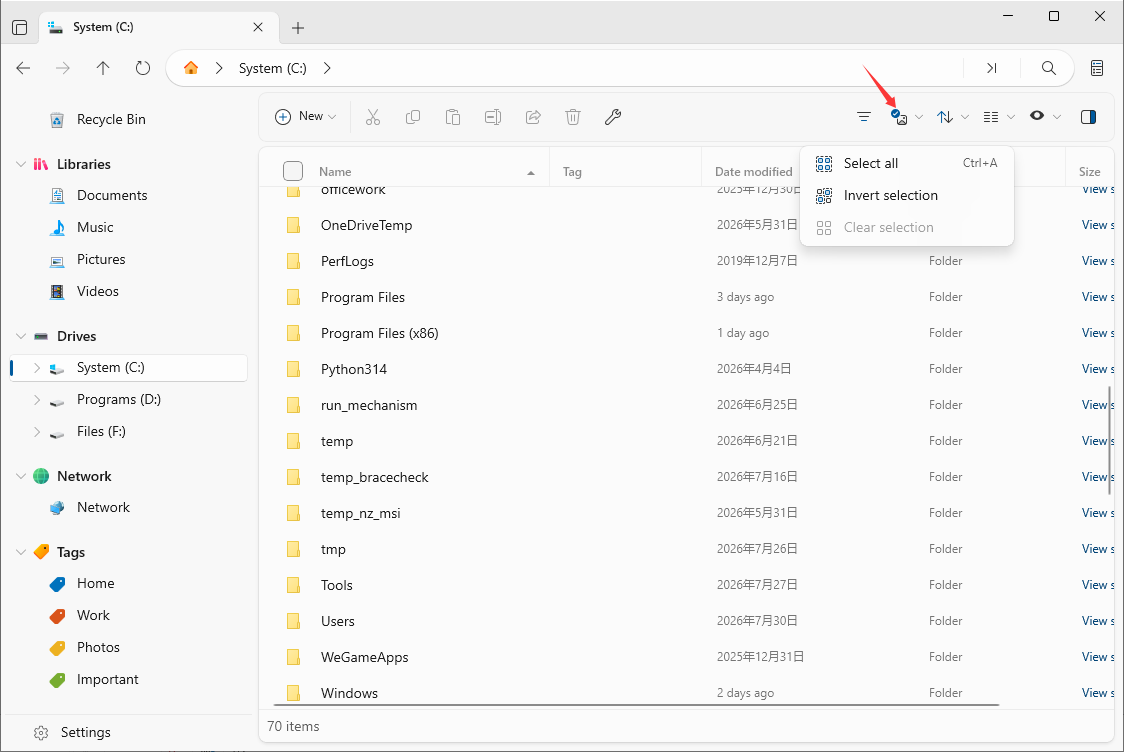
Tip: Drag a selection box over items in the file list to select many at once.
Create a new folder or file
1. Open the folder where you want to create the item.
2. Click New folder in the toolbar, or use the context menu to choose New.
3. Type a name and press Enter.
Tip: Use New folder (Ctrl+Shift+N) or New file (Ctrl+Shift+I).
Rename a file or folder
1. Select the item.
2. Press F2 or choose Rename from the context menu.
3. Type the new name and press Enter.
Bulk rename
Select multiple items and press F2 to open the Bulk rename dialog:
- Convert names to lowercase or uppercase.
- Append or prepend the folder name, or add a string at a specified position.
- Delete a number of characters, replace all occurrences of a string, or change the file extension.
- Files Manager auto-generates unique names so nothing is overwritten.
Copy & move
1. Select one or more items.
2. Use Copy (Ctrl+C) to copy, or Cut (Ctrl+X) to move.
3. Go to the destination folder and press Ctrl+V to paste.
You can also drag files between two split panes, or use Copy path (Ctrl+Shift+C) to copy a file’s full path.
Tip: File operations show progress in the Status Center, where you can pause, cancel, or view failed items.
Share files with other apps
Send a file to another app using the Windows share panel:
1. Select one or more items.
2. Click the Share button in the toolbar, or choose Share from the context menu.
3. Pick a target app in the Windows share panel (email, chat, save, and more).
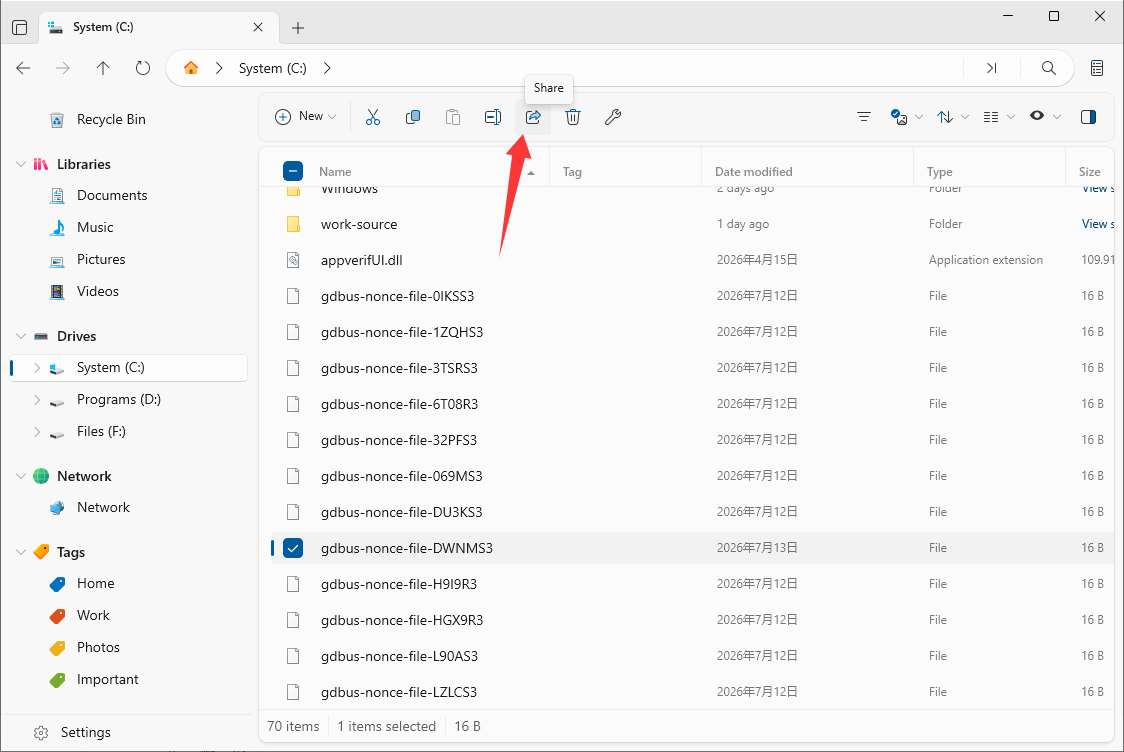
Tip: The Share button is enabled only when the current selection can be shared.
Tag files & folders
Use tags to colour-code and group related files so you can find them again quickly:
1. Right-click a file or folder and open Edit tags from the context menu.
2. Tick one or more tags (or create a new one) to apply them to the selection.
3. In the sidebar File Tags section, click a tag to see every file that carries it.
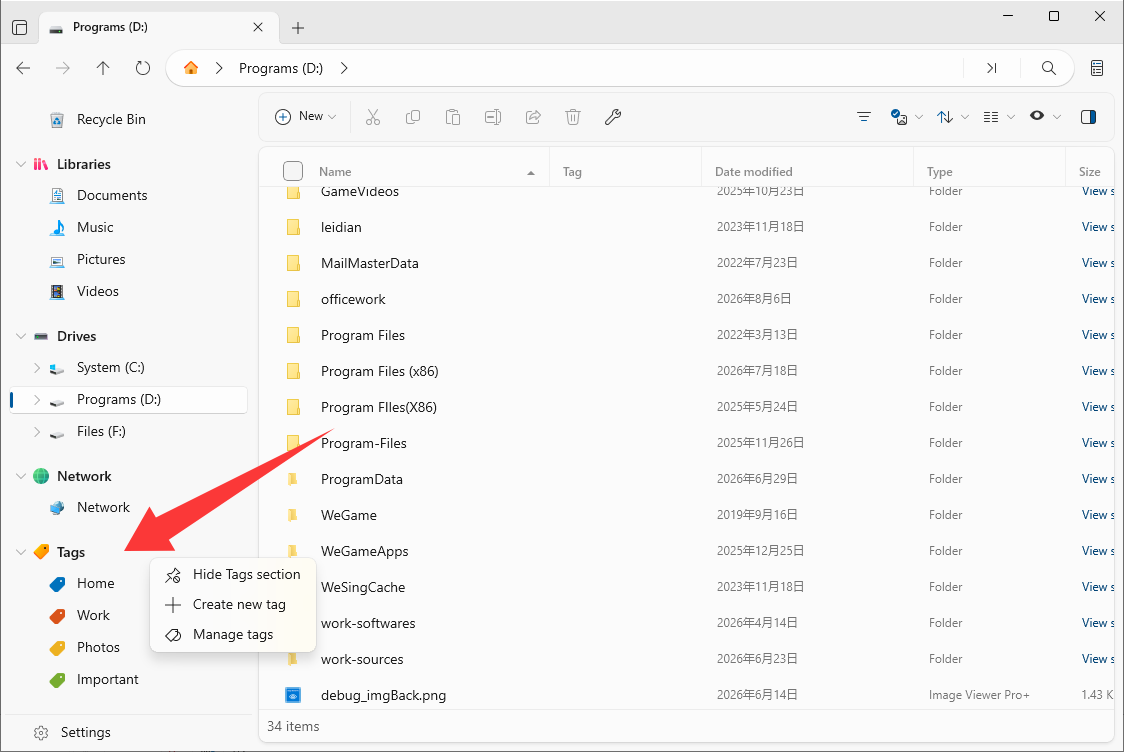
Tip: Manage your tag list (names and colours) in Settings → File Tags, and search by tag with tag:blue.
Delete files
1. Select the items you want to remove.
2. Press Delete to move them to the Recycle Bin, or choose Delete from the context menu.
3. To permanently erase without the Recycle Bin, use Delete permanently (Shift+Delete).
Warning: Permanent delete cannot be undone. Use it only when you are sure.