View & customize shortcuts
Every action in Files Manager has a keyboard shortcut, and you can change any of them:
1. Open Settings → Actions.
2. Browse the command list, or use the Search box to find a command by name.
3. Edit a command’s key binding, add a new one, or delete it.
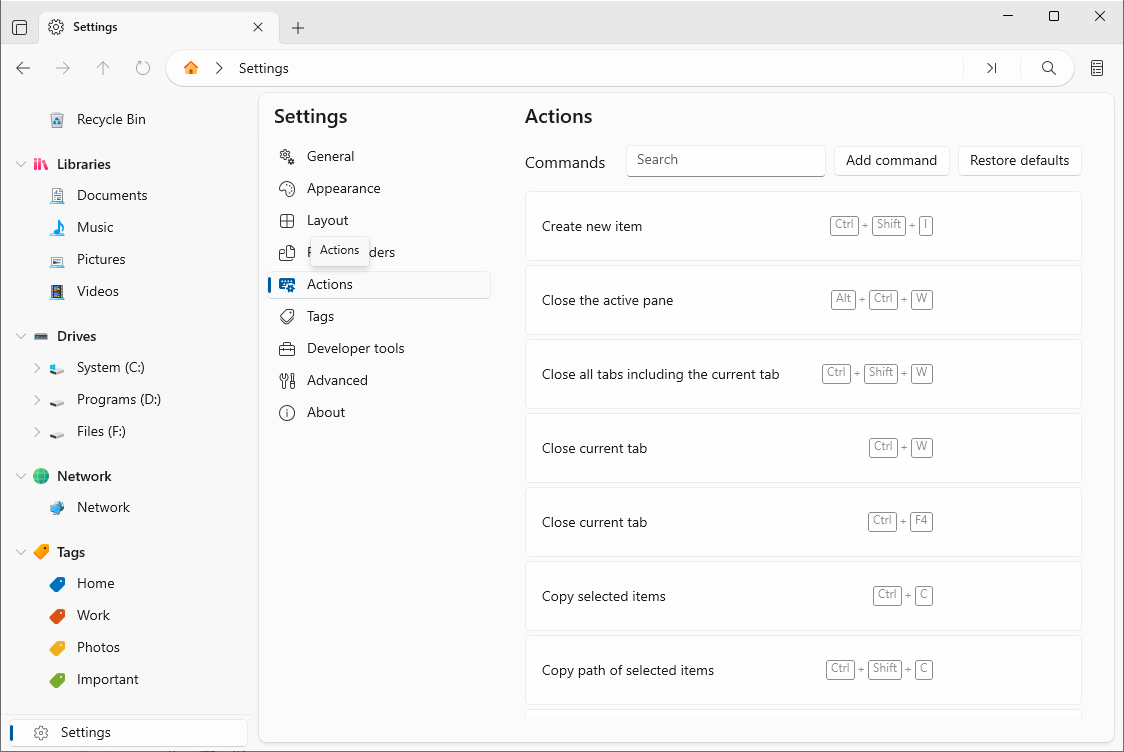
Tip: Use Restore defaults to put every shortcut back to its original binding at any time.
Common default shortcuts
- New tab Ctrl+T · New window Ctrl+N
- Close tab Ctrl+W · Reopen closed tab Ctrl+Shift+T
- Copy Ctrl+C · Cut Ctrl+X · Paste Ctrl+V
- Rename F2 · Delete Delete · Delete permanently Shift+Delete
- Search Ctrl+F · Open command palette Ctrl+Shift+P
- Back / Forward / Up Alt+Left / Alt+Right / Alt+Up
Tip: The exact default for each command is shown next to it in Settings → Actions, and in each tooltip in the app.
Run any action with the command palette
When you do not remember a shortcut, open the command palette to run any command by name:
1. Press Ctrl+Shift+P.
2. Start typing the action name (for example “compress” or “new folder”).
3. Press Enter to run the highlighted command.
Tip: The palette searches both command names and descriptions, so you can search by what the command does.