What would you like to do?
- Set up a projectProject name, disc size, encoding priority
- Set video / audio / playbackNTSC or PAL, bitrate, volume, loop playback
- Set burning propertiesSpeed, drive, erase, verify, auto-eject
- Add and manage titlesDrag & drop, edit, remove, capacity check
- Choose a menu and preview itTemplates, auto-play, menu preview
- Create ISO or burn a discISO image, disc burning, progress and finish
- Edit title, subtitle, save projectThumbnails, recent projects, language
01 The app at a glance
When you open DVD Creator and DVD Burner Plus you land on the Home screen with three cards.
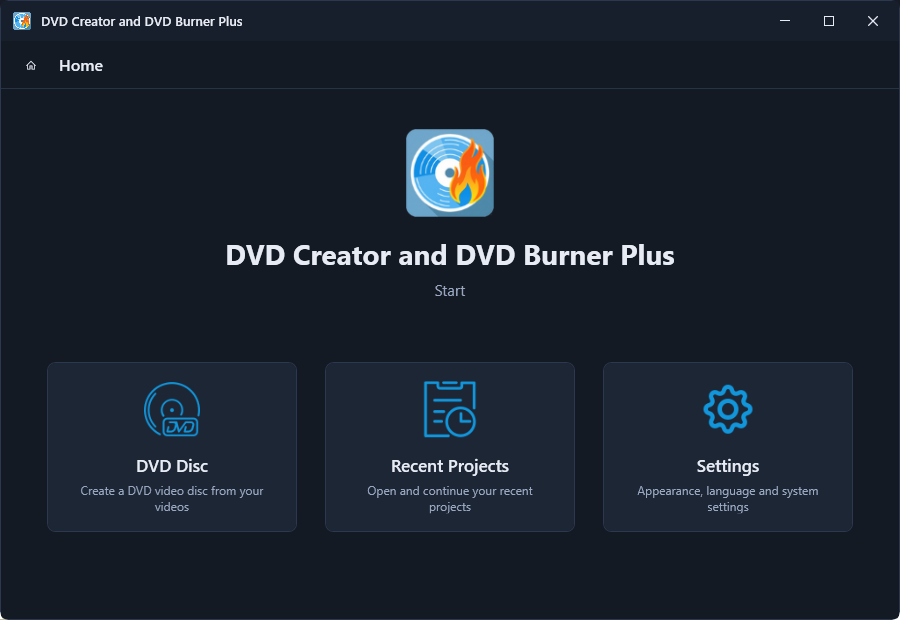
- DVD Disc - start a new DVD video project from your videos
- Recent Projects - open and continue a project you saved earlier
- Settings - change appearance, language and system settings
02 The 5-step workflow
Making a DVD follows one simple wizard. Every screen has a blue Next button; the steps are:
- Project Profile - name your project and choose where it is saved. Learn more →
- Settings - general, video, audio, playback and burning options. Learn more → Burning options →
- Titles - add the videos that will become your DVD titles. Learn more →
- Menu - pick a menu template and preview it. Learn more →
- Burn - create an ISO image, burn the disc, or both. Learn more →
03 What you can do
- Create an ISO image of your DVD project - perfect for backups or later burning.
- Burn directly to disc - with full control over write speed and drive.
- Automatically eject the tray when burning finishes.
- Verify the disc after burning to make sure it was written correctly.
- Customize everything - NTSC/PAL, bitrate, audio channels, menu templates and more.
New here? Follow the pages in order - each one is one step of the wizard. You can jump straight to a question from the list at the top of this page.