06
Menu Settings & Preview
How do I choose a menu template and preview it?
01 Choose a menu template
The menu is the screen viewers see when the DVD starts. Pick a template on the Menu Settings step.
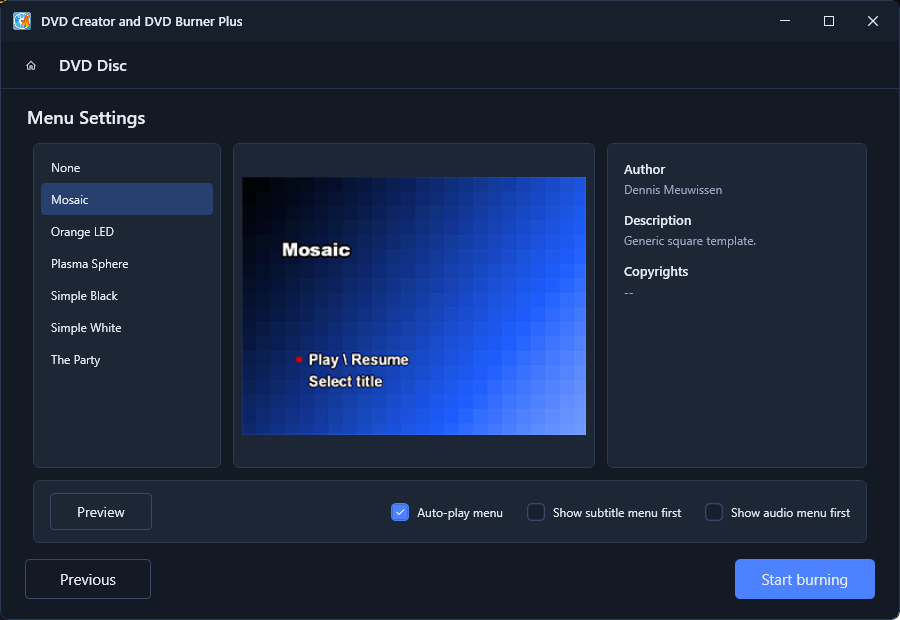
Three areas work together:
- Template list (left) - None, Mosaic, Orange LED, Plasma Sphere, Simple Black, Simple White, The Party. Selecting one updates the preview instantly.
- Live preview (center) - shows how the selected template looks with your project title.
- Template info (right) - author, description and copyrights of the template.
None disables the menu completely - the DVD plays the first title directly. Pick it if you want a no-menu disc.
02 Compare templates
Every template has its own look - compare them to find the one that fits.
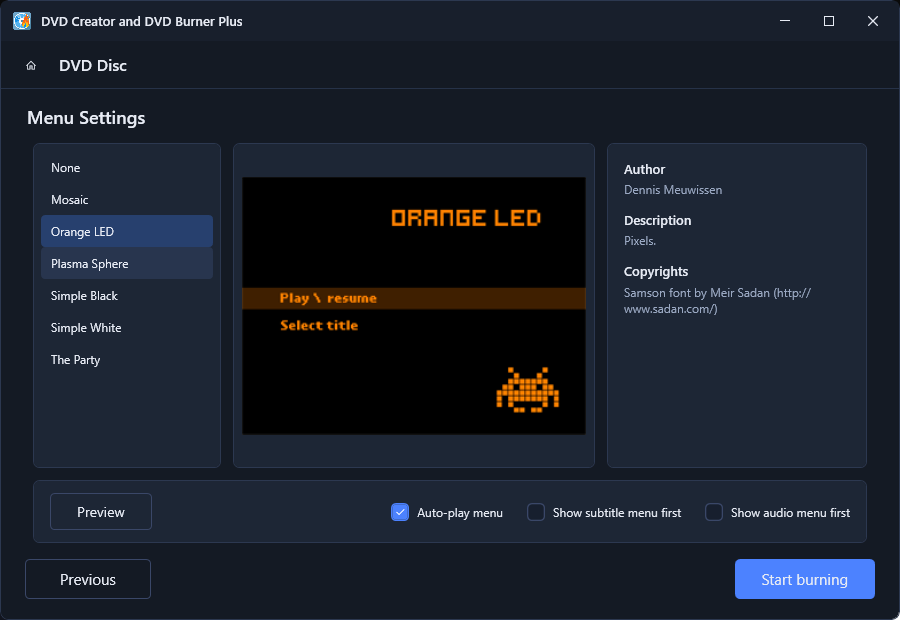
For example, the Mosaic template uses a blue gradient mosaic background, while Orange LED is a black pixel-art design with an orange LED font. The menu always shows a Play / Resume entry and a Select title entry.
03 Menu playback options
- Auto-play menu - the menu plays its background video/motion automatically.
- Show subtitle menu first - opens the subtitle selection page before the main menu.
- Show audio menu first - opens the audio/language selection page before the main menu.
04 Preview the menu
Click Preview on the Menu Settings screen to open the full preview window.
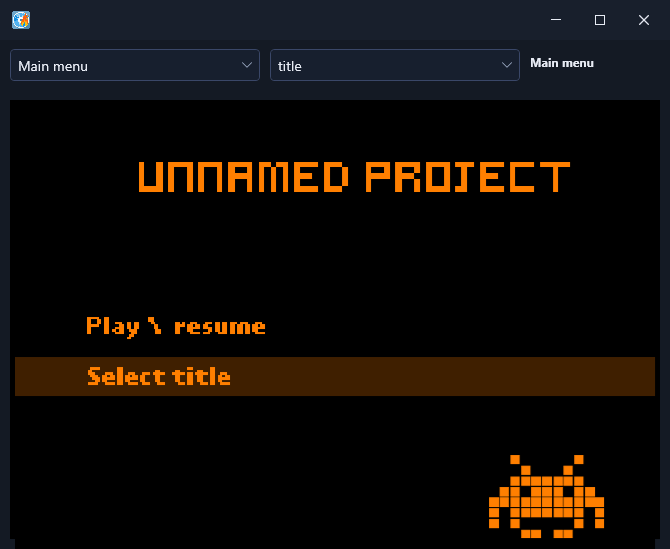
The preview toolbar has two dropdowns:
- The first dropdown switches between menu sets (for example Main menu).
- The second dropdown opens each title's submenu page (for example titleselect_1).
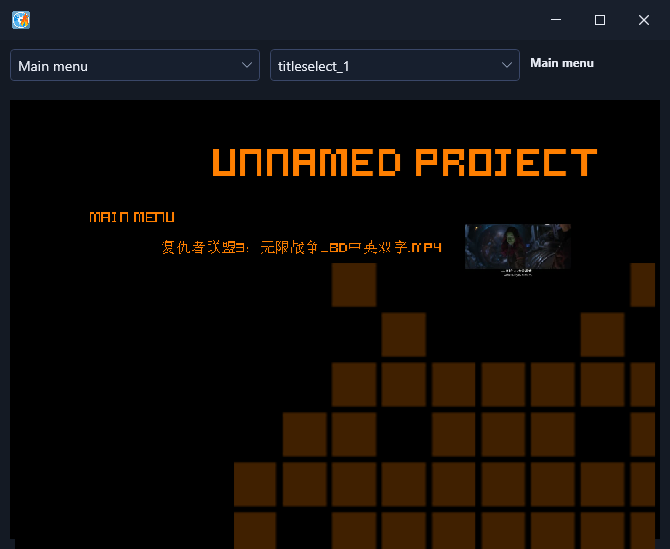
The title-select page shows every title you added, with its file name and video thumbnail - so this is also a great way to check that your titles look right before burning.
The preview is a simulation - it shows the menu layout and text, not the final rendered motion menus. Small differences are normal.