03
Video, Audio & Playback
How do I set video, audio and playback options?
01 Video tab
Controls how your videos are re-encoded for DVD.
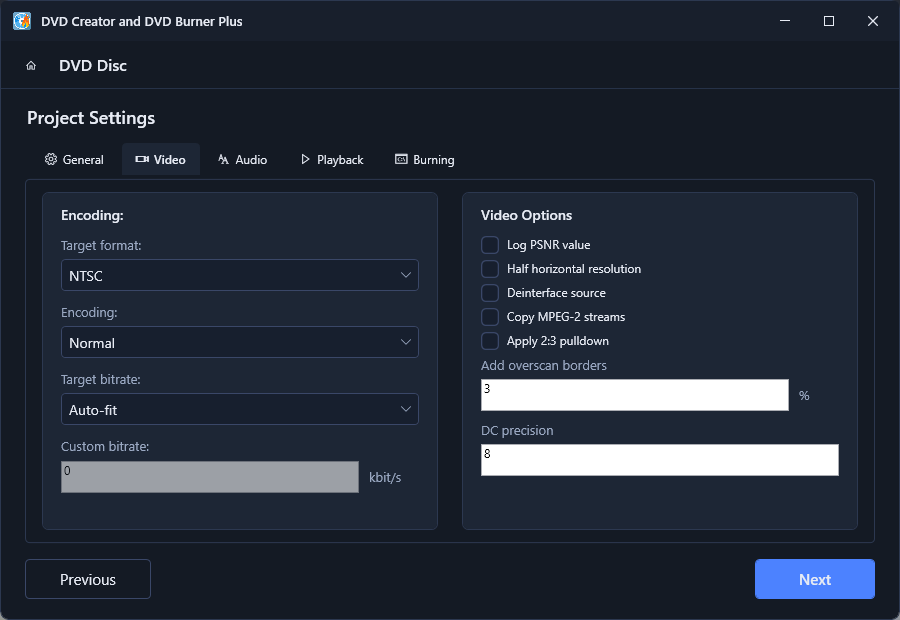
- Target format
- Choose the TV standard: NTSC (used in North America, Japan) or PAL (used in Europe, Australia and much of Asia).
- Encoding
- Encoding effort - Normal is a good balance of speed and quality.
- Target bitrate
- Auto-fit picks the best bitrate so your content fills the disc without overflowing. Choose Custom to set your own value in kbit/s.
- Custom bitrate
- Only active when a custom bitrate is selected. Higher bitrate = better quality but more disc space.
Video options
- Log PSNR value - records signal-to-noise quality metrics while encoding.
- Half horizontal resolution - halves horizontal resolution for smaller files.
- Deinterlace source - removes interlacing from camera or TV recordings.
- Copy MPEG-2 streams - copies MPEG-2 sources without re-encoding (faster, keeps quality).
- Apply 2:3 pulldown - converts 24 fps film to 29.97 fps NTSC.
- Add overscan borders - trims the edge of the picture that TVs may cut off (default 3%).
- DC precision - MPEG-2 precision setting (default 8).
If your source videos play in a media player without problems but the DVD looks wrong, try checking Deinterlace source and keeping the default Auto-fit bitrate.
02 Audio tab
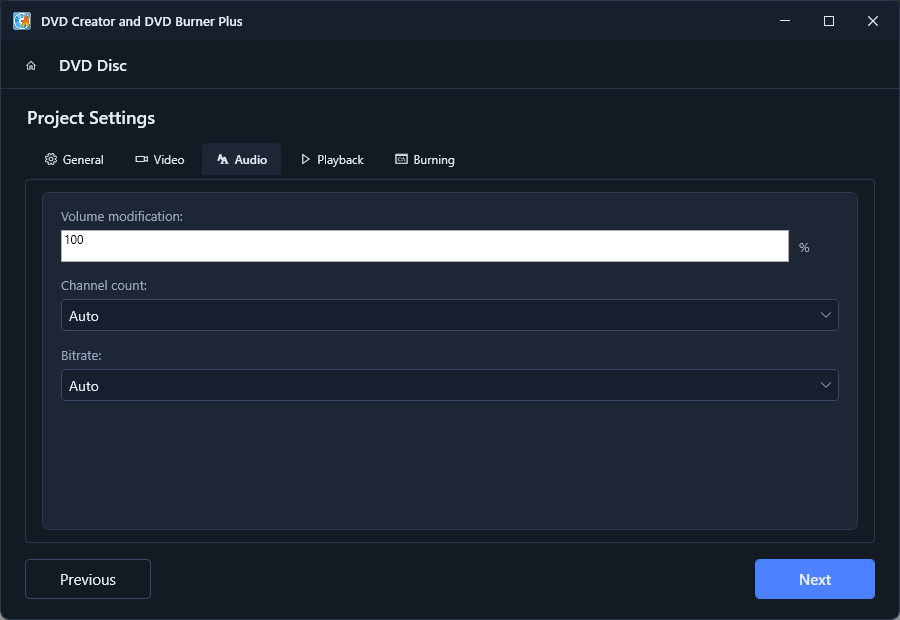
- Volume modification
- Adjusts the output volume in percent (100% keeps the original level).
- Channel count
- Auto keeps the source channels; choose Mono, Stereo or Surround to force a conversion.
- Bitrate
- Auto picks a suitable audio bitrate for the content.
03 Playback tab
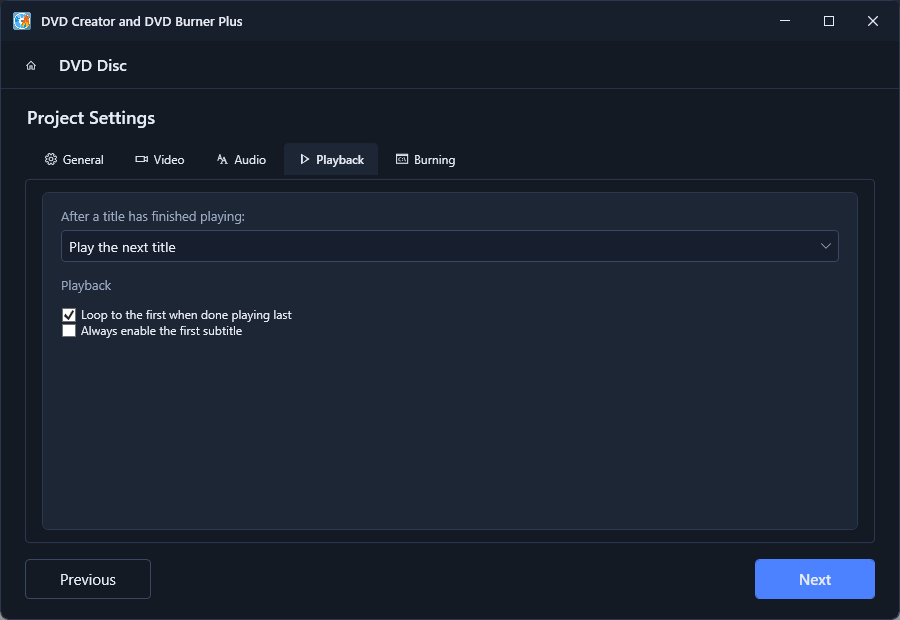
- After a title has finished playing
- Where the player goes next - for example Play the next title or back to the menu.
- Loop to the first when done playing last
- When checked, the disc plays continuously until you stop it.
- Always enable the first subtitle
- Shows the first subtitle track automatically instead of requiring the viewer to turn it on.