05
Add & Manage Titles
How do I add and manage my videos (titles)?
01 Add your videos
The "Add title" screen is the third step of the wizard. Start with an empty drop zone.
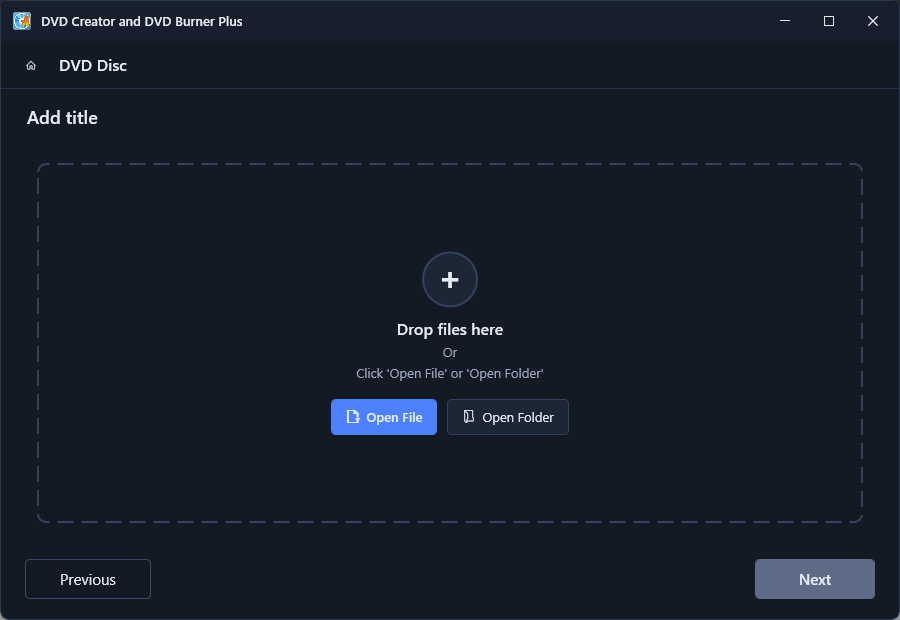
There are three ways to add videos:
- Drag and drop files into the Drop files here area.
- Click Open File to select one or more video files.
- Click Open Folder to add every supported video in a folder (including subfolders).
The Next button stays disabled until you add at least one title.
02 The title list
Once videos are added, each one becomes a title card in the list.
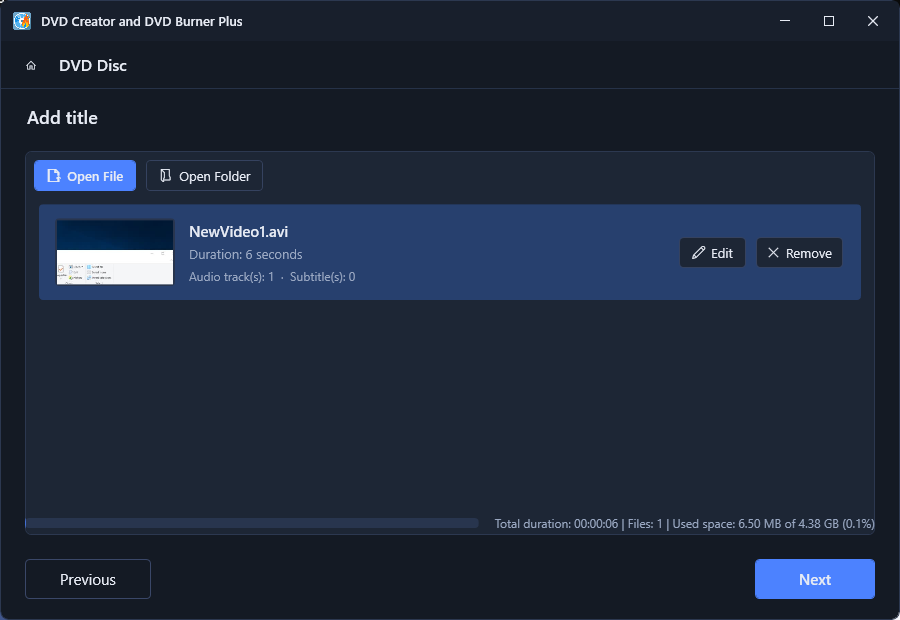
Each title card shows:
- The video thumbnail on the left
- The file name and Duration
- Audio track(s) and Subtitle(s) counts
- Edit (pencil) and Remove (x) buttons on the right
The toolbar at the top keeps Open File and Open Folder available, so you can keep adding more videos at any time.
Watching your disc capacity
The status bar at the bottom shows a live usage bar and text like:
Total duration: 00:00:06 | Files: 1 | Used space: 6.50 MB of 4.38 GB (0.1%)
The percentage reflects the Target Size you chose on the General tab. If your project would overflow the disc, remove or re-encode some titles.
Subtitles are picked up automatically: a subtitle file with the same base name as the video (for example movie.srt next to movie.mp4) is attached to that title for you.