
1. 怎样打开一个 PDF1. How to open a PDF
- 双击 PDF 文件(安装后 .pdf 默认由 WXP Office Suite 处理)——会直接打开 PDF 编辑器,不经过主界面。Double-click the PDF (WXP Office Suite owns .pdf after installation) — the editor opens directly, bypassing the shell.
- 主程序 → PDF Tools → PDF Editor,然后从「Files」里打开文件。Shell → PDF Tools → PDF Editor, then open the file from “Files”.
- 拖放:把 PDF 拖进主程序右侧区域,同样交给编辑器。Drag-drop: dropping a PDF on the shell's right area also hands it to the editor.
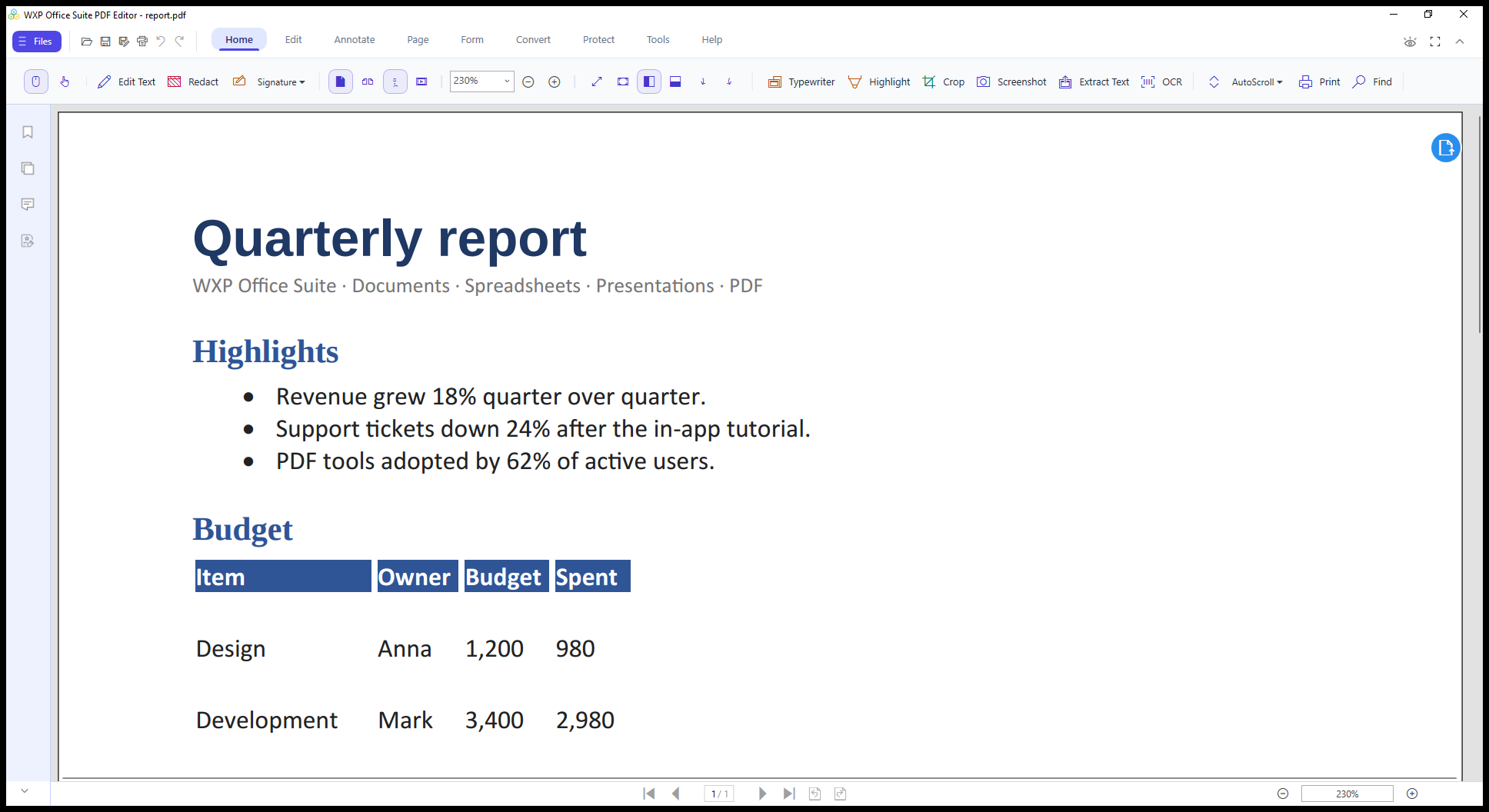
2. 界面与标签页2. Ribbon and tabs
顶部按任务分成七个标签页,常用的都在 Home 里:
The ribbon splits its commands by task; the everyday ones live on Home:
| 标签页Tab | 主要内容What is there |
|---|---|
| Files | 打开、保存、另存、打印、最近文件Open, save, save as, print, recent files |
| Home | Edit Text、Redact、Signature、页面插入/旋转/删除、缩小放大、Typewriter、Highlight、Crop、Screenshot、Extract Text、OCR、AutoScroll、Print、FindEdit Text, Redact, Signature, page insert/rotate/delete, zoom, Typewriter, Highlight, Crop, Screenshot, Extract Text, OCR, AutoScroll, Print, Find |
| Edit | 撤销/重做、复制粘贴、选择与格式Undo/redo, clipboard, selection and formatting |
| Annotate | 高亮、下划线、删除线、便签、图章、绘图、形状与箭头Highlight, underline, strikeout, notes, stamps, drawing, shapes and arrows |
| Page | 插入、删除、旋转、裁剪、提取、合并、水印、页眉页脚Insert, delete, rotate, crop, extract, merge, watermark, header and footer |
| Form | 表单字段识别与填写、扁平化Field detection and filling, flatten |
| Convert | PDF ↔ Word / Excel / PPT / 图片 / HTML / 文本PDF ↔ Word / Excel / PPT / images / HTML / text |
| Protect | 密码、权限、签名与证书、擦除敏感信息Password, permissions, certificates and signatures, redaction |
| Tools | OCR、批量处理、设置OCR, batch processing, settings |
3. 阅读与视图3. Reading and view
- 翻页:底部工具栏的左右箭头,或直接输入页码;Page Up / Page Down 也可以。Paging: arrows at the bottom or type a page number; Page Up / Page Down work too.
- 缩放:右下角下拉框选择百分比,或按住 Ctrl 滚动滚轮;「适合宽度」最常用。Zoom: the bottom-right dropdown, or Ctrl + wheel; Fit Width is the usual choice.
- 查找:Home 标签的 Find(Ctrl + F),支持整词与大小写。Find: Home → Find (Ctrl + F), with whole-word and case options.
- 自动滚动:Home 里的 AutoScroll 让长文档自己往下滚,适合展示或校对。AutoScroll: on the Home tab, scrolls long documents by itself — handy for presenting or proofreading.
- 左侧面板:缩略图、书签、附件、批注列表,点一下即可跳转。Left panels: thumbnails, bookmarks, attachments and annotations — click to jump.
4. 编辑文字与图片4. Edit text and images
Home → Edit Text 进入文字编辑模式,可以直接点进 PDF 的段落里改错别字、改数字、调字号;双击图片可以缩放、拖动、替换或删除。
Home → Edit Text turns on text editing: click straight into a paragraph to fix a typo, change a number or adjust the font size. Double-click an image to resize, move, replace or delete it.
提示:编辑后请用「另存为」保存新文件;原 PDF 的字体如果没嵌入,替换文字时可能回退到相近字体,这是 PDF 格式本身的限制。
Tip: save your edits with Save As. If the original PDF did not embed a font, replaced text may fall back to a similar font — a limitation of the PDF format itself.
插入与替换图片Insert and replace images
Home → 图片按钮插入新图片;选中已有图片后可以「替换图片」保持位置与大小不变。
Home → image button inserts a new image; select an existing one and use Replace to keep its position and size.
5. 批注、签名与遮挡5. Annotate, sign and redact
- 高亮 / 下划线 / 删除线:先选工具再拖选文字。Highlight / underline / strikeout: pick the tool, then drag across the text.
- Typewriter:像打字机一样在页面任意位置输入文字,适合填空白处。Typewriter: type anywhere on the page — good for filling blank areas.
- 便签与图章:Annotate 标签里选择图章样式(已阅、批准、草稿等)。Notes and stamps: pick a stamp style (Reviewed, Approved, Draft…) on the Annotate tab.
- 签名:Home → Signature,可以手写、键入或使用图片签名;签名可作为可复用图像保存。Signature: Home → Signature — draw, type or use an image; signatures can be saved for reuse.
- 遮挡(Redact):Home → Redact 框选要隐藏的内容,应用后内容被真正删除,而不是仅被黑色覆盖。Redact: Home → Redact, box the sensitive area; applying it really removes the content rather than painting over it.
6. 页面管理6. Page management
| 操作Task | 位置Where | 说明Notes |
|---|---|---|
| 插入页面Insert pages | Home / Page | 从文件插入、插入空白页、从扫描仪或图片插入From file, blank page, scanner or image |
| 删除 / 提取Delete / extract | Home / Page | 选择页码范围后删除或提取为新 PDFPick a page range, then delete or extract into a new PDF |
| 旋转与裁剪Rotate and crop | Home | 整页旋转 90°,或框选保留区域做裁剪Rotate whole pages 90°, or box the area to keep (crop) |
| 合并Merge | Page | 把当前文档与其它 PDF 合并,可调整顺序Combine with other PDFs, order adjustable |
| 水印 / 页眉页脚 / 页码Watermark / header / numbering | Page | 支持文字水印、分页规则与起始页码Text watermarks, page-range rules and start numbers |
7. 表单填写7. Forms
打开带表单的 PDF 时,编辑器会自动识别输入框并高亮。点击字段直接输入,Tab 跳到下一个字段;Form 标签里可以把填好的表单「扁平化」,让别人无法再修改。
When a PDF contains form fields the editor highlights them automatically. Click a field and type; Tab moves to the next one. The Form tab can flatten a completed form so nobody can change it afterwards.
没有表单字段的扫描件,可以用 Home → Typewriter 或 Form → 添加字段手动补。
For scanned forms without fields, add your own with Home → Typewriter or Form → add field.
8. 加密与权限8. Protect
- 打开密码:Protect → 设置密码,打开文件时需要输入。Open password: Protect → set password; the file asks for it when opened.
- 权限密码:限制打印、复制、编辑,可单独设置。Permission password: restrict printing, copying and editing separately.
- 证书签名:数字签名面板可以验证已有签名并添加新签名。Certificate signatures: verify existing signatures and add your own.
密码设置与证书签名属于付费功能;未解锁时会先出现购买窗口。
Passwords and certificate signatures are paid features; an unlock window appears first when they are not available.
9. OCR 与格式转换9. OCR and conversion
OCR:Home → OCR(或 Tools → OCR)把扫描件里的图片文字识别成可选文字,识别后可查找、复制和编辑。识别前可在 Tools → Settings 里选择语言(中文 / 英文等)。
OCR: Home → OCR (or Tools → OCR) turns the text inside scanned images into selectable text you can search, copy and edit. Pick the language first under Tools → Settings.
转换:Convert 标签提供 PDF → Word / Excel / PPT / 图片 / HTML / 文本。转换 PDF → Word 属于付费功能,导出图片与文本可免费使用。
Convert: the Convert tab offers PDF → Word / Excel / PPT / images / HTML / text. PDF → Word is a paid feature; exporting images and text is free.
反向的 Word / Excel / PPT → PDF 使用 PDF 转换器(或办公模块里的「导出为 PDF」)。
For the other direction — Word / Excel / PPT → PDF — use the PDF Converter (or “Export as PDF” inside the office module).
10. 保存与导出10. Save and export
- 保存:Files → Save(Ctrl + S)直接写回原文件,或 Save As 另存一份。Save: Files → Save (Ctrl + S) overwrites the file; Save As writes a copy.
- 打印:Files → Print(Ctrl + P)。Print: Files → Print (Ctrl + P).
- 导出图片:Page → 导出为图片,可选分辨率。Export images: Page → export as image, resolution selectable.
快捷键:Ctrl + O 打开,Ctrl + S 保存,Ctrl + P 打印,Ctrl + F 查找,Ctrl + 滚轮缩放,Esc 退出当前工具。
Shortcuts: Ctrl + O open, Ctrl + S save, Ctrl + P print, Ctrl + F find, Ctrl + wheel zoom, Esc to leave the current tool.