
1. 怎样进入办公模块1. How to get into the office module
- 新建:主程序左上六个图标(Document / Spreadsheet / Presentation / Draw / Math / Base),点哪个进哪个模块,以空白文档启动。Create: the six icons at the top-left of the shell (Document / Spreadsheet / Presentation / Draw / Math / Base) open that module with a blank document.
- 打开已有文件:双击资源管理器里的 docx / xlsx / pptx,或主程序点「Open File」,都会进入对应模块并载入文件。Open an existing file: double-click a docx / xlsx / pptx in Explorer, or use “Open File” in the shell — the matching module opens with the file loaded.
- 模块之间切换:在办公模块里用「文件 → 新建 → 电子表格 / 演示文稿 …」可以直接打开其它组件。Switch modules: inside the office module use File → New → Spreadsheet / Presentation … to open another component.
首次启动较慢:办公模块是完整的办公内核,第一次打开需要几秒钟建立用户配置,之后就快了。
First launch is slower: the office module is a full engine; the first start creates your user profile and takes a few seconds, later starts are quick.
2. 通用操作(六个模块都一样)2. Common tasks across all six modules
| 操作Task | 入口Where | 说明Notes |
|---|---|---|
| 打开Open | 文件 → 打开(Ctrl + O)File → Open (Ctrl + O) | 支持 docx、xlsx、pptx、odf、rtf、txt、csv、pdf(只读导入)等docx, xlsx, pptx, odf, rtf, txt, csv and PDF (import only) |
| 保存Save | Ctrl + S | 首次保存会询问是否保留原格式;建议保持 docx / xlsx / pptx 以便与 Office 互传The first save asks about the format; keep docx / xlsx / pptx to stay compatible with Office |
| 另存为 PDFExport as PDF | 文件 → 导出为 PDFFile → Export as PDF | 输出为 PDF 属于付费功能,未解锁时会提示购买Producing a PDF is a paid feature; an unlock prompt appears if needed |
| 打印Print | Ctrl + P | 打印属于付费功能;也可以先导出 PDF 再打印Printing is a paid feature; alternatively export a PDF and print that |
| 最近文档Recent documents | 文件 → 最近使用的文档File → Recent Documents | 与主程序的「Recent」相互独立,各自记录Independent from the shell's Recent list — each keeps its own history |
| 撤销 / 重做Undo / redo | Ctrl + Z / Ctrl + Y | 可撤销步数在工具 → 选项 → 内存里调整History depth is configurable under Tools → Options → Memory |
| 界面语言UI language | 工具 → 选项 → 语言设置Tools → Options → Language Settings | 界面与文档语言可以分开设置,重启后生效Interface and document language are separate; restart to apply |
3. 格式兼容3. Format compatibility
办公模块以 Microsoft 格式和 ODF 双轨保存,常见格式都能直接打开和保存:
The module speaks both Microsoft formats and ODF, and opens and saves all of the following directly:
| 类型Type | 可直接打开 / 保存Open and save directly |
|---|---|
| 文字文档Text documents | doc, docx, docm, dotx, rtf, txt, odt, ott, html |
| 电子表格Spreadsheets | xls, xlsx, xlsm, xltx, csv, ods, ots, html |
| 演示文稿Presentations | ppt, pptx, pptm, potx, odp, otp |
| 绘图Drawings | odg, otg, svg, png, jpg, pdf(导出) |
| 公式 / 数据库Formulas / database | odf(公式)、odb / dbf(数据库) |
提示:打开别人发来的 docx / xlsx / pptx 时建议先用「文件 → 属性」看一眼是否含有宏,再决定是否启用宏。
Tip: when opening a docx / xlsx / pptx from someone else, check File → Properties for macros before enabling them.
4. Writer — 文字文档4. Writer — text documents
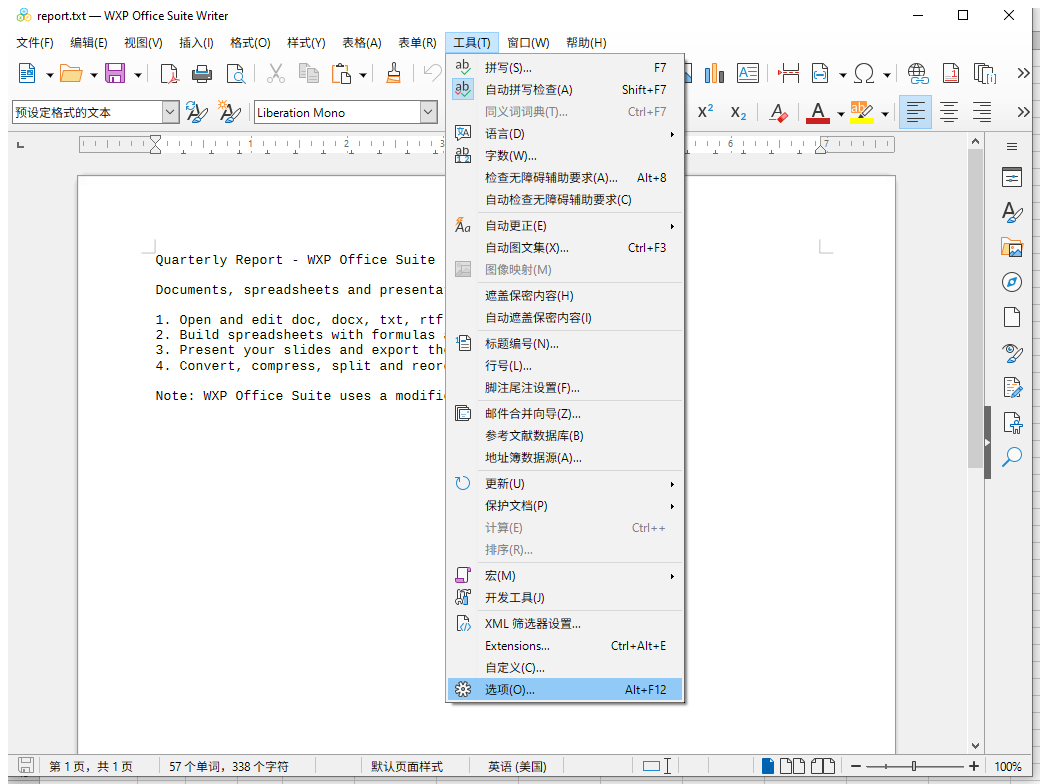
文字与段落Text and paragraphs
工具栏上依次是字体、字号、加粗 / 斜体 / 下划线、颜色、对齐方式与项目符号。段落级设置(缩进、行距、段间距)在「格式 → 段落」里;用「格式 → 样式」套用标题 1 / 标题 2,后面生成目录就靠它。
The toolbar carries font, size, bold / italic / underline, colour, alignment and bullets. Paragraph settings (indents, line spacing) live in Format → Paragraph; apply Heading 1 / Heading 2 from Format → Styles — the table of contents depends on them.
插入目录与页码Table of contents and page numbers
- 先把各级标题套用样式(标题 1 / 标题 2)。Apply heading styles to your section titles first.
- 光标放在要插入目录的位置 → 插入 → 目录和索引 → 目录和索引,直接确定即可。Put the cursor where the TOC should go → Insert → Table of Contents and Index → Table of Contents and Index, then OK.
- 页码:插入 → 页眉和页脚 → 页脚,再插入 → 字段 → 页码。Page numbers: Insert → Header and Footer → Footer, then Insert → Field → Page Number.
- 改完内容后右键目录 → 更新索引 / 目录。After edits, right-click the TOC → Update Index / Table.
插入图片与表格Insert images and tables
插入 → 图像 可从文件添加图片,右键图片可以设置「文字环绕」;插入 → 表格 指定行列数,表格内右键可增删行列、合并单元格。
Insert → Image adds a picture; right-click it to set text wrapping. Insert → Table takes rows and columns; right-click inside for insert/delete rows and merge cells.
插入图片与表格属于付费功能,未解锁时会提示购买;纯文字排版不受影响。
Inserting images and tables is a paid feature and prompts for an unlock when needed; plain text editing is unaffected.
5. Calc — 电子表格5. Calc — spreadsheets
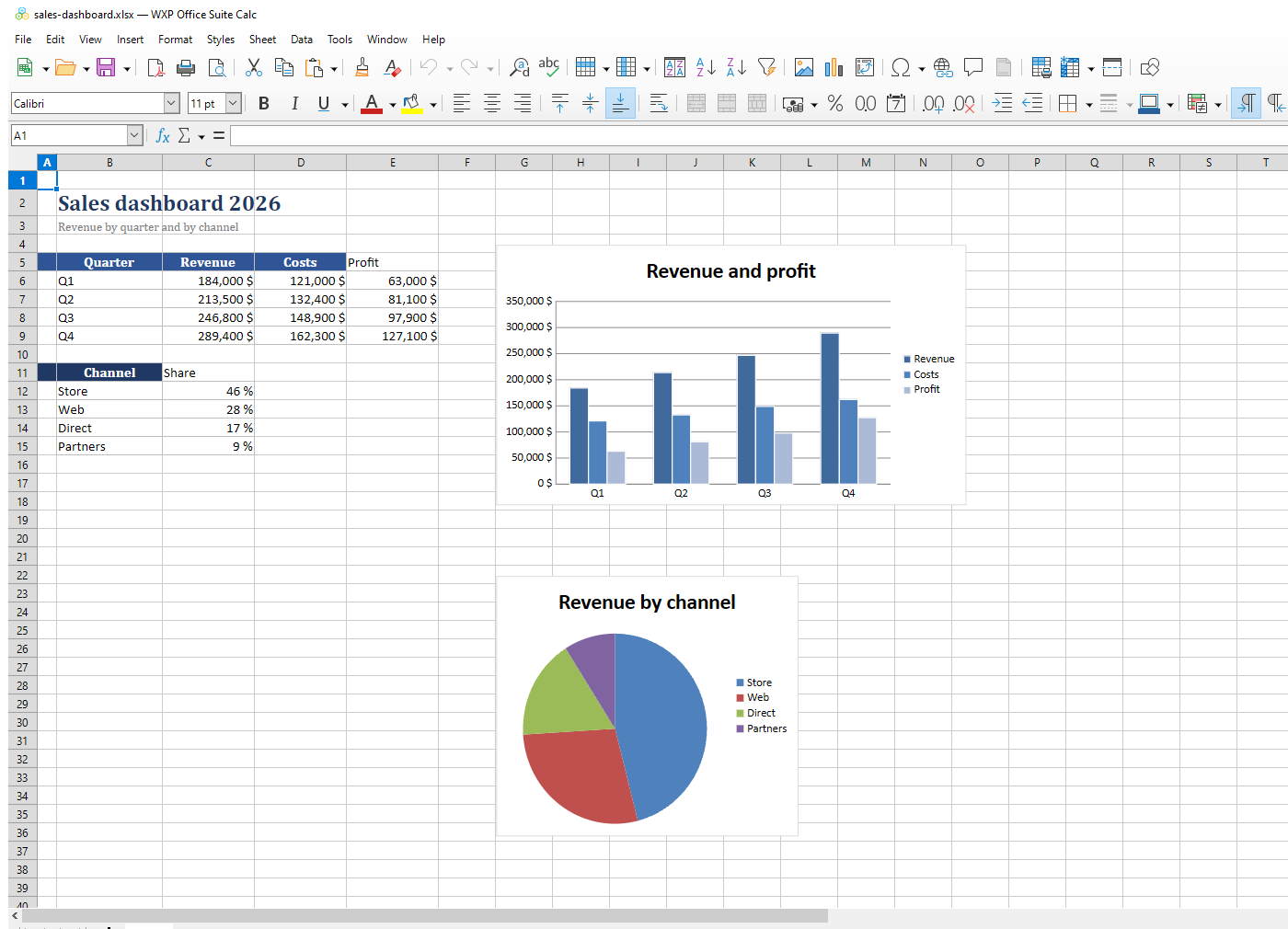
输入与公式Entering data and formulas
选中单元格直接输入;以 = 开头即为公式,例如 =SUM(B2:B20)、=IF(C7=0,0,D7/C7)。右下角拖动填充柄可以复制公式,绝对引用用 $(如 $B$2)。
Type into a cell; anything starting with = is a formula, e.g. =SUM(B2:B20) or =IF(C7=0,0,D7/C7). Drag the fill handle to copy formulas, and use $ for absolute references such as $B$2.
数字格式与条件格式Number formats and conditional formatting
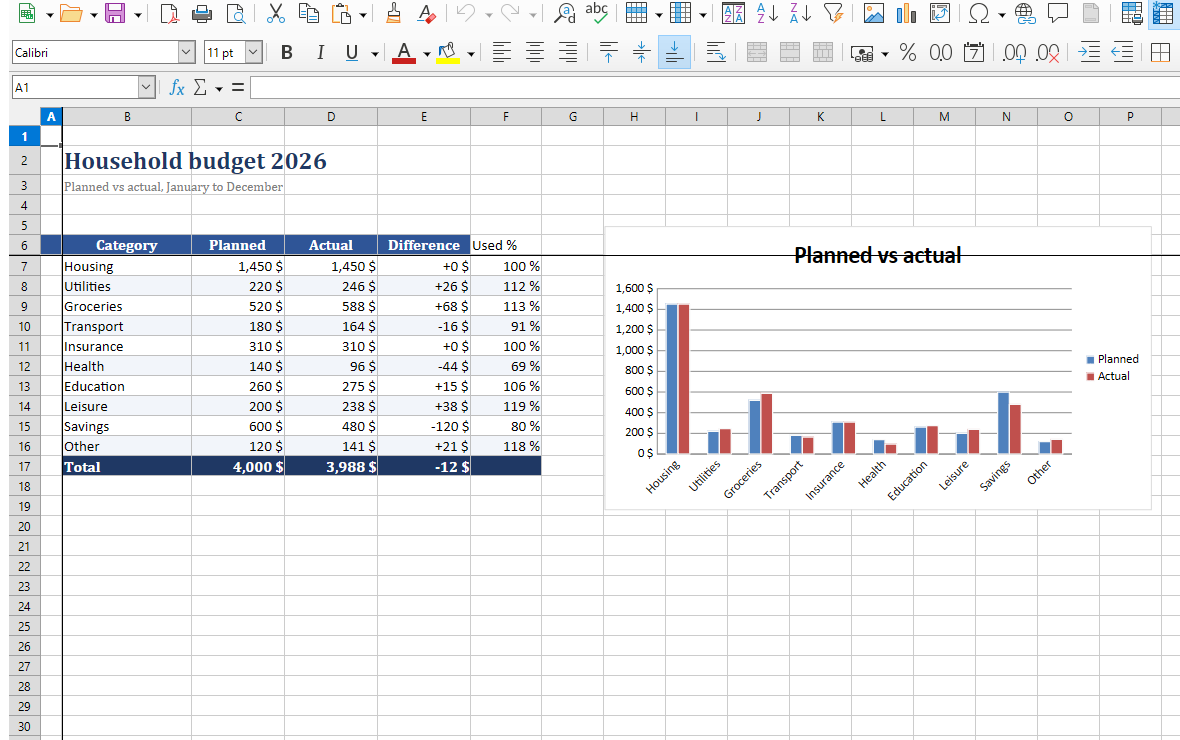
选中区域 → 格式 → 单元格 → 数字,可选货币、百分比、日期等;格式 → 条件格式 可以让超支的数字自动变红。
Select the range → Format → Cells → Numbers for currency, percent or dates; Format → Conditional Formatting turns overspending red automatically.
插入图表Insert a chart
- 选中要画图的数据区域(含表头)。Select the data range, headers included.
- 插入 → 图表,选择柱状图 / 折线图 / 饼图,下一步确认数据范围与数据系列。Insert → Chart, pick column / line / pie, then confirm the data range and series.
- 双击图表可改标题、图例、坐标轴与颜色;图表会随数据自动更新。Double-click the chart to edit title, legend, axes and colours; it follows the data automatically.
为打印或转 PDF 做页面设置Page setup before printing or PDF export
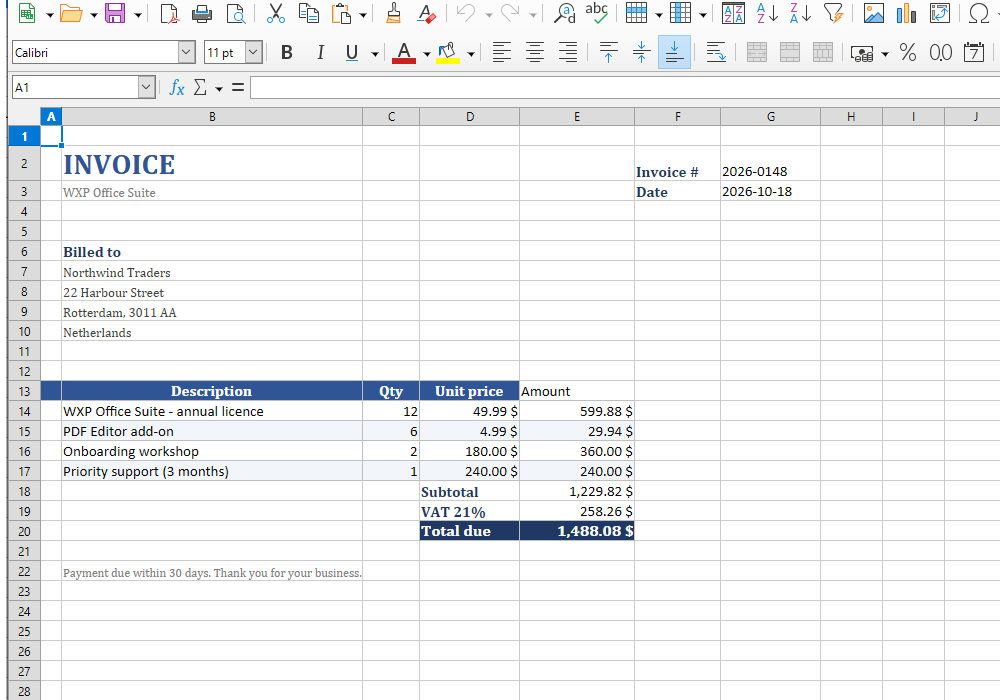
表格默认按纵向分页,宽表很容易被切开。转换或打印前:格式 → 页面样式(选横向、缩放比例设为「适合宽度」)、格式 → 打印区域 → 定义。设置好再导出 PDF,分页就正常了。
Wide sheets break across pages by default. Before printing or exporting: Format → Page Style (landscape, scale to fit width) and Format → Print Ranges → Define. Then export the PDF and the pagination is right.
6. Impress — 演示文稿6. Impress — presentations
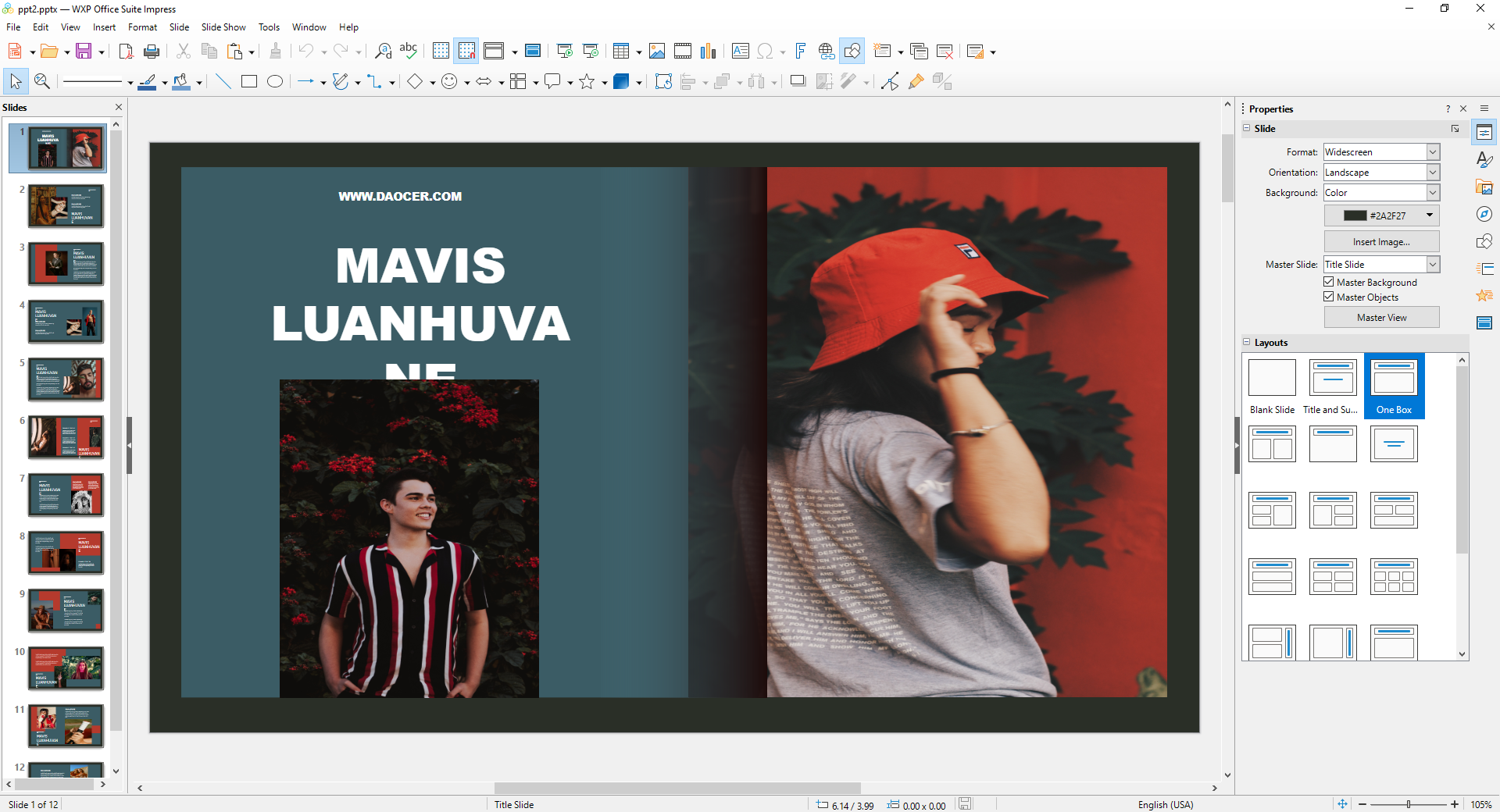
新建与版式Creating slides and layouts
启动后先选模板或「空白演示文稿」,右侧「版式」面板选标题页 / 标题和内容 / 双栏等;在左侧缩略图区回车或右键 → 新建幻灯片。
Pick a template or a blank presentation, then choose a layout (title slide, title and content, two content…) from the panel on the right. Press Enter in the thumbnail pane, or right-click → New Slide.
动画与放映Transitions and slideshow
- 幻灯片切换:右侧「幻灯片切换」面板选效果与时长,可应用到全部。Transitions: the Slide Transition panel sets the effect and duration; apply to all if you like.
- 对象动画:选中文字框或图片 → 右侧「动画」面板 → 添加入场 / 强调 / 退出。Object animation: select a text box or image → Animation panel → add entrance / emphasis / exit.
- 放映:F5 从头开始,Shift + F5 从当前页开始,Esc 退出;演讲者视图可以看备注与下一页。Slideshow: F5 from the start, Shift + F5 from the current slide, Esc to exit; presenter view shows notes and the next slide.
导出为 pptx 可直接发给用 PowerPoint 的同事;导出 PDF 适合定稿外发(付费功能)。
Export to pptx to share with PowerPoint users, or to PDF for a fixed copy (paid feature).
7. Draw — 绘图7. Draw — drawings
适合画流程图、组织结构图、海报与示意图:左侧形状面板拖出矩形 / 圆 / 箭头,连接线会自动吸附到形状的连接点上;多个对象可以组合(Ctrl + Shift + G)后整体移动。
Good for flowcharts, org charts, posters and diagrams: drag shapes from the panel on the left, and connectors snap to shape glue points. Group objects with Ctrl + Shift + G to move them together.
「页面 → 图层」可以分层管理对象;导出支持 png / jpg / svg / pdf。
Page → Layers manages objects in layers; export supports png / jpg / svg / pdf.
8. Math — 公式8. Math — formulas
下方输入公式语法,上方实时预览。常用的写法:a over b(分数)、x^2(上标)、x_1(下标)、sqrt {a}(根号)、sum from i=1 to n i(求和)。公式可以复制粘贴进 Writer。
Type the formula syntax below and preview it above: a over b (fraction), x^2 (superscript), x_1 (subscript), sqrt {a} (root), sum from i=1 to n i (summation). The result pastes straight into Writer.
9. Base — 数据库9. Base — database
Base 适合做小型数据管理:启动后按向导连接现有数据库(如 dBASE、CSV 目录)或新建嵌入式数据库,再创建表、查询与报表。日常需求更简单时,直接用 Calc 的筛选与排序往往更快。
Base handles small data sets: the wizard connects to an existing database (dBASE, a folder of CSVs) or creates an embedded one, then you add tables, queries and reports. For simple lists, Calc's filter and sort are usually faster.
10. 常用快捷键10. Useful shortcuts
| 操作Action | 快捷键Keys |
|---|---|
| 打开 / 保存 / 打印Open / save / print | Ctrl + O / Ctrl + S / Ctrl + P |
| 新建New | Ctrl + N |
| 撤销 / 重做Undo / redo | Ctrl + Z / Ctrl + Y |
| 查找 / 替换Find / replace | Ctrl + F / Ctrl + H |
| 全选Select all | Ctrl + A |
| 加粗 / 斜体 / 下划线Bold / italic / underline | Ctrl + B / Ctrl + I / Ctrl + U |
| 插入分页(Writer)Page break (Writer) | Ctrl + Enter |
| 编辑单元格(Calc)Edit cell (Calc) | F2 |
| 放映(Impress)Slideshow (Impress) | F5 / Shift + F5 |
| 退出当前工具 / 关闭Leave tool / close | Esc / Ctrl + W |
完整帮助见 办公模块用户指南(Writer 169 个主题、Calc 158 个、Impress 87 个…)。
Full reference: the office module user guides (169 Writer topics, 158 Calc topics, 87 Impress topics…).
11. 故障排查11. Troubleshooting
点打印 / 导出 PDF 弹出购买窗口Print or Export PDF asks to buy
打印与导出 PDF 是付费功能。购买或恢复购买后即刻生效;只读、编辑、另存 docx 不受影响。
Printing and PDF export are paid features — buy or restore and they unlock immediately. Reading, editing and saving docx are unaffected.
打开文档后中文显示成方框Chinese text shows as boxes
文档使用了本机没安装的字体。选中文字改用「微软雅黑 / 宋体」等本机字体,或安装缺失的字体后重新打开。
The document uses a font that is not installed. Select the text and switch to an installed font (e.g. Microsoft YaHei), or install the missing font and reopen.
打开大文件很慢Large files open slowly
几百页的文档或上万行的表格首次打开会慢一些。可以先关掉其它文档窗口,或在工具 → 选项 → 内存里调大缓存。
Documents with hundreds of pages or sheets with tens of thousands of rows take a while the first time. Close other documents, or raise the cache under Tools → Options → Memory.
程序意外退出,文档没保存The app closed and my document was not saved
重新启动该模块时通常会自动弹出「文档恢复」对话框,选择要恢复的版本即可;平时建议开启「工具 → 选项 → 加载/保存 → 常规 → 保存自动恢复信息」。
On restart the module usually offers a Document Recovery dialog — pick the version to restore. To be safe, enable Tools → Options → Load/Save → General → Save AutoRecovery information.