
1. 怎样启动 PDF 转换器1. How to start the PDF Converter
- 主程序左侧「PDF Tools」:点 Documents to PDF / PDF to Documents / PDF Compress / PDF Split / PDF Merge 中任意一项,会直接打开对应工具的界面。From the shell's “PDF Tools”: click Documents to PDF, PDF to Documents, PDF Compress, PDF Split or PDF Merge to open that tool directly.
- 从 PDF 编辑器:Convert 标签里也能跳到转换器。From the PDF Editor: the Convert tab hands off to the converter.
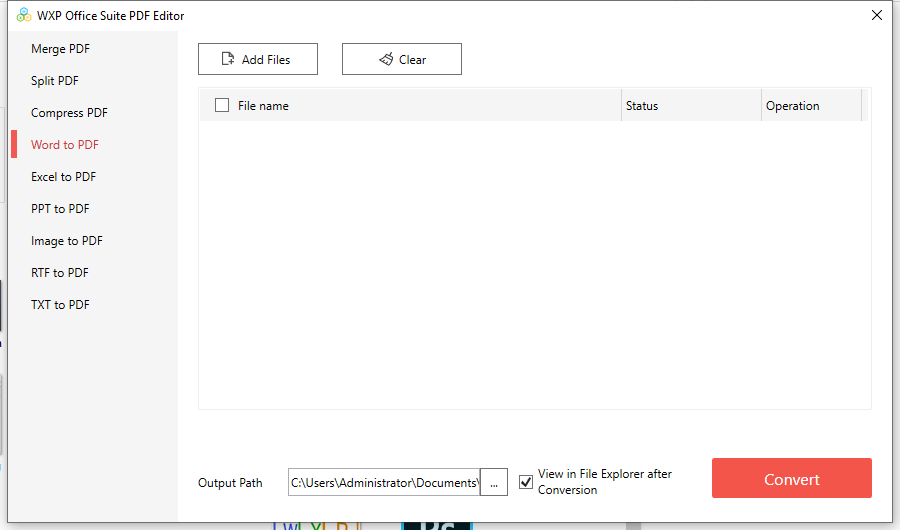
每个工具是独立界面:从主程序点不同入口,Open 的界面也不同(Documents → PDF 与 PDF → Documents 不会互相混淆)。
Every entry opens its own screen: the tool you pick from the shell is the screen you get — Documents → PDF and PDF → Documents never mix up.
2. 通用操作(所有工具都一样)2. Common steps for every tool
- 点 Add file 或直接把文件拖到列表区域,可一次添加多个。Click Add file or drag files onto the list — several at once is fine.
- 确认列表里的文件名、页数/状态;不需要的行可以点行尾的删除。Check the names, page counts and status in the list; remove rows you do not need.
- 在底部设置 Output Path(默认是「文档」目录),需要时改 Output File Name。Set Output Path at the bottom (Documents by default) and change Output File Name if needed.
- 按 Convert 开始;完成后提示成功,并可以直接打开输出目录。Press Convert. When it finishes you get a success prompt and can open the output folder.
3. Documents → PDF(Word / Excel / PPT / 图片 / TXT 转 PDF)3. Documents → PDF (Word / Excel / PPT / images / TXT to PDF)
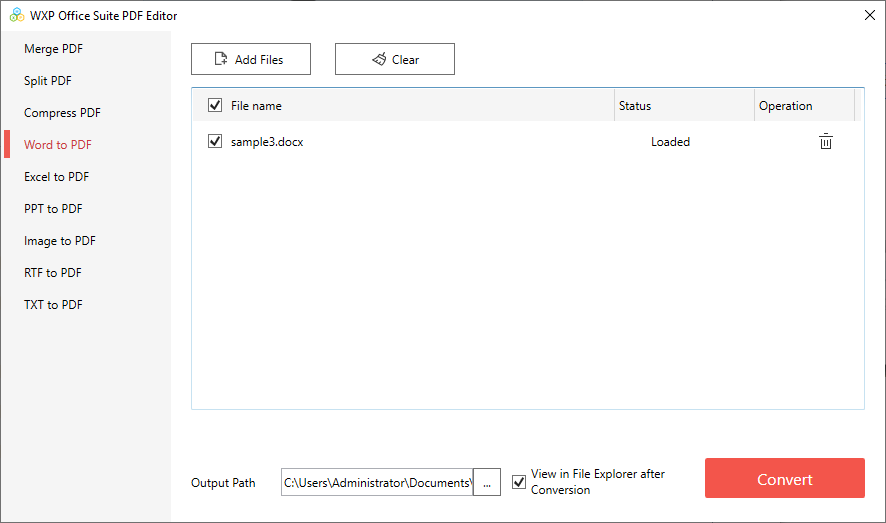
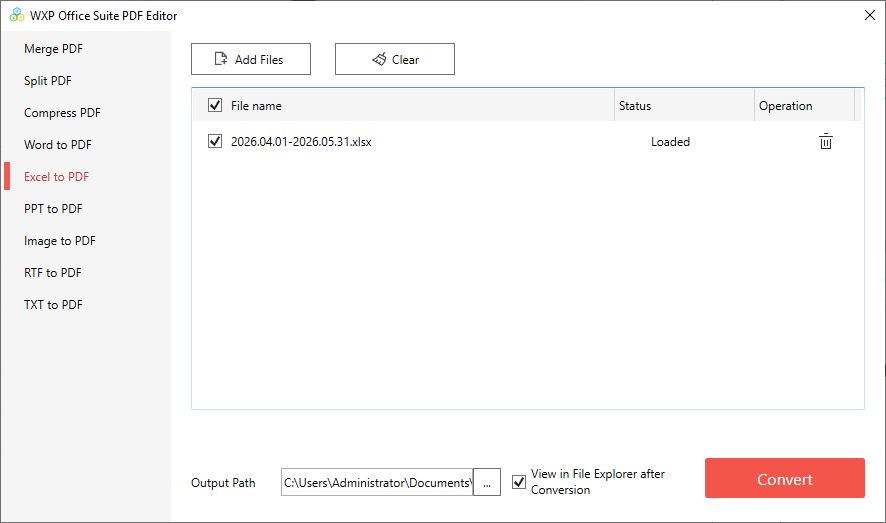
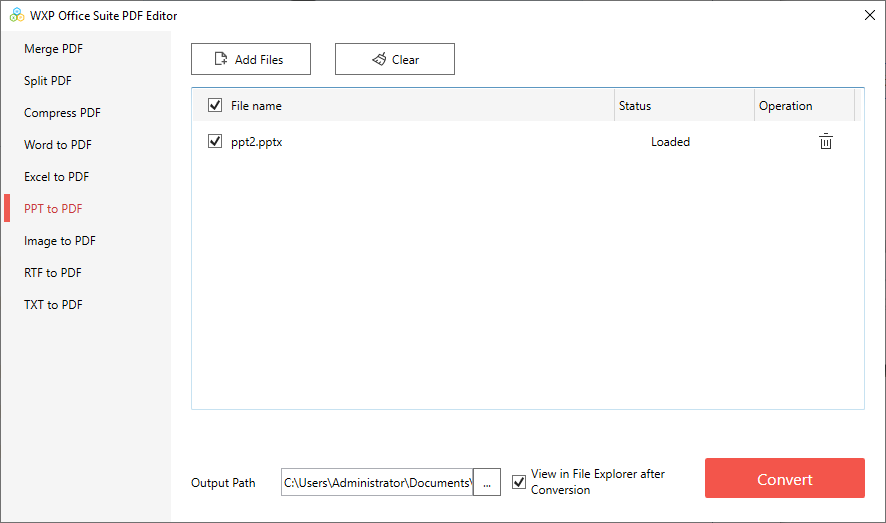
左侧选中 Word to PDF(或 Excel to PDF / PPT to PDF / Image to PDF / TXT to PDF 等),添加文件后转换。同一批里可以混合不同类型的源文件,输出会按原文件名生成 PDF。
Pick Word to PDF on the left (or Excel to PDF / PPT to PDF / Image to PDF / TXT to PDF), add the files and convert. One batch can mix source types; each PDF is named after its source file.
4. PDF → Documents(PDF 转 Word / Excel / PPT / 图片 / 文本)4. PDF → Documents (PDF to Word / Excel / PPT / images / text)
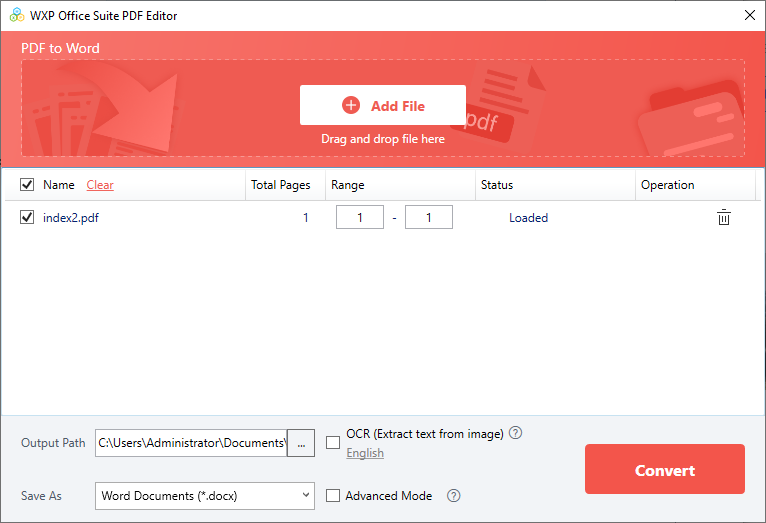
选中 PDF to Word(或 PDF to Excel / PPT / 图片 / 文本),添加 PDF 后转换。转换会尽量保留段落、字体与表格结构;扫描件请先在 PDF 编辑器里做 OCR,再转换效果更好。
Choose PDF to Word (or PDF to Excel / PPT / images / text), add the PDF and convert. Paragraphs, fonts and tables are preserved as far as possible; for scanned files run OCR in the PDF Editor first.
5. 压缩 PDF5. Compress PDF
左侧选中 Compress PDF,添加一个或多个 PDF,选好输出目录后按 Convert。压缩会重新取样内嵌图片,明显减小体积,适合邮件附件或上传有大小限制的场景。
Pick Compress PDF, add one or more PDFs, set the output folder and press Convert. Embedded images are resampled, so file size drops noticeably — useful for mail attachments or upload limits.
提示:需要极致清晰度时不要压缩;需要控制在某个体积以下时,可以先压缩一次,再检查文字是否清晰。
Tip: skip compression when maximum sharpness matters; if you must hit a size limit, compress once and check that the text is still crisp.
6. 拆分 PDF6. Split PDF
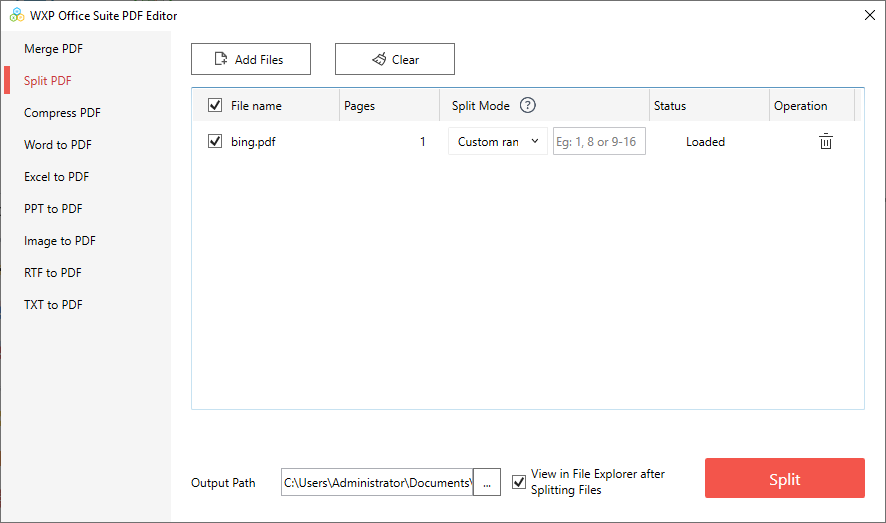
左侧选中 Split PDF,添加 PDF 后在拆分选项里指定按页码区间或按每 N 页拆分,然后转换。
Pick Split PDF, add the PDF, then choose to split by page ranges or every N pages and convert.
7. 合并 PDF7. Merge PDF
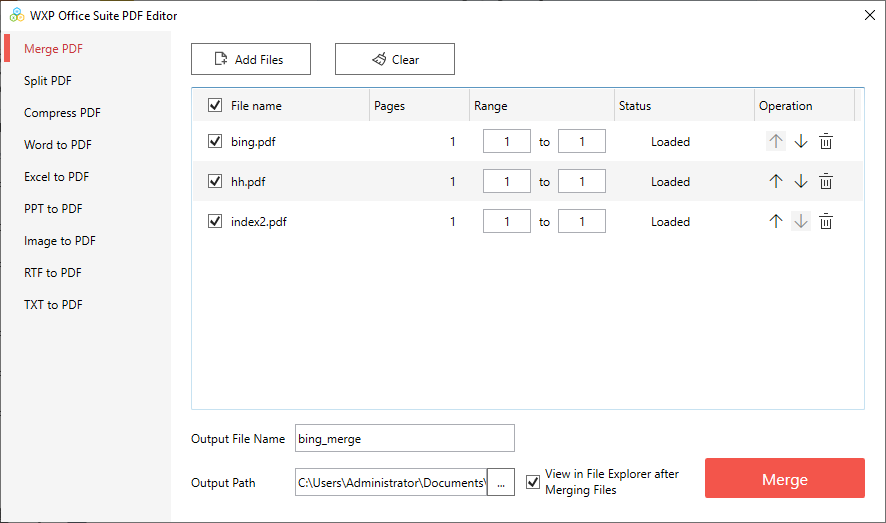
左侧选中 Merge PDF,按希望出现的顺序依次添加多个 PDF,列表顺序就是合并顺序,可随时调整;输出为单个 PDF。
Pick Merge PDF and add the PDFs in the order you want them — the list order is the merge order and can be rearranged. The result is one PDF.
8. 免费与付费8. Free and paid
- 免费:Documents → PDF(Word / Excel / PPT / 图片 / TXT 转 PDF)。Free: Documents → PDF (Word / Excel / PPT / images / TXT to PDF).
- 需要解锁:PDF → Documents、Compress、Split、Merge。未解锁时点工具会先出现购买窗口,购买或恢复后即可使用。Unlock needed: PDF → Documents, Compress, Split and Merge. Without an unlock, the purchase window appears first; buy or restore and the tools work.
- 价格:$4.99 / 月 或 $49.99 一次性,同一账号最多 10 台设备。Pricing: $4.99 per month or $49.99 one-time, up to 10 devices per account.
9. 常见问题9. FAQ
转换出来的 PDF 是空白的The converted PDF is blank
多出现在源文件使用了本机没有的字体或特殊对象。先用办公模块打开源文件确认内容正常、另存为新格式,再重新转换。
Usually caused by fonts or special objects the machine does not have. Open the source in the office module, check it renders, save it again, then convert.
Excel 转 PDF 分页不对Excel columns break across pages
在 Calc 里设置页面样式(横向、缩放到一页宽、打印区域),再转 PDF。
Set the page style in Calc first — landscape, fit to one page wide, print area — then convert.
带密码的 PDF 处理失败A password-protected PDF fails
加密 PDF 需要先去掉密码:在 PDF 编辑器的 Protect 标签里移除密码后再转换 / 拆分 / 合并。
Remove the password first: use the Protect tab in the PDF Editor, then convert, split or merge.
找不到输出文件Where did my file go
转换成功后提示框里有「打开所在文件夹」;默认输出目录是「文档」。
The success prompt has an “open folder” action; the default output folder is Documents.