
1. 主程序负责什么1. What the main app does
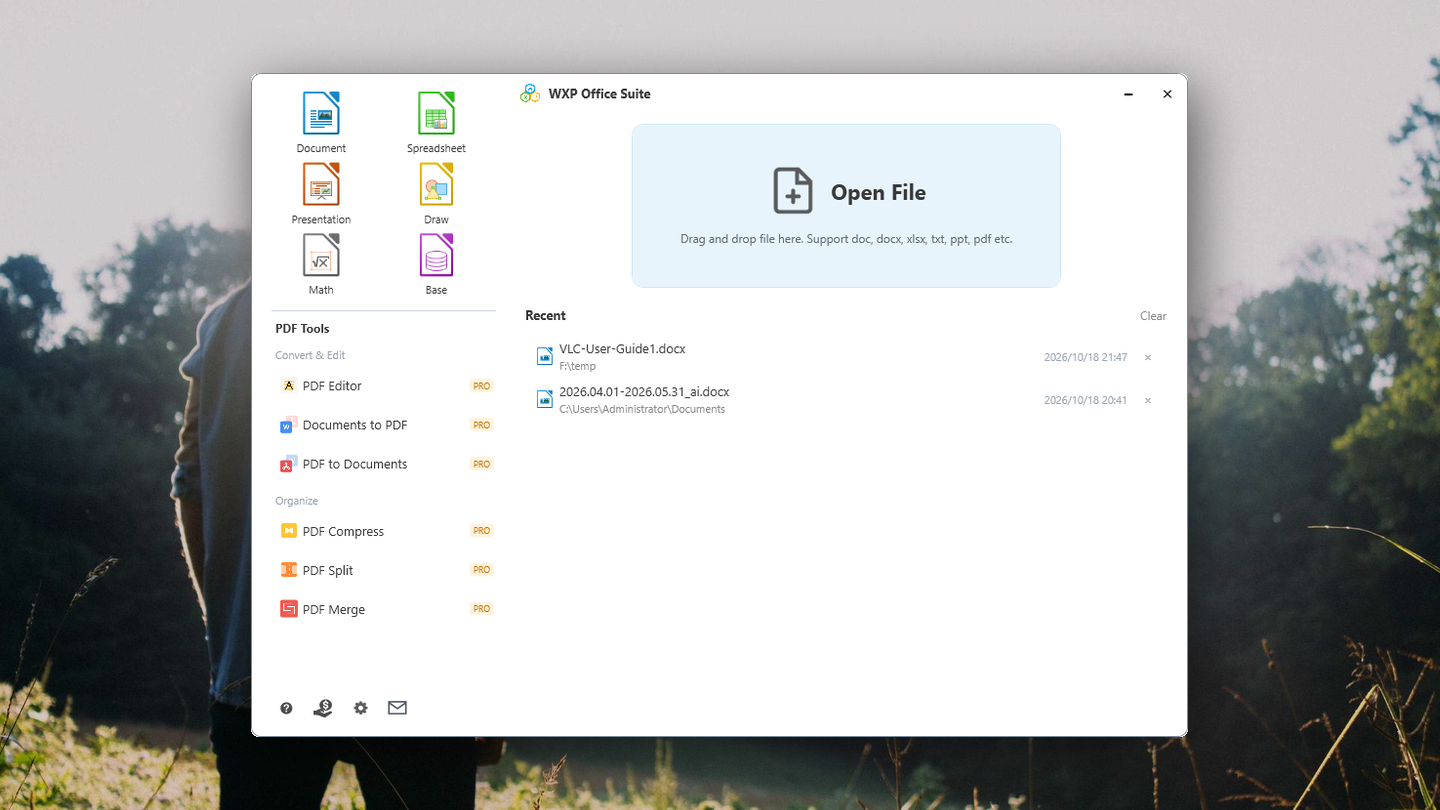
主程序是套件的总入口。它自己不做排版,但负责三件事:找到文件(打开 / 拖放 / 最近文件)、分发任务(按文件类型交给 PDF 编辑器或办公模块)、调用 PDF 工具(转换、压缩、拆分、合并)。
The main app is the suite's front door. It does no typesetting itself, but it finds files (open, drag-drop, recent), routes them (PDF Editor for PDFs, the office module for everything else) and starts the PDF tools (convert, compress, split, merge).
2. 安装与启动2. Install and launch
从 Microsoft Store 搜索 WXP Office Suite 并点击「获取」,安装完成后从开始菜单启动。
Search for WXP Office Suite in the Microsoft Store, click Get, then launch it from the Start menu.
三种进入方式Three ways in
- 主程序:开始菜单里的 WXP Office Suite,打开本教程介绍的这个窗口。Shell: “WXP Office Suite” in the Start menu — the window described here.
- 直接打开文件:双击资源管理器里的文档。PDF 会进入 PDF 编辑器,docx / xlsx / pptx 会进入办公模块。Open a file directly: double-click a document in Explorer. PDFs open in the PDF Editor, docx / xlsx / pptx open in the office module.
- 从主程序出发:点左侧图标新建、点“PDF 工具”处理文件、点“最近文件”继续上次的工作。From the shell: create from the left grid, process files with the PDF tools, or resume work from Recent.
3. 界面总览3. Window layout
窗口分左右两栏,四块内容:
The window has two columns and four blocks:
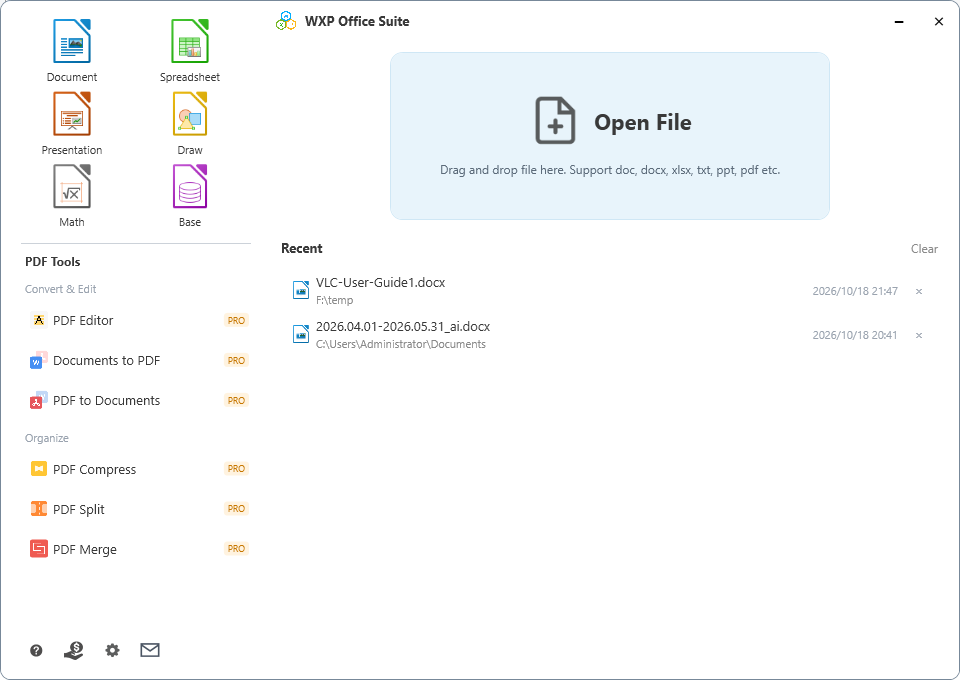
| 区域Area | 作用Purpose |
|---|---|
| 左上:新建网格Top-left: create grid | 六个图标,新建空白文档(见第 6 节)Six icons that create blank documents (section 6) |
| 左下:PDF 工具列表Bottom-left: PDF tools | PDF 编辑器与转换 / 整理工具,分「Convert & Edit」「Organize」两组(见第 7 节)PDF Editor plus convert and organise tools, grouped as Convert & Edit and Organize (section 7) |
| 右中:打开文件卡Right-middle: Open File card | 点击选择文件,或把文件直接拖进来Click to pick a file, or drop one onto it |
| 右下:最近文件Right-bottom: Recent | 最近打开过的文档,双击继续(见第 5 节)Recently opened documents — double-click to resume (section 5) |
| 左下角:四个图标Bottom-left icons | 帮助 / 捐赠 / 设置 / 联系我们Help / donate / settings / contact us |
4. 打开文件与拖放4. Open files and drag-drop
方式一:点击右侧蓝色的「Open File」卡片,在资源管理器中选一个文件。
Option 1: click the “Open File” card and pick a file in the dialog.
方式二:把文件从资源管理器拖到窗口右侧区域(会高亮显示为可放置状态)。
Option 2: drag a file from Explorer and drop it anywhere on the right-hand area of the window.
支持的格式:doc、docx、docm、rtf、odt、txt、xls、xlsx、xlsm、ods、csv、ppt、pptx、odp、pdf,以及 30 多种其它格式。
Supported formats: doc, docx, docm, rtf, odt, txt, xls, xlsx, xlsm, ods, csv, ppt, pptx, odp, pdf and 30+ more.
自动分流:PDF 会交给 PDF 编辑器打开;其它文档会交给办公模块。打开后主程序会自动最小化,关闭文档后主程序窗口重新出现。
Automatic routing: a PDF opens in the PDF Editor; any other document opens in the office module. The shell minimises itself and comes back when you close the document.
5. 最近文件5. Recent files
右侧「Recent」列出最近打开过的 20 个文档,包含文件名、所在目录和打开时间,每行的图标表示文件类型。
“Recent” on the right lists the 20 most recently opened documents with file name, folder and time; the icon on each row shows the file type.
- 继续工作:双击一行即可重新打开该文档。Resume: double-click a row to reopen the document.
- 移除一条:鼠标移到行尾点「×」。Remove one: hover the row and click the “×” at the end.
- 全部清空:点表头右侧的「Clear」,确认后清空列表。Clear all: click “Clear” on the right of the header and confirm.
- 文件已被删除:双击时会提示文件不存在,并自动把它从列表中移除。Deleted file: double-clicking says the file is missing and removes it from the list automatically.
列表保存在本机 %LOCALAPPDATA%\WXPOfficeSuite\recent.txt,不会上传,也不会记录文档内容。
The list is stored locally at %LOCALAPPDATA%\WXPOfficeSuite\recent.txt. It is never uploaded and contains no document content.
6. 新建文档6. Create documents
左上角六个图标会以空白文档启动办公模块:
The six icons at the top-left start the office module with a blank document:
| 图标Icon | 打开的模块Module | 典型用途Typical use |
|---|---|---|
| Document | Writer | 信件、报告、合同(doc / docx / odt / pdf 导出)Letters, reports, contracts (doc / docx / odt, PDF export) |
| Spreadsheet | Calc | 预算、账目、图表(xlsx / xls / csv / ods)Budgets, accounts, charts (xlsx / xls / csv / ods) |
| Presentation | Impress | 汇报、培训、产品演示(pptx / odp)Pitches, training, product demos (pptx / odp) |
| Draw | Draw | 流程图、海报、示意图Flowcharts, posters, diagrams |
| Math | Math | 数学公式,可插入到 WriterFormulas, embeddable in Writer |
| Base | Base | 数据表、查询与简单报表Tables, queries and simple reports |
各模块的具体用法见第 4 章 办公模块教程。
See chapter 4, the office modules tutorial, for each module.
7. PDF 工具入口7. PDF tool entries
左侧中间的「PDF Tools」把六个入口集中在一起,按用途分成两组:
“PDF Tools” on the left collects six entries in two groups:
| 分组Group | 入口Entry | 说明What it does |
|---|---|---|
| Convert & Edit | PDF Editor | 打开 PDF 编辑器(免费,内部有独立的付费功能)Opens the PDF Editor (free; it has its own paid features inside) |
| Documents to PDF | Word / Excel / PPT / 图片 / TXT → PDFWord / Excel / PPT / images / TXT → PDF | |
| PDF to Documents | PDF → Word / Excel / PPT / 图片 / 文本PDF → Word / Excel / PPT / images / text | |
| Organize | PDF Compress | 压缩 PDF 体积,可调质量Shrink a PDF, quality selectable |
| PDF Split | 按页或按份数拆分Split by page ranges or by count | |
| PDF Merge | 把多个 PDF 合成一个,可调整顺序Combine several PDFs into one, order adjustable |
带 PRO 角标的入口需要解锁;点击后会出现购买窗口。完整步骤见第 3 章 PDF 转换器教程。
Entries marked PRO need an unlock; clicking one shows the purchase window. Full steps are in chapter 3, the PDF Converter tutorial.
8. 免费功能与付费升级8. Free features and upgrades
- 免费:所有文档的阅读与编辑、批注、办公模块全部功能、Doc → PDF 转换。Free: reading and editing any document, annotations, the whole office module, and Documents → PDF.
- 需要解锁:打印、导出 PDF;PDF 编辑器的表单填写、加密、OCR 等高级功能;PDF → Documents、压缩、拆分、合并。Unlock needed: printing and PDF export; the PDF Editor's forms, encryption and OCR; PDF → Documents, compress, split and merge.
- 方案:按月 $4.99 或一次性 $49.99,两者解锁的功能完全相同,可恢复购买。Plans: $4.99 per month or $49.99 one-time — identical feature set, purchase restorable.
9. 联系与反馈9. Contact and feedback
左下角第四个图标(信封)打开「Contact us」窗口:写下遇到的问题或想要的功能,可选填邮箱,点「Send」后会调用系统邮件程序发到我们的支持邮箱,邮件里会自动带上产品版本与系统信息。
The fourth icon (envelope) at the bottom-left opens “Contact us”: describe the problem or the feature you want, add an email address if you like, then press Send. Your mail app opens with our support address, and the message already includes the product version and OS.
另外两个入口:办公模块里 Help → Send Feedback,以及 Microsoft Store 的评分页。
Two more ways: Help → Send Feedback inside the office module, and the Microsoft Store review page.
10. 常见问题10. FAQ
双击 PDF 没有进入 PDF 编辑器A PDF does not open in the PDF Editor
可能是 .pdf 的默认程序还指向别的阅读器。右键 PDF → 打开方式 → 选择 WXP Office Suite,并勾选「始终使用此应用」。
Another reader may still own .pdf. Right-click the PDF → Open with → choose WXP Office Suite and tick “Always use this app”.
新建文档后要等几秒Creating a document takes a few seconds
办公模块是完整的办公内核,冷启动需要几秒;启动期间图标会变暗,就绪后自动恢复。
The office module is a full engine and needs a few seconds to cold start; the icon dims while it starts and returns when the window is ready.
最近文件是空的Recent is empty
只记录通过主程序打开的文件。如果刚清空或换了 Windows 账户,列表就是空的;打开一个文件后即会出现。
Only files opened through the shell are recorded. After Clear, or on a new Windows account, the list is empty — open one file and it appears.
怎么改界面语言Changing the interface language
点左下角「设置」切换界面语言,重启应用生效;办公模块可在工具 → 选项 → 语言设置里单独设置。
Use the Settings icon at the bottom-left and restart the app. The office module has its own setting under Tools → Options → Language Settings.