1. 悬浮球:五个工具的入口1. The floating ball: where the five tools live
主界面右边缘有一颗蓝色悬浮球,位置可以拖动。鼠标移上去它会展开,从下往上是 Video Convert、Compress Video、Extract Audio、To GIF,以及 RipDVD。
A blue floating ball sits on the right edge of the main window and can be dragged anywhere. Hover it and it expands upward into Video Convert, Compress Video, Extract Audio, To GIF and RipDVD.
这些工具全部属于 MC DVD Premium:免费版点开先看到购买窗;已解锁则直接进入工具窗口。工具窗口是独立窗口,关掉就回到主界面。
All of them belong to MC DVD Premium: in the free version a purchase window appears first; once unlocked the tool opens straight away. Each tool is its own window — close it to return to the main app.
2. 视频转换(Video Convert)2. Video Convert
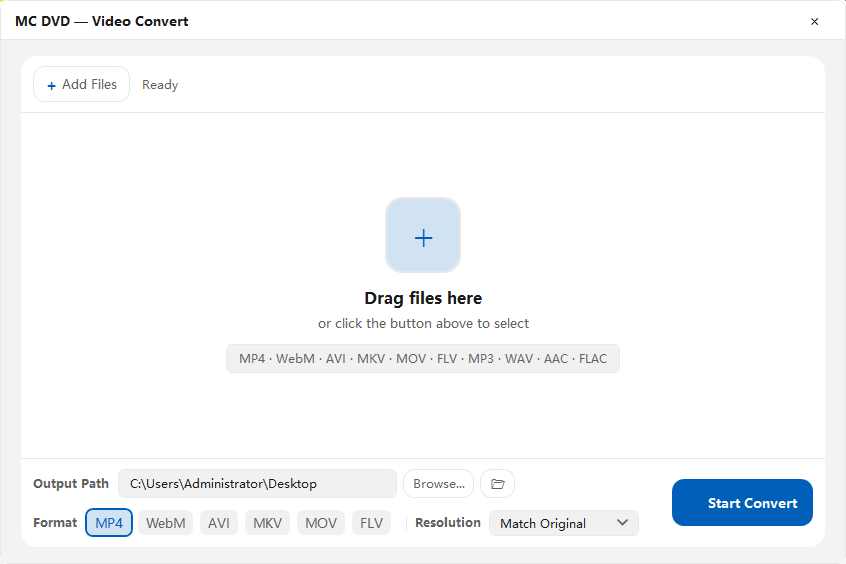
- 悬浮球里点 Video Convert,打开标题为 MC DVD — Video Convert 的窗口;
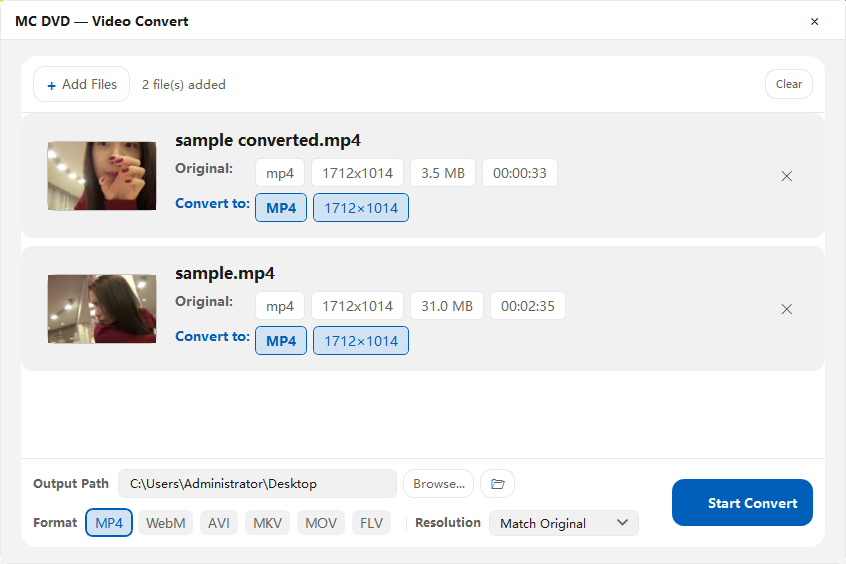
- 点左上角 Add Files 添加视频,可以一次选多个(也能把文件拖进窗口);
- 底部 Output Path 显示输出目录,点 Browse... 或右边的文件夹按钮更换;
- 在 Format 一栏选目标格式:MP4 / WebM / AVI / MKV / MOV / FLV;
- Resolution 决定输出分辨率,保持 Match Original 就是和原片一致;
- 右下角 Start Convert 开始,进度条走完弹出 Conversion Complete,可点 Open Output Folder 直接去看文件。
- Press Video Convert in the floating ball; a window titled MC DVD — Video Convert opens.
- Press Add Files at the top left and pick one or more videos — or drag files into the window.
- Output Path at the bottom shows where results go; change it with Browse... or the folder button next to it.
- Pick the target under Format: MP4 / WebM / AVI / MKV / MOV / FLV.
- Resolution sets the output size; Match Original keeps the source.
- Press Start Convert. When the bar finishes, Conversion Complete appears with Open Output Folder.
3. 压缩视频(Compress Video)3. Compress Video
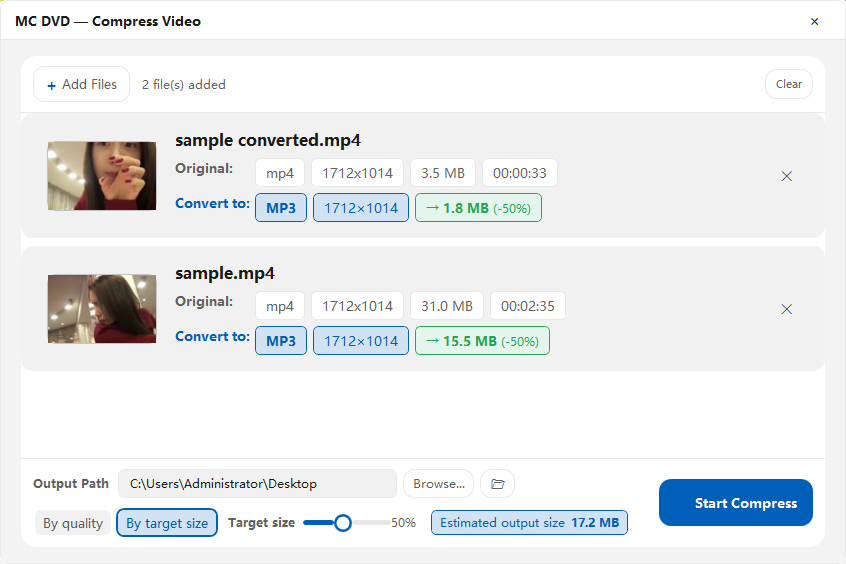
压缩和转换是同一个窗口,只是进来时已经切到压缩模式:目标格式固定保持原样,重点是把体积降下来。适合「片子太大,微信 / 网盘传不动」的场景。
Compression uses the same window, opened in compress mode: the container stays as it is and the point is a smaller file — for when a clip is too big to send or upload.
- 悬浮球里点 Compress Video;
- Add Files 加入要压的视频;
- 确认 Output Path;
- 点 Start Compress,等完成提示。
- Press Compress Video in the floating ball.
- Add Files to add the clips.
- Check the Output Path.
- Press Start Compress and wait for the completion prompt.