
1. 打开一个视频文件1. Open a video file
- 点第三个标签 Open Files/Folder;
- 中间会出现 Choose Media Type 卡片,四个方块分别是视频文件、VCD 文件夹、DVD 文件夹、蓝光文件夹;
- 点左上角的 Video File;
- 在弹出的文件对话框里选中视频,确定后立刻开始播放。
- Click the third tab, Open Files/Folder.
- The Choose Media Type card appears with four tiles: video file, VCD folder, DVD folder, Blu-ray folder.
- Click Video File (top left).
- Pick the file in the dialog and it starts playing immediately.
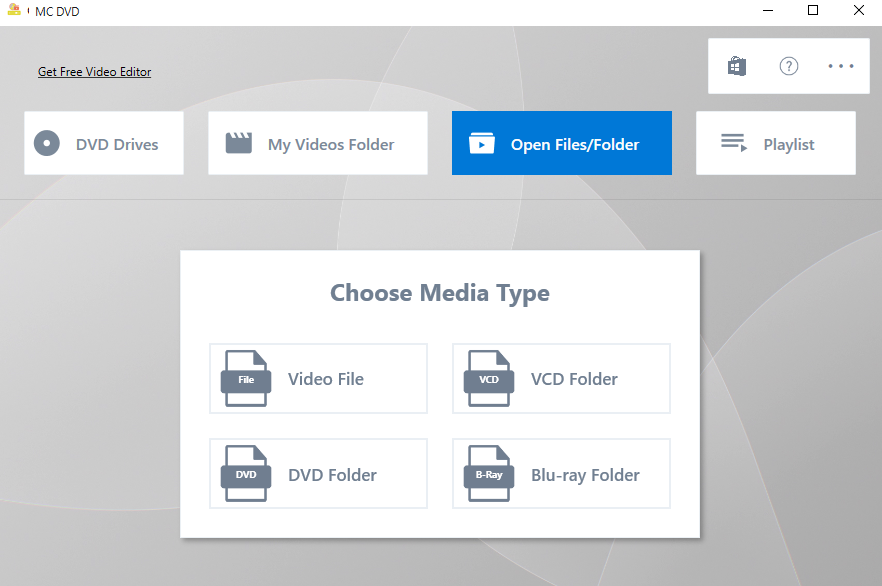
▲ Choose Media Type:文件 / VCD / DVD / 蓝光四种来源▲ Choose Media Type: file, VCD, DVD and Blu-ray sources
2. 能放哪些文件2. Which files it plays
因为播放核心是 LibVLC,常见封装基本都能直接放,不需要装解码器。常用的有:
Playback is done by LibVLC, so nearly every common container plays without extra codecs. The usual ones:
| 类型Kind | 格式Formats |
|---|---|
| 视频Video | mp4 mkv avi mov webm flv wmv m4v m2ts vob iso |
| 音频(仅播放)Audio (playback only) | mp3 aac flac wav ogg |
| 字幕Subtitles | srt ass ssa sub smi vtt idx |
完整的扩展名清单在最后一页。文件对话框默认只列视频格式,需要时可把过滤器切到 All Formats (*.*)。
The full extension list is on the last page. The open dialog lists video formats by default; switch the filter to All Formats (*.*) if a file is missing from the list.
3. 打开之后3. After the file opens
画面会铺满窗口,鼠标停住 3 秒控制条会自动收起来,动一下鼠标再出现。左上角的返回箭头 ← 回到主界面,播过的文件会留在 Playlist 标签里。
The picture fills the window and the control bar hides itself three seconds after the mouse stops moving; move the mouse to bring it back. The back arrow ← at the top left returns to the main window, and the file stays in the Playlist tab.
想直接双击文件就打开?Want double-click in Explorer to work?
在资源管理器里右键视频 → 打开方式 → 选择 MC DVD,并勾选「始终使用此应用」。
Right-click a video in Explorer → Open with → MC DVD, and tick "Always use this app".