
打印文档:两种入口Printing a document: two entry points
MC Office Suite 内置了打印模块(Scan & Printer)。要打印文件,有两个入口,效果一样,都会直接停在该文件的打印界面:
MC Office Suite ships a built-in print module (Scan & Printer). There are two ways in, and both land you directly on the print screen for the file you picked:
- 主界面左栏的 Print Document;
- 资源管理器里右键文件 → MC Office Suite → Print。
- Print Document in the left column of the main window;
- Right-click a file in Explorer → MC Office Suite → Print.
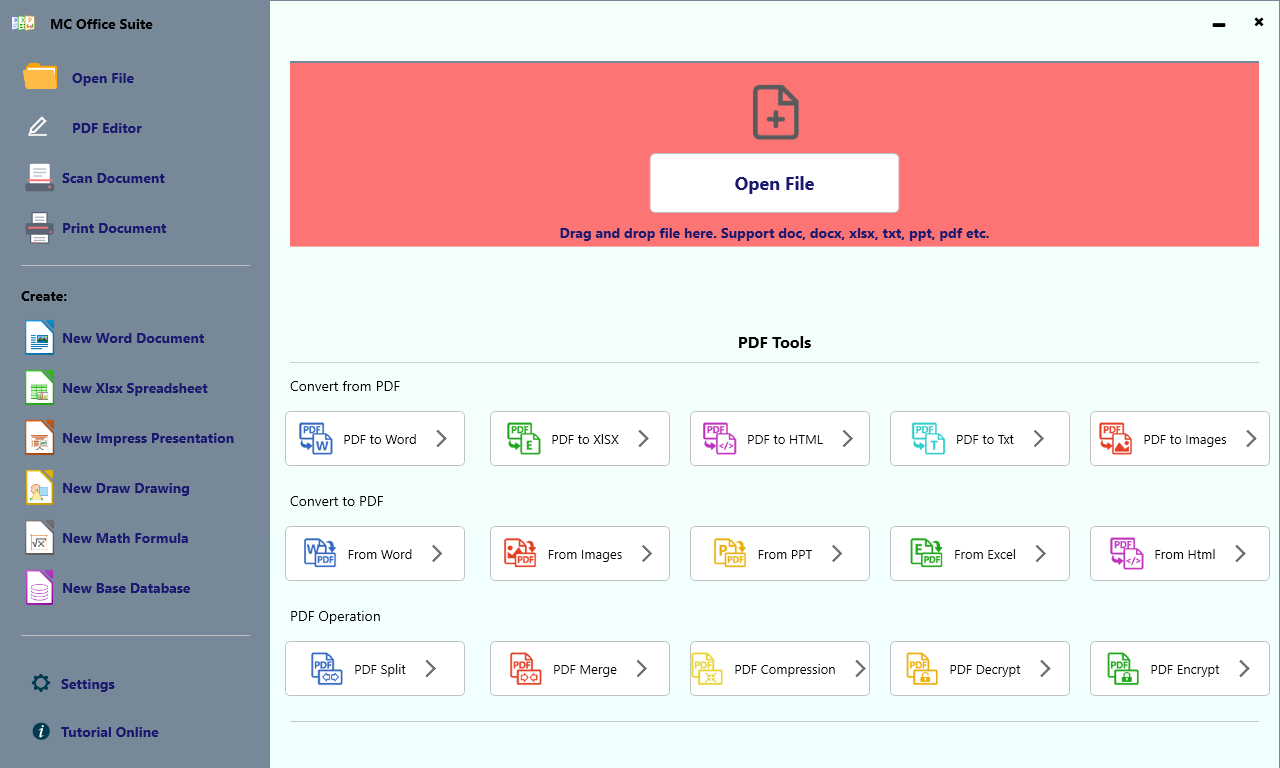
▲ 主界面左栏的 Print Document▲ Print Document in the left column
1. 从主界面打印1. Print from the main window
- 打开 MC Office Suite,点左栏 Print Document;
- 打印模块会打开,选 Open & Print(或直接把文件拖进窗口);
- 弹出文件选择框,选中要打印的文件;
- 在打印界面里确认打印机、份数、页码范围、纸张与方向,点 Print。
- Open MC Office Suite and click Print Document in the left column;
- The print module opens — choose Open & Print (or drop a file onto the window);
- Pick the file you want to print in the file dialog;
- Check printer, copies, page range, paper size and orientation, then press Print.
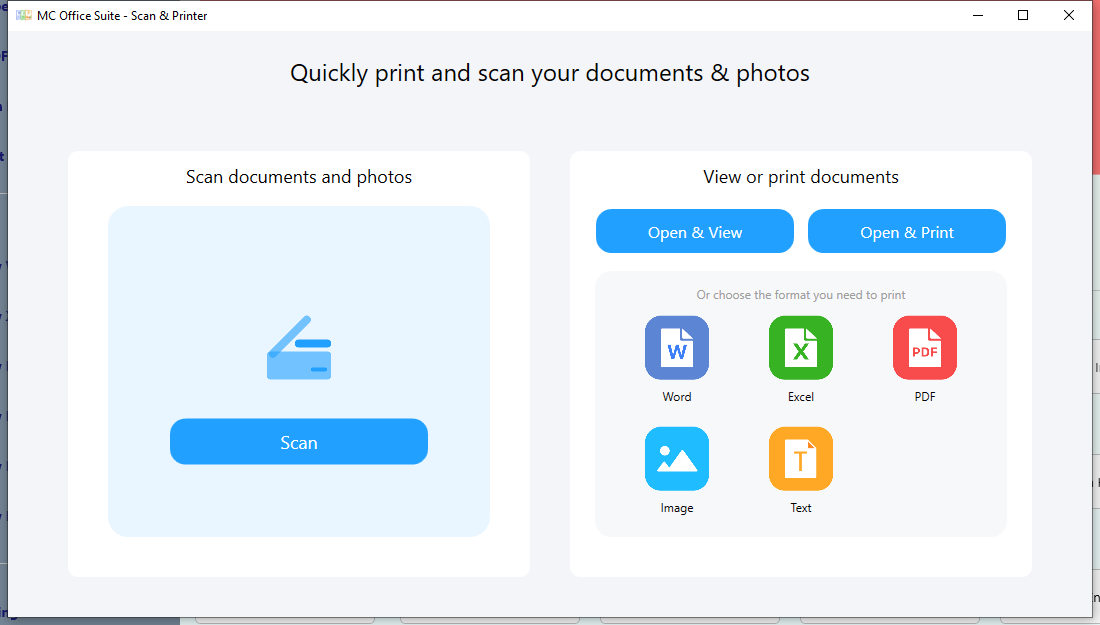
▲ 打印模块首页:左扫描、右打印▲ Print module home: scanning on the left, printing on the right
2. 打印界面2. The print screen
打印界面左边是设置、右边是实时预览:
The print screen puts the settings on the left and a live preview on the right:
- Printer:选择打印机(例如 Microsoft Print to PDF);
- Copies / Collate:份数与是否逐份;
- Range:全部页面、当前页或自定义范围(如
1,8,9-12); - Paper Size / Orientation / Paper Sizing:纸张、方向与缩放;
- 下方 Print 开始打印,翻页按钮用来复核每一页。
- Printer — pick the printer (Microsoft Print to PDF works too);
- Copies / Collate — number of copies and collation;
- Range — all pages, current page, or a custom range such as
1,8,9-12; - Paper Size / Orientation / Paper Sizing — paper, orientation and scaling;
- Print at the bottom starts printing; the pager lets you check every page first.
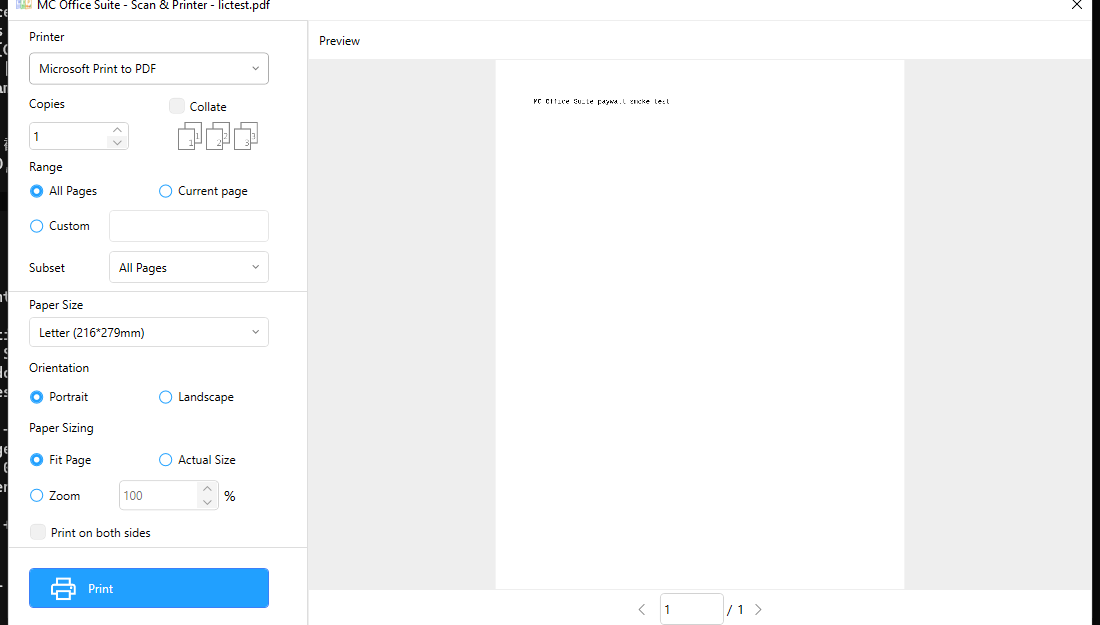
▲ 左侧设置、右侧预览▲ Settings on the left, preview on the right
3. 从资源管理器右键打印3. Print from the Explorer right-click menu
在资源管理器里右键文件,选 MC Office Suite 一级菜单里的 Print,打印模块会略过主界面、直接打开该文件的打印界面。
Right-click a file in Explorer and pick Print under the MC Office Suite menu — the print module skips its home screen and opens the print screen for that file.
提示:Tip:
同一个菜单里还有 Open with MC Office Suite、Convert to PDF 与 PDF to Word / Excel / Text / HTML / Images,详见 Page17:右键菜单。
The same menu also has Open with MC Office Suite, Convert to PDF and PDF to Word / Excel / Text / HTML / Images — see Page 17: right-click menu.
4. 支持哪些文件4. Supported file types
| 类型Type | 扩展名Extensions |
|---|---|
.pdf | |
| 文字文档Word documents | .doc .docx .rtf .txt |
| 表格Spreadsheets | .xls .xlsx .csv |
| 图片Images | .jpg .png .bmp .tif |
| 邮件Mail | .eml .msg |
打印模块的扫描与预览免费;打印属于 Pro 功能,未解锁时会提示升级。
Scanning and previewing in the print module are free; printing is a Pro feature and asks you to upgrade when it is not unlocked yet.
5. 常见问题5. Troubleshooting
- 右键没有看到 MC Office Suite 菜单:确认应用是从 Microsoft Store 安装并已启动过一次;重装后需要重新启动资源管理器。
- 提示没有打印机:先在 Windows 设置里添加一台打印机(Microsoft Print to PDF 也算),再回到打印界面。
- 文件打不开或提示格式不受支持:先确认文件本身能正常打开;受支持的类型见上一节。
- 打印出来的版式不对:在 Paper Size / Orientation / Paper Sizing 里改成实际纸张,或把 Fit Page 换成 Actual Size。
- No MC Office Suite entry in the right-click menu — make sure the app was installed from the Microsoft Store and started at least once; restart Explorer after reinstalling.
- The app says there is no printer — add a printer in Windows Settings first (Microsoft Print to PDF counts), then return to the print screen.
- The file will not open / unsupported format — check the file opens elsewhere; see the previous section for supported types.
- The printed layout is wrong — set the real paper in Paper Size / Orientation / Paper Sizing, or switch Fit Page to Actual Size.