
6. 第 5 步:识别文字(OCR)6. Step 5: read the text in the shot
截图里的字想直接复制出来(报价单、报错信息、图片里的文章),就在工具条上点 OCR;也可以从主界面的 Text capture 卡片直接开始。
When you need the characters inside a screenshot as real text — a quote, an error message, an article in an image — click OCR on the toolbar, or start from the Text capture card on the home screen.
- 屏幕变暗后框住含文字的区域;框得紧一点,别切掉半行字。
- 松开后弹出 Text Capture (OCR):左边是原始截图,右边是识别出的文本。
- 识别过程中右侧显示「Recognizing…」,Copy 与 Close 是灰色,等它跑完。
- 底部 OCR language 选语言,默认 Auto 由程序判断。
- 点 Copy 复制全部文字,粘到需要的地方;Close 关闭窗口。
- Frame the text while the screen is dimmed — keep the selection tight and never slice a line.
- A Text Capture (OCR) window opens: the crop on the left, recognised text on the right.
- While it works the right side shows "Recognizing…" and Copy / Close are grey — let it finish.
- Choose a language in OCR language, or leave Auto to let the app decide.
- Click Copy to copy everything and paste it where you need it; Close dismisses the window.
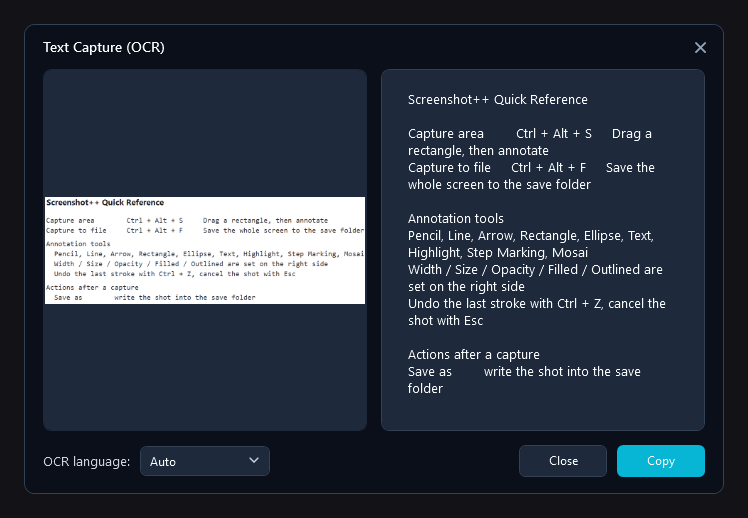
▲ 左原图、右文本,底部选语言并复制▲ Source on the left, text on the right; language and Copy at the bottom
识别不准时按这几点改When the result looks wrong
- 选区要包住整行;被切掉一截的字基本认不出来。
- 来源越清晰越好:放大页面再截,别用被缩放过、发虚的图。
- 中英混排时手动指定语言,比 Auto 更稳;纯英文就选 English。
- 识别结果挤成一段是 OCR 对排版的推断,粘到文档里重新换行即可。
- Frame whole lines — a clipped character usually fails outright.
- Sharper sources win: zoom the page first instead of capturing a blurry, scaled-down image.
- For mixed Chinese and English, choosing the language beats Auto; pick English when it is English only.
- Output that runs together is the OCR guessing at layout — rewrap it after pasting.
离线可用:Works offline:
识别引擎与语言包都在本地,随安装包提供;断网、内网机器都能用,图片也不会离开本机。
The engine and language packs are local, shipped with the installer, so OCR works on an offline or intranet machine and no image leaves the PC.