
3. 第 2 步:框选要截的区域3. Step 2: select the area
在主界面点 Capture area,或直接按 Ctrl+Alt+S。用熟之后基本只用快捷键,主界面都不用开。
Click Capture area on the home screen, or just press Ctrl+Alt+S. Once this is muscle memory you will never open the home screen again.
- 屏幕变暗,光标变成十字。
- 按住左键拖动,框住要截的内容;拖动时选区左上角实时显示像素尺寸(如
1170 × 600)。 - 松开左键,选区保留、四周出现控制点,同时弹出标注工具条——进入第 3 步。
- The screen dims and the cursor becomes a crosshair.
- Hold the left button and drag around what you want; the pixel size (
1170 × 600and so on) updates live at the top-left of the selection. - Release: the selection stays with resize handles and the annotation toolbar appears — that is step 3.
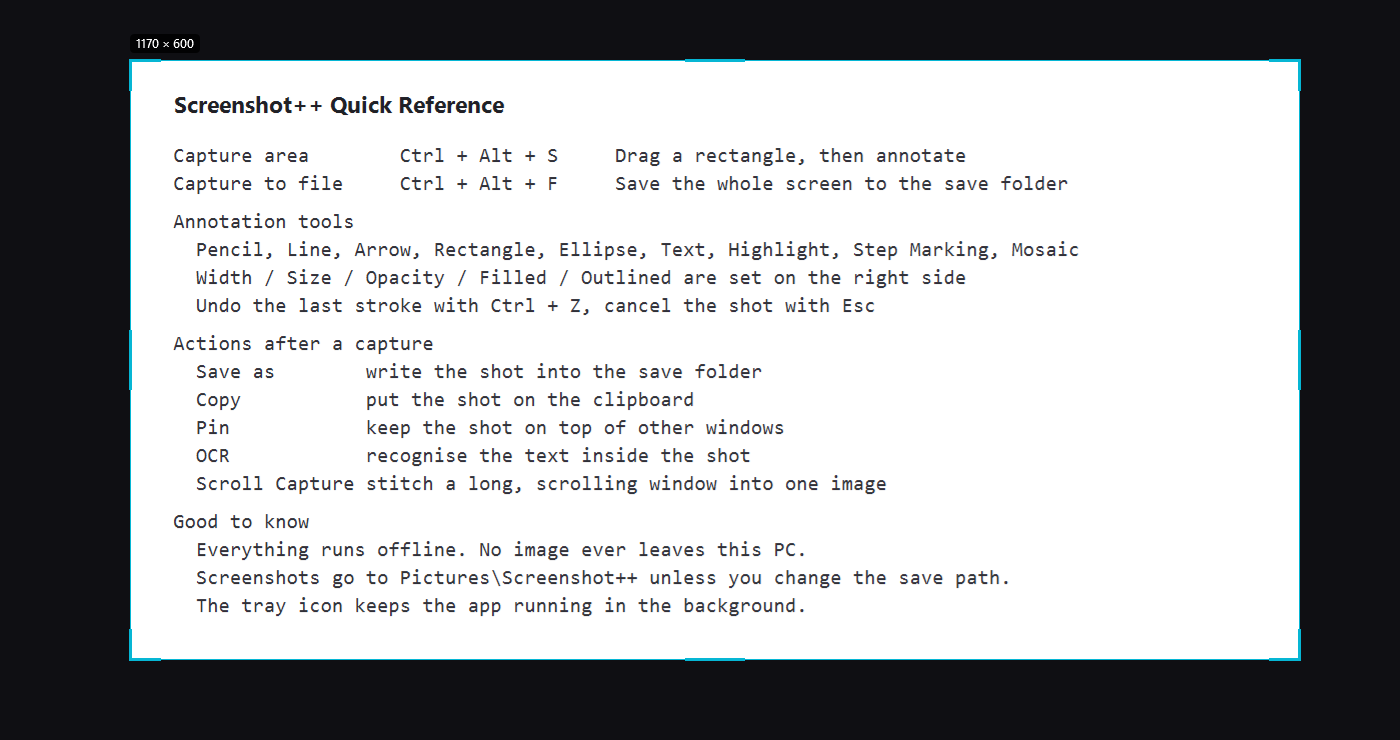
▲ 拉框过程:选区外变暗,左上角显示
1170 × 600▲ Dragging: everything outside dims, the size badge reads 1170 × 600想截一整个窗口?单击就行Want a whole window? Just click it
进入框选模式后把光标停在某个窗口上,该窗口会被点亮并套上青色描边,同时显示它的尺寸。此时单击即可把整窗截下来,不必沿着边框慢慢拖。最大化窗口上看不出描边效果,先还原窗口再试。
In selection mode, hover over a window: it lights up with a cyan outline and its size is shown. A single click captures that window — no need to trace its edges. Outlines are hard to see on maximised windows, so restore one first if you want to try it.
框错了怎么改Fixing a selection
- 拖四周的 8 个控制点改大小。
- 拖选区内部可以整体挪位置。
- 按 Esc 放弃这次截图,屏幕立刻恢复原样。
- Drag any of the eight handles to resize.
- Drag inside the selection to move it.
- Esc drops the capture and restores the screen immediately.
快捷键被占用:Hotkey taken:
如果 Ctrl+Alt+S 和别的软件撞了(按下没反应),到 Settings → ShortKey 重新录一个,立即生效。
If Ctrl+Alt+S clashes with another program (nothing happens when you press it), record another combination in Settings → ShortKey; it applies at once.