

快速入门Quick Start
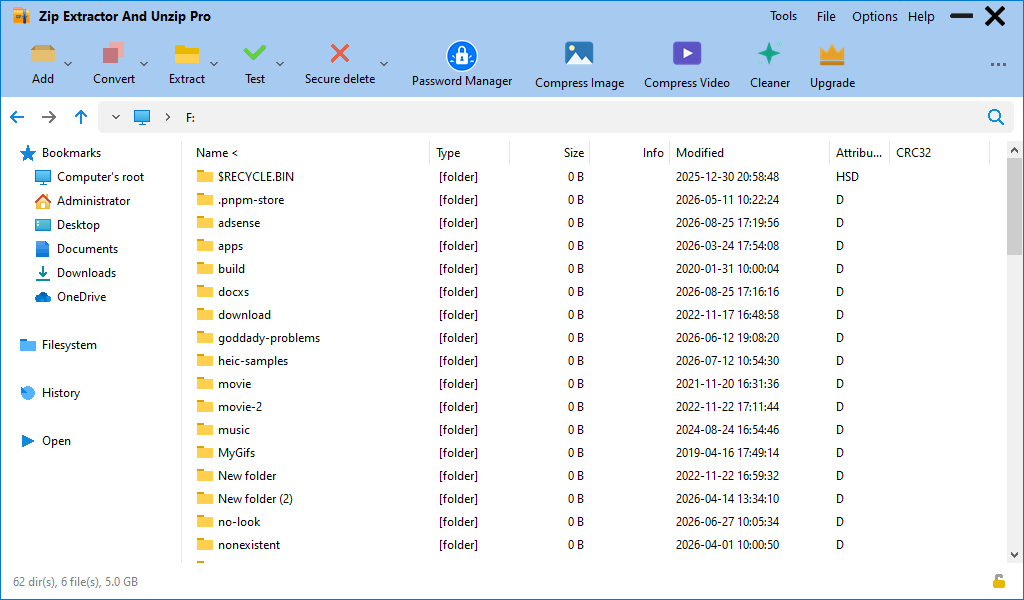
- 在地址栏输入(或从左侧「书签」「文件系统」进入)压缩包所在文件夹Navigate to the folder that holds your archive, using the address bar or the Bookmarks / File System sidebar
- 双击压缩包,即可在应用内浏览其中的文件与文件夹Double-click the archive to browse its contents inside the app
- 点击工具栏 Extract,选择解压目标后确认即可Click Extract in the toolbar, choose the destination and confirm
| 按钮 | Button | 作用 | What it does |
|---|---|---|---|
| Add | 新建压缩包,把选中的文件/文件夹压缩进去 | Create a new archive from the selected files and folders | |
| Convert | 在压缩格式之间转换,例如 7z 转 zip、rar 转 zip | Convert between archive formats, e.g. 7z to zip or rar to zip | |
| Extract | 解压到指定位置 | Extract to a chosen destination | |
| Test | 校验压缩包完整性,检查是否损坏 | Verify archive integrity and detect corruption | |
| Secure delete | 安全删除文件,多次覆写使内容不可恢复 | Delete files with multiple overwrite passes so data cannot be recovered | |
| Password Manager付费PRO | 用主密码加密管理常用密码,自动填入压缩包 | Store passwords encrypted behind a master password and fill them automatically | |
| Compress Image付费PRO | 批量压缩图片,平衡画质与体积 | Batch-compress images, balancing quality and size | |
| Compress Video付费PRO | 批量压缩视频,明显减小体积 | Batch-compress videos to shrink file size | |
| Cleaner付费PRO | 扫描并清理系统垃圾与临时文件 | Scan and clean system junk and temporary files | |
| Upgrade | 查看并购买 Pro 授权 | View and purchase the Pro license |
界面概览Interface Overview
- 顶部菜单栏Menu bar — Tools / File / Options / Help,所有命令都在这里能找到Tools / File / Options / Help — every command is reachable here
- 工具栏Toolbar — 最常用操作的快捷入口,可在大/小图标间切换Shortcuts to common actions; switch between large and small icons
- 地址栏Address bar — 显示当前路径;压缩包内会显示 包名/内部路径Shows the current path; inside an archive it shows archive/inner-path
- 左侧边栏Left sidebar — 书签、文件系统、历史记录、打开Bookmarks, File System, History, Open
- 文件列表File list — 显示名称、类型、大小、修改时间等列,点击列头可排序Name, type, size, modified and more; click a column header to sort
- 底部状态栏Status bar — 显示选中项数量与合计大小Shows how many items are selected and their total size
操作方式完全一致:双击进入文件夹,点地址栏的上一级箭头或左侧边栏返回。区别在于归档内的文件是「虚拟」的——可以直接双击预览、可以增删改,但改动要等 Add / 删除确认后才写回压缩包。
Navigation is identical — double-click to enter, use the up arrow in the address bar or the sidebar to go back. The difference is that files inside an archive are virtual: you can preview them and even add or remove entries, but changes are written back only after you confirm with Add or delete.
支持格式Supported Formats
支持 200 多种归档格式与变体,常用格式如下(读写能力取决于随程序分发的后端工具):
Over 200 archive formats and variants are supported. Common ones are listed below; read/write capability depends on the bundled back-end tools:
| 类别 | Category | 格式 | Formats | 说明 | Notes |
|---|---|---|---|---|---|
| 主力压缩 | Main formats | 7z / ZIP / TAR / GZ / BZ2 / XZ / ZSTD / Brotli / PEA | 可读可写 | readable and writable | |
| 解压专用 | Extract-only | RAR / ACE / ARC / CAB / ISO / WIM / MSI / PAK | 只能解压,不能生成 | can be extracted, not created | |
| 高压缩比 | High-ratio | PAQ / LPAQ / ZPAQ / QUAD / BCM | 追求极限体积,速度慢 | extreme ratios at low speed | |
| 分卷 | Spanned | 001 / r01 / z01 | 分卷放在同一目录即可解压 | keep all volumes in one folder to extract | |
| 其他 | Others | 自解压 EXE、光盘镜像、流式压缩包 | SFX EXE, disc images, stream archives | 按具体文件类型处理 | handled per file type |
解压 ExtractExtract
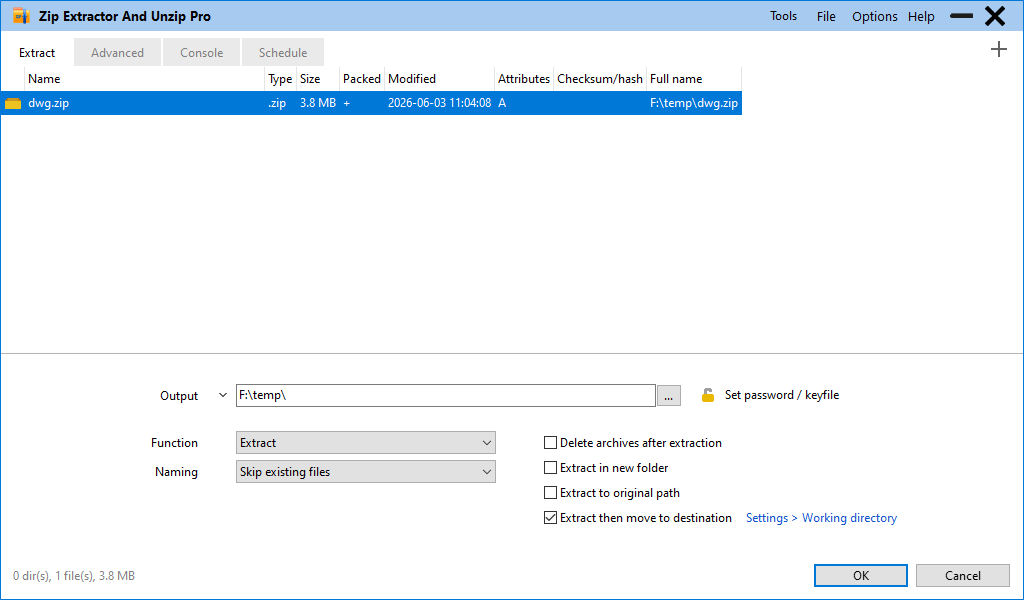
- 双击打开压缩包,进入归档视图Double-click the archive to enter archive view
- 点工具栏 ExtractClick Extract in the toolbar
- 在弹出的对话框里选择目标文件夹;默认建议保持「解压到新文件夹」Pick the destination folder in the dialog; keeping "extract into a new folder" is recommended
- 点确认开始解压,进度与结果会在状态栏与日志里显示Confirm to start; progress and results appear in the status bar and log
在文件列表里按住 Ctrl 或 Shift 多选,再点 Extract——只会解出选中的条目。右键菜单里还有「解压选中对象」的等价入口。
Multi-select with Ctrl or Shift in the file list, then click Extract — only the selected entries are unpacked. The context menu offers the same action for the current selection.
| 命令 | Command | 行为 | Behaviour |
|---|---|---|---|
| 解压到新文件夹 | Extract here (in new folder) | 在当前目录下建一个与压缩包同名的新文件夹再解压,最不容易弄乱目录 | Creates a folder named after the archive and extracts into it — the tidiest option |
| 智能新文件夹 | Extract here (smart new folder) | 同上,但如果压缩包内只有单个文件夹,就直接把它解出来,不再多套一层 | Same, but if the archive contains a single top-level folder it is unpacked directly without an extra nesting level |
| 解压到原始路径 | Extract to original path | 按压缩包里记录的目录结构还原到原路径,适合恢复备份 | Restores files to the paths recorded inside the archive — handy for backup restore |
| 解压到指定位置 | Extract (choose destination) | 工具栏 Extract 的行为,可以自己挑目录 | The toolbar Extract behaviour: you pick any folder yourself |
- 解压后删除压缩包Delete archives after extraction — 一次性压缩包解完自动清掉automatically remove one-shot archives once unpacked
- 先解压到临时目录再移动Extract then move to destination — 避免解压中途失败留下半个目录avoids a half-written folder when extraction fails midway
- 解压后自动关闭Auto close after extraction — 如果解压期间没有手动浏览过,完成后自动退出exit once done, as long as you did not browse manually during extraction
加密压缩包在打开或解压时会自动弹出密码输入框;也可以随时按 F9 手动设置密码/密钥文件。若压缩包连文件名都被加密,必须先输入密码才能看到内容。
Encrypted archives prompt for a password when opened or extracted. You can also set a password/keyfile at any time with F9. If the archive encrypts file names too, nothing is listed until the password is entered.
压缩 / 添加 AddAdd / Compress
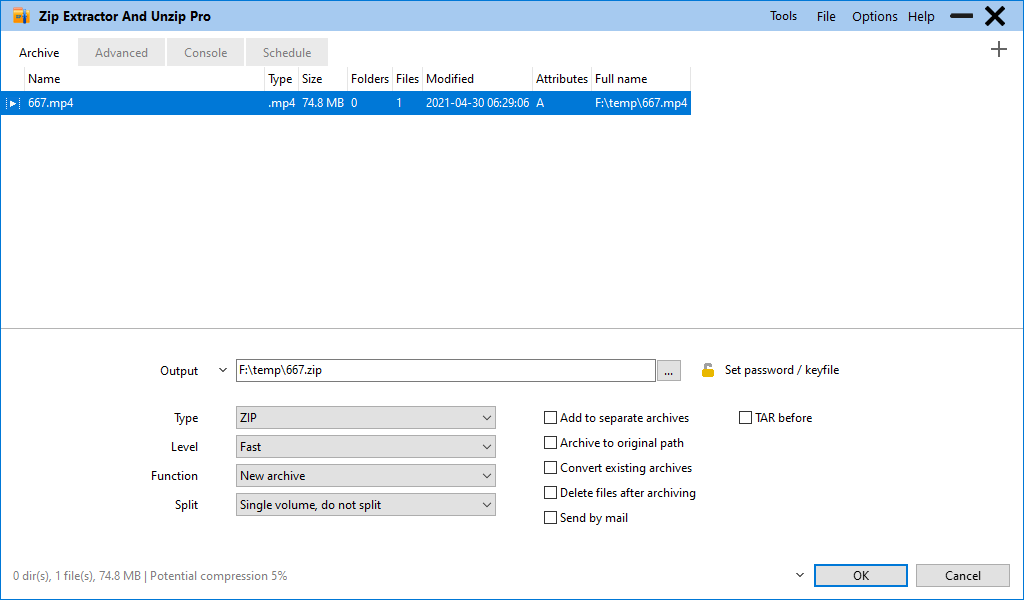
- 在文件浏览器里选中要压缩的文件和文件夹(可多选)Select the files and folders you want to compress (multi-select allowed)
- 点工具栏 Add,打开「Add to archive」对话框Click Add to open the Add to archive dialog
- 选择输出格式与压缩级别,设置输出路径Choose the output format and compression level, and set the output path
- (可选)设置密码、加密文件名、分卷大小Optionally set a password, encrypt file names, or split into volumes
- 确认,等待完成Confirm and wait for it to finish
| 需求 | Need | 推荐 | Recommended |
|---|---|---|---|
| 给别人发,对方用什么都能打开 | Send to someone, must open anywhere | ZIP | |
| 体积最小 | Smallest possible size | 7Z (或 PEA / ZPAQ 追求极致压缩比)(or PEA / ZPAQ for extreme ratios) | |
| Linux / macOS 通用、可流式处理 | Cross-platform, streamable | TAR.GZ | |
| 单个文件快速压缩 | Quick single-file compression | GZ / BZ2 / XZ / ZSTD | |
| 对方没有解压软件 | Recipient has no extractor | 自解压 EXE(见下文 SFX)Self-extracting EXE (see SFX below) |
- 快速 ZIPVery fast ZIP — 压缩快、兼容性最好,适合临时传文件fast with maximum compatibility, good for quick transfers
- 标准 ZIPNormal ZIP — 中等压缩率,最通用的默认值medium ratio, the most universal default
- 密码保护 7ZProtect with password, 7Z — 7Z 加密,安全性比传统 ZIP 加密更好7Z encryption, stronger than legacy ZIP encryption
- 自解压Auto extracting — 生成 EXE,收件人双击即解压produces an EXE the recipient can just double-click
打开那个压缩包,把文件拖进窗口或点 Add 选择新文件即可。如果同名条目已存在,对话框会问你是「更新/追加」还是「重建压缩包」——重建更慢但能顺带换格式、换压缩级别。
Open the archive, then drag files into the window or click Add and pick them. If an entry with the same name already exists, the dialog asks whether to update/append or rebuild the archive — rebuilding is slower but lets you change format and compression level at the same time.
格式转换 ConvertConvert
- 选中一个或多个压缩包Select one or more archives
- 点工具栏 ConvertClick Convert
- 选目标格式,按需调整压缩级别Choose the target format and adjust the compression level if needed
- 确认转换;转换过程中可以顺手换密码,或清空密码取消加密Confirm; you may also change the password during conversion, or clear it to remove encryption
- RAR → ZIPRAR → ZIP — RAR 无法原地修改,转成 ZIP 后就能自由增删RAR cannot be edited in place; converting to ZIP makes it editable
- ZIP → 7ZZIP → 7Z — 同内容通常能再小 10%–30%typically 10–30% smaller for the same content
- 7Z / RAR → ZIP7Z / RAR → ZIP — 提高兼容性,确保对方在任意设备上都能打开for compatibility, so any device can open it
测试与校验 TestTest & Verify
打开压缩包后点工具栏 Test,可以对「显示的全部对象」或「仅选中的对象」做完整性校验。校验会逐一读取并解压验证数据流,能抓出缺损扇区、被截断的下载和错误的 CRC。
Open the archive and click Test to verify either everything displayed or just the selected entries. It reads and decompresses the data stream item by item, catching damaged sectors, truncated downloads and CRC errors.
- Test allTest all — 整个压缩包the whole archive
- 测试选中Test selected — 只测当前选中条目,大包时更省时间only the current selection, much faster on large archives
- 测试密码/密钥Test password / keyfile — 确认手上的密码对不对confirm whether the password you have is correct
编辑归档内容Edit Archive Contents
- 删除Delete — 选中条目后按 Delete,或右键选删除select entries and press Delete, or use the context menu
- 改名 / 调整内部路径Rename / restructure — 右键条目可以重命名、或调整它在包内的目录层级the context menu lets you rename an entry or change its path inside the archive
- 添加Add — 把新文件拖进来,或点 Adddrag new files in, or click Add
- 保存布局Save layout — 把当前的目录结构调整作为一次操作写回压缩包commit the current directory arrangement back into the archive as one operation
分卷与合并Split & Join
有两条路,选一条即可:
Two approaches — pick one:
| 做法 | Approach | 说明 | Details | 产物 | Result |
|---|---|---|---|---|---|
| 压缩时分卷Split while compressing | 在 Add 对话框里设置分卷大小(7Z / ZIP 支持) | Set a volume size in the Add dialog (supported by 7Z / ZIP) | 可直接解压的多卷压缩包 | Multi-volume archive that extracts directly | |
| Split file | 对任意文件做纯切分,生成 .001、.002… | Pure byte-level split of any file into .001, .002… | 需要再用 Join files 合回原文件 | Must be rejoined with Join files |
把所有分卷放在同一目录,选中第一个(.001),执行 Join,就会按顺序拼接还原。分卷压缩包则不需要这一步——直接双击第一个分卷即可解压。
Keep all pieces in one folder, select the first one (.001) and run Join; they are concatenated in order. Multi-volume archives need no joining at all — just double-click the first volume.
自解压 SFXSelf-Extracting SFX
创建压缩包时选择 Self-extracting(或直接套用「Auto extracting」预设),产物是一个 .exe。收件人双击它,内容就会解压到同目录或指定目录,无需解压工具。
When creating an archive, choose Self-extracting (or apply the "Auto extracting" preset). The output is a single .exe; the recipient double-clicks it and the contents unpack into the same or a chosen folder — no extractor needed.
- 可选解压界面Optional SFX interface — 决定对方双击后看到的是图形对话框还是静默解压controls whether the recipient sees a GUI dialog or silent extraction
- 仍然支持密码Password still applies — 加密的自解压包在运行时同样要输密码an encrypted SFX asks for the password when it runs
密码管理器 PROPassword Manager PRO
反复给压缩包设密码时,密码要么忘、要么每次手打。密码管理器把常用密码集中保存,并且自身受一个主密码保护——只有通过主密码验证,才看得到里面的密码列表。
When you password-protect archives repeatedly, passwords get forgotten or retyped. The Password Manager keeps them together, protected by a master password — nothing is visible until that master password is verified.
- 点工具栏 Password ManagerClick Password Manager on the toolbar
- 设置主密码(可选再加一个密钥文件,两者同时需要才能打开)Set a master password — optionally plus a keyfile, in which case both are required
- 之后每次进入密码管理器都会要求验证Every later visit to the manager requires that verification
- 编辑条目Edit an entry — 双击列表项即可修改double-click a row to edit it
- 复制密码Copy a password — 选中后按 Ctrl+C,避免手抄出错select it and press Ctrl+C instead of retyping
- 生成随机密码Generate a random password — 内置随机密码 / 密钥文件生成器,比自拟的强得多the built-in random password / keyfile generator beats anything hand-made
- 导出备份Export a backup — 导出为受密码保护的加密文件,可跨机器迁移exports an encrypted file you can move to another machine
- 会话内保留密码Keep password for session — 本次运行期间不再反复询问stops repeated prompts for the rest of the session
文件哈希 / 校验和File Hashing / Checksums
右键任意文件或文件夹,选择 Checksum/hash,程序会分别用 CRC 系列与加密哈希算法计算结果。把它和官方公布的哈希值对比即可:
Right-click any file or folder and choose Checksum/hash; the app computes both CRC-family and cryptographic digests. Compare the output with the value published by the vendor:
| 算法类型 | Algorithm type | 用途 | Purpose |
|---|---|---|---|
| CRC32 / CRC64 | 快速发现偶然的传输错误、磁盘损坏 | Fast detection of accidental transfer errors and disk damage | |
| SHA-256 / SHA-512 | 能发现恶意篡改,用于核对官方发布的校验值 | Detects deliberate tampering; used to match vendor-published values |
安全删除 Secure DeleteSecure Delete
清空回收站只是删掉了指向数据的索引,文件内容仍留在磁盘上,用恢复工具就能捞回来。Secure delete 在删除前对数据区做多次覆写,使内容无法通过常规手段还原。
Emptying the Recycle Bin only removes the index pointing at the data; the bytes stay on disk and recovery tools can bring them back. Secure delete overwrites the data area several times before removing the entry, so ordinary recovery cannot restore it.
在归档视图里选中条目后执行安全删除,被清理的内容会以覆写方式从压缩包中移除,而不是仅从目录表里划掉。
Inside an archive, secure-deleting selected entries overwrites the content while removing it, rather than merely unlinking it from the table of contents.
文件比较Compare Files
右键第一个文件,选择 Compare files,再在弹出的选择框里指定第二个文件,即可做逐字节比对,给出是否一致、以及从哪个位置开始出现差异。
Right-click the first file, choose Compare files, then pick the second file in the dialog. The tool performs a byte-by-byte comparison and reports whether they match, and where the first difference occurs.
压缩图片 Compress Image PROCompress Image PRO
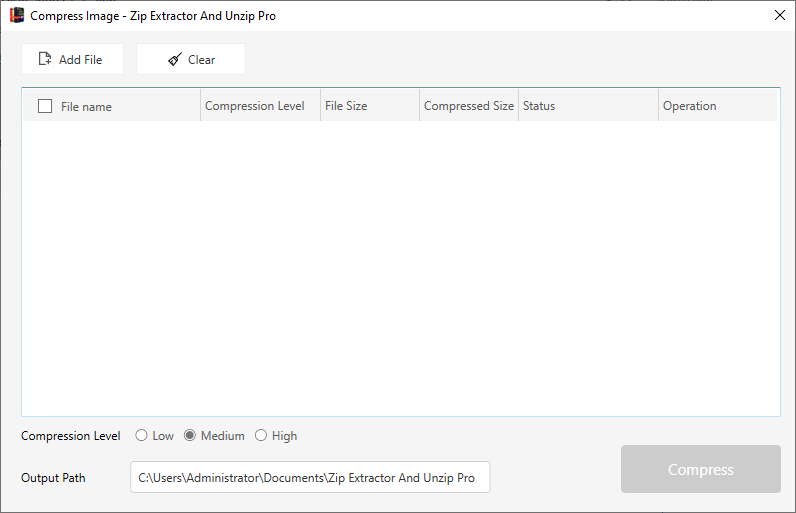
- 点工具栏 Compress Image,打开独立窗口Click Compress Image on the toolbar to open its own window
- 点 Add File 加入图片,可以一次选很多张Click Add File and select as many images as you like
- 选择压缩级别:Low / Medium / High,在体积与画质之间取平衡Pick a compression level — Low / Medium / High — to trade size against quality
- 确认输出目录,点 CompressCheck the output folder and click Compress
- 网页 / 聊天分享Web and chat sharing — 可以调得激进一些,肉眼几乎看不出差别push it fairly hard; the difference is barely visible
- 要打印 / 存档Printing and archiving — 保守一些,保留更多细节stay conservative to keep the detail
- 批量前先试一张Trial one file first — 先加一张试压,确认效果合适再整批处理compress a single image, check the result, then run the whole batch
压缩视频 Compress Video PROCompress Video PRO
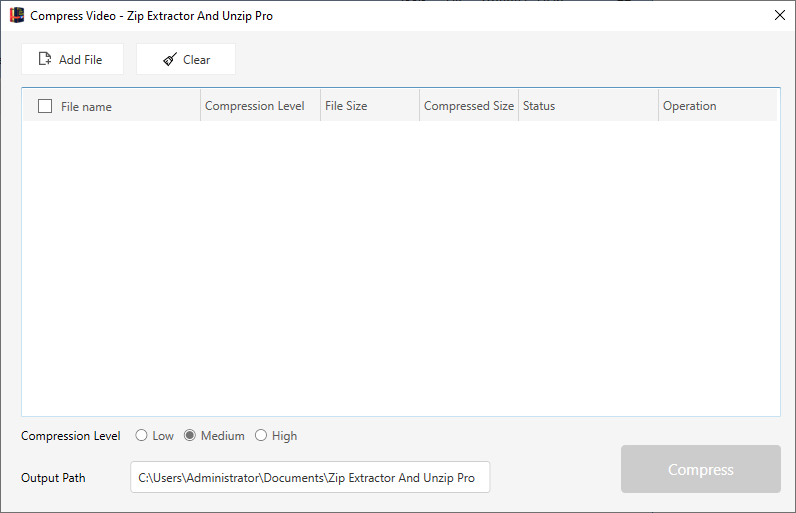
- 点工具栏 Compress VideoClick Compress Video on the toolbar
- 点 Add File 选择视频文件Click Add File and pick the video
- 选择压缩级别 Low / Medium / High,越低体积越小,画质也越软Pick Low / Medium / High — lower means a smaller file and a softer picture
- 点 Compress,等待转码完成Click Compress and wait for transcoding to finish
磁盘清理 Cleaner PRODisk Cleaner PRO
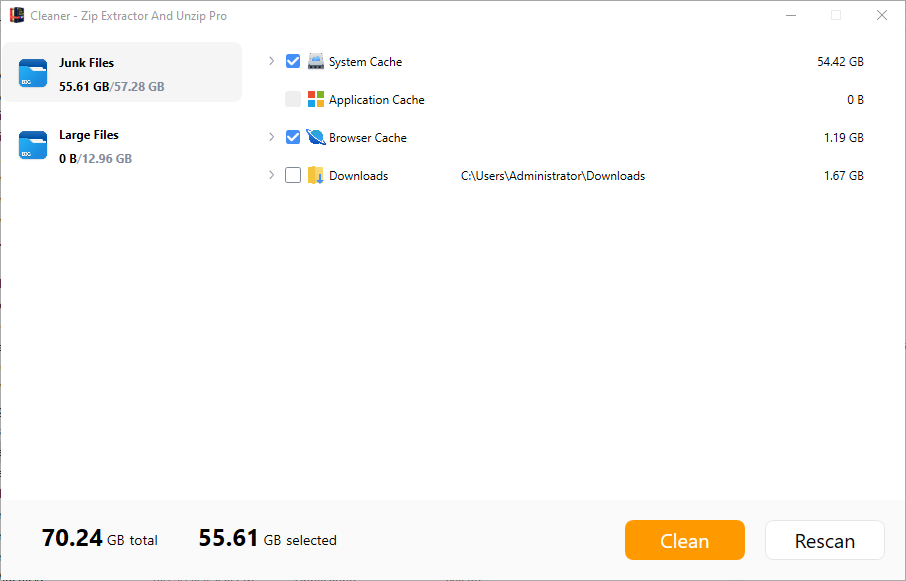
- 点工具栏 Cleaner,打开清理工具(独立进程)Click Cleaner on the toolbar (it runs as a separate process)
- 点扫描,等待 Junk Files 页列出可清理的类别及其占用体积:System Cache、Application Cache、Browser Cache、Downloads 等Run a scan and wait for the Junk Files tab to list categories with their sizes: System Cache, Application Cache, Browser Cache, Downloads and more
- 按类别勾选要清理的项,注意核对每一项的说明Tick the categories you want cleaned and read each item's description
- 执行清理Run the cleanup
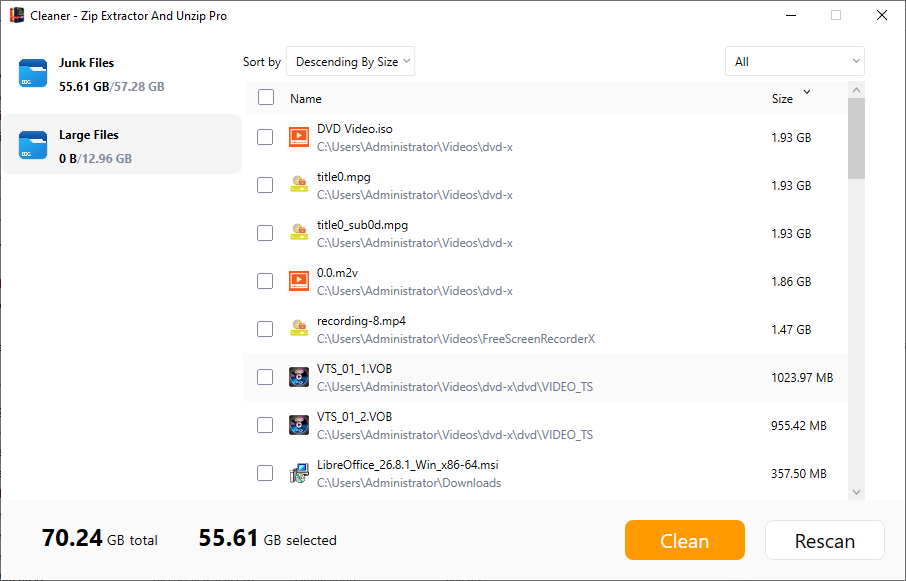
清理工具里还有一个 Large Files 页,会按体积列出占空间最多的文件,适合在磁盘快满时快速定位元凶——通常是一堆忘了删的安装包和视频。
The cleaner also has a Large Files tab that lists files by size, ideal when the disk is nearly full — usually a pile of forgotten installers and videos.
语言与主题Language & Theme
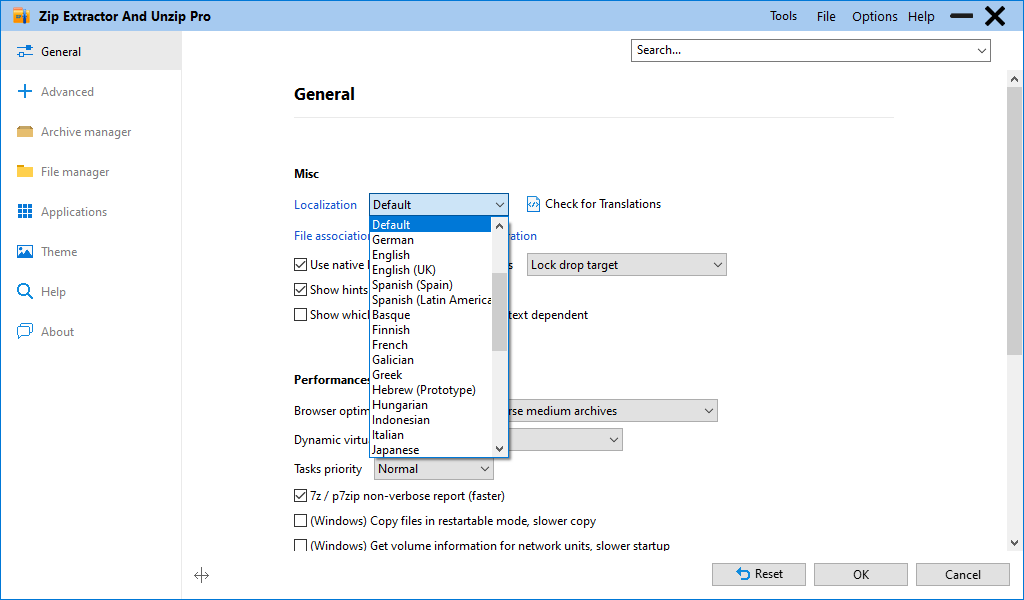
- 打开菜单 OptionsOpen the Options menu
- 点 Language,列表里只显示语言名称,直接选「简体中文」或「English」Click Language; the list shows language names only — pick 简体中文 or English
- 程序会提示需要重启,确认后自动重启并应用新语言The app asks to restart; confirm and it relaunches with the new language
在 Options → Settings 的外观相关页面里可以切换浅色/深色风格,也能导入或管理自定义主题(图标包 + 配色)。想保留自己调好的样子,可以「从当前设置创建主题」。
The appearance pages under Options → Settings switch between light and dark styles and let you import or manage custom themes (icon set plus colours). If you like the current look, "Create theme from current settings" saves it.
这是老式 ZIP 用系统本地编码保存文件名导致的,不是文件坏了。到 Options → ZIP filenames encoding 里指定压缩包原本使用的编码(中文环境通常是 GBK),文件名就能正确显示。
Legacy ZIP archives store names in the system code page rather than UTF-8, so this is not corruption. Set the original encoding under Options → ZIP filenames encoding (typically GBK for Chinese archives) and the names display correctly.
升级与购买Upgrade & Purchase
| 功能 | Feature | 免费版 | Free | Pro |
|---|---|---|---|---|
| 解压 / 压缩 / 转换 / 测试 / 分卷 / 自解压 | Extract / compress / convert / test / split / SFX | ✓ | ✓ | |
| 安全删除 / 文件哈希 / 文件比较 | Secure delete / checksum / compare | ✓ | ✓ | |
| Password Manager | — | ✓ | ||
| Compress Image | — | ✓ | ||
| Compress Video | — | ✓ | ||
| Cleaner | 仅扫描 | scan only | ✓ |
- 点工具栏 Upgrade,或在使用付费功能时由程序自动拉起购买窗口Click Upgrade on the toolbar, or let the app open the purchase window when you hit a paid feature
- 在购买窗口里选择授权类型Choose the license type in the purchase window
- 跳转到 Microsoft Store 完成支付Complete payment in the Microsoft Store
- 支付完成后回到应用,功能即刻解锁,无需重装Return to the app; the feature unlocks immediately, no reinstall needed
- 确认新电脑上登录的是同一个 Microsoft 账户——授权跟着账户走,不跟机器Make sure the new PC is signed in with the same Microsoft account; the license follows the account, not the machine
- 在 Microsoft Store 应用的「库」里确认本产品显示为「已购买」Check that the product shows as purchased in the Store app's Library
- 完全退出应用(含托盘)再重新打开,让程序刷新一次许可状态Fully exit the app (including the tray) and reopen so it refreshes the license
- 仍然不行时,用应用内的反馈入口联系我们并附上购买账户邮箱If it still fails, use the in-app feedback entry and include your purchase account email
常见问题FAQ
少数格式依赖独立的后端工具。按提示把对应的附加组件(例如新版 RAR 或 ACE 的支持组件)安装到程序可识别的位置后,能力会自动扩展。免费开放格式(ZIP / 7Z / TAR / GZ / XZ / ZSTD 等)则不依赖任何外部组件。
A few formats rely on standalone back-end tools. Install the corresponding add-on (for example the newer RAR or ACE support component) where the app can find it and the capability extends automatically. The open formats (ZIP / 7Z / TAR / GZ / XZ / ZSTD and friends) need nothing external.
多半是解压到了默认目标目录而不是你以为的位置。用「解压到新文件夹」可以保证产物就在压缩包旁边;也检查一下是否开启了「解压后删除压缩包」——那会让你误以为整个操作都没发生。
Most likely they went to the default destination rather than where you expected. "Extract here (in new folder)" guarantees the output lands next to the archive. Also check whether "delete archives after extraction" is on — that can make it look like nothing happened.
在 Options → Settings 里逐项恢复,或用「Reset to embedded theme」把外观拉回内置默认值。注意配置是跨会话保存的,恢复前建议先 Options → Save profile 存一份当前配置,需要时可以 Load profile 载回来。
Restore individual pages under Options → Settings, or use "Reset to embedded theme" to return the appearance to the built-in default. Settings persist across sessions, so save the current state first with Options → Save profile and reload it later with Load profile.
子工具是随包分发的独立程序。如果点击后没有窗口出现,先确认没有安全软件拦截,再尝试从 Microsoft Store 重新安装/修复一次应用——这一步会重建所有子工具的可执行文件。若依然异常,请通过应用内反馈入口附上系统版本与操作步骤。
Sub-tools are separate executables shipped inside the package. If clicking yields no window, first check whether security software is blocking them, then reinstall/repair the app from the Microsoft Store, which rebuilds every sub-tool binary. If it still misbehaves, use the in-app feedback entry with your OS version and the steps you took.