
Videotanstic: Video Converter & Toolkit
Videotanstic:视频转换器与工具箱
Convert video between MP4, WebM, AVI, MKV, MOV and FLV. Extract audio to MP3, WAV, AAC, FLAC or OGG. Compress video to a smaller size, turn any clip into a GIF, and trim video - all in one lightweight Windows app.
在 MP4、WebM、AVI、MKV、MOV、FLV 之间自由转换;提取音频为 MP3、WAV、AAC、FLAC、OGG;压缩视频体积;把视频转成 GIF;还能剪辑视频。一个轻量的 Windows 应用全部搞定。
Get it from Windows Store 从微软商店获取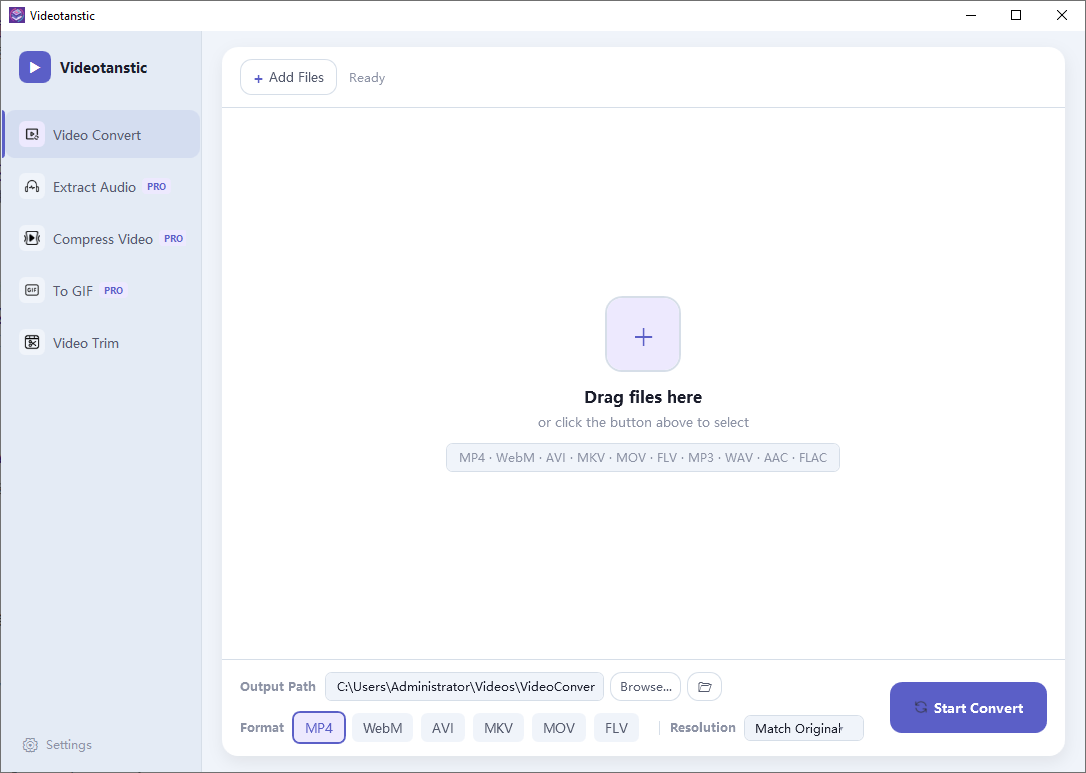
Convert a video in 30 seconds
30 秒完成一次视频转换
Video Convert is free, needs no account and installs nothing extra. Here is the entire flow:
视频转换完全免费、无需账号、无需额外安装组件。完整流程如下:
- Add your video — click Add Files, or just drag files from Explorer into the window.
- 添加视频 — 点击 Add Files,或直接从资源管理器把文件拖进窗口。
- Pick a format — tap an MP4, WebM, AVI, MKV, MOV or FLV chip in the bar at the bottom.
- 选择目标格式 — 在底部那一排点选 MP4、WebM、AVI、MKV、MOV 或 FLV。
- Press Start Convert — each row then offers ▶ Play and ⬇ Save, and the file is already in your Output Path.
- 点击 Start Convert — 完成后每行会出现 ▶ 播放 与 ⬇ 保存,文件也已保存在 Output Path 目录中。
Features Overview
功能总览
Video Convert FREE
视频转换 免费
Convert between MP4, WebM, AVI, MKV, MOV and FLV, with optional resolution scaling from 1920x1080 down to 640x360.
在 MP4、WebM、AVI、MKV、MOV、FLV 之间互转,可选 1920x1080 至 640x360 的分辨率缩放。
Tutorial →教程 →Extract Audio PRO
提取音频 高级
Pull the soundtrack out of any video as MP3, WAV, AAC, FLAC or OGG - no re-encoding guesswork.
从任意视频中提取音轨,输出 MP3、WAV、AAC、FLAC 或 OGG。
Tutorial →教程 →Compress Video PRO
压缩视频 高级
Shrink large videos with a 0-100% quality slider, and see a real estimated output size before you start.
用 0-100% 质量滑块压缩大视频,开始前即可看到真实的预计输出体积。
Tutorial →教程 →To GIF PRO
转 GIF 高级
Turn a video clip into a looping GIF with an adjustable frame rate from 5 to 30 FPS.
把视频片段转成循环 GIF,帧率可在 5 至 30 FPS 之间调节。
Tutorial →教程 →Video Trim
视频剪辑
Jump to our free, no-watermark movie editor for timeline trimming and full video editing.
一键前往我们的免费、无水印视频剪辑软件,进行时间线剪辑与完整视频编辑。
Tutorial →教程 →6 Languages & Dark Mode
6 种语言与深色模式
English, 简体中文, 日本語, 한국어, Deutsch and Русский, with light and dark themes.
支持 English、简体中文、日本語、한국어、Deutsch、Русский,并提供浅色与深色主题。
Tutorial →教程 →Free vs Premium at a glance
免费与高级功能一览
Video Convert is free forever. Each premium tool can also be used once for free, so you can judge the quality on your own files before paying anything.
视频转换永久免费。每个高级功能都可以免费试用一次,你可以先用自己的文件检验效果,再决定是否付费。
| Tool功能 | Tier权限 | What you get说明 |
|---|---|---|
| Video Convert视频转换 | Free免费 | MP4, WebM, AVI, MKV, MOV or FLV, with optional downscaling. Batch queue, no watermark.MP4、WebM、AVI、MKV、MOV、FLV 互转,可选缩放。支持批量排队,无水印。 |
| Compress Video压缩视频 | Premium高级 | Much smaller files with a 0-100% quality slider, plus a realistic size estimate before you commit.用 0-100% 质量滑块大幅减小体积,开始前即可看到接近真实的体积预估。 |
| Extract Audio提取音频 | Premium高级 | Pull the soundtrack out of any video as MP3, WAV, AAC, FLAC or OGG.从任意视频中提取音轨,输出 MP3、WAV、AAC、FLAC 或 OGG。 |
| To GIF转 GIF | Premium高级 | Turn a clip into a looping GIF, 5-30 FPS, clean colours, no watermark.把片段转成循环 GIF,5-30 FPS,色彩干净,无水印。 |
| Video Trim视频剪辑 | Free免费 | Opens our separate free video editor for timeline trimming and full editing.打开我们另一款免费视频编辑软件,进行时间线剪辑与完整编辑。 |
| Settings设置 | Free免费 | 6 languages, light/dark theme, and your own default quality and resolution.6 种语言、浅色/深色主题,以及自定义默认质量与分辨率。 |
Step-by-Step Tutorials
分步教程
1. The main window
1. 主界面
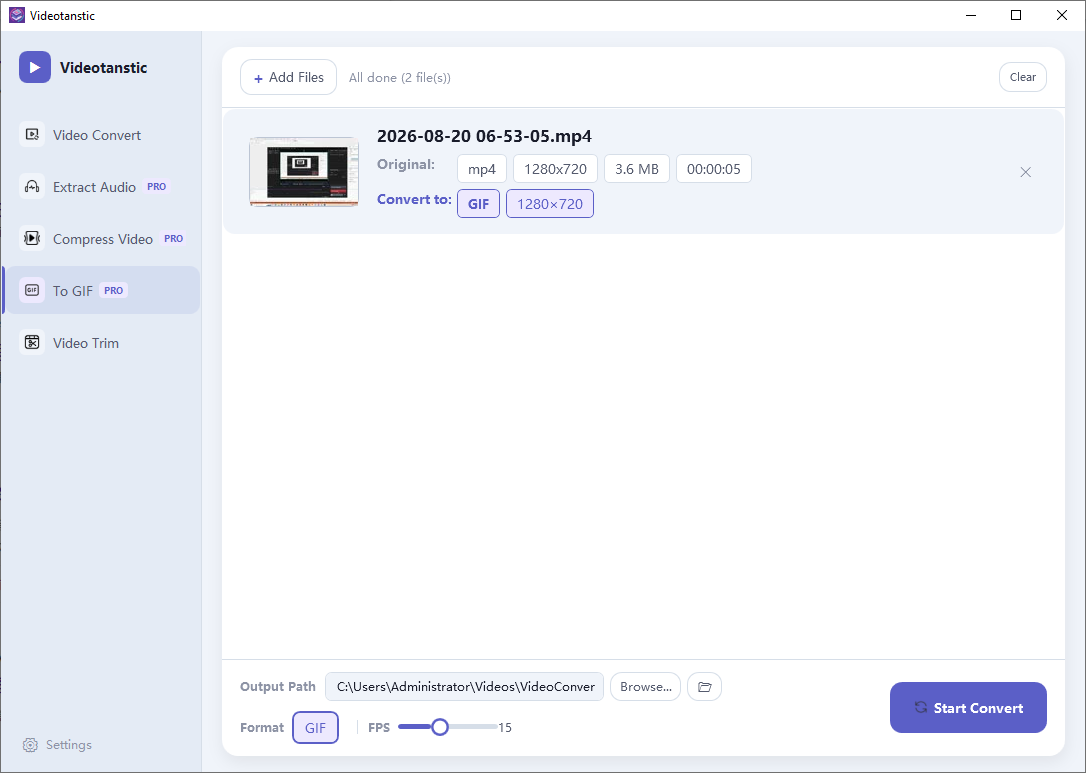
The sidebar on the left is the tool switcher. Everything below the file list - Output Path, Format, Resolution / FPS / Compression Quality - belongs to the currently selected tool, and the purple button on the right is always the action button (Start Convert, Start Compress, ...).
左侧边栏是工具切换器。文件列表下方的一行(输出路径、格式、分辨率/帧率/压缩质量)属于当前选中的工具,右下角的紫色按钮始终是执行按钮(开始转换、开始压缩……)。
- Launch Videotanstic from the Start menu. The window opens on Video Convert, which is completely free.
- 从开始菜单启动 Videotanstic。窗口默认停在视频转换,该功能完全免费。
- Click a tool in the sidebar to switch: Video Convert, Extract Audio, Compress Video, To GIF or Video Trim. Tools marked PRO are premium features.
- 点击左侧工具切换:视频转换、提取音频、压缩视频、转 GIF、视频剪辑。带 PRO 标记的是高级功能。
- The folder button next to Output Path opens the destination folder; Browse… picks a different one. The path is remembered for next time.
- 点击输出路径旁的文件夹按钮可打开目标文件夹,浏览…可更换目录,设置会被记住。
2. Adding files
2. 添加文件
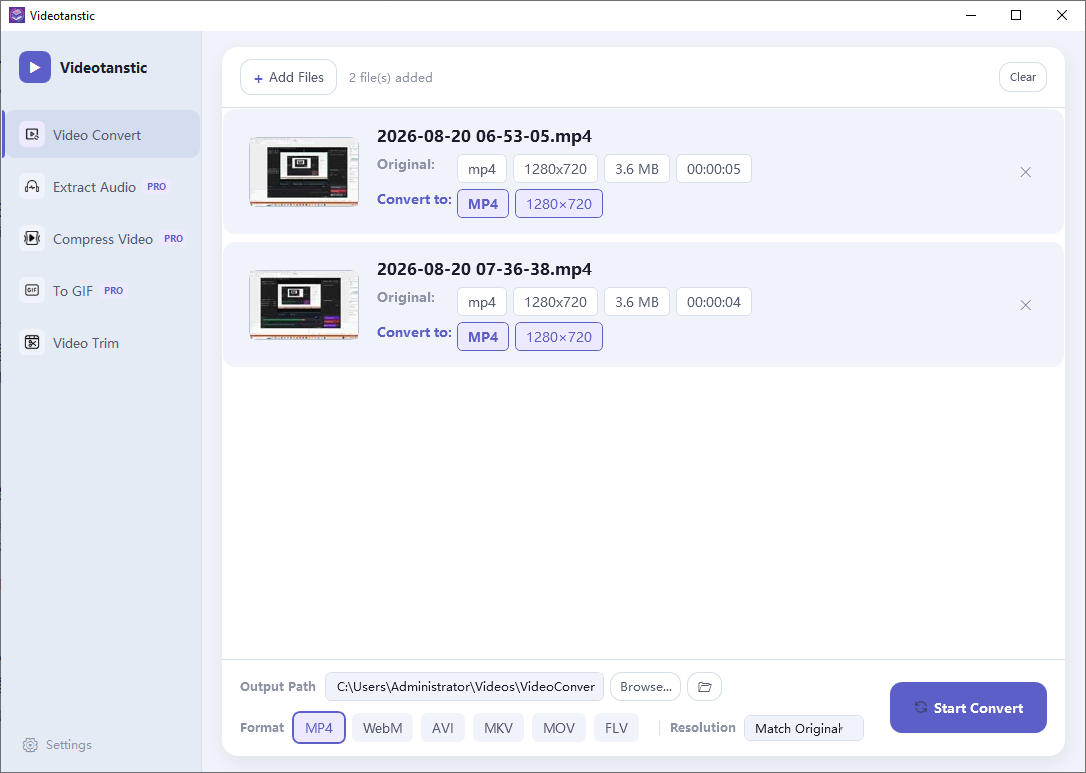
- Click Add Files in the top toolbar and select one or more files - or simply drag them from Explorer and drop them anywhere on the window.
- 点击顶部工具栏的添加文件选择一个或多个文件,也可以直接从资源管理器拖拽到窗口任意位置。
- Supported inputs: MP4, WebM, AVI, MKV, MOV, FLV, MP3, WAV, AAC, FLAC, OGG. The status line next to the button shows how many files were added.
- 支持的输入格式:MP4、WebM、AVI、MKV、MOV、FLV、MP3、WAV、AAC、FLAC、OGG。按钮旁的状态栏会显示已添加的文件数量。
- For each file the app reads the original format, resolution, file size and duration, and shows a thumbnail for video. Use the ✕ on the right of a row to remove just that file, or Clear to empty the whole list.
- 每个文件会自动读取原格式、分辨率、文件大小和时长,视频还会显示缩略图。点击行右侧的 ✕ 可移除单个文件,点击 Clear 可清空列表。
3. Video Convert FREE
3. 视频转换 免费
- Select Video Convert in the sidebar and add your video files.
- 在左侧选择视频转换,添加视频文件。
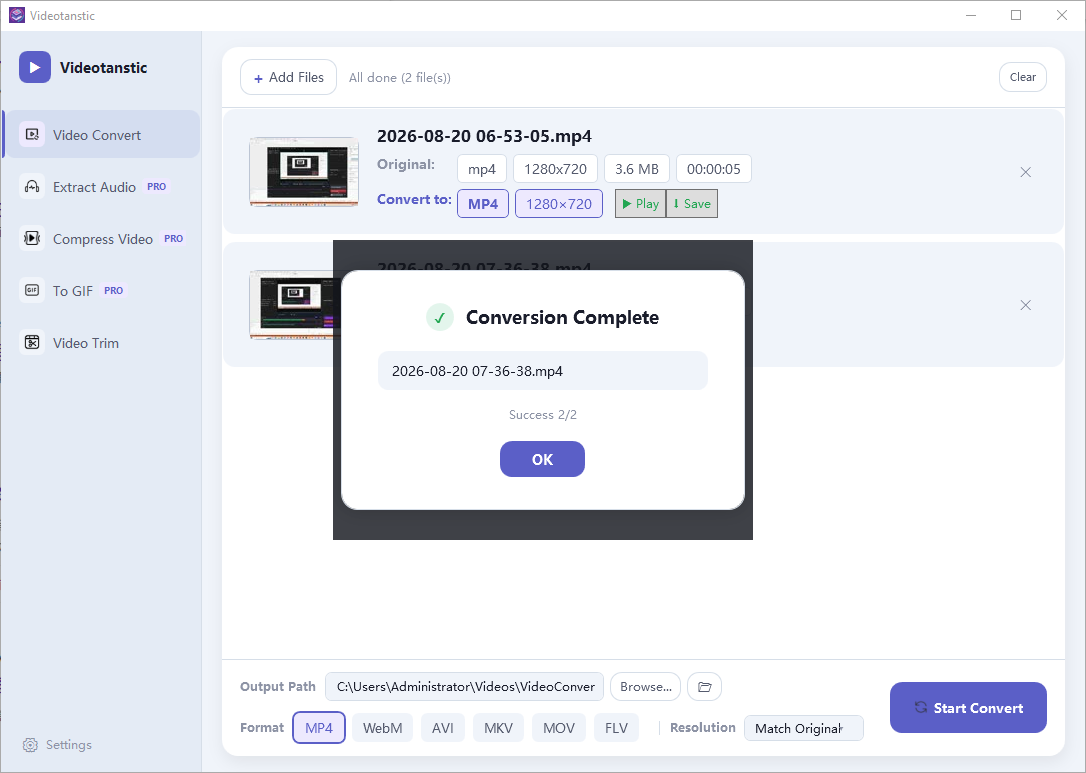
- Pick an output format chip: MP4, WebM, AVI, MKV, MOV or FLV. The choice is applied to every file in the list at once.
- 选择输出格式:MP4、WebM、AVI、MKV、MOV 或 FLV,该选择会一次性应用到列表中所有文件。
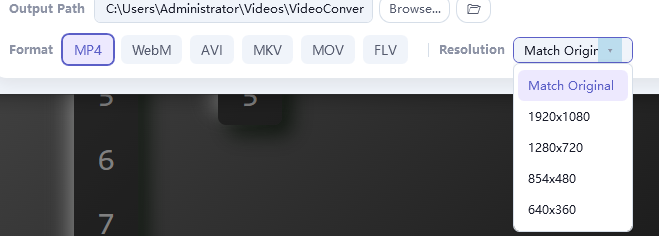
- Optionally open the Resolution dropdown and choose Match Original, 1920x1080, 1280x720, 854x480 or 640x360 to downscale the output.
- 可选:打开分辨率下拉框,选择匹配原视频、1920x1080、1280x720、854x480 或 640x360 来缩放输出。
- Click Start Convert. A progress window shows the current file and percentage; use Cancel to stop at any time.
- 点击开始转换。进度窗口会显示当前文件与百分比,随时可点取消停止。
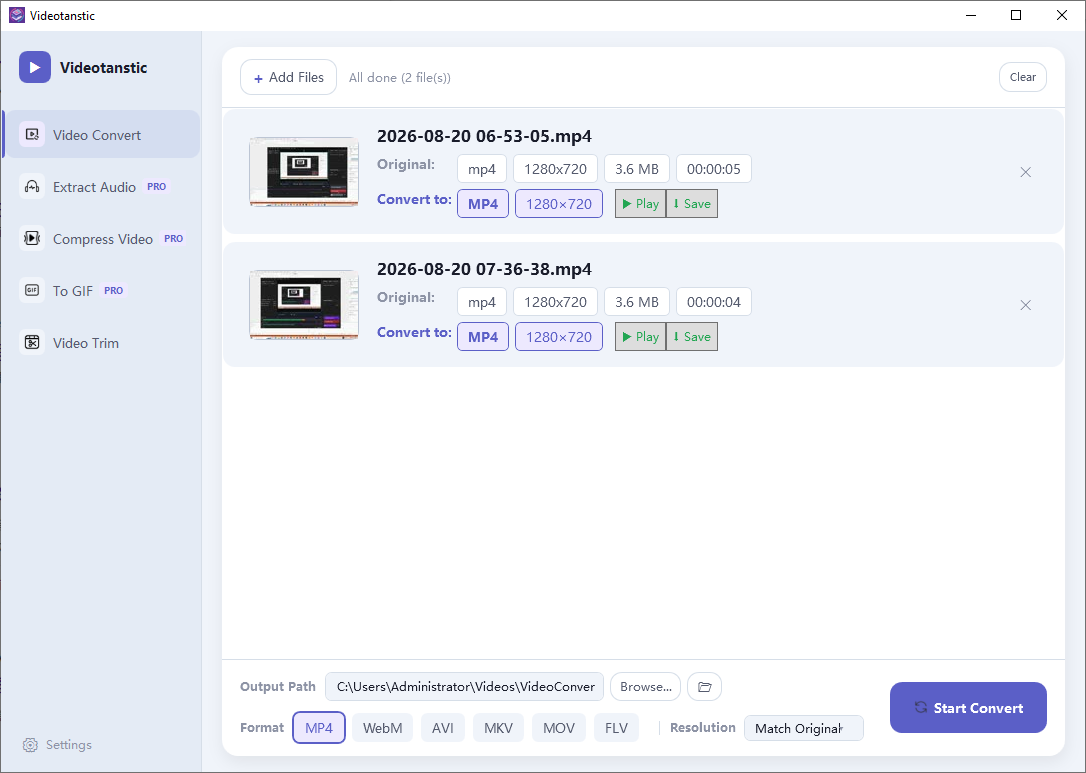
- When the batch finishes a red Conversion Complete dialog reports the results (for example "Success 2/2"). Every finished row then offers ▶ Play and ⬇ Save; the status line reads "All done (n file(s))".
- 批量完成后会弹出 Conversion Complete 对话框并报告结果(例如 "Success 2/2")。每个完成的文件行会出现 ▶ 播放 和 ⬇ 保存,状态栏显示 "All done (n file(s))"。
4. Video Trim
4. 视频剪辑
Video Trim is the doorway to our separate, free video editor. Timeline trimming, multi-track editing and effects live there, so Videotanstic keeps its own window clean and fast.
视频剪辑是通往我们另一款免费视频编辑软件的入口。时间线剪辑、多轨道编辑与特效都在那边,这样 Videotanstic 能保持界面简洁、启动迅速。
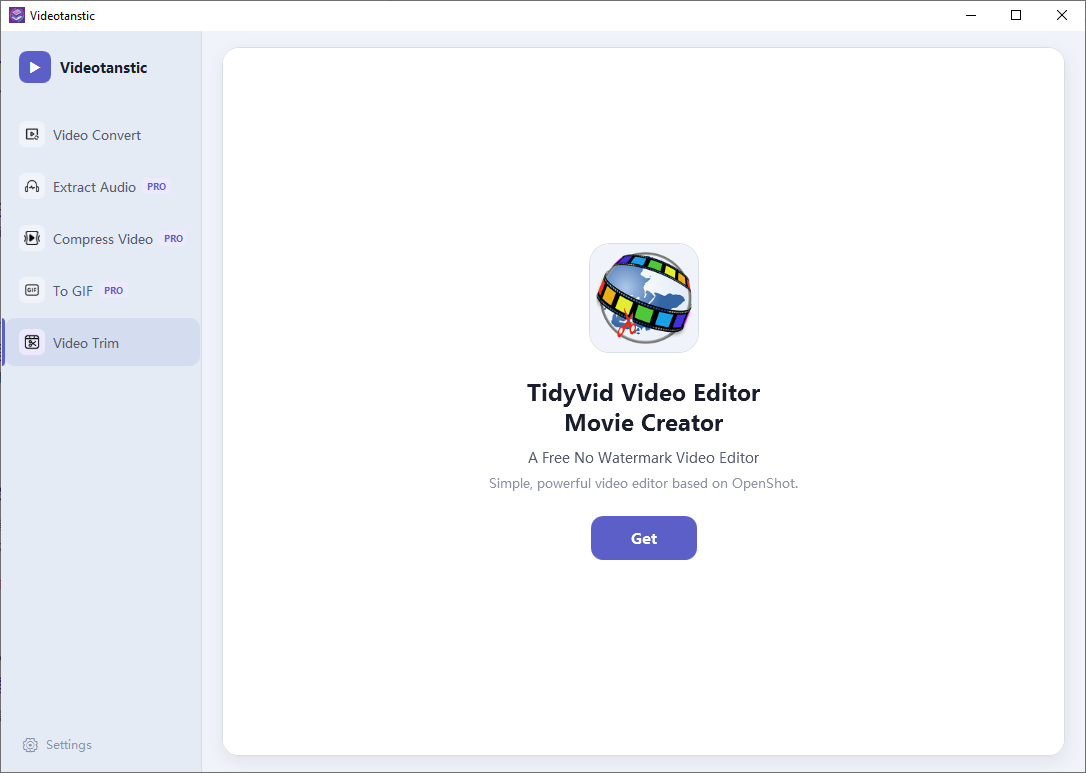
- Click Video Trim in the sidebar. The file list is replaced by a recommendation card.
- 点击左侧视频剪辑,文件列表会被替换为推荐卡片。
- Click Get to open the Microsoft Store page of the companion editor (TidyVid Video Editor / Movie Creator, built on OpenShot) and install it.
- 点击 Get 打开配套编辑器(TidyVid Video Editor / Movie Creator,基于 OpenShot)的微软商店页面并安装。
5. Compress Video PRO
5. 压缩视频 高级
- Select Compress Video and add the videos you want to shrink. There is no format chip here - the output keeps the source format.
- 选择压缩视频并添加要压缩的视频。此处没有格式选项,输出保持源格式。
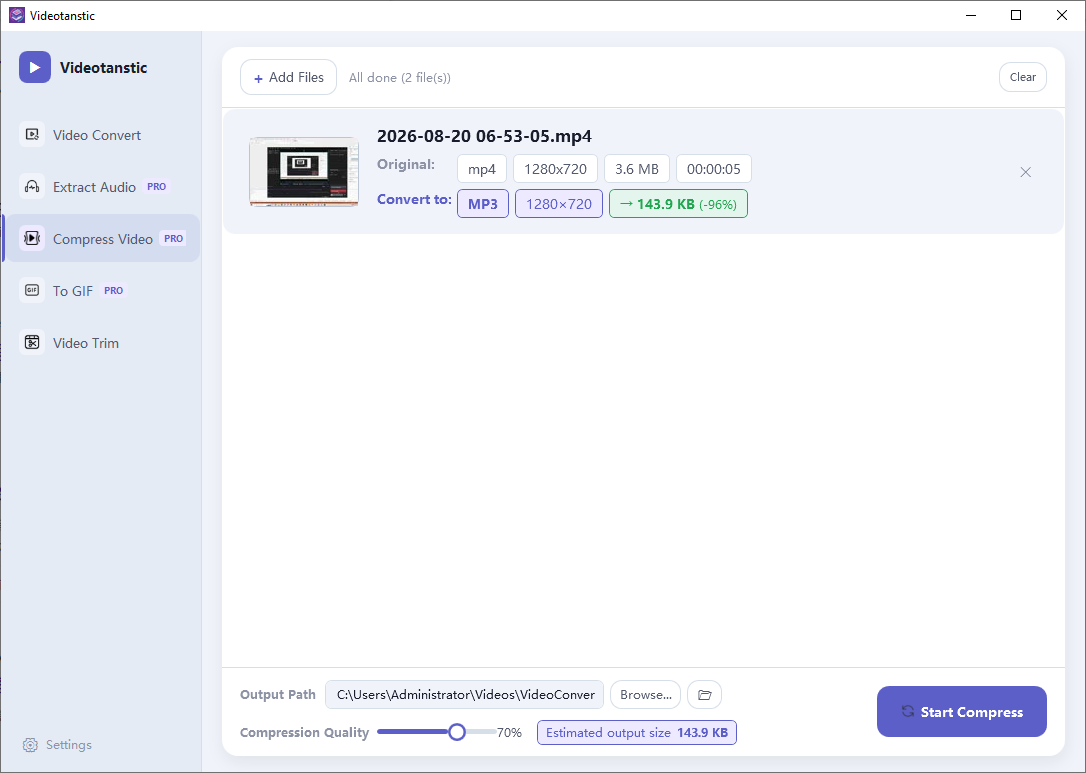
- Drag the Compression Quality slider (0-100%, default 70%). Higher keeps more quality and produces a bigger file; lower shrinks it harder.
- 拖动压缩质量滑块(0-100%,默认 70%)。数值越高画质越好、体积越大;越低压缩越狠。
- Watch the Estimated output size badge: the app sample-encodes a short middle segment with your exact settings and extrapolates to the full duration, so the number is realistic rather than a rough guess.
- 留意预计输出体积标签:程序会用你的实际参数对视频中段做一次短样本编码,再按总时长推算,因此结果接近真实值而非粗略估计。
- Click Start Compress. Each row shows a green estimate such as → 143.9 KB (-96%) so you can see the saving at a glance.
- 点击开始压缩。每行会显示绿色提示,例如 → 143.9 KB (-96%),一眼看出节省比例。
6. Extract Audio PRO
6. 提取音频 高级
- Select Extract Audio and add a video (or an audio file you want to re-encode).
- 选择提取音频,添加视频(或需要重新编码的音频文件)。
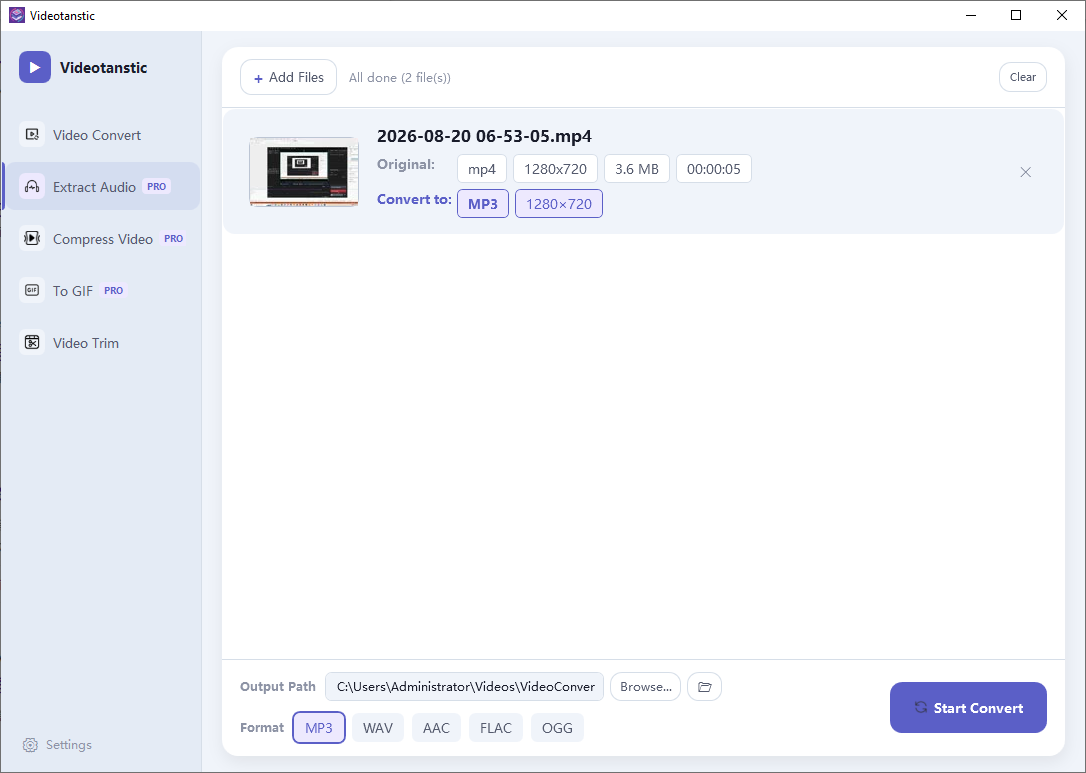
- Pick the audio format chip: MP3, WAV, AAC, FLAC or OGG.
- 选择音频格式:MP3、WAV、AAC、FLAC 或 OGG。
- Click Start Convert. The video stream is dropped and only the soundtrack is written to the output folder.
- 点击开始转换。视频画面会被丢弃,仅将音轨输出到目标文件夹。
7. To GIF PRO
7. 转 GIF 高级
- Select To GIF and add a short video clip - GIFs are best kept to a few seconds.
- 选择转 GIF,添加一段较短的视频片段(GIF 建议控制在几秒内)。
- Set the FPS slider (5-30, default 15). A lower value gives a smaller file, a higher value gives smoother motion.
- 设置 FPS 滑块(5-30,默认 15)。数值越低文件越小,越高动作越流畅。
- Click Start Convert. The result is a looping GIF, scaled to 480 px wide with a high-quality palette for clean colours.
- 点击开始转换。输出为循环播放的 GIF,宽度缩放至 480 px,并使用高质量调色板以保证色彩干净。
8. Free trial & premium plans
8. 免费试用与高级方案
Video Convert is free forever. Compress Video, Extract Audio and To GIF are premium tools - but each one can be tried once for free, with no account and no watermark on the result.
视频转换永久免费。压缩视频、提取音频、转 GIF 属于高级功能,但每个功能都可以免费试用一次,无需注册账号,输出也没有水印。
- Pick a premium tool and click the action button. The first run is a free trial and completes normally.
- 选择高级功能并点击执行按钮。第一次运行即为免费试用,会正常完成。
- The next time you start that same tool, an upgrade window appears instead. Choose a plan and click UPGRADE NOW to unlock every premium tool.
- 再次启动同一工具时,会弹出升级窗口。选择方案并点击 UPGRADE NOW 即可解锁全部高级工具。
- Already own a plan on another device? It is tied to your Microsoft account - just sign in and the purchase is recognised automatically.
- 已在其他设备购买?购买与微软账号绑定,登录后会自动识别。
Monthly plan
月度订阅
Lifetime access
永久授权
9. Settings
9. 设置
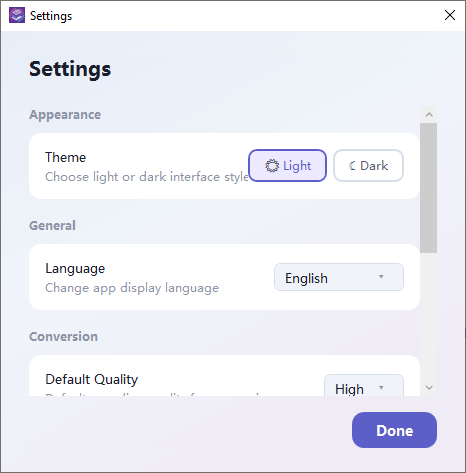
Open Settings with the gear button at the bottom of the sidebar.
点击边栏底部的齿轮按钮打开设置。
- Appearance → Theme: switch between Light and Dark. The whole window recolours instantly and the choice is remembered.
- 外观 → 主题:在 Light 与 Dark 之间切换,整个界面即时换色并被记住。
- General → Language: choose English, 简体中文, 日本語, 한국어, Deutsch or Русский. Menus, buttons and status messages all update live.
- 常规 → 语言:选择 English、简体中文、日本語、한국어、Deutsch 或 Русский。菜单、按钮与状态提示会立即更新。
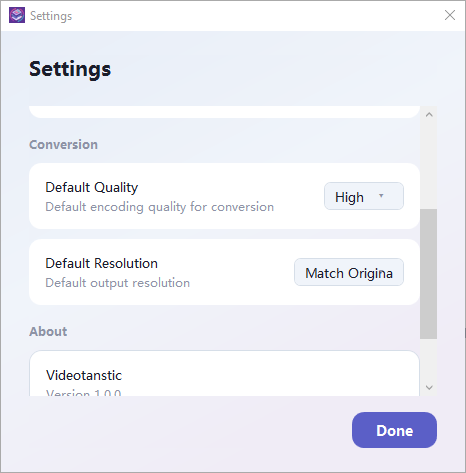
- Conversion → Default Quality: Low, Medium or High, used for the encoding presets.
- 转换 → 默认质量:Low、Medium 或 High,用于编码预设。
- Conversion → Default Resolution: Match Original, 1920x1080, 1280x720, 854x480 or 640x360.
- 转换 → 默认分辨率:匹配原视频、1920x1080、1280x720、854x480 或 640x360。
- About: the version number plus quick links to the online tutorial, a Store rating, the donation page and the privacy policy. Click Done to close.
- 关于:版本号,以及在线教程、商店评价、捐赠页面和隐私政策的快捷链接。点击 Done 关闭。
10. FAQ
10. 常见问题
Where do my converted files go?
The folder shown in Output Path, which defaults to Videos\VideoConverter in your user profile. Use the folder button to open it, or ⬇ Save on a finished row to copy the file elsewhere.
转换后的文件在哪里?
在输出路径所显示的目录中,默认为用户目录下的 Videos\VideoConverter。可用文件夹按钮打开,或在完成的文件行点击 ⬇ 保存 另存到其他位置。
Can I queue many files at once?
Yes. Add as many as you like and press the action button once - files are converted one after another, and a summary dialog is shown at the end.
可以一次排队多个文件吗?
可以。添加任意数量文件后点击一次执行按钮,程序会逐个转换,并在结束时弹出汇总对话框。
Do I need to install FFmpeg or any codec pack?
No. Everything needed is bundled inside the app.
需要单独安装 FFmpeg 或解码器包吗?
不需要。所需组件已内置在应用内。
Is there a watermark on the output?
Never - not in the free tools and not in the premium ones.
输出会带水印吗?
不会。免费功能与高级功能都不加水印。
A file shows "Failed" - what should I do?
That row's file could not be read or encoded. The rest of the batch still completes, so just re-add the failed file. If it keeps failing, play the source once to confirm it is not damaged and try a different output format.
某个文件显示 "Failed" 怎么办?
该文件无法读取或编码。其余文件仍会继续完成,重新添加失败的文件即可。若持续失败,请先播放源文件确认没有损坏,再换一种输出格式试试。
It says the output folder was not found.
The folder in Output Path no longer exists (for example a removed USB drive). Click Browse… and pick another folder - the new path is remembered.
提示找不到输出文件夹。
输出路径中的文件夹已不存在(例如已拔出的 U 盘)。点击 浏览… 另选一个文件夹,新路径会被记住。
Does it work offline?
Yes. All conversion runs locally on your PC and never uploads your videos. Only the Store purchase dialog needs an internet connection.
可以离线使用吗?
可以。所有转换都在本机完成,不会上传你的视频。只有商店购买流程需要联网。