快速入门Quick Start
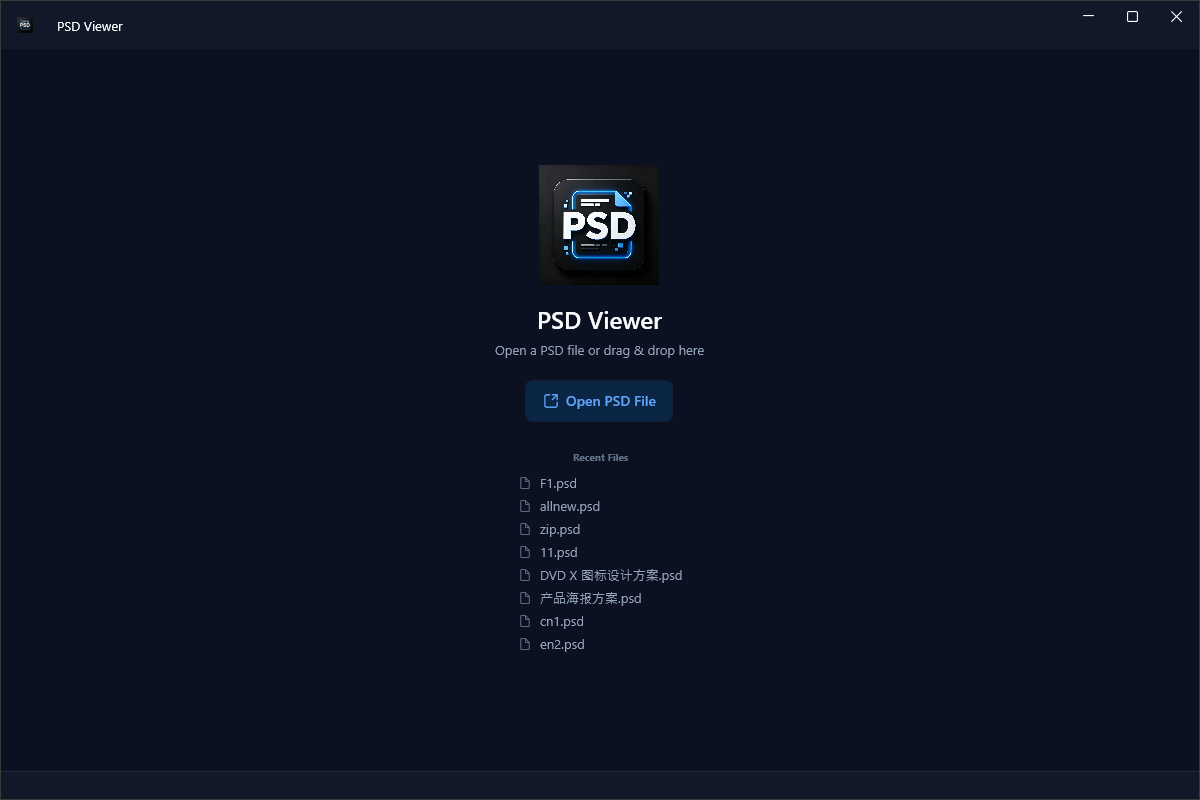
images/eng/home.pngSave screenshot as images/eng/home.png
- 启动应用后,会看到启动页,显示最近打开的 PSD 文件After launching, the startup page shows recently opened PSD files
- 点击「Open PSD File」按钮,或按下 Ctrl + O 选择文件Click "Open PSD File" or press Ctrl + O to select a file
- 也可以直接把图片文件从资源管理器拖放到窗口中打开You can also drag and drop an image file from File Explorer into the window
- 打开后,主窗口会显示 PSD 的合成图像Once opened, the main window displays the PSD composite image
界面概览Interface Overview

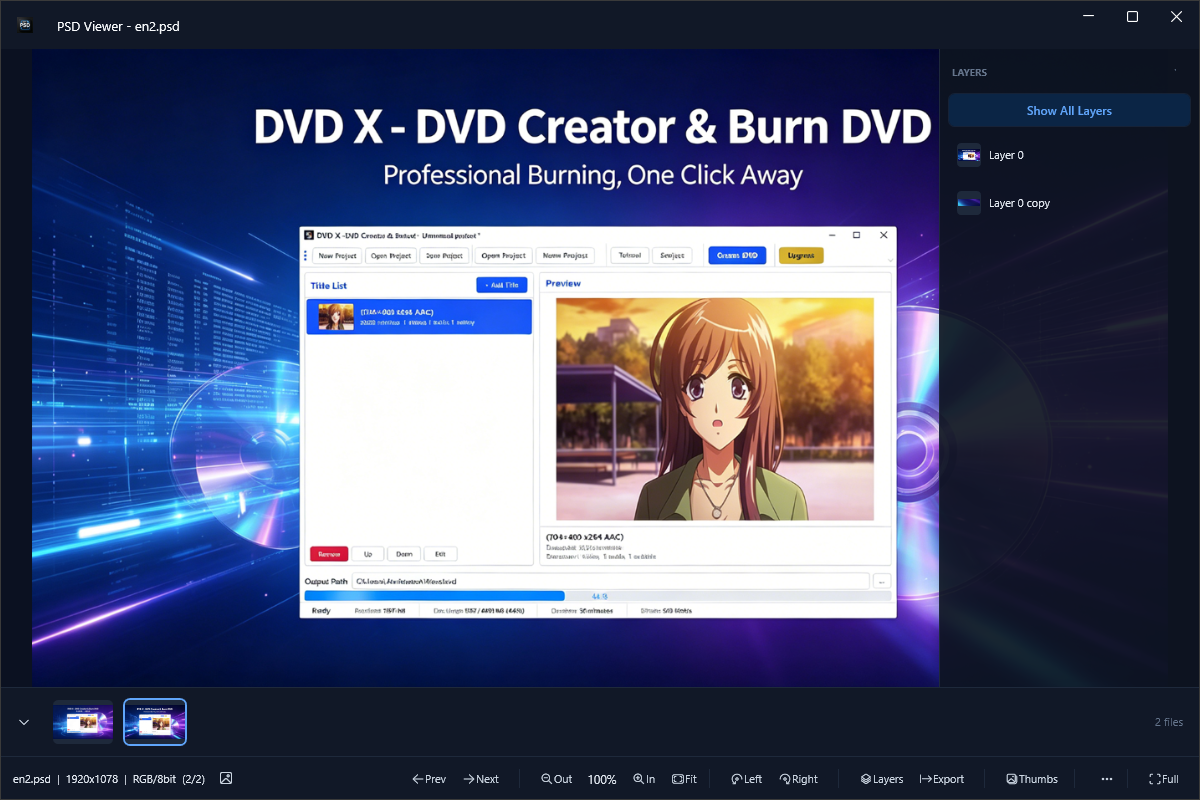
images/eng/main_interface.pngSave screenshot as images/eng/main_interface.png
- 顶部标题栏Top Title Bar — 应用名称与窗口控制按钮App name and window controls
- 中间画布Center Canvas — 显示当前 PSD 图片,支持缩放、平移、旋转Displays the current PSD image; supports zoom, pan, and rotate
- 底部工具栏Bottom Toolbar — 文件信息、导航、缩放、旋转、图层、导出、缩略图、更多菜单、全屏File info, navigation, zoom, rotate, layers, export, thumbnails, more menu, fullscreen
- 右侧图层面板Right Layer Panel — 点击 Layers 按钮后展开,可查看和选择单个图层Opens after clicking Layers; view and select individual layers
打开文件Open Files
- 打开按钮:点击底部工具栏的「Open PSD File」按钮Open button: Click "Open PSD File" in the bottom toolbar
- 快捷键:按 Ctrl + O 打开文件对话框Shortcut: Press Ctrl + O to open the file dialog
- 拖拽打开:直接把图片文件拖放到应用窗口Drag & drop: Drag an image file directly into the app window
- 最近文件:在启动页或继续打开时选择最近文件Recent files: Select from the startup page or recent files list
缩略图栏Thumbnail Strip
images/eng/thumbnails.pngSave screenshot as images/eng/thumbnails.png
- 打开图片后,如果同目录还有其他支持的图片文件,底部会自动出现缩略图栏After opening an image, a thumbnail strip appears if other supported image files exist in the same folder
- 点击任意缩略图即可切换到对应文件Click any thumbnail to switch to that file
- 当前文件会用高亮边框标识The current file is highlighted with a border
- 点击缩略图栏左侧的箭头可以折叠/展开Click the arrow on the left to collapse or expand the strip
查看图层View Layers
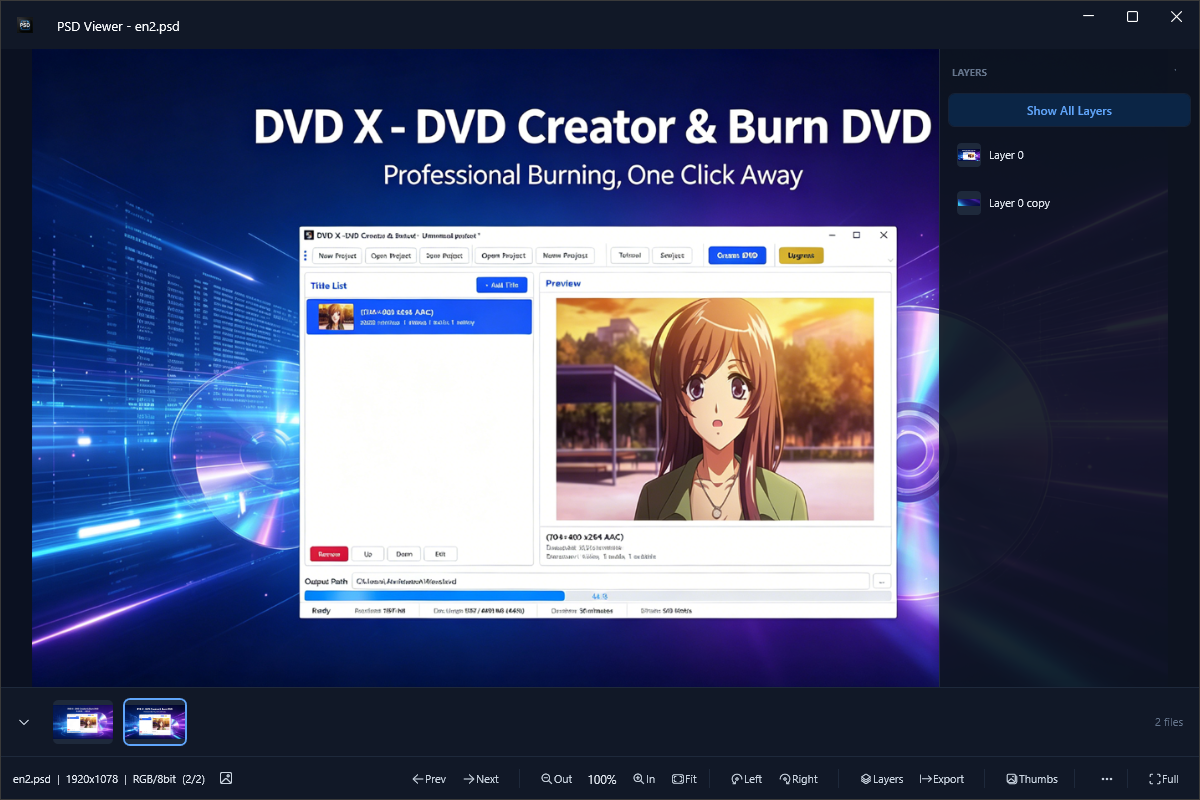
images/eng/layers.pngSave screenshot as images/eng/layers.png
- 点击底部工具栏的「Layers」按钮,右侧会展开图层面板Click the "Layers" button in the bottom toolbar to open the layer panel
- 面板中列出所有图层,显示缩略图和名称The panel lists all layers with thumbnails and names
- 点击某个图层,主画布会显示该图层的单独内容Click a layer to display its content on the main canvas
- 点击面板顶部的「Show All Layers」返回完整合成视图Click "Show All Layers" at the top to return to the full composite view
缩放与平移Zoom & Pan
- 缩放:滚动鼠标滚轮,以图片中心为中心放大或缩小Zoom: Scroll the mouse wheel to zoom in/out around the image center
- 平移:放大后按住鼠标左键拖动,可查看图片不同区域Pan: After zooming in, hold the left mouse button and drag to view different areas
- 适应窗口:点击底部工具栏的「Fit」按钮,恢复 100% 并居中Fit to window: Click "Fit" to reset to 100% and center
- 旋转:点击「Left」或「Right」按钮,逆时针或顺时针旋转 90°Rotate: Click "Left" or "Right" to rotate 90° counter-clockwise or clockwise
导出图片Export Image
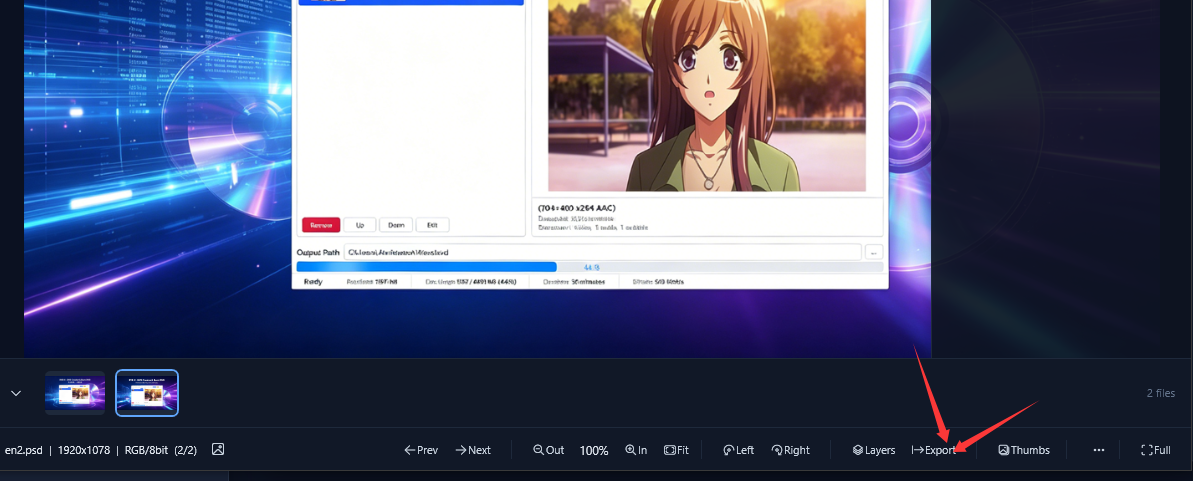
images/eng/export.pngSave screenshot as images/eng/export.png
- 点击底部工具栏的「Export」按钮Click the "Export" button in the bottom toolbar
- 在保存对话框中选择 PNG 或 JPEG 格式Choose PNG or JPEG format in the save dialog
- 输入文件名并保存Enter a file name and save
主题与设置Theme & Settings
点击底部工具栏右侧的「⋯」更多按钮,选择「Toggle Theme」即可在深色模式和浅色模式之间切换。
Click the "⋯" More button on the right side of the bottom toolbar and select "Toggle Theme" to switch between dark and light modes.
在「⋯」更多菜单中点击「About PSD Viewer」,可以查看版本号、功能简介,以及 Tutorial / Rate Us / Privacy / Donate 快捷链接。
Click "About PSD Viewer" in the "⋯" More menu to view the version, feature overview, and quick links to Tutorial / Rate Us / Privacy / Donate.
快捷键Shortcuts
常见问题FAQ
- 确认文件是标准 PSD 格式Make sure the file is a standard PSD format
- 检查文件是否损坏或被其他程序占用Check if the file is corrupted or in use by another program
- 尝试重新启动应用后再次打开Try restarting the app and opening again
单个图层预览仅显示该图层自身的像素内容。如果图层在原 PSD 中使用了蒙版、混合模式或超出画布边界,预览效果可能与合成视图不同。
Single-layer preview only shows the layer's own pixels. If the layer uses masks, blend modes, or extends beyond the canvas, the preview may differ from the composite view.
不会。导出功能仅保存当前屏幕上看到的平面图像,输出为 PNG 或 JPEG,不包含图层信息。
No. Export only saves the flat image currently shown on screen as PNG or JPEG; it does not include layer information.