
启动与主界面Launch and home screen
启动应用后,主界面中央将呈现 6 个功能入口:Word、Excel、PDF、Image、Text 与 Scan。点击 Word / Excel / PDF / Image / Text 时,系统将检测是否已安装可用打印机,随后唤起文件选择器;选定文件后将直接进入对应类型的打印窗口。点击 Scan 则直接打开扫描窗口。此外,用户亦可直接将文件拖拽至主窗口,释放鼠标后将打开对应格式的预览窗口。Printer & Scanner App 提供一站式打印与扫描体验,无需额外安装 Office 或 PDF 阅读器。 After launch, the home screen presents six functional tiles in the center: Word, Excel, PDF, Image, Text, and Scan. Clicking Word / Excel / PDF / Image / Text triggers a check for available printers, opens the file picker, and then loads the corresponding print screen after a file is selected. Clicking Scan opens the scan screen directly. Alternatively, users can drag a file into the main window; releasing the mouse opens the preview window for that format. Printer & Scanner App provides an integrated print and scan experience without requiring separate Office or PDF readers.
Word
.doc / .docx
.doc / .docx
Excel
.xls / .xlsx
.xls / .xlsx
Image
.jpg / .png / .bmp 等
.jpg / .png / .bmp etc.
Text
.txt
.txt
Scan
扫描仪 / 导入图片
Scanner / import images
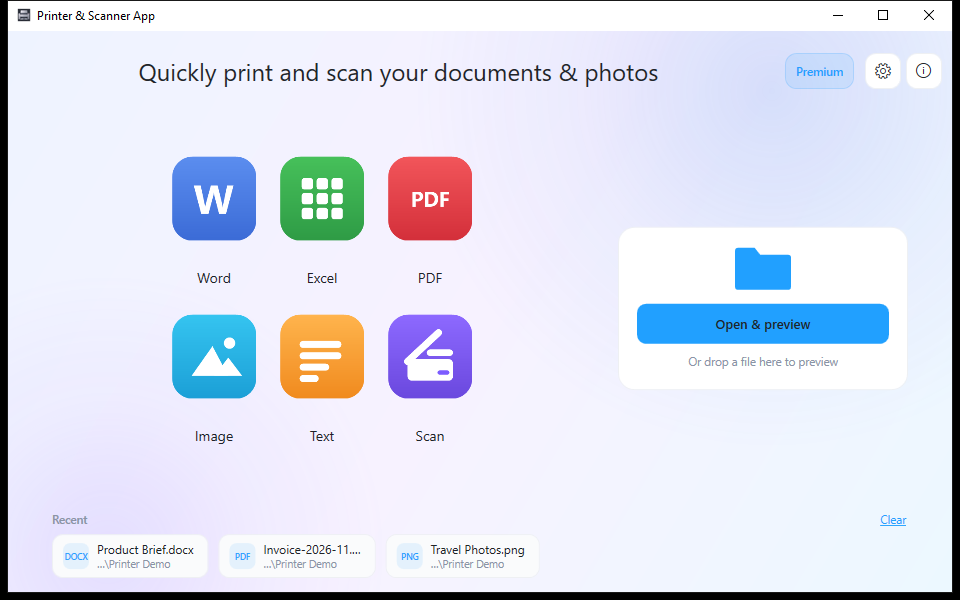
i 图标进入「关于」页面。The gear icon in the top-right opens Settings; the i icon opens About.打开文件Open files
方式一:通过主界面功能入口进入打印窗口。在主界面点击 Word / Excel / PDF / Image / Text 中对应的功能入口后,应用将检测系统是否已安装可用打印机,并唤起文件选择器;选定目标文件后将直接进入该文件类型的打印窗口。打印窗口右侧为打印设置面板,包含打印机、份数、纸张尺寸、方向等参数,底部为蓝色的 Print 按钮。 Option 1: use the home-screen tiles to enter the print screen. Click the corresponding Word / Excel / PDF / Image / Text tile on the home screen. The app checks whether an available printer is installed, opens the file picker, and loads the print screen for the selected file type after a file is chosen. The print screen shows the print settings panel on the right, including printer, copies, paper size, orientation, and other parameters, with the blue Print button at the bottom.
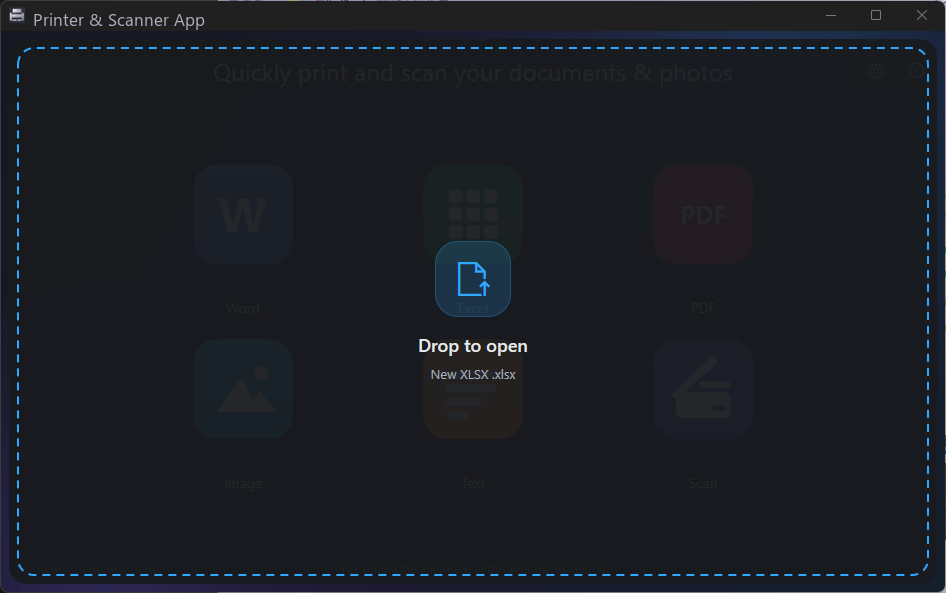
方式二:通过拖拽操作进入预览窗口。将 Word、Excel、PDF、图片或文本文件拖拽至 Printer & Scanner App 主窗口任意区域,主窗口将显示 Drop to open 覆盖层(如下图所示);释放鼠标后,应用将打开对应文件格式的预览窗口,而非打印窗口。预览窗口配备工具栏,支持查看、旋转、保存、打印等操作。后续各文件类型章节将分别展示其打印窗口与预览窗口的具体界面。 Option 2: use drag and drop to open the preview window. Drag a Word, Excel, PDF, image, or text file into any area of the Printer & Scanner App main window. The main window displays a Drop to open overlay (shown below); releasing the mouse opens the corresponding preview window for that file format, not the print screen. The preview window includes a toolbar supporting view, rotate, save, print, and other operations. The following file-type sections show the specific print screens and preview windows.
主界面右侧有一张 打开并预览 卡片:点它选择任意受支持的文件即可查看(不会下发打印任务,也不消耗纸张),也可以把文件直接拖进窗口。确认排版、缩放、旋转都正常后,再点预览窗口顶部的 Print 进入打印设置——「先看后打」和「直接打印」走同一套打印流程,结果一致。主界面底部的 Recent 会记住最近用过的文件(最多 5 个),点一下就能再次打开预览,右侧 Clear 可清空列表。 The Open & preview card on the right opens any supported file for viewing without sending a print job (no paper, no output); dropping a file anywhere in the window does the same. Once the layout, zoom and rotation look right, click Print in the preview toolbar — the "look first, then print" and "print directly" paths share the same print pipeline, so the result is identical. The Recent list at the bottom remembers the last five files and reopens them with one click; Clear empties it.
Word 文档Word documents
在主界面点击 Word 功能入口并选定 .doc 或 .docx 文件后,即可进入 Word 打印窗口。该窗口左侧为文档预览区域,右侧为打印设置面板,支持配置打印机、份数、打印范围(全部 / 当前页 / 自定义页码)、边距、纸张方向以及双面打印等参数。确认配置无误后,点击右下角蓝色的 Print 按钮,即可将打印任务提交至所选打印机。 Click the Word tile on the home screen and select a .doc or .docx file to enter the Word print screen. The left side is the document preview area, and the right side is the print settings panel, supporting configuration of printer, copies, page range (all / current / custom), margins, orientation, and duplex. After confirming the settings, click the blue Print button at the bottom right to submit the print job to the selected printer.
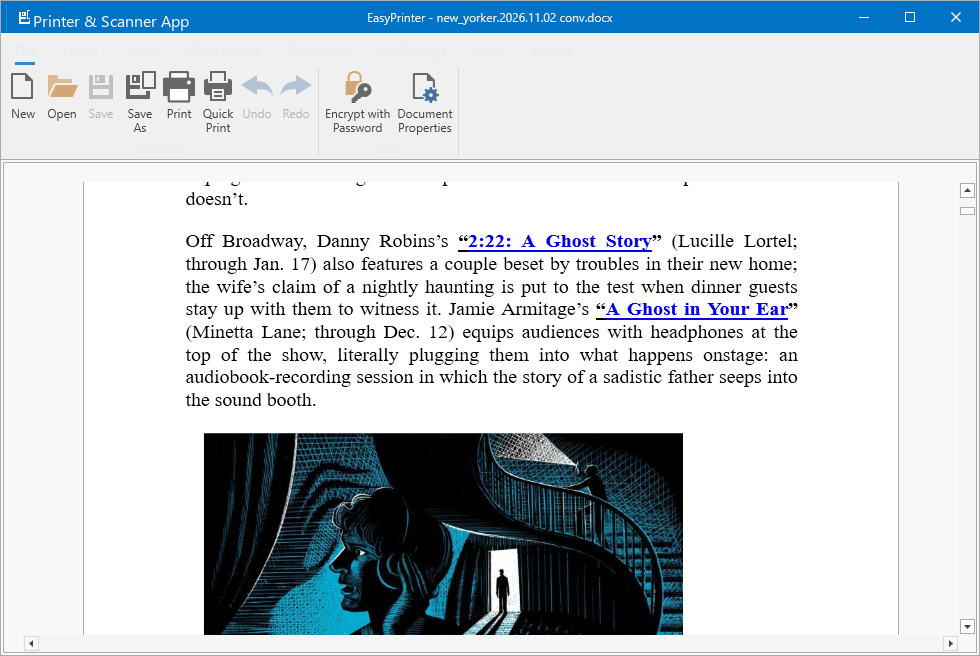
将 Word 文件拖拽至 Printer & Scanner App 主窗口并释放鼠标后,将打开 Word 预览窗口。该窗口顶部工具栏包含 New、Open、Save、Save As、Print、Quick Print、Undo、Redo、Encrypt with Password 以及 Document Properties 等功能按钮,用户可直接在预览界面中查看、编辑或打印文档。 Dragging a Word file into the Printer & Scanner App main window and releasing the mouse opens the Word preview window. The toolbar at the top includes New, Open, Save, Save As, Print, Quick Print, Undo, Redo, Encrypt with Password, and Document Properties buttons, allowing users to view, edit, or print the document directly from the preview.
Excel 表格Excel workbooks
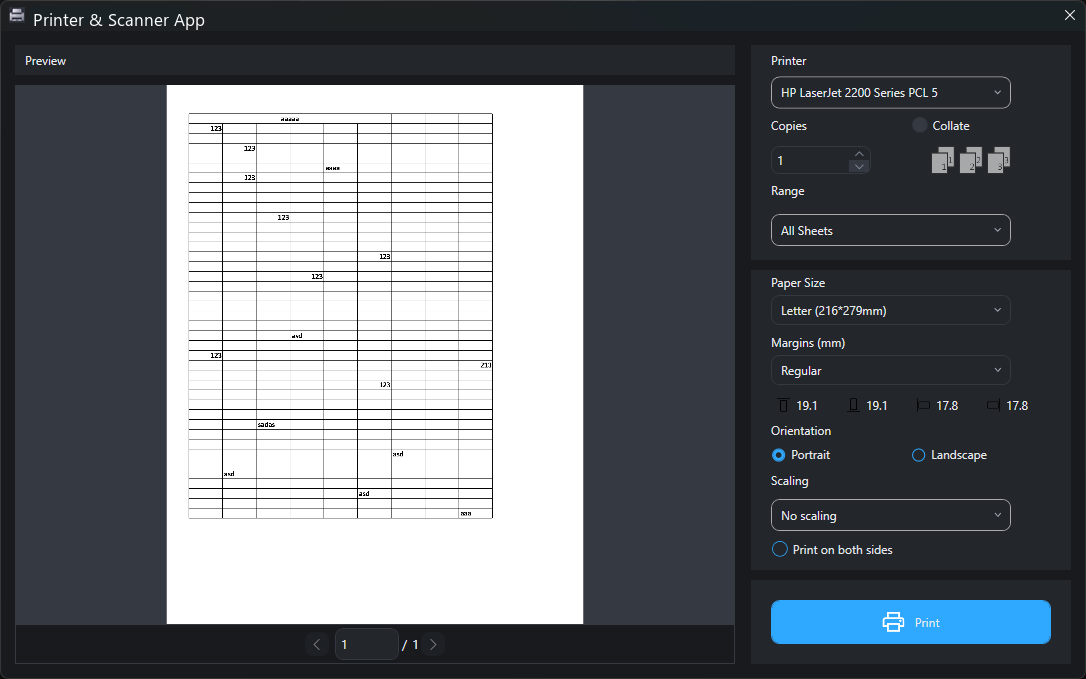
在主界面点击 Excel 功能入口并选定 .xls 或 .xlsx 文件后,即可进入 Excel 打印窗口。其布局与 Word 打印窗口类似,但额外提供缩放选项(例如「无缩放」)。用户可据此调整纸张方向、页边距及双面打印等参数,使较宽的表格能够完整输出至单页,或按实际尺寸进行打印。 Click the Excel tile on the home screen and select an .xls or .xlsx file to enter the Excel print screen. Its layout is similar to the Word print screen but additionally provides a Scaling option (such as "No scaling"). Users can adjust paper orientation, margins, and duplex settings accordingly, allowing wide spreadsheets to fit on a single page or print at actual size.
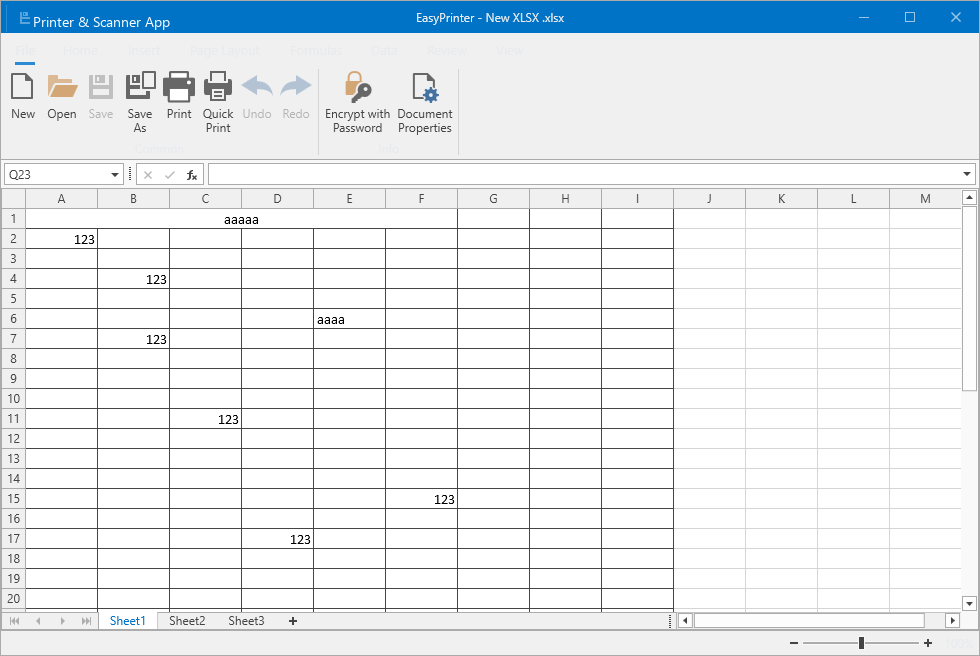
将 Excel 文件拖拽至 Printer & Scanner App 主窗口并释放鼠标后,将打开 Excel 预览窗口,并以电子表格形式展示工作簿内容。该窗口顶部工具栏包含 New、Open、Save、Save As、Print、Quick Print、Undo、Redo、Encrypt with Password 以及 Document Properties 等功能按钮,用户可直接在表格界面中查看、编辑或打印。 Dragging an Excel file into the Printer & Scanner App main window and releasing the mouse opens the Excel preview window, which displays the workbook as a spreadsheet. The toolbar at the top includes New, Open, Save, Save As, Print, Quick Print, Undo, Redo, Encrypt with Password, and Document Properties buttons, allowing users to view, edit, or print directly within the spreadsheet interface.
PDF 文件PDF files
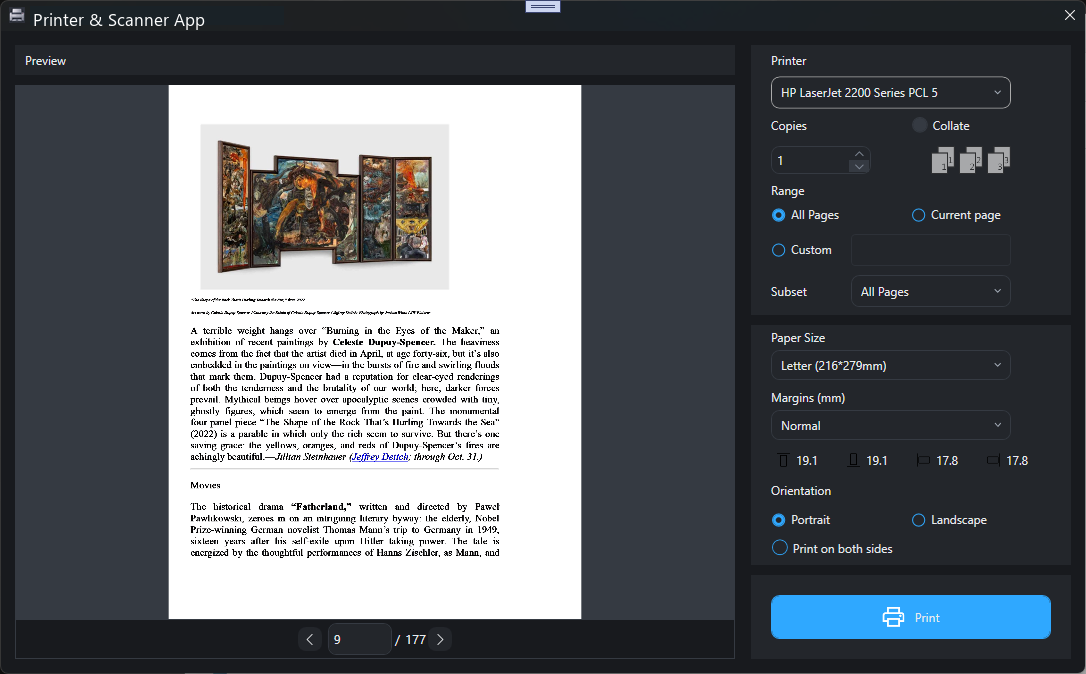
在主界面点击 PDF 功能入口并选定 PDF 文件后,即可进入 PDF 打印窗口。PDF 打印支持设置页码范围、子集以及纸张尺寸自适应方式(适合页面 / 实际大小 / 自定义缩放)。窗口底部的分页器允许用户逐页查看预览,以便在打印前确认每一页的渲染效果。 Click the PDF tile on the home screen and select a PDF file to enter the PDF print screen. PDF printing supports setting page range, subset, and paper sizing mode (fit page / actual size / custom zoom). The pager at the bottom of the window allows users to review each page before printing to confirm rendering.
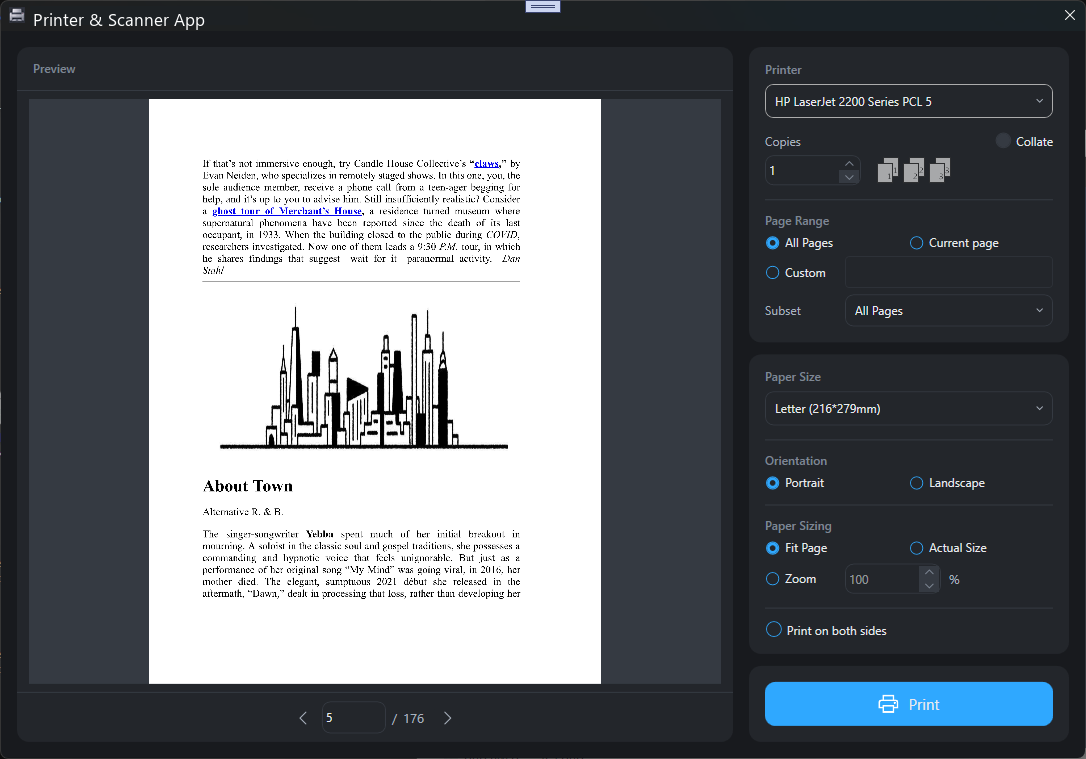
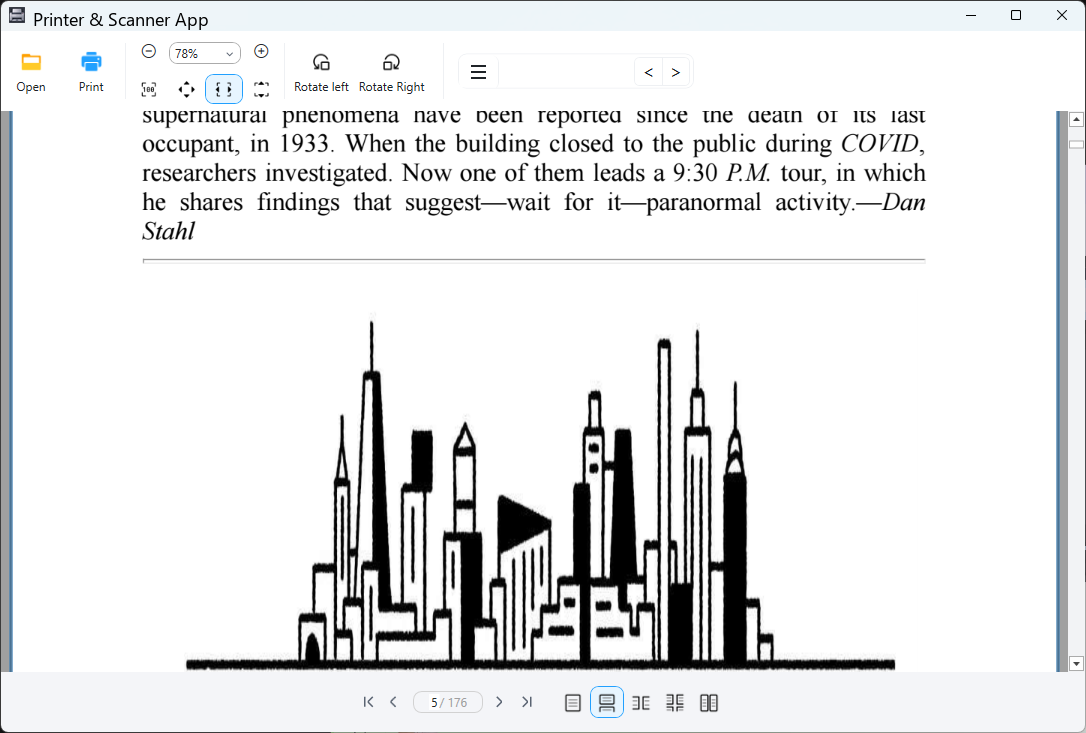
1,3,5-10,从而减少不必要的纸张消耗。For PDF documents with many pages, use the Custom page range to print only the required pages, e.g. 1,3,5-10, reducing unnecessary paper usage.将 PDF 文件拖拽至 Printer & Scanner App 主窗口并释放鼠标后,将打开 PDF 预览窗口。该窗口顶部工具栏包含 Open、Print、缩放控制、旋转(Rotate left / Rotate Right)以及页面布局切换按钮,用户可直接在预览界面中阅读、旋转或打印 PDF。 Dragging a PDF file into the Printer & Scanner App main window and releasing the mouse opens the PDF preview window. The toolbar at the top includes Open, Print, zoom controls, Rotate left / Rotate Right, and page layout buttons, allowing users to read, rotate, or print the PDF directly from the preview.
图片Images
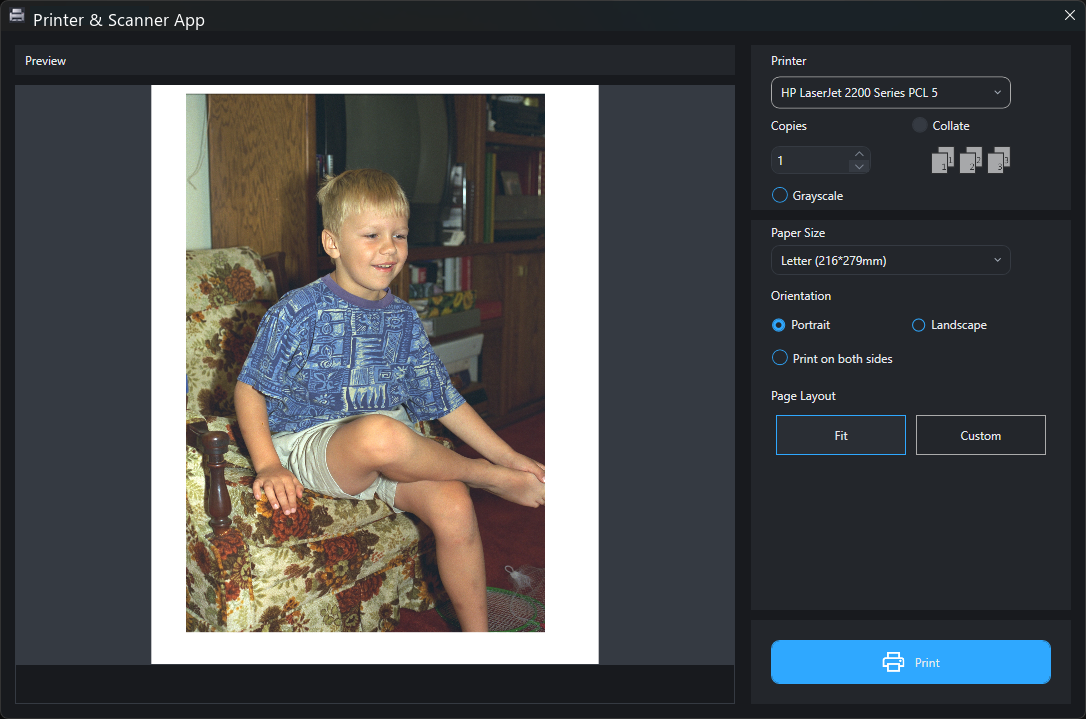
在主界面点击 Image 功能入口并选定图片文件后,即可进入图片打印窗口。右侧设置面板提供页面布局选项:Fit(自适应纸张)或 Custom(自定义)。此外,用户可启用灰度打印以降低彩色墨水消耗,或调整纸张方向以确保横向照片完整输出。 Click the Image tile on the home screen and select an image file to enter the image print screen. The right settings panel provides Page Layout options: Fit (scale to paper) or Custom. Users can also enable Grayscale printing to reduce color ink consumption, or adjust paper orientation to ensure wide photos are printed completely.
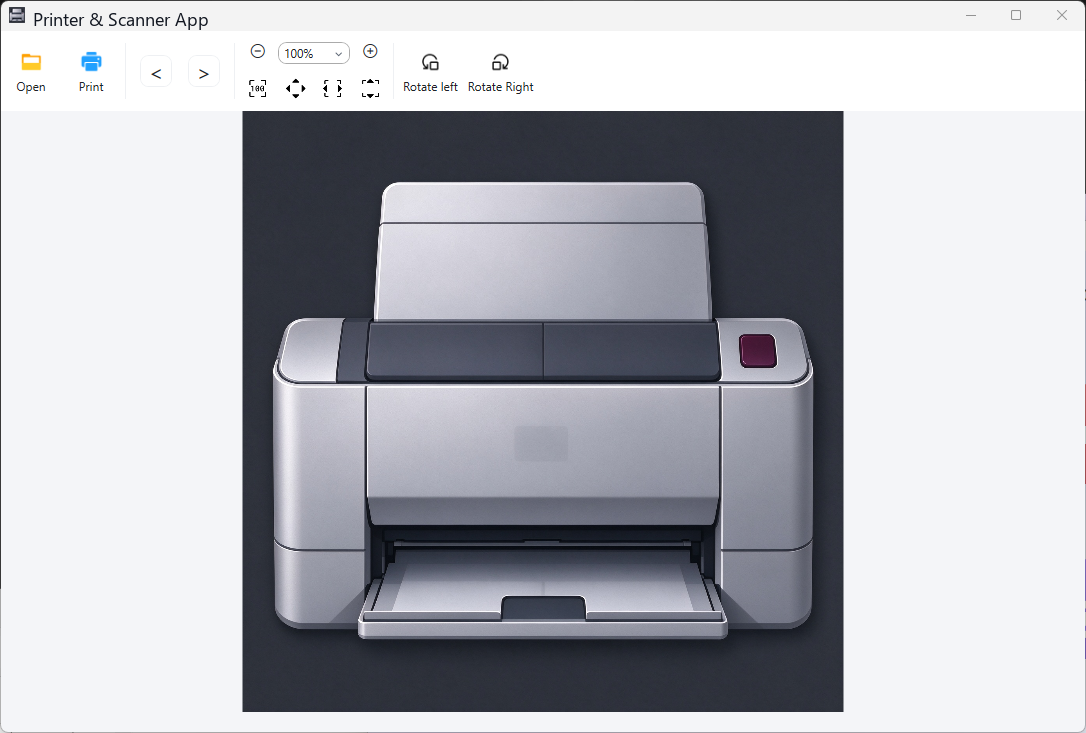
将图片文件拖拽至 Printer & Scanner App 主窗口并释放鼠标后,将打开图片预览窗口。图片显示于窗口中央,顶部工具栏包含 Open、Print、缩放控制以及 Rotate left / Rotate Right 按钮,用户可快速旋转图片或直接从预览窗口发起打印。 Dragging an image file into the Printer & Scanner App main window and releasing the mouse opens the image preview window. The image is displayed in the center, and the toolbar at the top includes Open, Print, zoom controls, and Rotate left / Rotate Right buttons, allowing users to rotate the image quickly or initiate printing directly from the preview.
文本文件Text files
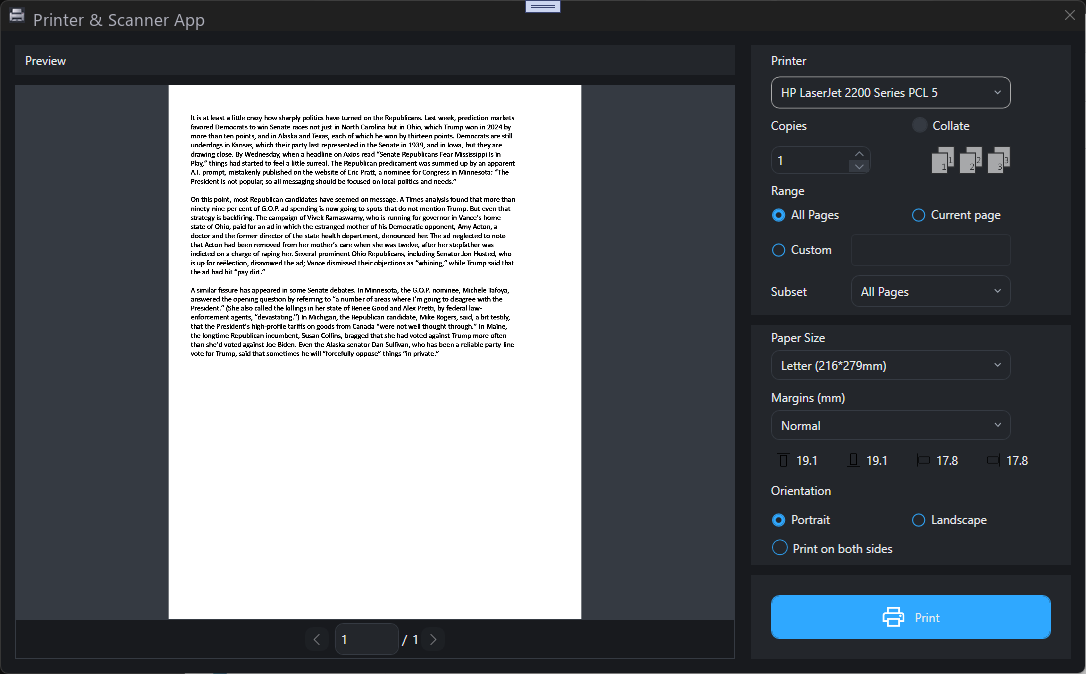
在主界面点击 Text 功能入口并选定 .txt 文件后,即可进入文本打印窗口。应用会自动将纯文本内容分页排版为适合打印的页面格式。用户可像处理 Word 文档一样配置边距、页码范围及纸张方向等参数,便于将日志、代码或笔记输出为纸质文档。 Click the Text tile on the home screen and select a .txt file to enter the text print screen. The application automatically paginates plain text into a printable page format. Users can configure margins, page range, and paper orientation just as with Word documents, facilitating the output of logs, code, or notes as hard copies.
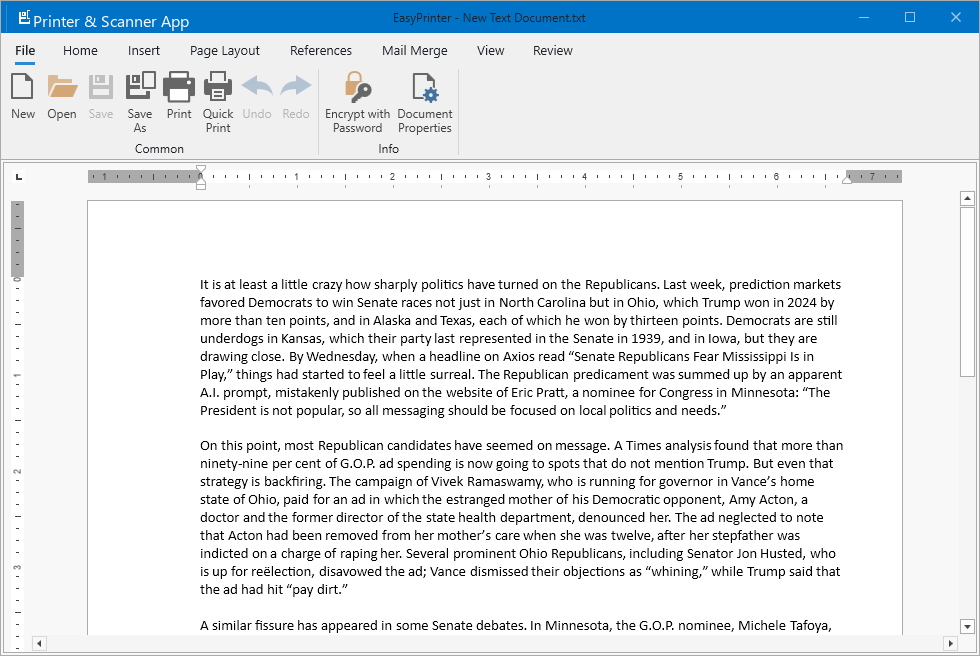
将 .txt 文件拖拽至 Printer & Scanner App 主窗口并释放鼠标后,将打开文本预览窗口。该窗口采用类似文字处理器的界面布局,顶部功能区(Ribbon)提供 File、Home、Insert、Page Layout、References、Mail Merge、View、Review 等选项卡,并包含 New、Open、Save、Print、Quick Print 等常用操作按钮,用户可在预览时直接编辑或打印文本。 Dragging a .txt file into the Printer & Scanner App main window and releasing the mouse opens the text preview window. The interface adopts a word-processor-style layout, with a ribbon toolbar providing File, Home, Insert, Page Layout, References, Mail Merge, View, Review tabs, and common buttons such as New, Open, Save, Print, and Quick Print, allowing users to edit or print the text directly from the preview.
扫描文档Scan documents
在主界面点击 Scan 功能入口,即可进入扫描视图。右侧设置面板支持配置扫描仪、颜色模式(彩色 / 灰度)、进纸源(平板 / 进纸器 / 双面)、分辨率(推荐使用 300 DPI)以及扫描区域等参数。点击 Scan 按钮后,扫描结果将显示于左侧页面列表中,用户还可继续添加或导入更多图像。 Click the Scan tile on the home screen to enter the scan view. The right settings panel supports configuring the scanner, color mode (color / grayscale), paper source (glass / feeder / duplex), resolution (300 DPI recommended), and scan area. After pressing the Scan button, the scanned result appears in the page list on the left, and users can continue to add or import more images.
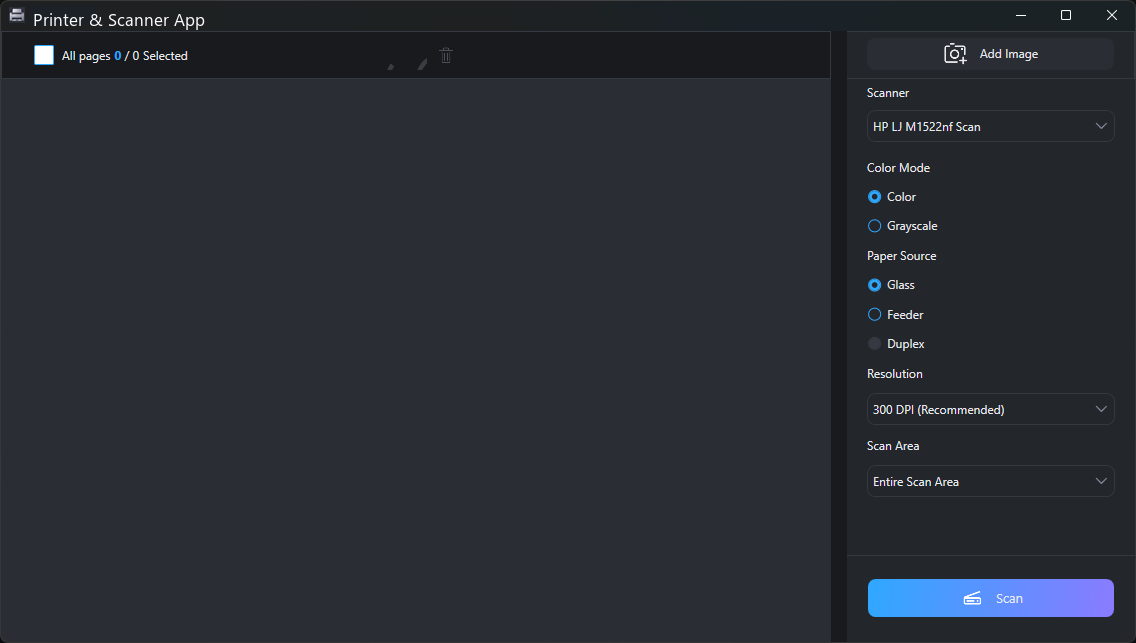
扫描结果会按顺序排列在左侧的页面列表中。确认页数无误后,点击右侧设置面板底部的 完成(Done)按钮,应用将弹出 导出为(Export as)窗口,在其中选择 PDF、JPEG 或 PNG 三种格式之一并点击 确定,随后在系统的保存对话框中选择存放位置即可。导出成功后,应用会自动打开文件所在的文件夹。 Scanned pages are listed in order in the page list on the left. Once the page count looks right, click the Done button at the bottom of the right-hand settings panel. The Export as dialog appears; choose PDF, JPEG, or PNG and click OK, then pick a destination folder in the system save dialog. When the export finishes, the app opens the destination folder automatically.
可以。在扫描视图中点击 添加图片(Add Image),即可把本机上的图片文件导入页面列表,与扫描得到的页面一起排序、导出。这样可把手机拍摄的照片与扫描仪输出的页面合并成同一个 PDF。 Yes. Click Add Image in the scan view to import image files from your PC into the page list, so they can be ordered and exported together with the scanned pages — handy for combining phone photos with scanner output in one PDF.
外观与语言Appearance and language
点击主界面右上角的齿轮图标,即可打开「设置」窗口。在 Appearance 区域中,可选择「跟随系统」「浅色」或「深色」主题;在 Language 下拉框中,可切换界面显示语言。所选设置将立即生效并自动持久化保存。 Click the gear icon in the top-right corner of the home screen to open the Settings window. In the Appearance section, select Follow system, Light, or Dark theme; use the Language dropdown to switch the UI display language. Selected settings take effect immediately and are automatically persisted.
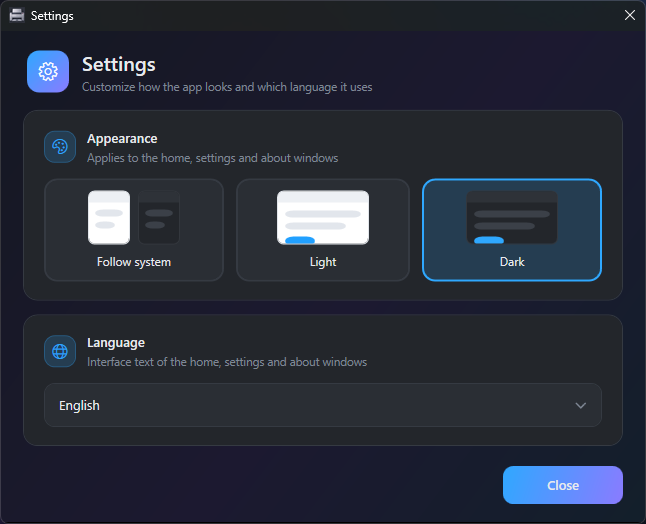
关于应用About the app
点击主界面右上角的信息图标,即可进入「关于」页面。该页面展示应用名称、当前版本号(例如 v1.0.0)、应用简介,以及 Tutorial、Rate us、Donate 和 Privacy 等快捷入口。 Click the information icon in the top-right corner of the home screen to open the About page. This page displays the application name, current version (e.g. v1.0.0), a brief description, and quick links for Tutorial, Rate us, Donate, and Privacy.
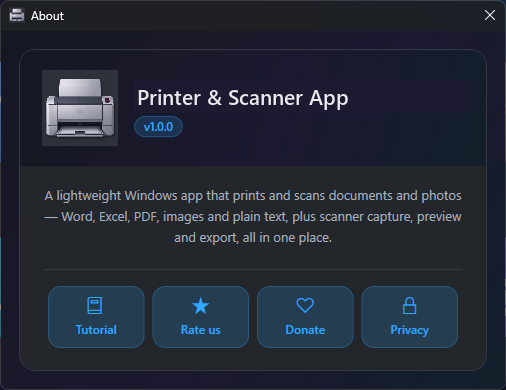
常见问题FAQ
无需安装。Printer & Scanner App 内置文档解析引擎,可直接预览和打印 Word、Excel、PDF 与文本文件。
No installation is required. Printer & Scanner App includes a built-in document parsing engine and can preview and print Word, Excel, PDF, and text files directly.
支持常见的光栅图像格式,包括 .jpg、.jpeg、.png、.bmp 等。
Common raster image formats are supported, including .jpg, .jpeg, .png, and .bmp.
大型文档或高分辨率图像需要更多时间进行渲染与排版。若长时间无响应,请检查文件是否损坏,或确认系统可用内存是否充足。
Large documents or high-resolution images require more time for rendering and pagination. If the preview remains unresponsive, check whether the file is corrupted or whether the system has sufficient available memory.
请确认扫描仪已开机、正确连接至计算机,并且驱动程序已正确安装。部分网络扫描仪可能需要先通过厂商提供的管理软件完成配置。
Ensure the scanner is powered on, properly connected to the computer, and its driver is correctly installed. Some network scanners may need to be configured through the manufacturer's management software first.
请确认已选择可用的打印机,并检查打印队列是否出现阻塞。若系统中未安装任何打印机,打印操作将无法继续执行。
Confirm that an available printer is selected and check whether the print queue is blocked. If no printer is installed in the system, printing cannot proceed.
说明 Windows 中尚未安装打印机。在提示窗口中点击 添加打印机(Add Printer),系统会自动打开 Windows 的「打印机和扫描仪」设置页,按向导完成打印机安装后回到主界面重新点击功能入口即可。
This means no printer is installed in Windows. In the prompt, click Add Printer, which opens the Windows "Printers & scanners" settings page. Finish the wizard there, then return to the app and click the tile again.
Word:.doc、.docx、.docm、.dot、.dotx、.dotm、.odt、.rtf、.htm、.html、.mht;Excel:.xls、.xlsx、.xlsm、.xlsb、.xlt、.xltx、.xltm、.csv;PDF:.pdf;邮件文件:.msg、.eml。纯文本文件支持的范围更广(.txt、日志、代码等常见后缀)。
Word: .doc, .docx, .docm, .dot, .dotx, .dotm, .odt, .rtf, .htm, .html, .mht; Excel: .xls, .xlsx, .xlsm, .xlsb, .xlt, .xltx, .xltm, .csv; PDF: .pdf; mail files: .msg, .eml. Plain-text files cover a much wider range of extensions (.txt, logs, source code, and more).
设置保存在 %LocalAppData%\Printer Easy\settings.json,包括主题、语言等内容。删除该文件后重新启动应用即可恢复默认设置。
Settings (theme, language, and more) live in %LocalAppData%\Printer Easy\settings.json. Delete this file and restart the app to return to defaults.