快速上手Quick Start
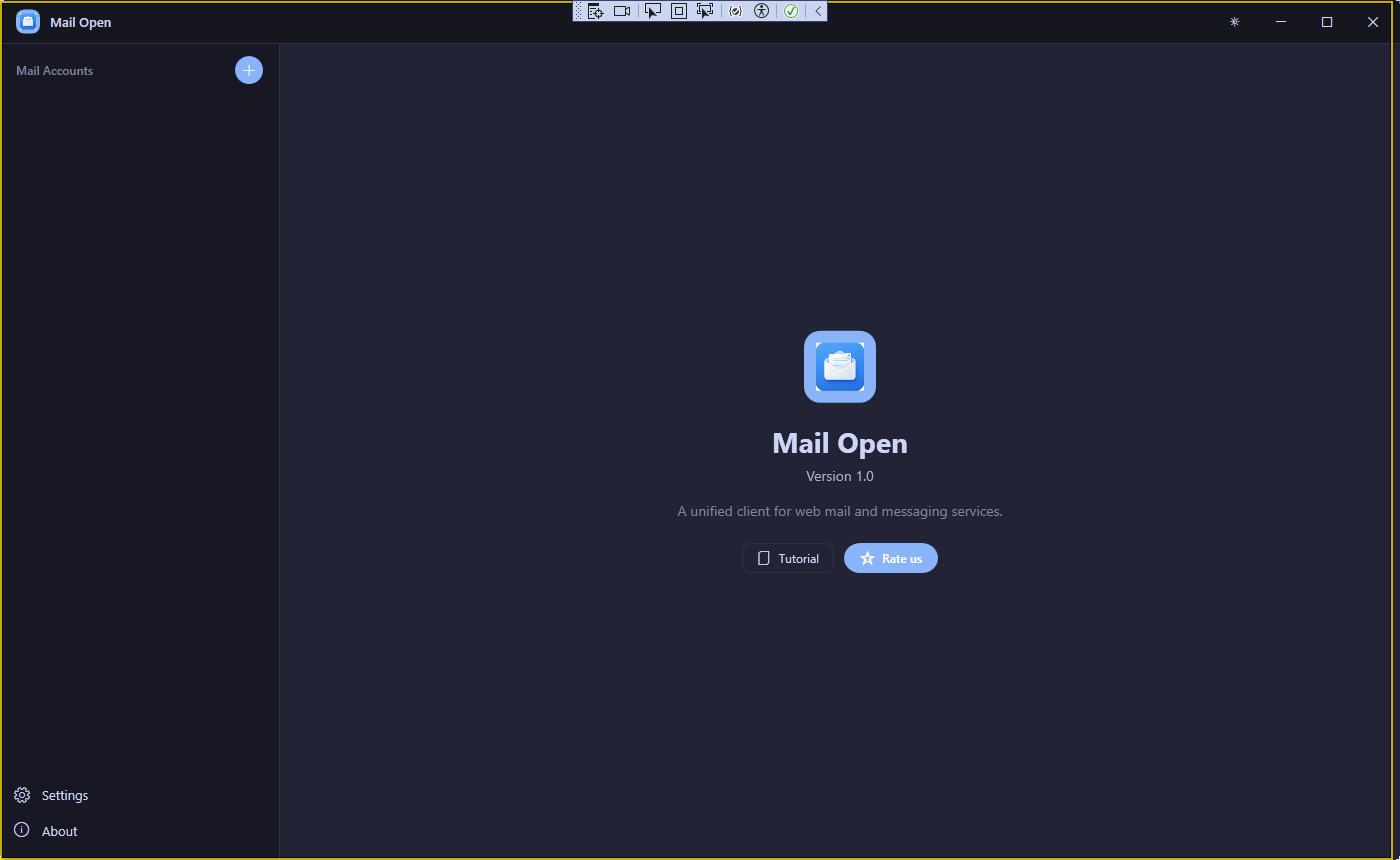
- 安装完成后启动 Mail Open,首次启动会显示欢迎窗口After installation, launch Mail Open. The Welcome Window appears on first launch
- 在欢迎窗口中,从 5 个分类(邮箱、消息、社交、生产力、AI)中选择你要使用的服务In the Welcome Window, select services from 5 categories (Mail, Messaging, Social, Productivity, AI)
- 点击「Get Started」进入主界面Click "Get Started" to enter the main interface
- 点击侧边栏的「+」按钮添加你的邮箱账户Click the "+" button in the sidebar to add your email account
- 在添加账户面板中搜索你的服务商,点击「Add Account」并通过安全的 WebView 登录Search for your provider in the Add Account panel, click "Add Account" and sign in through the secure web view
欢迎窗口Welcome Window
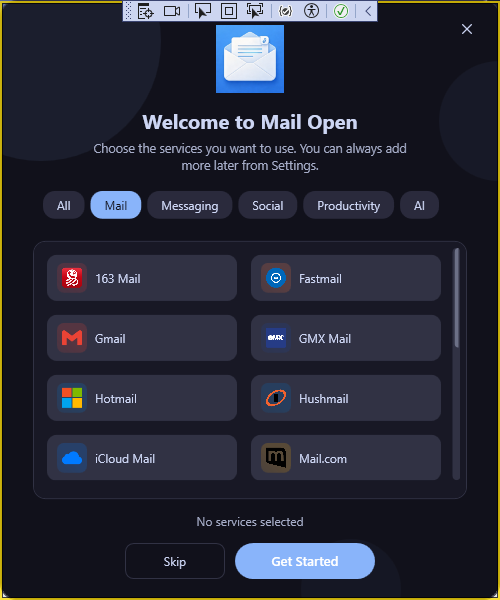
欢迎窗口是首次启动时的引导界面,帮助你快速选择需要的服务:
The Welcome Window is the first-run guide that helps you quickly select the services you need:
- 分类标签Category Tabs — 顶部显示「全部」「邮箱」「消息」「社交」「生产力」「AI」分类标签,点击可筛选Top tabs show "All", "Mail", "Messaging", "Social", "Productivity", "AI" — click to filter
- 服务列表Service List — 两列网格展示所有服务,点击卡片即可选中/取消Two-column grid of all services; click a card to select/deselect
- 已选计数Selection Count — 底部实时显示已选服务数量Bottom shows real-time count of selected services
按钮说明:Buttons:
- 「Get Started」 — 确认选择并进入主界面,所选服务将被添加到侧边栏Confirms selection and enters the main interface; selected services are added to the sidebar
- 「Skip」 — 跳过设置,以空列表进入主界面,稍后可手动添加Skips setup and enters with an empty list; add services later manually
- 关闭按钮 (X) — 关闭应用Closes the application
功能概览Feature Overview
| 功能 | Feature | 说明 | Description |
|---|---|---|---|
| 多账户管理 | Multi-Account | 支持同时管理多个邮箱和网络服务账户 | Manage multiple email and web service accounts simultaneously |
| 32 个内置服务商 | 32 Built-in Providers | 涵盖邮箱、消息、社交、生产力、AI 五大分类 | Covers Mail, Messaging, Social, Productivity, AI — 5 categories |
| 自定义账户 | Custom Account | 支持添加任意 URL 的网页应用 | Add any web app by URL |
| 通知与徽标 | Notifications & Badges | 桌面通知 + 任务栏未读数徽标 | Desktop notifications + taskbar unread badges |
| 全局快捷键 | Global Hotkey | 默认 Alt+E,可自定义 | Default Alt+E, fully customizable |
| 应用锁 (PIN) | App Lock (PIN) | 字母数字 PIN 码保护 | Alphanumeric PIN protection |
| 明暗主题 | Light & Dark Themes | 支持跟随系统自动切换 | Supports follow-system auto-switching |
| 开机自启 | Auto Start | Windows 启动时自动运行 | Launch automatically on Windows startup |
| 系统托盘 | System Tray | 关闭窗口后最小化到托盘,保持后台运行 | Minimizes to tray on close, keeps running in background |
| 多语言 | Multi-language | 支持 10 种语言界面 | 10 interface languages supported |
添加账户Add Account
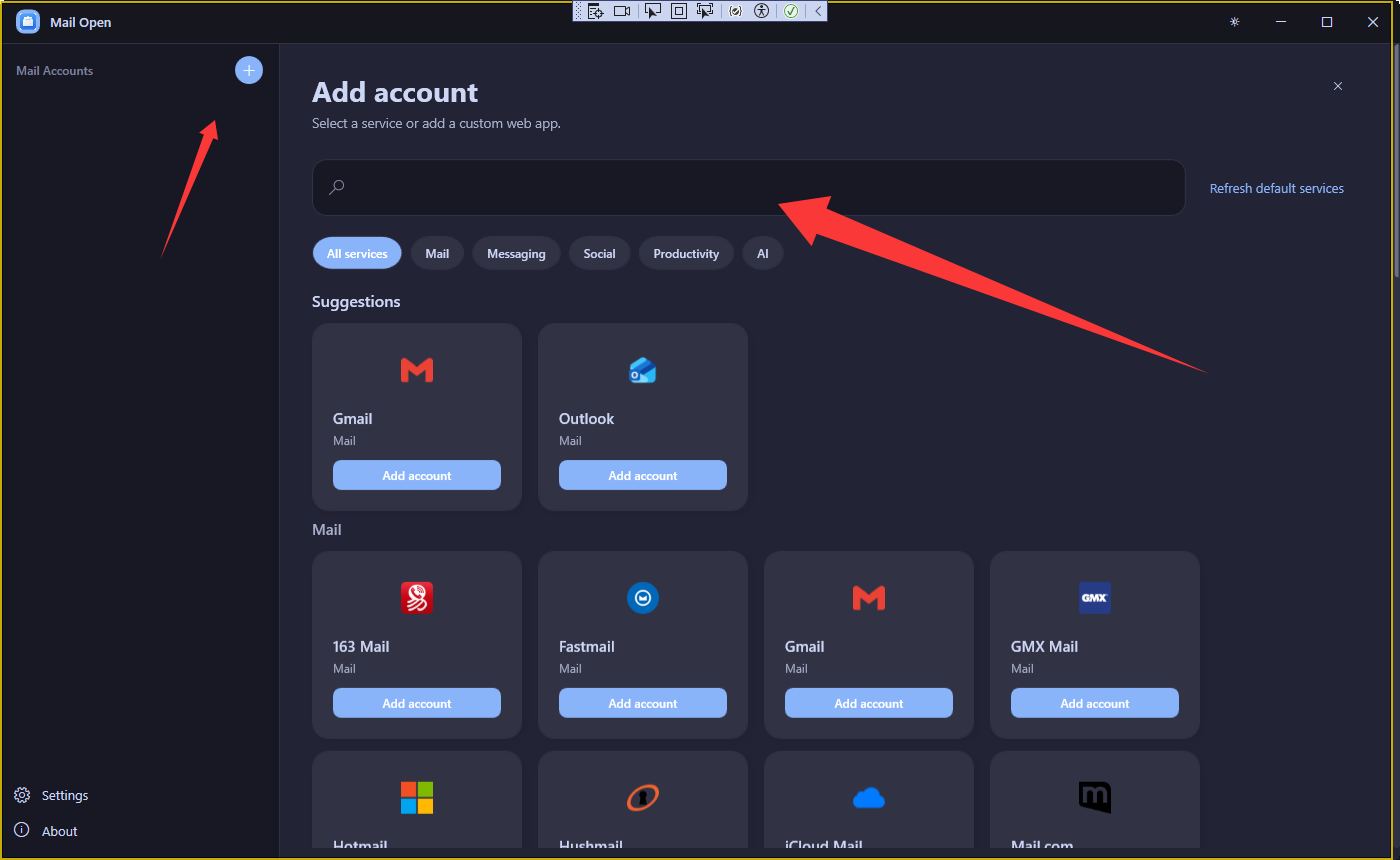
- 点击侧边栏顶部的「+」按钮Click the "+" button at the top of the sidebar
- 在搜索框中输入服务商名称(如 Gmail、Telegram、ChatGPT)进行搜索Type a provider name in the search box (e.g., Gmail, Telegram, ChatGPT)
- 也可以点击分类标签(All / Mail / Messaging / Social / Productivity / AI)筛选Or click category tabs (All / Mail / Messaging / Social / Productivity / AI) to filter
- 找到目标服务后,点击「Add Account」按钮After finding the target service, click the "Add Account" button
- 在弹出的 WebView 中登录你的账户Sign in to your account in the WebView that appears
通知与徽标Notifications & Badges
在设置面板的「通知」区域可以配置:
Configure in the "Notifications" section of Settings:
- 接收通知Receive Notifications — 全局开关,控制是否接收桌面通知Global toggle for desktop notifications
- 通知音Notification Sound — 自定义通知提示音,可浏览选择或重置为默认Custom notification sound; browse to select or reset to default
- 账户通知Account Notifications — 按账户独立控制通知开关Per-account notification toggle
- 任务栏徽标Taskbar Badges — 控制是否在任务栏显示未读数Control whether unread count shows on the taskbar
系统托盘System Tray
不会。关闭窗口后 Mail Open 会最小化到系统托盘,保持后台运行以接收通知。有未读消息时,托盘图标会显示红色圆点。
No. Closing the window minimizes Mail Open to the system tray, keeping it running in the background for notifications. When there are unread messages, a red dot appears on the tray icon.
右键点击托盘图标可以:
Right-click the tray icon to:
- 快速打开任意已添加的账户Quickly open any added account
- 查看各账户的未读消息数View unread counts for each account
- 完全退出应用Quit the application completely
邮箱服务商Email Providers
| 服务商 | Provider | IMAP 服务器 | IMAP Server | 端口 | Port | ||
|---|---|---|---|---|---|---|---|
| Gmail | imap.gmail.com | imap.gmail.com | 993 | 993 | |||
| Outlook | Microsoft | outlook.office365.com | outlook.office365.com | 993 | 993 | ||
| Hotmail | Microsoft | outlook.office365.com | outlook.office365.com | 993 | 993 | ||
| Yahoo Mail | Yahoo | imap.mail.yahoo.com | imap.mail.yahoo.com | 993 | 993 | ||
| iCloud Mail | Apple | imap.mail.me.com | imap.mail.me.com | 993 | 993 | ||
| ProtonMail | Proton | 127.0.0.1 (Bridge) | 127.0.0.1 (Bridge) | 1143 | 1143 | ||
| Zoho Mail | Zoho | imap.zoho.com | imap.zoho.com | 993 | 993 | ||
| QQ Mail | Tencent | imap.qq.com | imap.qq.com | 993 | 993 | ||
| 163 Mail | NetEase | imap.163.com | imap.163.com | 993 | 993 | ||
| Yandex Mail | Yandex | imap.yandex.com | imap.yandex.com | 993 | 993 | ||
| Mail.ru | Mail.ru | imap.mail.ru | imap.mail.ru | 993 | 993 | ||
| GMX Mail | GMX | imap.gmx.com | imap.gmx.com | 993 | 993 | ||
| Mail.com | 1&1 | imap.mail.com | imap.mail.com | 993 | 993 | ||
| Fastmail | Fastmail | fastmail.com | fastmail.com | 993 | 993 | ||
| Tutanota | Tuta | 仅支持 Web 访问 | Web access only | ||||
| Hushmail | Hush | hushmail.com | hushmail.com | 993 | 993 | ||
| StartMail | StartMail | imap.startmail.com | imap.startmail.com | 993 | 993 | ||
| T-Online | Deutsche Telekom | secureserver.t-online.de | secureserver.t-online.de | 993 | 993 | ||
其他服务Other Services
| 分类 | Category | 服务 | Services |
|---|---|---|---|
| 消息 | Messaging | WhatsApp, Telegram, Discord, Messenger, WeChat | WhatsApp, Telegram, Discord, Messenger, WeChat |
| 社交 | Social | X (Twitter), Reddit, LinkedIn | X (Twitter), Reddit, LinkedIn |
| 生产力 | Productivity | Notion, Google Calendar, Outlook Calendar | Notion, Google Calendar, Outlook Calendar |
| AI | AI | ChatGPT, Claude, Perplexity | ChatGPT, Claude, Perplexity |
通用设置General Settings
点击侧边栏底部的「Settings」打开设置面板,包含以下区域:
Click "Settings" at the bottom of the sidebar to open the Settings panel, which includes:
| 设置项 | Setting | 说明 | Description |
|---|---|---|---|
| 开机自启 | Auto Start | Windows 启动时自动运行 Mail Open | Launch Mail Open automatically on Windows startup |
| 键盘快捷键 | Keyboard Shortcut | 启用/禁用全局快捷键(默认 Alt+E) | Enable/disable global hotkey (default Alt+E) |
| 应用锁 | App Lock | 设置字母数字 PIN 码保护应用 | Set alphanumeric PIN to protect the app |
| 界面语言 | Display Language | 切换界面显示语言(10 种可选) | Switch interface language (10 options) |
| 外观主题 | Theme | 浅色 / 深色 / 跟随系统 | Light / Dark / Follow System |
| 通知设置 | Notifications | 桌面通知、通知音、账户通知、徽标 | Desktop notifications, sound, per-account, badges |
| 清除数据 | Clear Data | 清除所有账户数据和配置 | Clear all account data and configuration |
主题与语言Theme & Language
- 打开设置面板Open the Settings panel
- 在外观主题区域选择「浅色」「深色」或「跟随系统」Select "Light", "Dark", or "Follow System" in the Theme section
共 10 种:简体中文 / 繁體中文 / English / Deutsch / Español / Français / 日本語 / 한국어 / Português / Русский
10 languages: 简体中文 / 繁體中文 / English / Deutsch / Español / Français / 日本語 / 한국어 / Português / Русский
安全设置Security
- 打开设置面板,找到「App Lock」选项Open Settings and find the "App Lock" option
- 开启应用锁开关,弹出 PIN 设置窗口Toggle the App Lock switch; the PIN setup window appears
- 输入 4-12 位字母数字 PIN 码(仅限字母和数字)Enter a 4-12 character alphanumeric PIN (letters and digits only)
- 确认 PIN 码后保存Confirm the PIN and save
Mail Open 使用 Windows DPAPI(数据保护 API)在本地加密 IMAP 密码。你的凭据不会离开你的设备,也不会上传到任何服务器。
Mail Open uses Windows DPAPI (Data Protection API) to encrypt IMAP passwords locally. Your credentials never leave your device and are never uploaded to any server.
快捷键Shortcuts
Mail Open 支持以下快捷键:
Mail Open supports the following shortcuts:
| 操作 | Action | 快捷键 | Shortcut |
|---|---|---|---|
| 切换 Mail Open 窗口 | Toggle Mail Open window | Alt + E | Alt + E |
| 下一个账户 | Next account | Alt + ↓ | Alt + ↓ |
| 上一个账户 | Previous account | Alt + ↑ | Alt + ↑ |
| 添加账户 | Add account | Ctrl + N | Ctrl + N |
| 设置 | Settings | Ctrl + , | Ctrl + , |
| 刷新 | Refresh | F5 | F5 |
全局快捷键可在设置中自定义按键组合。Global hotkey key combination can be customized in Settings.
常见问题FAQ
是的。Mail Open 完全免费,无广告、无追踪、无付费版。
Yes. Mail Open is completely free with no ads, no tracking, and no premium tier.
可以。你可以添加任意数量的账户,包括多个 Gmail 或 Outlook 账户。
Yes. You can add as many accounts as you want, including multiple Gmail or Outlook accounts.
关闭窗口时 Mail Open 会最小化到系统托盘,保持后台运行以接收通知和快速访问。右键点击托盘图标选择「Quit」可完全关闭。
Closing the window minimizes Mail Open to the system tray, keeping it running in the background for notifications and quick access. Right-click the tray icon and select "Quit" to exit completely.
如果你的 Google 账户启用了两步验证(2FA),需要在 Google 账户设置中生成一个应用专用密码。如果未启用 2FA,可以直接使用常规密码登录。
If your Google account has Two-Factor Authentication (2FA) enabled, you'll need to generate an App Password in your Google Account settings. Without 2FA, you can sign in with your regular password.
所有配置和凭据数据存储在本地 %AppData%\MailOpen\config.json。WebView 浏览器数据存储在独立的 Profile 目录中。所有数据仅保留在你的设备上。
All configuration and credential data is stored locally at %AppData%\MailOpen\config.json. WebView browser data is stored in separate Profile directories. All data stays on your device only.
可以。在添加账户面板中,点击列表底部的「+ Custom account」,输入名称和 URL 即可添加任意网页应用。
Yes. In the Add Account panel, click "+ Custom account" at the bottom of the list. Enter a name and URL to add any web app.