

快速入门Quick Start
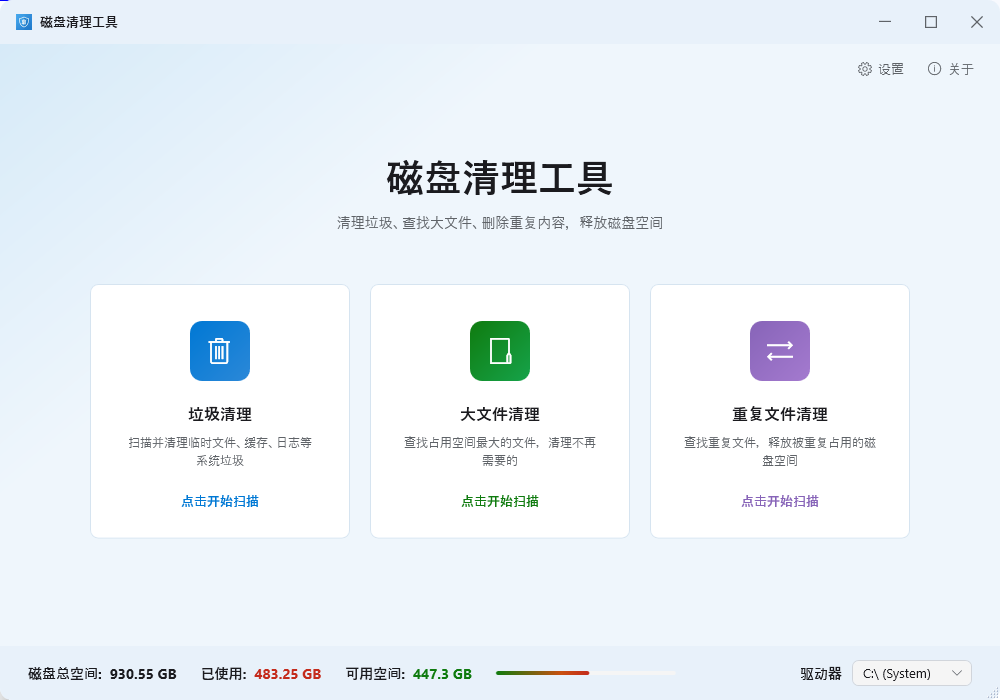
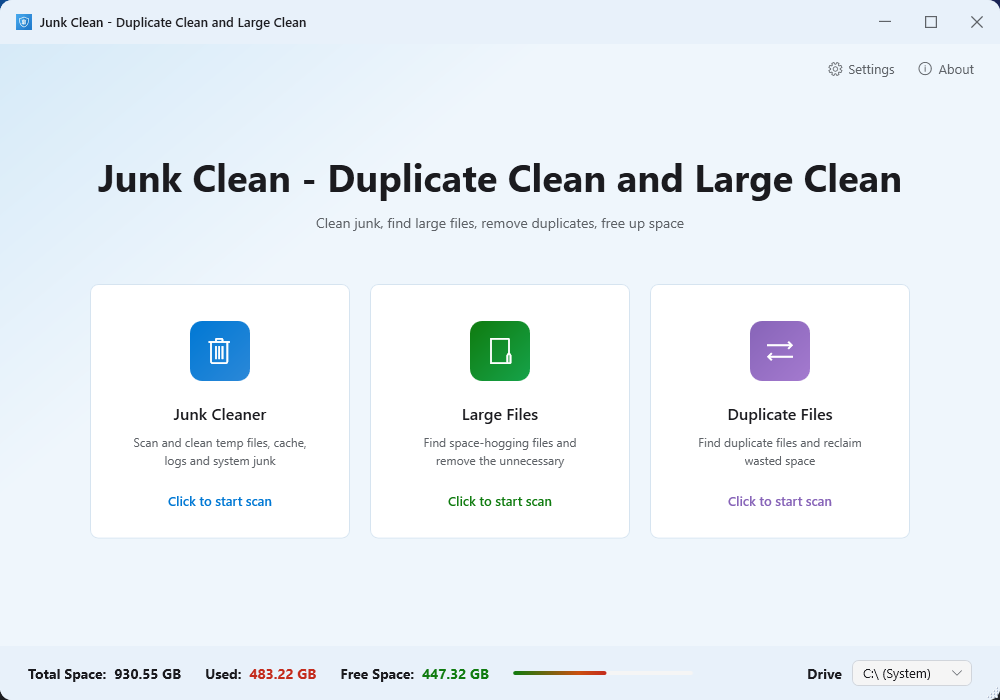
- 启动应用后,底部状态栏会显示当前磁盘的总容量、已用空间和可用空间After launching, the bottom status bar shows total capacity, used space, and available space
- 通过右下角的下拉框选择要扫描的磁盘分区Use the dropdown in the bottom-right corner to select a disk partition to scan
- 点击首页的三个功能卡片之一(垃圾清理 / 大文件扫描 / 重复文件清理)Click one of the three feature cards on the home screen (Junk Cleanup / Large File Scan / Duplicate Cleanup)
- 点击右上角的「扫描」按钮开始扫描Click the "Scan" button in the top-right corner to start scanning
- 扫描完成后,勾选要清理的文件,点击底部「清理」按钮即可释放空间After scanning, select files to clean and click the "Clean" button at the bottom to free up space
| 功能 | Feature | 说明 | Description |
|---|---|---|---|
| 垃圾清理 | Junk Cleanup | 扫描临时文件、浏览器缓存、系统缓存、日志文件等 | Scan temp files, browser cache, system cache, log files, etc. |
| 大文件扫描 | Large File Scan | 自定义阈值,找到占用空间最大的文件 | Custom threshold to find the largest files consuming disk space |
| 重复文件扫描 | Duplicate File Scan | 检测同名同大小的重复文件,按类型分组 | Detect duplicate files by name and size, grouped by type |
| 多磁盘支持 | Multi-disk Support | 支持选择不同磁盘分区进行扫描 | Support scanning different disk partitions |
界面概览Interface Overview
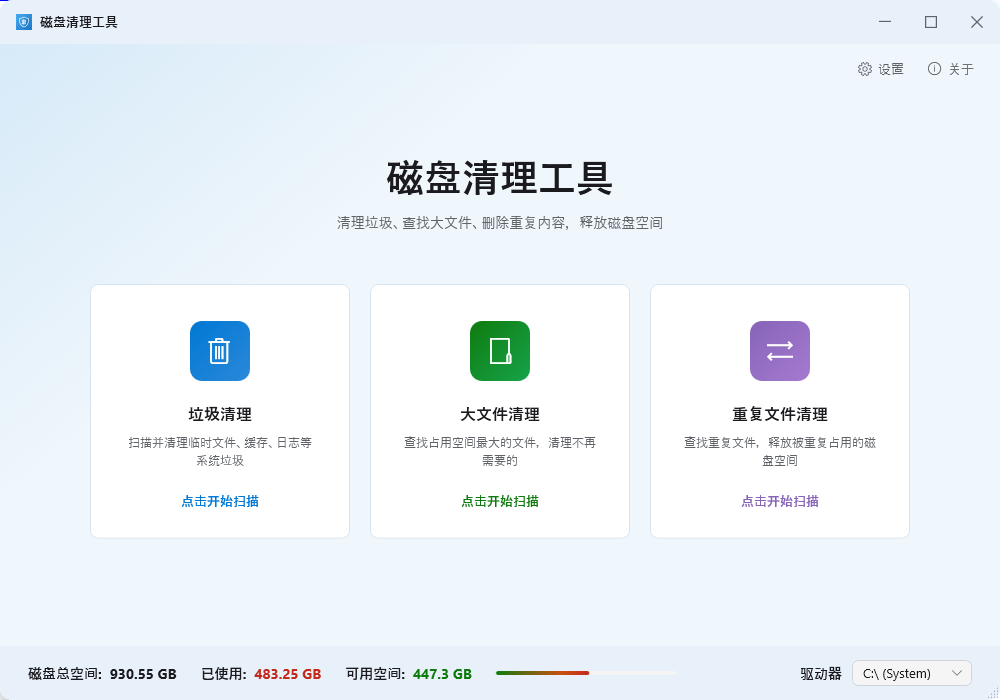
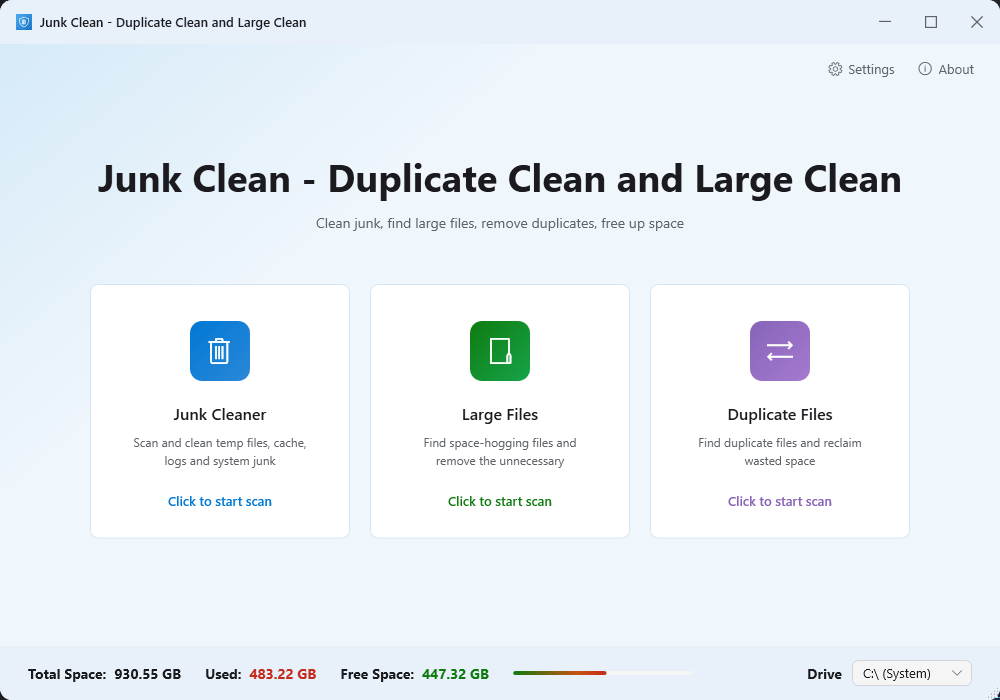
- 顶部标题栏Top Title Bar — 应用名称与图标App name and icon
- 右上角按钮Top-right Buttons — 联系我们、设置、关于Contact, Settings, About
- 中间卡片区Center Cards — 三张功能卡片(垃圾清理、大文件扫描、重复文件清理)Three feature cards (Junk Cleanup, Large File Scan, Duplicate Cleanup)
- 底部磁盘信息栏Bottom Disk Info Bar — 显示磁盘总容量、已用、可用空间,以及磁盘选择下拉框Shows total disk capacity, used space, available space, and disk selection dropdown
垃圾清理Junk Cleanup
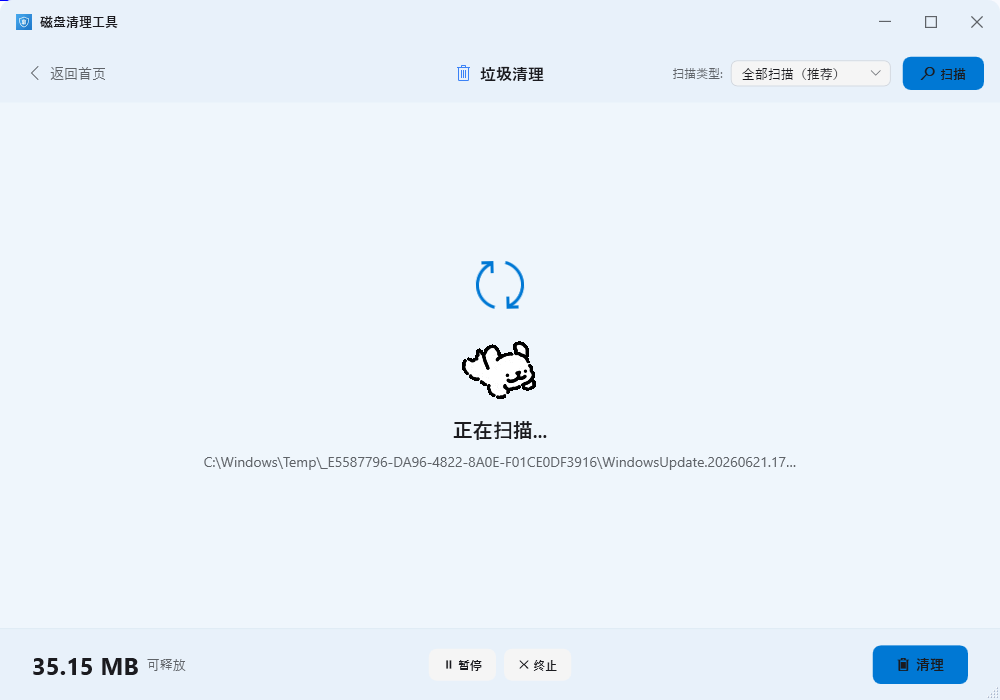
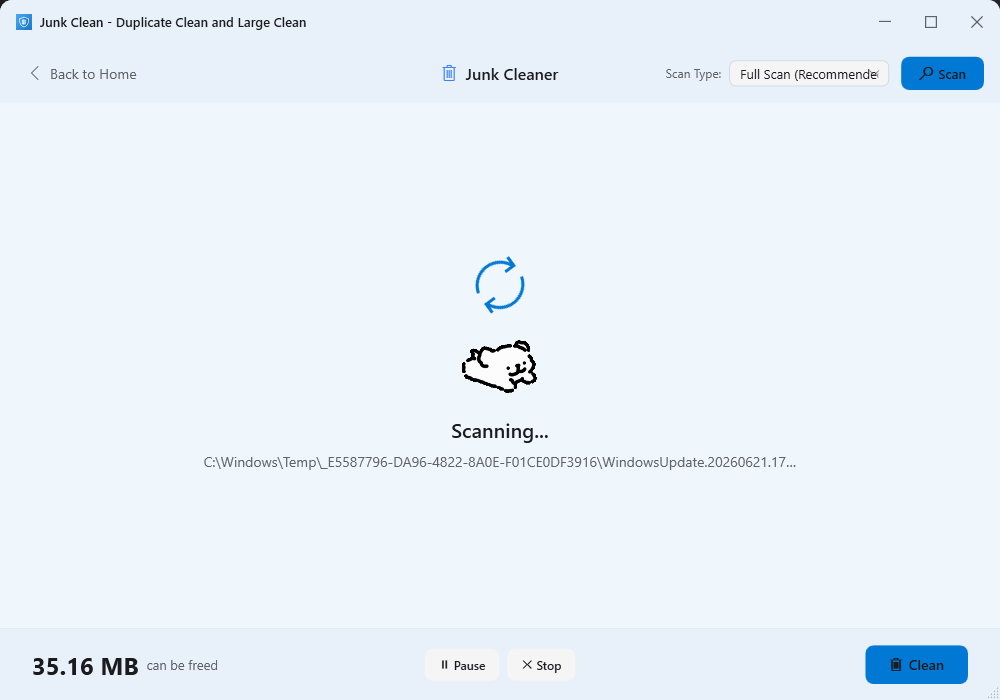
- 在首页点击「垃圾清理」卡片,进入扫描页面Click the "Junk Cleanup" card on the home screen to enter the scan page
- 右上角下拉框可选择具体扫描类型,默认「全部扫描」会扫描所有类别The top-right dropdown lets you choose a specific scan type; "Full Scan" scans all categories by default
- 点击「扫描」按钮开始扫描Click the "Scan" button to start scanning
- 扫描过程中可点击「暂停」暂时停止,或「停止」取消扫描During scanning, click "Pause" to temporarily stop, or "Stop" to cancel
- 扫描完成后,结果按类别分组显示,点击分类可展开查看具体文件After scanning, results are grouped by category; click to expand and view specific files
- 使用「全选」「取消全选」快速操作,或手动勾选Use "Select All" / "Deselect All" for quick operations, or manually check items
- 确认选择后点击「清理」按钮,底部会显示可释放的总空间大小After selecting, click the "Clean" button; the bottom bar shows total space to be freed
扫描类型Scan Types
| 扫描类型 | Scan Type | 说明 | Description | 适用范围 | Scope |
|---|---|---|---|---|---|
| 全部扫描(推荐) | Full Scan (Recommended) | 一次性扫描所有类型的垃圾文件 | Scan all types of junk files at once | 所有磁盘 | All disks |
| 临时文件 | Temp Files | 用户和系统的 Temp 目录 | User and system Temp directories | 所有磁盘 | All disks |
| 浏览器缓存 | Browser Cache | Chrome、Edge、Firefox、Brave 等浏览器缓存 | Chrome, Edge, Firefox, Brave browser caches | 仅系统盘 | System disk only |
| 系统缓存 | System Cache | Windows 系统缓存文件 | Windows system cache files | 所有磁盘 | All disks |
| 日志文件 | Log Files | 系统和应用日志 | System and application logs | 所有磁盘 | All disks |
| 崩溃转储 | Crash Dumps | Minidump 和 CrashDumps | Minidump and CrashDumps | 所有磁盘 | All disks |
| Windows 更新缓存 | Windows Update Cache | SoftwareDistribution\Download | SoftwareDistribution\Download | 仅系统盘 | System disk only |
| Installer 缓存 | Installer Cache | Windows\Installer 目录 | Windows\Installer directory | 仅系统盘 | System disk only |
| 预取文件 | Prefetch Files | Windows\Prefetch | Windows\Prefetch | 仅系统盘 | System disk only |
| 错误报告 | Error Reports | Microsoft\Windows\WER | Microsoft\Windows\WER | 所有磁盘 | All disks |
| 传递优化缓存 | Delivery Optimization Cache | Windows 传递优化下载缓存 | Windows Delivery Optimization download cache | 仅系统盘 | System disk only |
清理浏览器缓存会导致浏览器重新加载缓存,首次打开网页可能稍慢。清理系统缓存一般无明显影响。建议定期清理以释放磁盘空间。
Cleaning browser cache forces the browser to reload cached content; the first page loads may be slightly slower. Cleaning system cache generally has no noticeable impact. Regular cleaning is recommended to free disk space.
大文件扫描Large File Scan
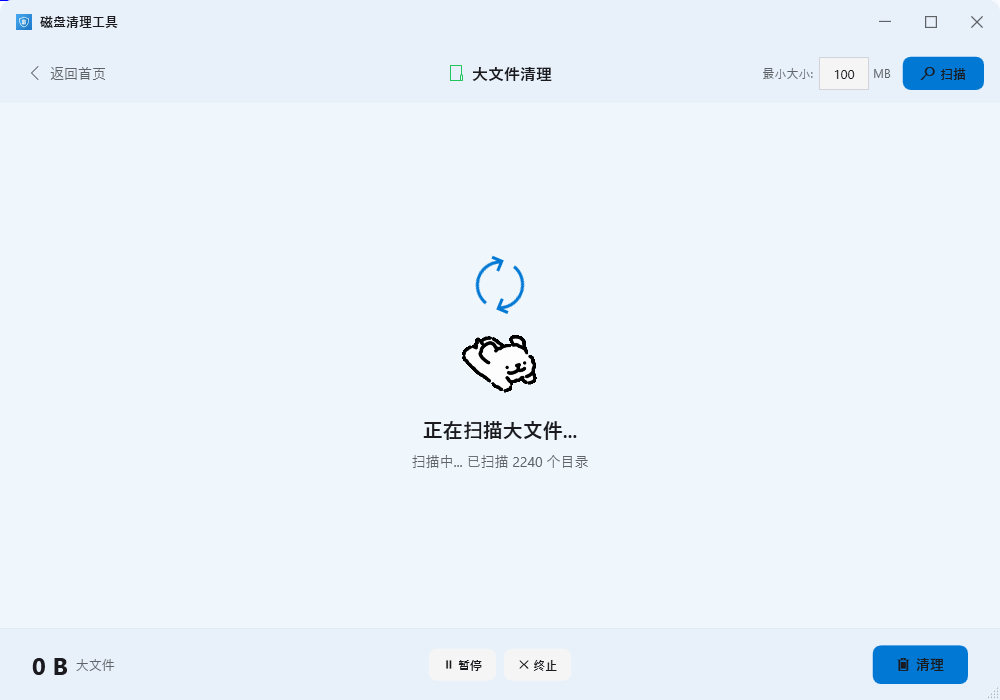
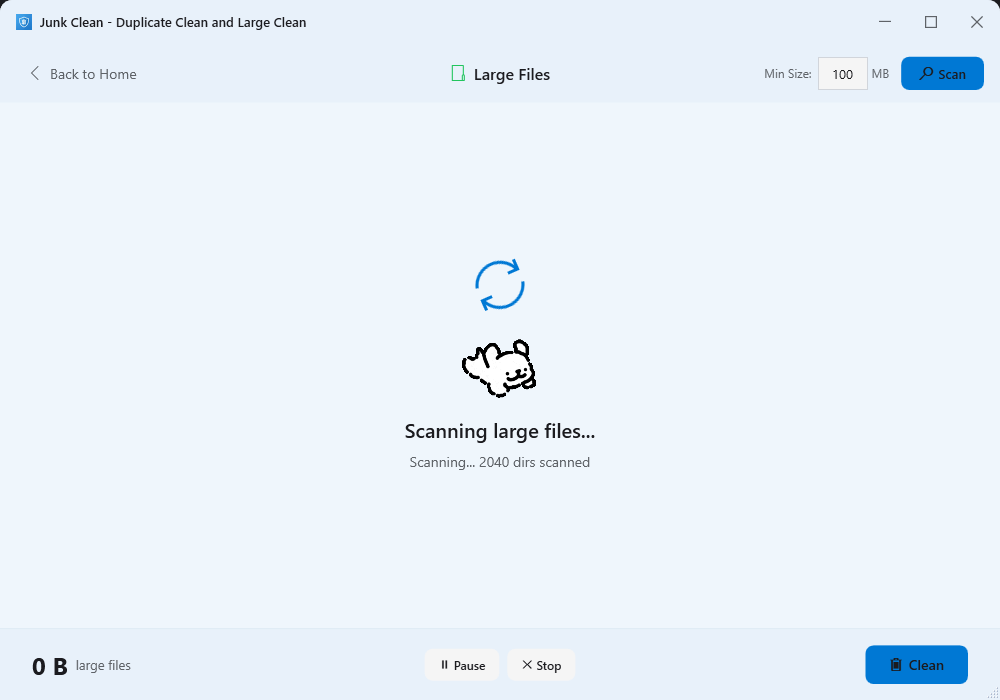
- 在首页点击「大文件清理」卡片,进入扫描页面Click the "Large File Cleanup" card on the home screen to enter the scan page
- 右上角可设置最小文件大小阈值(默认 100MB),只扫描超过此大小的文件Set a minimum file size threshold in the top-right corner (default 100MB); only files larger than this are scanned
- 点击「扫描」按钮开始扫描Click the "Scan" button to start scanning
- 扫描结果会按文件类型自动分类(压缩包、文档、图片、音频、视频、程序、其他)Results are automatically categorized by file type (Archives, Documents, Images, Audio, Video, Programs, Other)
- 展开分类可查看具体文件,包括文件名、路径和大小Expand categories to view specific files including name, path, and size
- 勾选后点击「清理」按钮Select files and click the "Clean" button
建议先将阈值设为 500MB 或更大,快速找到真正的大文件。如果想找到更多文件,再调低阈值重新扫描。
Set the threshold to 500MB or higher first to quickly find truly large files. Lower the threshold and re-scan if you want to find more.
文件分类File Categories
| 分类 | Category | File Extensions | 说明 | Description |
|---|---|---|---|---|
| 压缩包 | Archives | .zip .rar .7z .tar .gz .iso | 压缩文件和镜像文件 | Compressed files and disk images |
| 文档 | Documents | .doc .docx .xls .xlsx .pdf .txt | 各类文档文件 | Various document files |
| 图片 | Images | .jpg .png .gif .bmp .svg .webp | 图片文件 | Image files |
| 音频 | Audio | .mp3 .wav .flac .aac .m4a | 音频文件 | Audio files |
| 视频 | Video | .mp4 .avi .mkv .mov .wmv | 视频文件 | Video files |
| 程序 | Programs | .exe .msi .bat .cmd | 可执行文件和安装包 | Executables and installers |
| 其他 | Other | — | 无法归类的文件 | Unclassified files |
重复文件扫描Duplicate File Scan

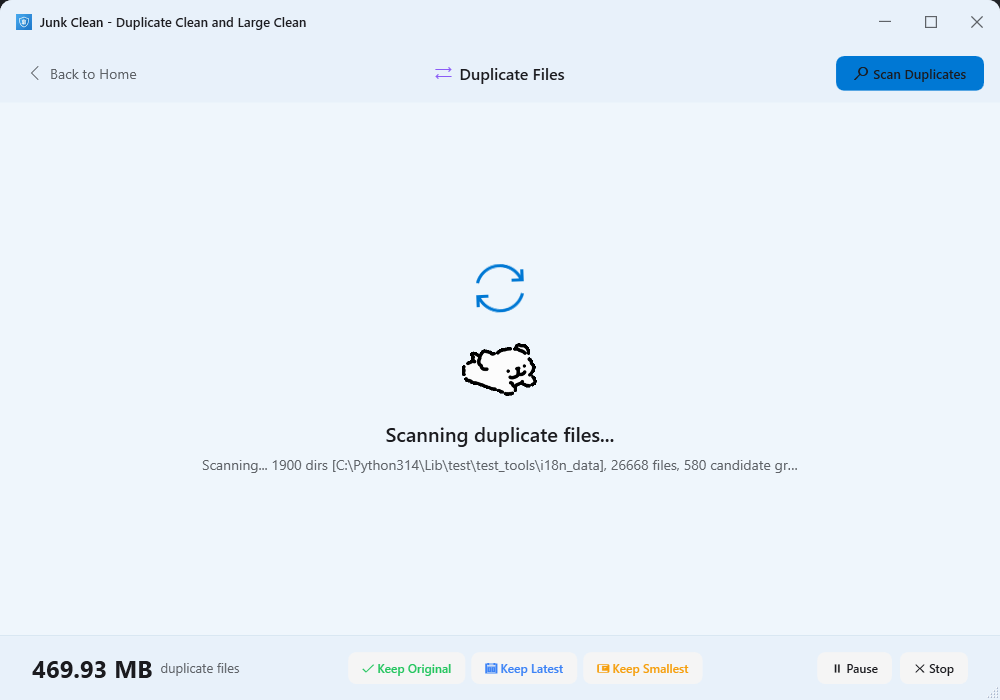
- 在首页点击「重复文件清理」卡片,进入扫描页面Click the "Duplicate Cleanup" card on the home screen to enter the scan page
- 点击「扫描重复文件」按钮开始扫描Click the "Scan Duplicate Files" button to start scanning
- 工具会遍历整个磁盘,找出文件名和大小完全相同的文件组The tool scans the entire disk and finds groups of files with identical names and sizes
- 扫描完成后,按文件类型(压缩包、文档、图片等)分组展示After scanning, results are grouped by file type (Archives, Documents, Images, etc.)
- 每组可展开查看具体的重复文件列表Expand each group to view the specific list of duplicate files
快捷选择策略Quick Select Strategies

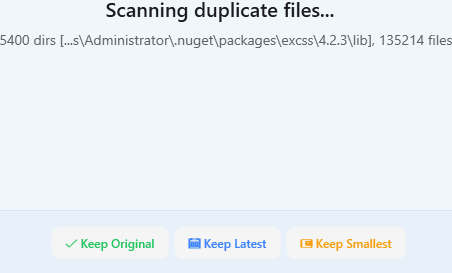
| 策略 | Strategy | 按钮 | Button | 说明 | Description |
|---|---|---|---|---|---|
| 保留原文件,删除副本 | Keep Original, Delete Copies | 保留原文件Keep Original | 按创建时间排序,保留最早创建的文件,删除其余副本 | Sorted by creation time; keeps the earliest file, deletes the rest | |
| 保留最新,删除旧文件 | Keep Latest, Delete Old | 保留最新Keep Latest | 按修改时间排序,保留最新的文件,删除较旧的版本 | Sorted by modification time; keeps the newest file, deletes older versions | |
| 保留最小,删除大文件 | Keep Smallest, Delete Large | 保留最小Keep Smallest | 按文件大小排序,保留最小的文件,删除较大的版本 | Sorted by file size; keeps the smallest file, deletes larger versions |
当前版本基于文件名和文件大小进行匹配,不是内容对比。清理前建议展开查看,确认文件确实重复后再操作。
The current version matches based on file name and file size, not content comparison. It is recommended to expand and review before cleaning to confirm the files are truly duplicates.
设置与语言Settings & Language
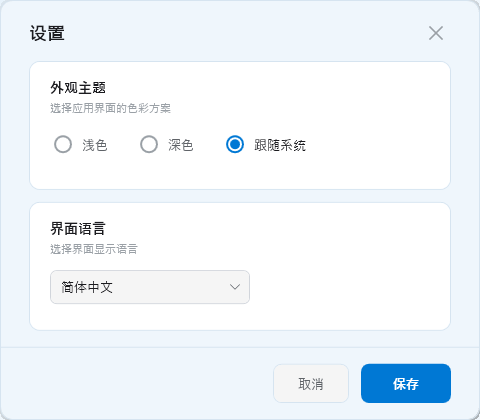
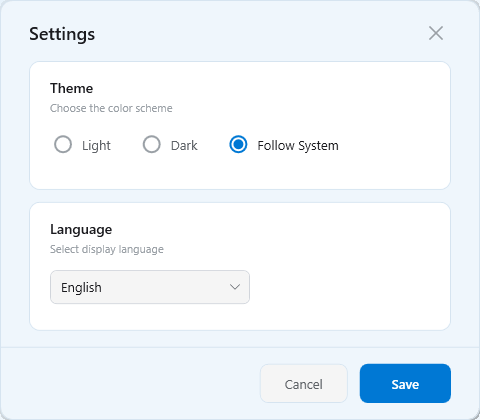
- 点击右上角齿轮图标(设置)Click the gear icon (Settings) in the top-right corner
- 在外观主题区域选择「浅色」「深色」或「跟随系统」In the Appearance section, select "Light", "Dark", or "Follow System"
- 点击保存按钮Click the Save button
- 点击右上角齿轮图标(设置)Click the gear icon (Settings) in the top-right corner
- 在界面语言下拉菜单中选择目标语言Select the desired language from the Language dropdown
- 点击保存按钮Click the Save button
共 7 种:简体中文 / English / 日本語 / 한국어 / Français / Deutsch / Español
7 languages: 简体中文 / English / 日本語 / 한국어 / Français / Deutsch / Español
关于About
点击右上角「关于」按钮可查看:
Click the "About" button in the top-right corner to view:
- 应用名称和版本号App name and version number
- 应用功能简介App feature overview
- 快捷链接:教程 / 评论打分 / 捐赠支持 / 隐私政策Quick links: Tutorial / Review & Rate / Donate / Privacy Policy
所有文件处理均在您的设备上本地完成。应用不会收集、上传或分享您的个人数据或文件内容。清理的文件会先进入恢复区保存 7 天,误删可随时恢复。
All file processing is done locally on your device. The app does not collect, upload, or share your personal data or file contents. Cleaned files are moved to the recovery area for 7 days; you can restore them at any time.
使用技巧Tips
- 定期清理Regular Cleanup — 建议每周进行一次垃圾清理,每月进行一次大文件扫描Run junk cleanup weekly and large file scan monthly
- 按需选择阈值Choose Thresholds — 大文件扫描时,先用较大阈值(500MB+)找超大文件,再用小阈值找更多Use a larger threshold (500MB+) first to find huge files, then lower it to find more
- 谨慎清理重复文件Careful with Duplicates — 基于文件名和大小匹配,清理前建议展开查看确认Based on name and size matching; expand and review before cleaning
- 使用快捷选择Use Quick Select — 重复文件页面的「保留原文件」「保留最新」「保留最小」按钮可大幅提高效率The "Keep Original", "Keep Latest", and "Keep Smallest" buttons greatly improve efficiency
- 注意系统盘 vs 非系统盘System vs Non-system Disk — 部分扫描类型(如 Windows 更新缓存、预取文件)仅在系统盘可用Some scan types (e.g., Windows Update Cache, Prefetch) are only available on the system disk
常见问题FAQ
- 确保应用有足够的磁盘读取权限Ensure the app has sufficient disk read permissions
- 检查磁盘是否可正常访问Check that the disk is accessible
- 尝试重启应用后重试Try restarting the app and retry
- 如问题持续,尝试以管理员身份运行If the issue persists, try running as administrator
可以。所有清理的文件会进入恢复区保存 7 天,误删可随时恢复。超过 7 天后自动清理释放空间。
Yes. All cleaned files are moved to the recovery area for 7 days and can be restored at any time. After 7 days, they are automatically permanently deleted to free space.
可以。扫描过程中底部会显示「暂停」「继续」「停止」按钮,你可以随时控制扫描进度。
Yes. During scanning, "Pause", "Resume", and "Stop" buttons appear at the bottom, allowing you to control the scan progress at any time.