01认识主界面Meet the main window
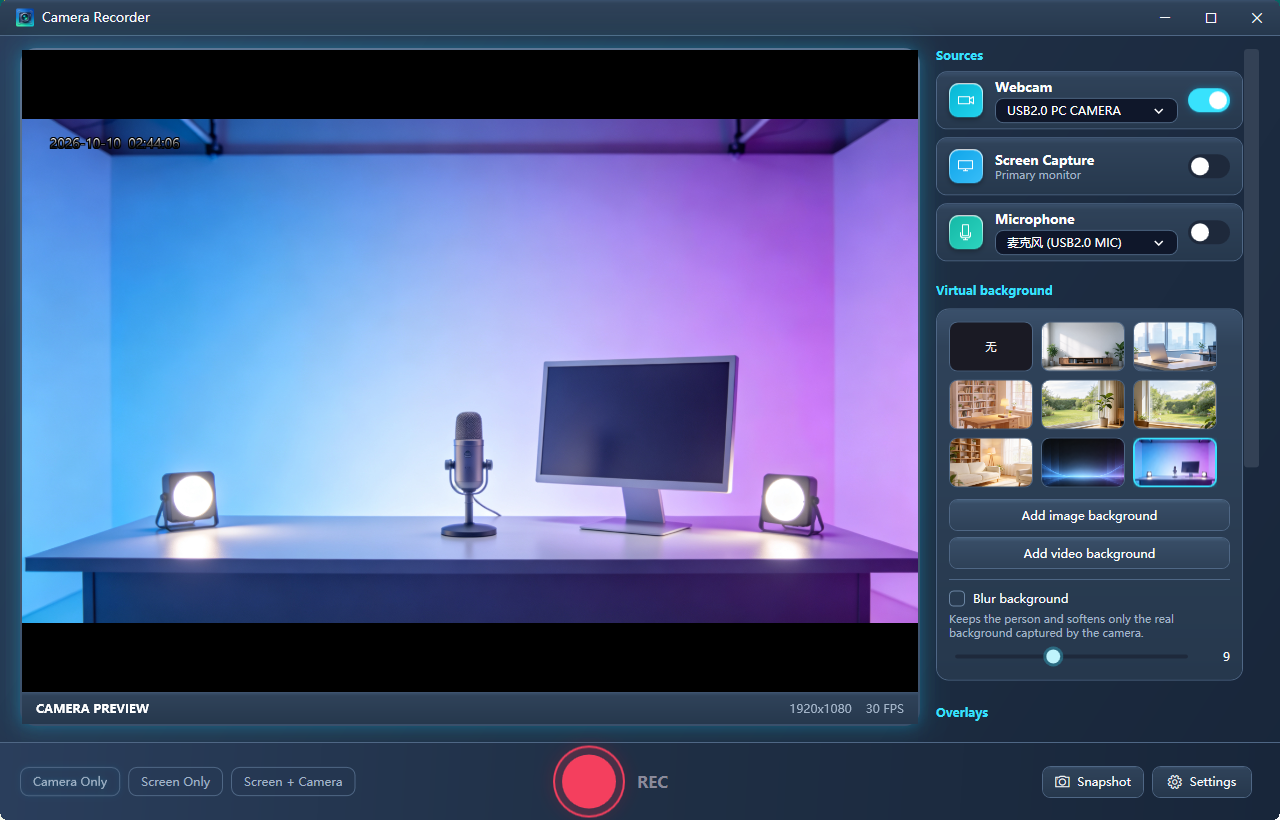
打开程序后是三块区域,从上手到录制只用得到右侧侧栏和底部控制栏。 The window is three areas wide. In practice you only touch the right sidebar and the bottom bar.
左侧预览区
Preview
实时画面。底部信息条会显示画布尺寸与帧率,例如 1920×1080 · 30 FPS。
Live picture. The info bar shows the canvas size and frame rate, e.g. 1920×1080 · 30 FPS.
右侧信号源栏
Sources
摄像头 / 屏幕捕获 / 麦克风三个开关,下面依次是虚拟背景与叠加。
Three switches — camera, screen capture, microphone — then virtual background and overlays.
底部控制栏
Control bar
三个场景按钮、中间的红色录制键,以及右下角的拍照与设置。
The three layout buttons, the red record key, and snapshot / settings on the right.
02打开需要的信号源Turn on the sources you need
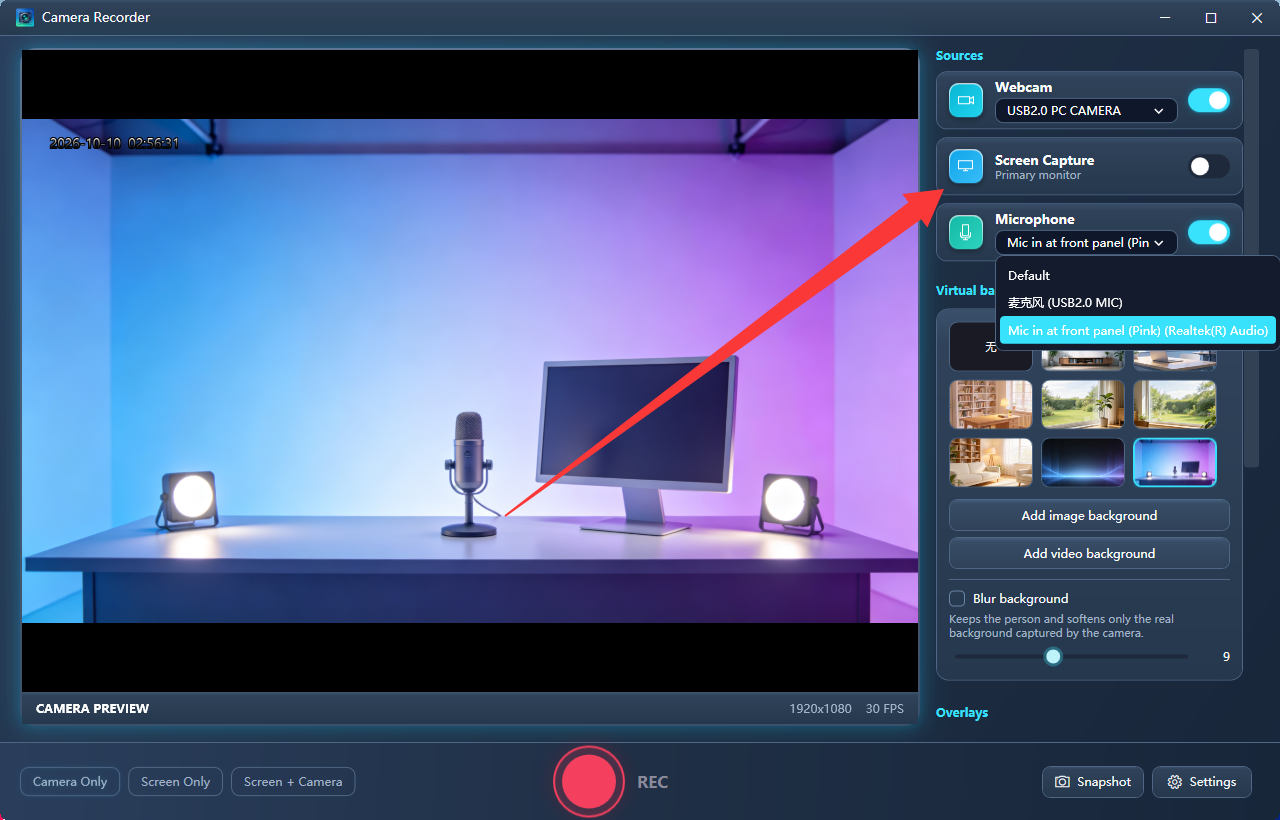
侧栏每一行左侧是图标,中间是设备下拉框,右侧是开关。开关亮起(蓝色)表示这一路进入了画面。 Each row has an icon, a device dropdown and a switch. A lit (blue) switch means that source is in the picture.
- 摄像头Camera — 在中间的下拉框里选择设备(例如 USB2.0 PC CAMERA)。插拔过设备后下拉框会自动刷新。Pick the device from the middle dropdown (e.g. USB2.0 PC CAMERA). The list refreshes by itself after you plug something in.
- 屏幕捕获Screen capture — 捕获主显示器。用底部第二个场景键可以把整屏当作画面。Captures the primary display. Use the second layout key to make the whole screen the picture.
- 麦克风Microphone — 下拉框列出系统里的录音设备。默认项是 Default,如果录出来没声音,请改成具体的设备名。Lists the system recording devices. The default entry is Default; if a recording comes out silent, select the explicit device instead.
- 桌面声音Desktop audio — 把电脑正在播放的声音(音乐、视频、会议)一起录进去,抓的是系统默认输出设备。录屏时不开这一路就没有声音,麦克风保持关闭也能只录系统声音;音量滑杆在主界面「相机」卡片底部。Records what the computer is playing (music, video, a call) from the default output device. Without it a screen recording has no sound at all, and you can leave the microphone off and still capture only the desktop. Its volume slider sits at the bottom of the Camera card.
03选择拍摄场景Choose a capture layout
底部左边三个按钮切换画面构成,切换是即时的,不需要先停止录制。 The three buttons at the bottom left change what the frame contains. Switching is instant and does not require stopping.
| 场景 | Layout | 画面内容 | What the frame holds |
|---|---|---|---|
| 仅相机 | Camera only | 只有摄像头,铺满画布。适合口播、网课。 | Camera fills the canvas. Good for talking-head and lessons. |
| 仅屏幕 | Screen only | 只有屏幕捕获。适合演示、软件操作。 | Screen capture only. Good for demos. |
| 屏幕 + 相机 | Screen + camera | 整屏为主,摄像头缩成右下角画中画。 | Full screen with the camera as a picture-in-picture inset. |
04开始录制Start recording
点底部中央那个红色圆键即可。按下后先进入倒计时,倒计时结束才真正开始写文件。 Press the red key in the middle of the bottom bar. A countdown runs first; the file starts only when it finishes.
- 倒计时Countdown — 大字会罩在预览画面上,每秒一次提示音;最后一秒结束时换成一段上扬的两声提示音,表示"开始录了"。倒计时秒数在设置里选 关闭 / 3 / 5 / 10 秒。Large numerals are overlaid on the preview with a tick each second; when the last second ends a rising two-note chime marks the real start. Off / 3 / 5 / 10 s in settings.
- 录制中While recording — 录制键周围出现红色辉光,底部状态行显示计时。再按一次同一个键即停止并保存。The key glows red and the status line counts up. Press the same key again to stop and save.
- 暂停 / 继续Pause / resume — 录制中录制键右侧会出现暂停键,按一下暂停、再按继续。暂停期间画面与声音都不写入,这段时长既不在成片里、也不计入计时,适合中途接电话或换场。While recording, a pause key appears beside the record key: press to pause, press again to resume. Nothing is written while paused — that span is neither in the file nor in the timer — which is what you want for a phone call or a change of scene.
- 自动停止Auto stop — 设置里可以填写分钟数,到点自动结束;填 0 表示不限时。Set a minute limit in settings to stop automatically; 0 means no limit.
05虚拟背景与抠像Virtual background
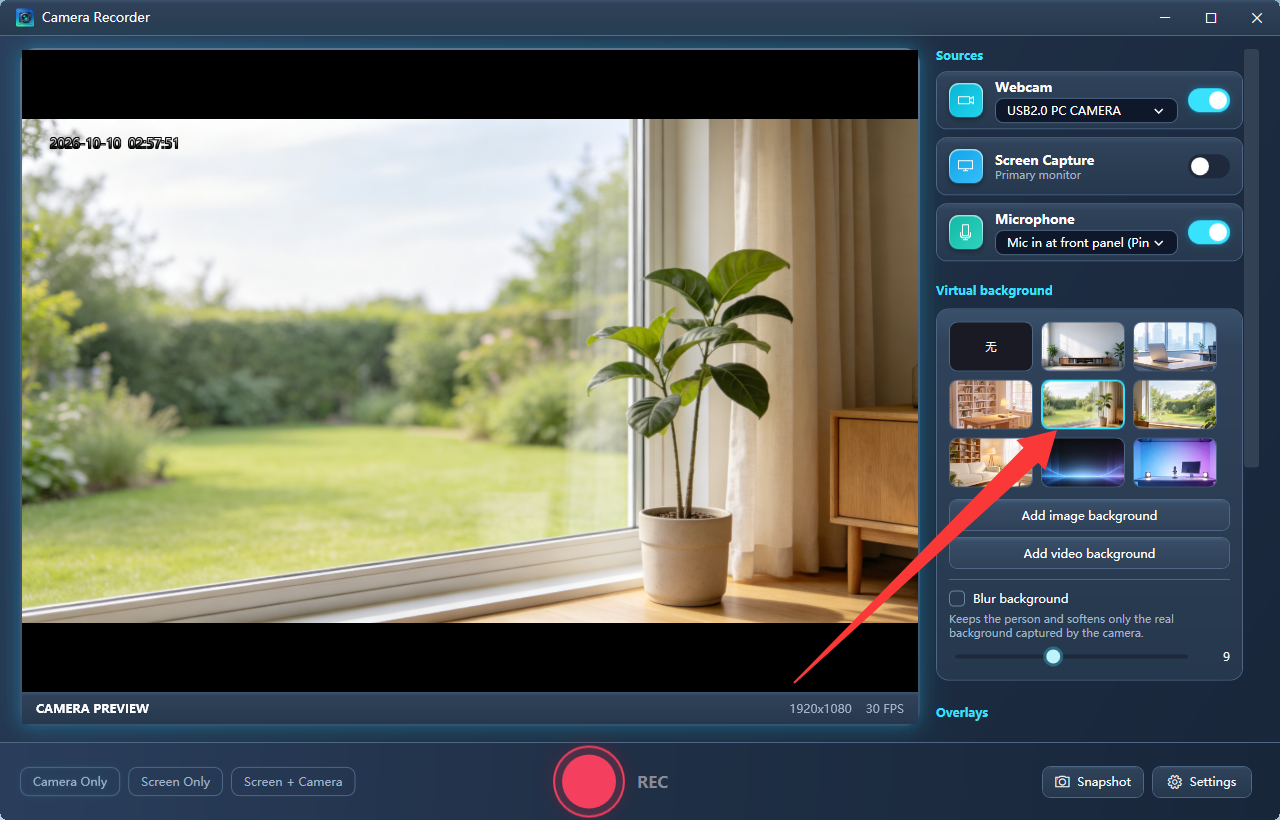
侧栏「虚拟背景」区域是一排缩略图加两个按钮。选中哪一格,画面就用哪种背景。 The "Virtual background" block is a row of thumbnails plus two buttons. Selecting a tile switches the background.
无
None
原始摄像头画面,不做任何处理。
Raw camera, untouched.
图片背景
Image
缩略图里的实拍图,或点「添加图片背景」用自己的图。
Built-in photos, or add your own with "Add image background".
视频背景
Video
点「添加视频背景」选一段视频循环播放。
Use "Add video background" to loop a clip.
模糊背景
Blur
保留人像,只把真实背景虚化。下方滑杆调强度(1–20)。
Keeps you sharp and blurs the real room. Strength slider 1–20.
抠像模型怎么选
Choosing a segmentation model
图片、视频和模糊背景都需要先把人从背景里"抠"出来,这一步由一个神经网络模型负责。模型选择在设置 → 视频页,默认是质量最好的 Robust Video Matting。 Image, video and blur all require separating you from the room, which a neural model does. The model lives in Settings → Video and defaults to Robust Video Matting, the highest-quality option.
| 模型 | Model | 特点 | Trade-off |
|---|---|---|---|
| Robust Video Matting | 质量最好,边缘最稳,也最吃 CPU。默认。 | Best edges and temporal stability; heaviest on CPU. Default. | |
| Selfie Multiclass | 会区分头发/皮肤/衣服,中等开销。 | Splits hair / skin / clothes; moderate cost. | |
| MediaPipe | 最小最快,边缘较粗。画面卡就换它。 | Smallest and fastest, rougher edges. Switch here if it stutters. |
06水印、文字与时间戳Watermarks and timestamp
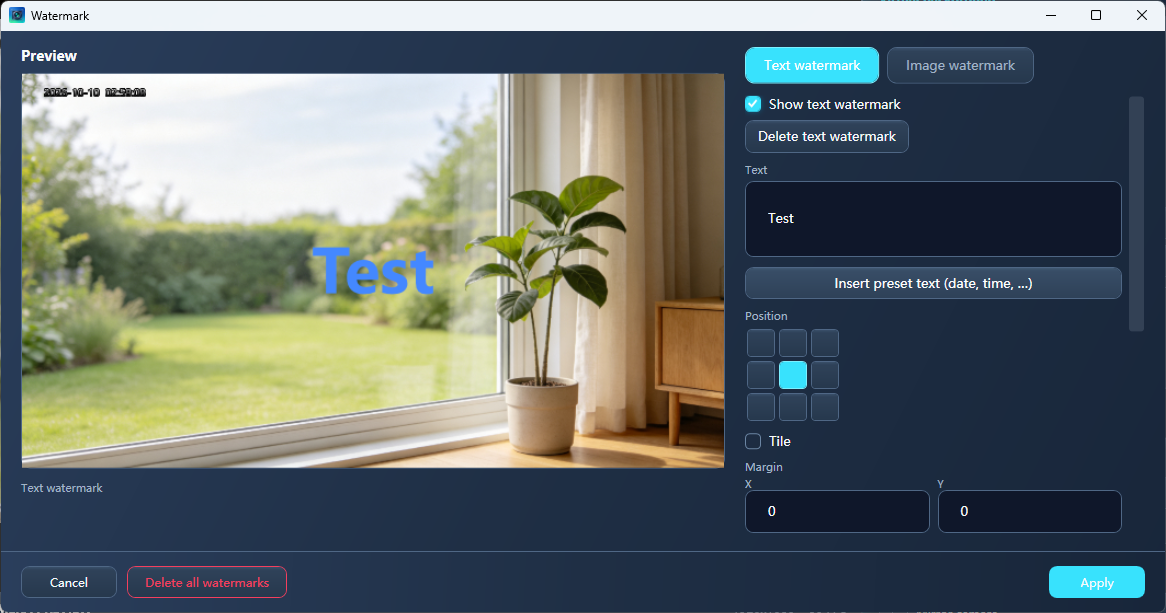
侧栏底部的「叠加」区里有 时间戳 和 水印… 两个入口。时间戳是主界面的一个开关,水印点开后是独立窗口。 The "Overlays" block at the bottom of the sidebar holds Timestamp and Watermark…. The timestamp is a plain switch; the watermark opens its own window.
- 时间戳Timestamp — 勾选后画面角落实时显示日期时间,会一起录进成品。格式、字号、颜色和贴边位置都在设置里调。Shows the date and time in a corner and records it into the output. Format, size, colour and anchor live in settings.
- 文字水印Text watermark — 任意文字,可设字体、字号、颜色、描边、对齐、旋转、透明度,以及九宫格位置或平铺。Any text with font, size, colour, outline, alignment, rotation, opacity, nine-grid position or tiling.
- 图片水印Image watermark — 选一张 PNG/JPG,按画面比例缩放并吸附到九个位置之一。A PNG/JPG scaled as a fraction of the frame and snapped to one of nine anchors.
07拍一张照片Take a still snapshot
底部右下角的 拍照 键会把当前整帧画面保存成 PNG —— 包含虚拟背景、水印和时间戳,和录制出来的画质一致。它和录制互不影响,录制中也可以随时按。 The Snapshot key at the bottom right saves the current composed frame as a PNG — virtual background, watermarks and timestamp included, exactly as it would be recorded. It is independent of recording and works while one is running.
图片会写进和录像相同的目录,文件名形如 Snapshot_20261009_052953.png。
The file lands in the same folder as your recordings, named like Snapshot_20261009_052953.png.
08设置窗口导览Inside the settings window
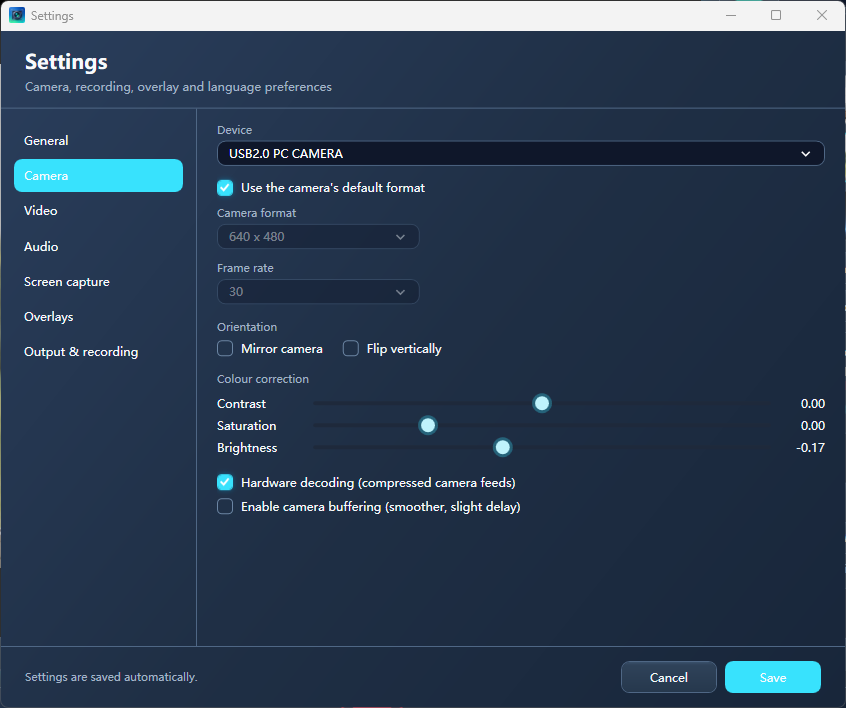
设置按左侧分页组织,改完点右下角 保存 才会生效,取消 则全部丢弃。 Settings are grouped by page on the left. Nothing applies until you press Save; Cancel discards everything.
| 分页 | Page | 里面的东西 | What is in it |
|---|---|---|---|
| 通用 | General | 界面语言(简体中文 / English / 日本語 / 한국어 / Deutsch),切换后立即生效。 | UI language (5 options), applied immediately. |
| 相机 | Camera | 设备、是否用相机默认格式、分辨率、帧率、镜像/翻转、色彩校正、硬件解码、缓冲。 | Device, device-default vs custom format, resolution, frame rate, mirror/flip, colour correction, hardware decode, buffering. |
| 视频 | Video | 画布分辨率、帧率、视频码率,以及抠像模型。 | Canvas size, frame rate, video bitrate and the segmentation model. |
| 音频 | Audio | 麦克风设备、音频码率、采样率、麦克风音量(dB)。 | Mic device, audio bitrate, sample rate, mic gain (dB). |
| 屏幕捕获 | Screen | 捕获方式、是否包含鼠标指针、显示器编号。 | Capture method, cursor inclusion, monitor index. |
| 水印叠加 | Overlays | 时间戳总开关与格式,以及打开水印窗口的入口。 | Timestamp switch and format, plus the watermark window entry. |
| 输出与录制 | Output | 保存目录、文件名前缀、封装格式、开录倒计时、自动停止、结束后是否打开目录。 | Folder, file name prefix, container, countdown, auto-stop, open-folder-after. |
09成品放在哪里Where the files go
默认保存到 视频\CameraRecorder,文件名形如 Recording_20261009_043452.mp4:前缀可以自己改,时间戳由程序补上,避免重名覆盖。
By default everything lands in Videos\CameraRecorder as Recording_20261009_043452.mp4: you choose the prefix, the timestamp is appended so nothing is overwritten.
- 封装格式:MP4 通用性最好,直接能拖进剪辑软件;MKV 更耐中断。Container: MP4 is the most compatible and drops straight into editors; MKV survives interruptions better.
- 录制结束后打开输出目录:默认勾选,录完自动弹出文件夹。Open folder after recording: on by default, so the folder pops up when a recording finishes.
- 拍照的 PNG 也写进同一个目录。Snapshots are written to the same folder.
10常见问题Troubleshooting
录出来的文件没有声音The recording has no sound
按顺序检查三件事:① 侧栏麦克风的开关有没有点亮(这是最常见的原因,麦克风不会自动启用);② 麦克风下拉框是否选中了真正的设备,而不是 Default;③ 设置 → 音频 里的麦克风音量是否被拉到很低。
Check three things in order: ① is the microphone switch lit in the sidebar (by far the most common cause — the mic is never enabled for you); ② does the dropdown name a real device rather than Default; ③ is the mic gain in Settings → Audio turned down.
需要先装 OBS 吗?Do I need OBS installed?
不需要。程序自带录制所需的运行时,在一台从未装过 OBS 的电脑上也能正常录制。右下角状态行会显示 OBS 的版本号,可以用来确认运行时已就绪。
No. The app carries its own runtime and records fine on a machine that has never had OBS installed. The status line reports the OBS version so you can confirm it loaded.
为什么相机分辨率只有几个小尺寸可选?Why are only a few small resolutions offered?
因为列表是向相机本身问来的。很多 USB 摄像头其实只能输出 640×480 及以下,程序不提供它做不到的规格 —— 那只会造成"选了却没反应"。想用更高分辨率需要换一台支持它的相机。
Because the list is queried from the camera itself. Plenty of USB webcams genuinely top out at 640×480, and the app refuses to offer a mode the device cannot deliver — that only produces "I picked it and nothing changed". A higher-resolution camera is the only way up.
虚拟背景没有效果,或者画面很卡Virtual background does nothing, or everything stutters
先确认选了「图片背景」「视频背景」或勾选了「模糊背景」—— 选「无」时不会有任何效果。如果很卡,那是抠像模型跑在 CPU 上:到设置 → 视频 → 抠像模型换成 MediaPipe 或 Selfie Segmentation,会明显流畅,代价是边缘稍微糙一点。
First check that you picked Image, Video, or ticked Blur — "None" changes nothing by design. If it stutters, the segmentation model is running on the CPU: switch Settings → Video → Segmentation model to MediaPipe or Selfie Segmentation for noticeably smoother output at the cost of slightly rougher edges.
预览是黑的 / 录出来没有画面Preview is black, or the recording has no picture
确认对应的信号源开关已经点亮,并且底部选的是包含它的场景。摄像头被其它程序(会议软件、浏览器标签页)独占时也会拿不到画面 —— 关掉那个程序再试。屏幕捕获在极少数显卡/驱动组合上需要切换捕获方式,可在设置 → 屏幕捕获 里改。
Make sure the matching source switch is lit and the layout at the bottom includes it. A camera held exclusively by another app (a meeting client, a browser tab) will also produce nothing — close it and retry. On rare GPU/driver combinations screen capture needs a different method, selectable in Settings → Screen.
视频文件太大了The recording is far too large
到设置 → 视频把「视频码率」调低一档(例如 6000 → 4000 kbps),或者把画布分辨率从 4K 降到 1080p。帧率从 60 降到 30 也能省下接近一半体积。这些改动都会在下一次录制时生效。
In Settings → Video, drop the bitrate a step (say 6000 → 4000 kbps) or lower the canvas from 4K to 1080p. Going from 60 to 30 fps also cuts the size roughly in half. Changes apply to the next recording.
界面语言怎么换成英文?How do I switch the interface language?
设置 → 通用 → 界面语言,可选简体中文、English、日本語、한국어、Deutsch,切好即生效,不用重启。本页右上角的下拉框只切换这份教程的语言,和程序界面无关。
Settings → General → UI language: Simplified Chinese, English, Japanese, Korean or German. It applies immediately, no restart. The dropdown at the top right of this page only switches this guide.