快速入门Quick Start
如何开始刻录光盘?
How to start burning a disc?
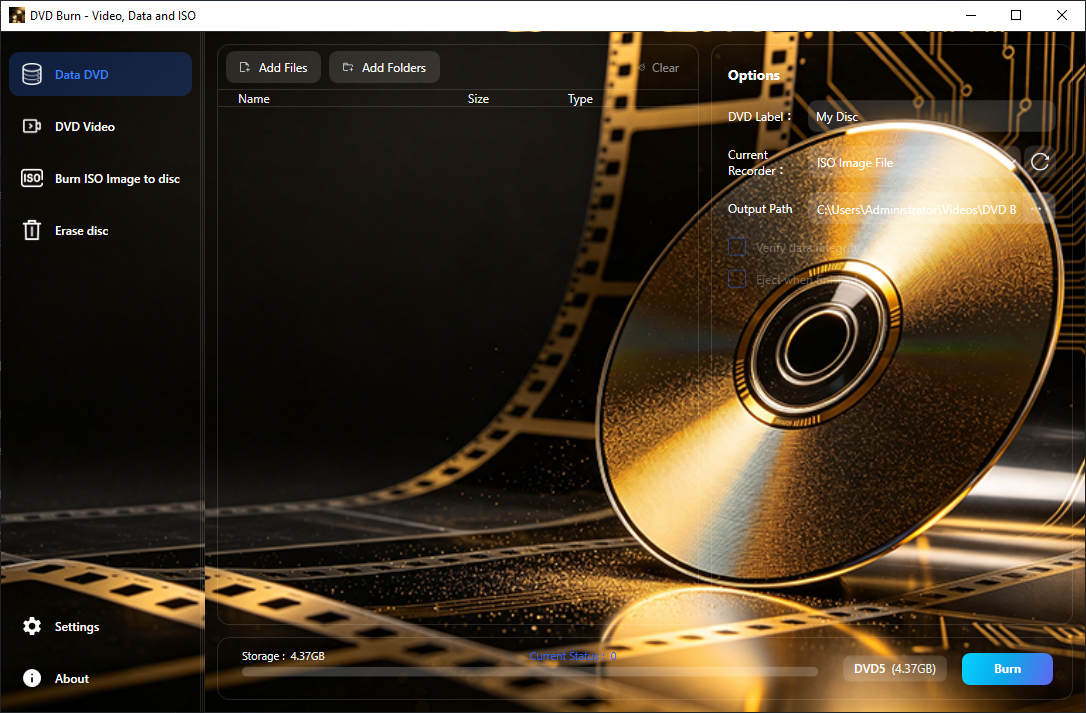
- 在左侧导航栏选择要执行的操作(数据光盘 / DVD 视频 / 刻录 ISO / 擦除光盘)Choose your task from the left sidebar (Data Disc / DVD Video / Burn ISO / Erase Disc)
- 在页面中选择目标刻录机及相关选项(标签等)Select the target recorder and related options (label, etc.)
- 点击底部的「刻录」或「擦除」按钮开始操作Click the "Burn" or "Erase" button at the bottom
- 等待进度完成,操作成功后自动弹出成功提示Wait for completion — a success message appears when done
界面概览Interface
主界面由哪些部分组成?
What parts make up the main interface?
- 左侧导航栏Left Sidebar — 切换数据光盘/DVD 视频/刻录 ISO/擦除光盘/设置Switch between Data Disc / DVD Video / Burn ISO / Erase / Settings
- 中间内容区Content Area — 当前功能的操作界面Operation interface for the current function
- 底部操作栏Bottom Bar — 显示刻录/擦除按钮和进度条Shows the Burn/Erase button and progress bar
刻录数据光盘Burn Data Disc
如何刻录数据光盘?
How to burn a data disc?
- 左侧导航点击「数据 DVD」进入刻录页面Click "Data DVD" in the left sidebar
- 点击「添加文件」或「添加文件夹」添加要刻录的内容Click "Add Files" or "Add Folders" to select content
- 选择目标刻录机Select the target recorder
- 可选:修改光盘卷标、勾选验证完整性或完成后弹出Optional: modify label, enable verify, or auto-eject
- 点击底部「刻录」开始操作Click the "Burn" button to start
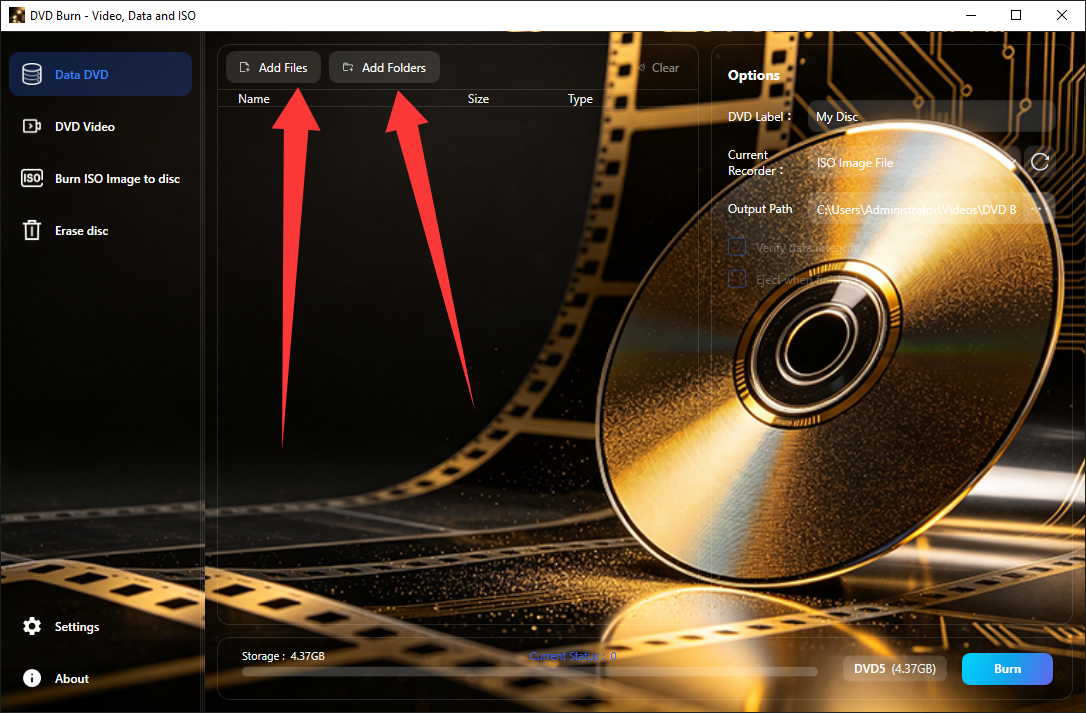
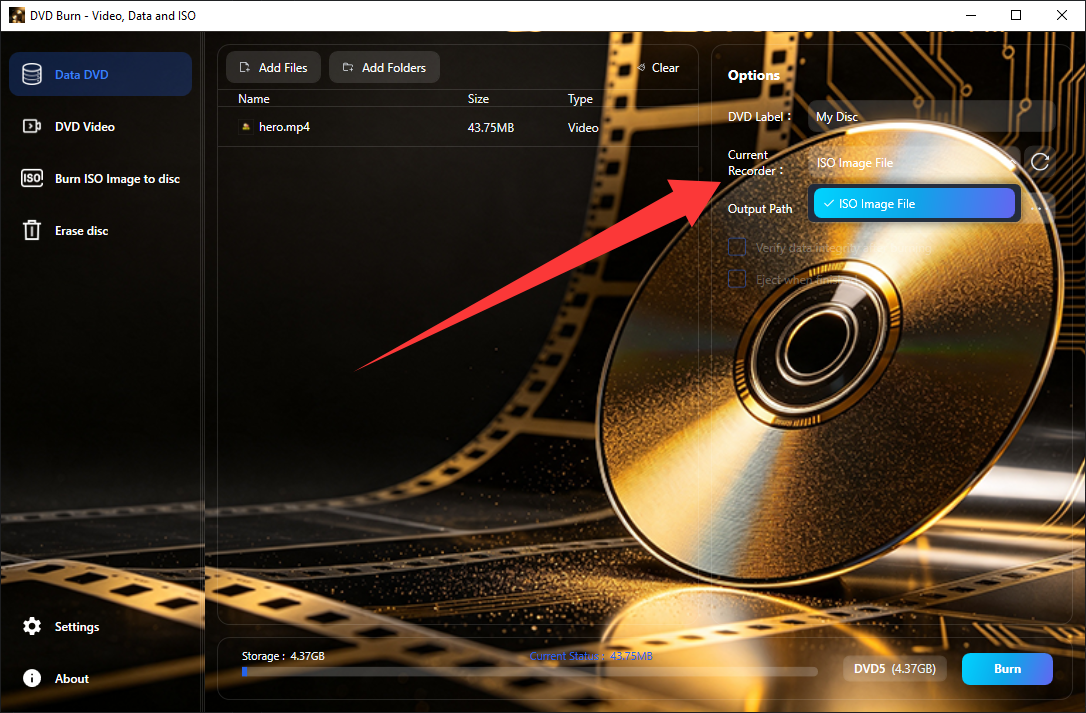
建议勾选「验证数据完整性」,虽然延长刻录时间但能确保数据安全。Enable "Verify data integrity" for data safety at the cost of extra time.
刻录 ISO 镜像Burn ISO Image
如何刻录 ISO 镜像文件?
How to burn an ISO image file?
- 左侧导航点击「刻录 ISO」Click "Burn ISO" in the left sidebar
- 点击浏览按钮选择 ISO 镜像文件Browse and select the ISO image file
- 选择目标刻录机Select the target recorder
- 点击底部「刻录」按钮Click the "Burn" button
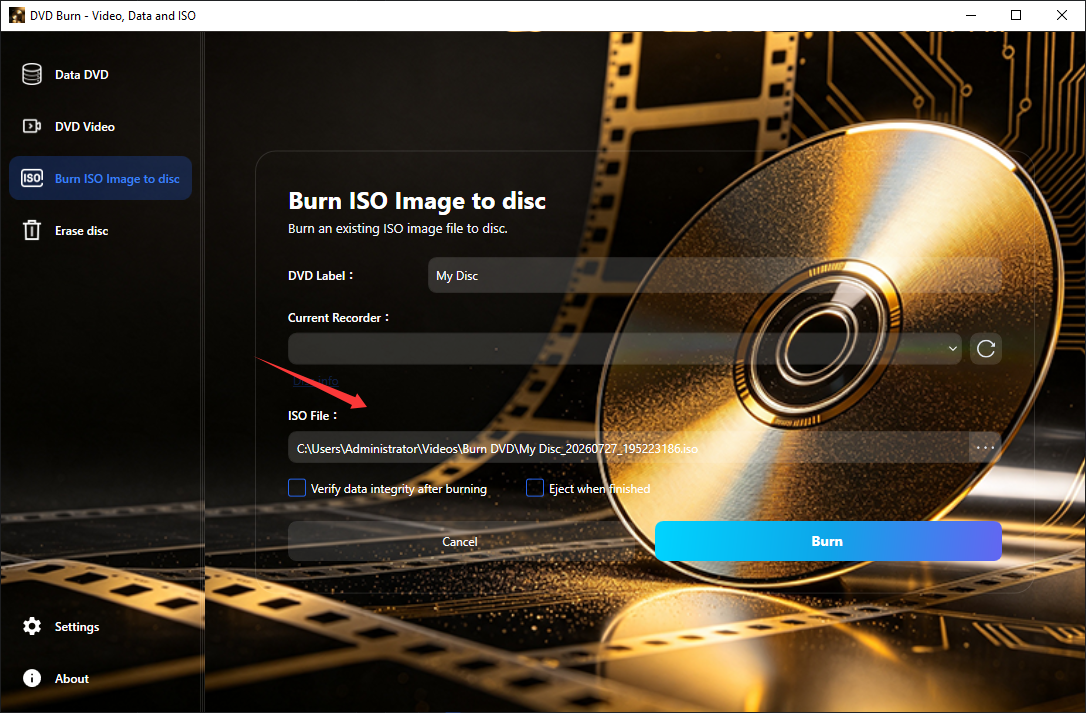
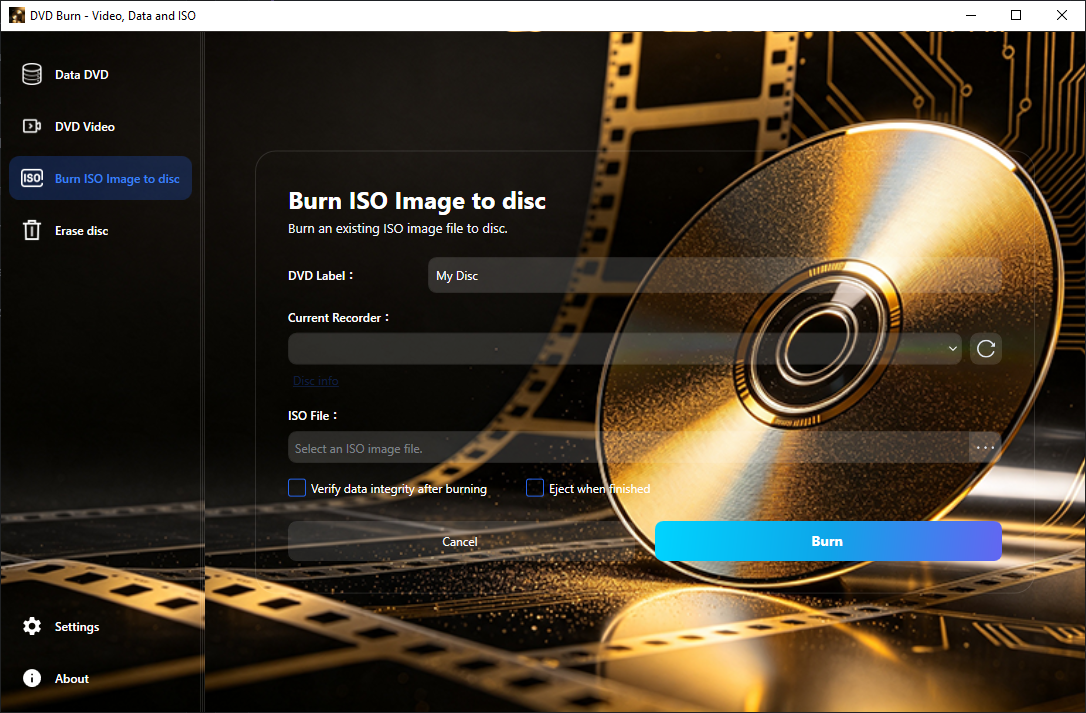
刻录前建议用工具验证 ISO 文件完整性,避免因镜像损坏导致失败。Verify ISO integrity before burning to avoid failures caused by a corrupted image.
制作 DVD 视频Make DVD Video
如何制作带菜单的 DVD 视频?
How to make a DVD video with menus?
- 左侧导航点击「DVD 视频」Click "DVD Video" in the left sidebar
- 点击「添加视频」选择要刻录的视频文件Click "Add Video(s)" to select video files
- 在右侧面板设置 DVD 格式(NTSC/PAL)和菜单类型Set DVD format (NTSC/PAL) and menu type in the right panel
- 选择「自定义菜单」可预览菜单背景效果Select "Custom Menu" to preview the menu background
- 设置输出目录和光盘标签,点击「刻录」Set output directory and disc label, then click "Burn"
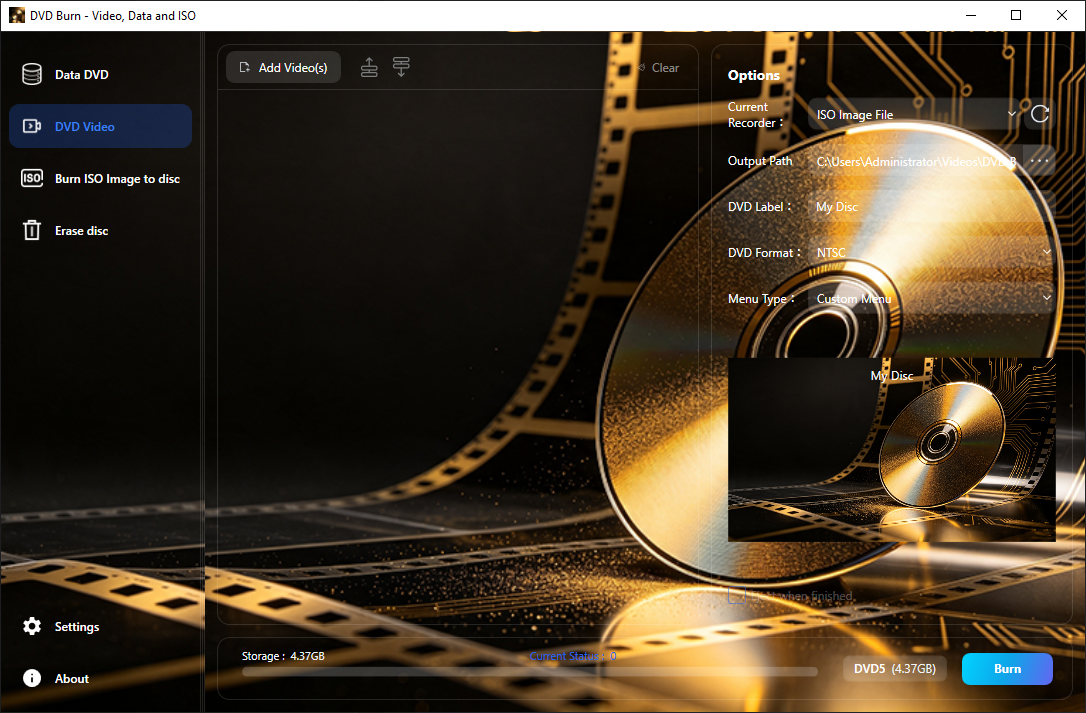
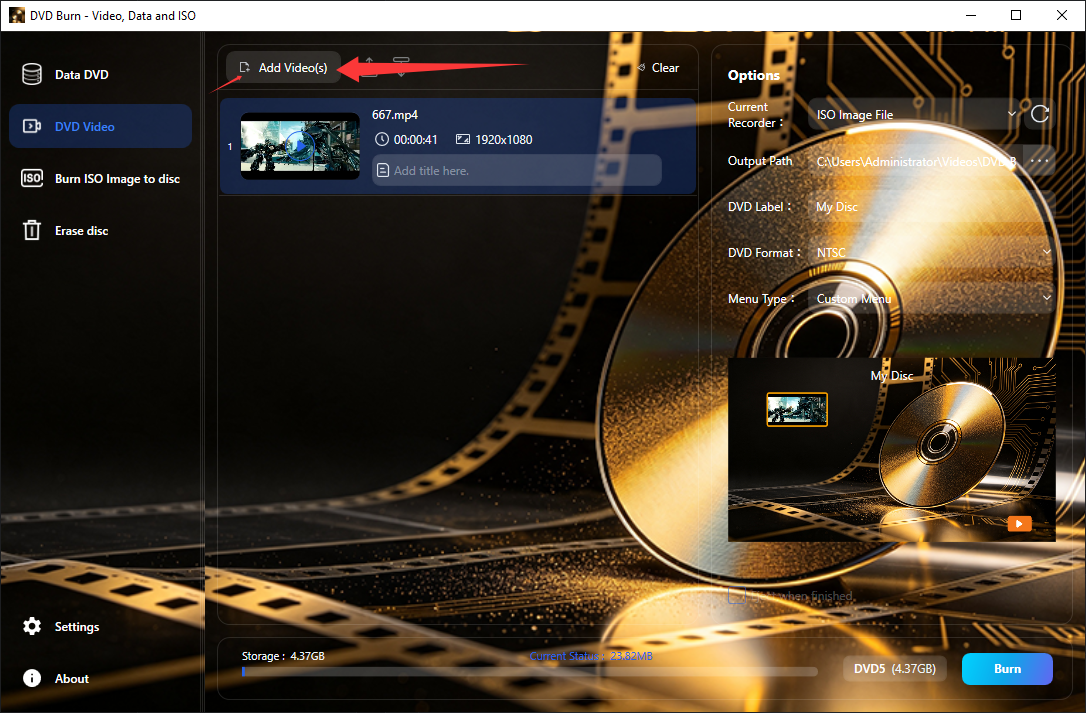
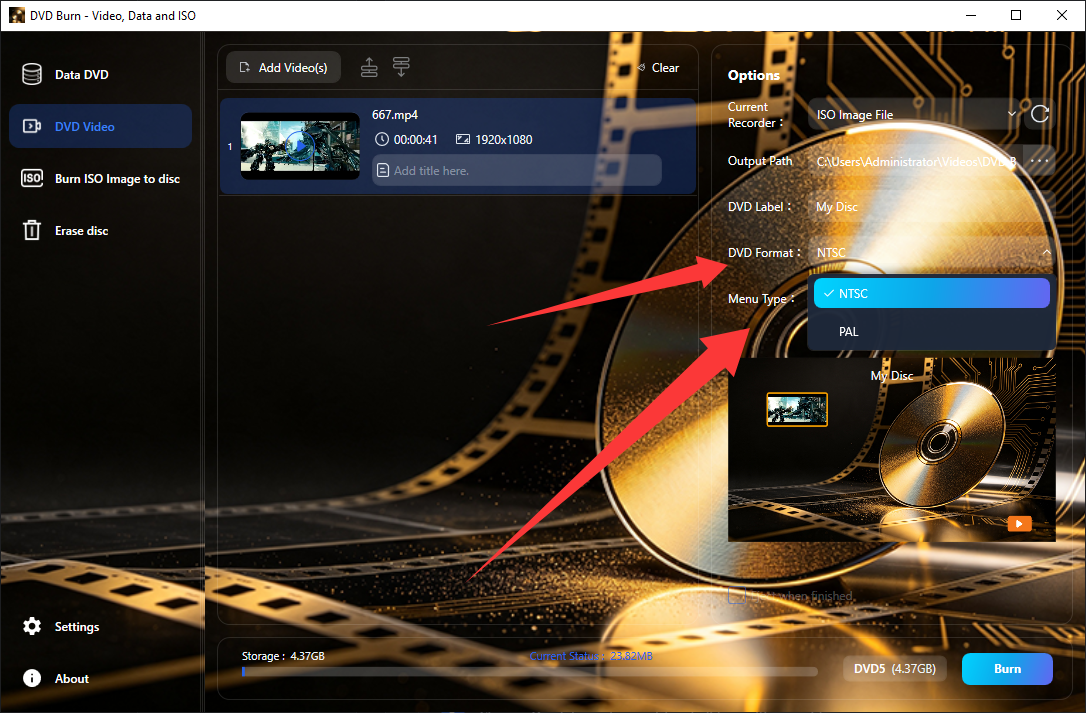
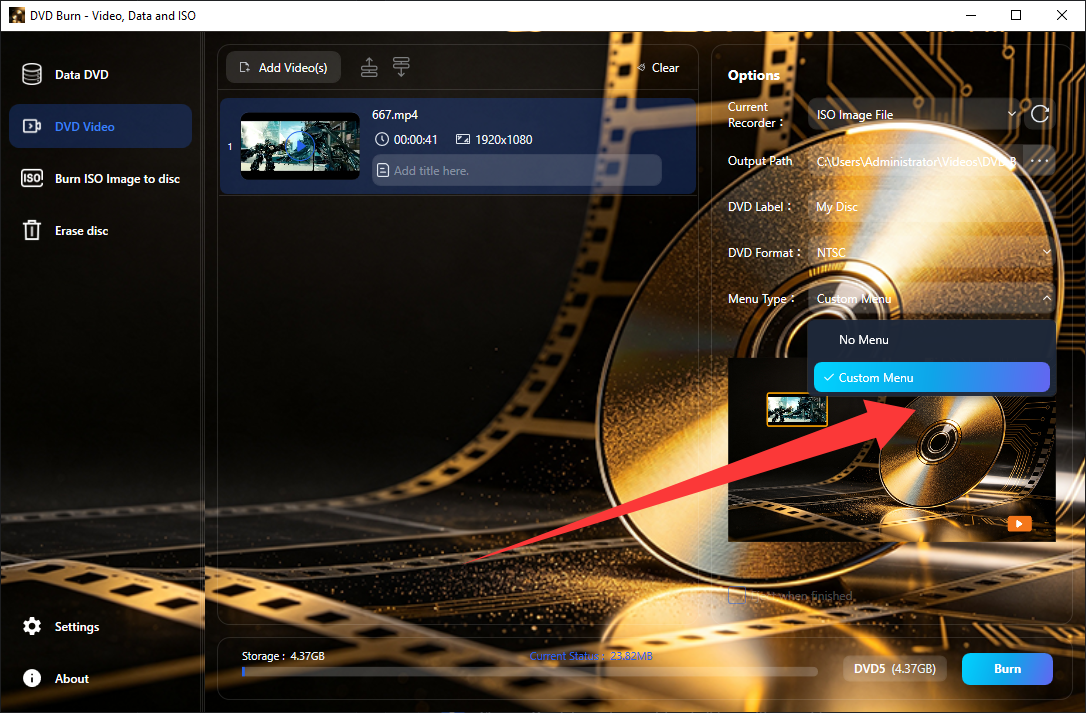
首次制作需要下载 FFmpeg 和 Spumux 组件,程序会自动下载安装。FFmpeg and Spumux are downloaded automatically on first use.
擦除光盘Erase Disc
如何擦除可重写光盘?
How to erase a rewritable disc?
- 左侧导航点击「擦除光盘」Click "Erase Disc" in the left sidebar
- 选择目标刻录机Select the target recorder
- 选择擦除方式:快速擦除(几秒)或完整擦除(彻底清除)Choose Quick Erase (seconds) or Full Erase (thorough)
- 点击底部「擦除」按钮,确认后开始Click "Erase", confirm when prompted
- 等待擦除完成Wait for the erase to finish
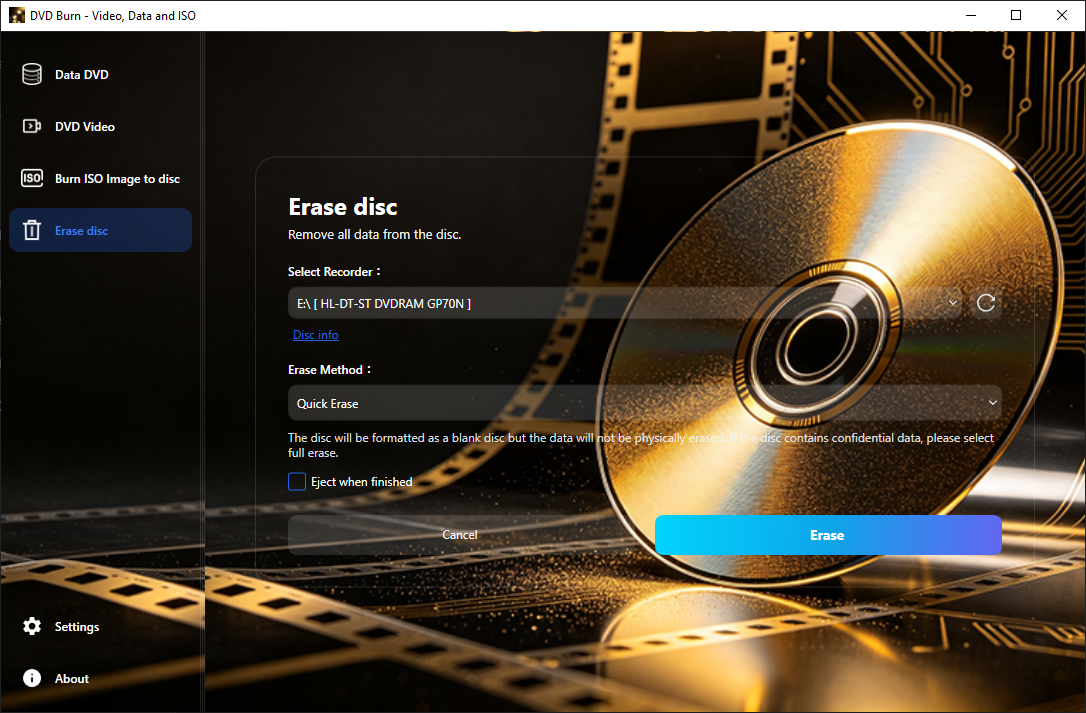
完整擦除物理清除所有数据(耗时较长)。快速擦除只清空索引,数据可被恢复工具还原。Full Erase physically destroys all data. Quick Erase only clears the index; data can be recovered.
设置与语言Settings & Language
如何更改主题和语言?
How to change theme and language?
左侧导航底部点击齿轮图标进入设置页面:
Click the gear icon at the bottom of the sidebar to enter Settings:
- 主题Theme — 浅色 / 深色 / 跟随系统,即时生效Light / Dark / Auto — takes effect immediately
- 语言Language — 7 种语言可选,切换后重启生效7 languages available — takes effect after restart
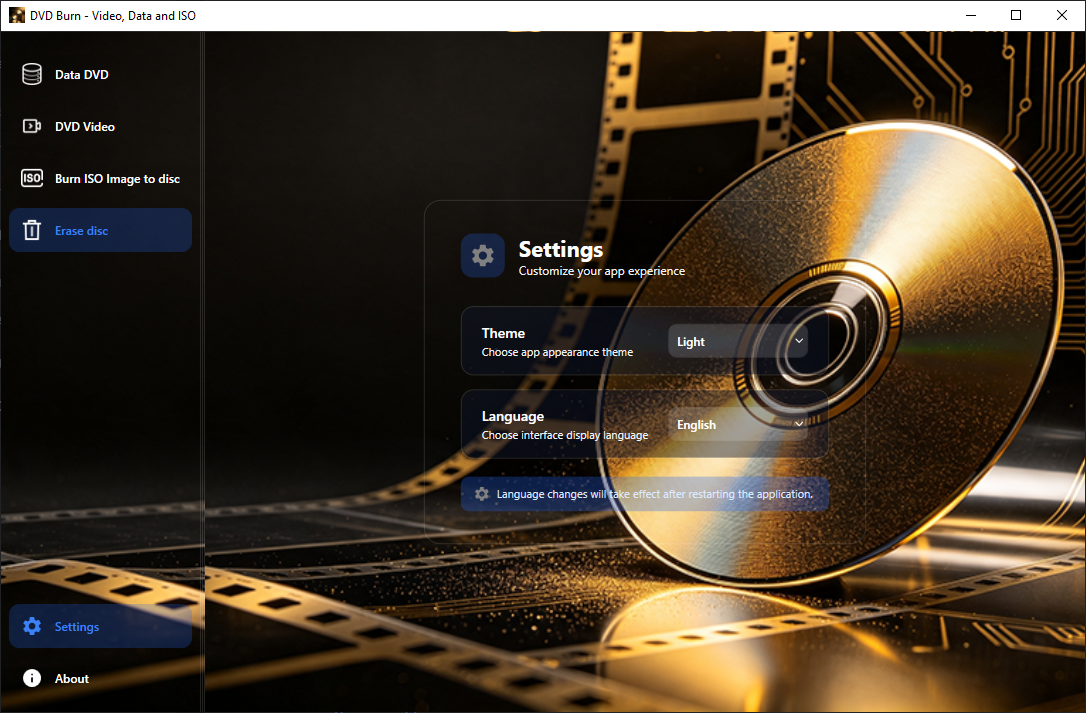
支持:简体中文 / English / 日本語 / 한국어 / Français / Deutsch / Español
Supported: 简体中文 / English / 日本語 / 한국어 / Français / Deutsch / Español
常见问题FAQ
为什么重刻录需要先擦除光盘?
Why erase before rewriting?
DVD-RW / CD-RW 等可重写光盘在重新写入前必须擦除,这是光盘介质本身的特性。
Rewritable discs (DVD-RW / CD-RW) must be erased before rewriting — this is a media characteristic.
刻录途中能取消吗?
Can I cancel during burning?
正在写入数据时停止可能导致光盘无法读取,建议等待操作完成。
Stopping during a write may render the disc unreadable. Please wait for completion.
支持哪些光盘类型?
What disc types are supported?
| 类型 | Type | 刻录 | Burn | 擦除 | Erase |
|---|---|---|---|---|---|
| CD-R / CD-RW | CD-R / CD-RW | ✅ | ✅ | RW only | RW only |
| DVD±R / DVD±RW | DVD±R / DVD±RW | ✅ | ✅ | RW only | RW only |
| DVD-R DL / DVD+R DL | DVD-R DL / DVD+R DL | ✅ | ✅ | ❌ | ❌ |
| BD-R / BD-RE | BD-R / BD-RE | ✅ | ✅ | RE only | RE only |
为什么验证失败?
Why did verification fail?
通常是因为光盘质量问题。建议使用质量好的光盘重试。
Usually caused by poor disc quality. Try better discs.