
启动与主界面Launch and home screen
把音频 CD 抓取成数字音乐文件,自动写入曲目信息与封面,并可以同时生成播放列表。
Rip audio CDs into digital music files, with track metadata and cover art written automatically, plus optional playlist generation.
MP3
LAME 编码
LAME encoder
FLAC
无损压缩
Lossless
AAC
.m4a / FFmpeg
.m4a / FFmpeg
WAV
未压缩
Uncompressed
标签
Tags
ID3 / Vorbis
播放列表
Playlist
M3U / PLS
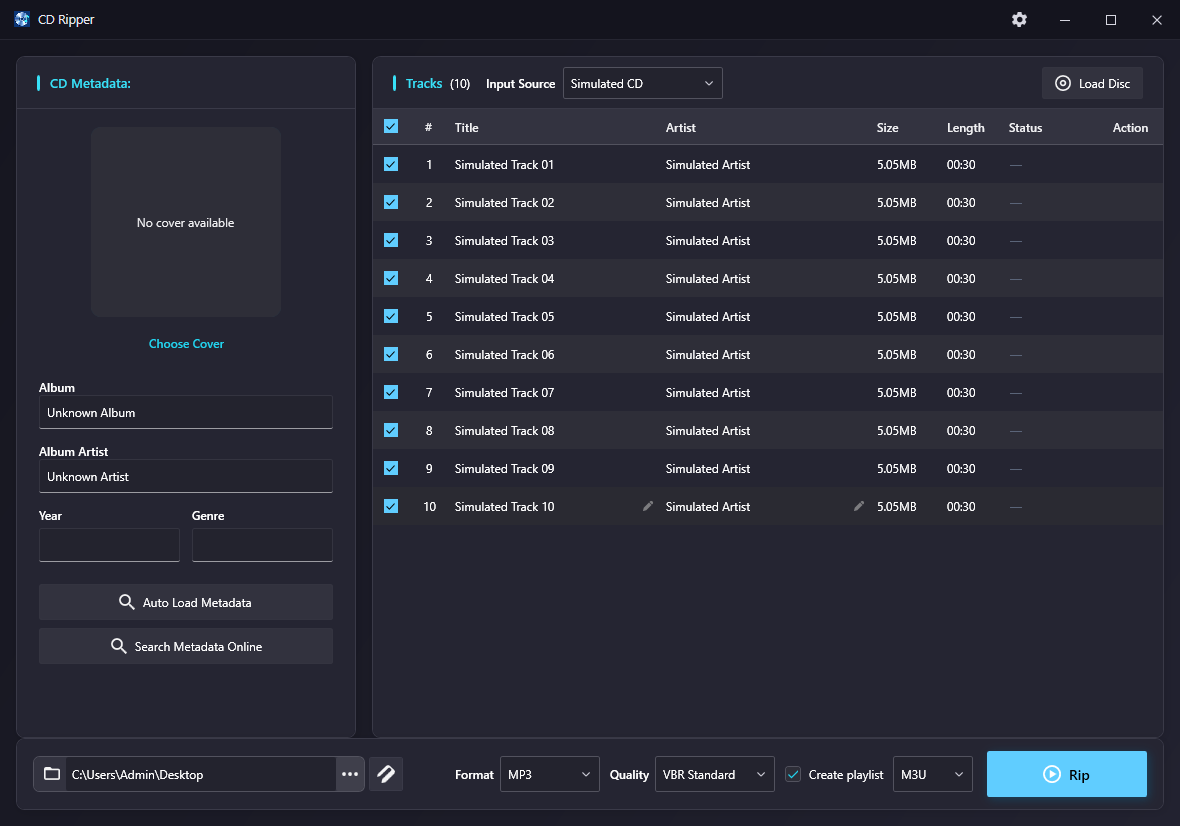
CD 元数据,中间是曲目列表,底部是输出设置。右上角三颗按钮分别是最小化、最大化和关闭,齿轮图标是设置。The window has three areas: CD Metadata on the left, the Tracks list in the middle, and Output settings along the bottom. The top-right buttons are minimize, maximize and close; the gear icon opens Settings.输入源与加载光盘Input source and loading a disc
- 在曲目区顶部的 Input Source 下拉框里选择 Physical Drive(真实光驱)或 Simulated CD(内置模拟光盘,用来熟悉流程)。In the Input Source dropdown above the track list, pick Physical Drive for a real drive, or Simulated CD to practise with built-in test data.
- 选择 Physical Drive 时,旁边会出现光驱下拉框,以及刷新
⟳和弹出⏏按钮。With Physical Drive selected, a drive dropdown appears next to it, along with refresh⟳and eject⏏buttons. - 点击右上角的 Load Disc 读取光盘目录(TOC)。Click Load Disc in the top-right corner to read the disc table of contents.
- 读取成功后,曲目列表会列出每首歌的编号、标题、艺术家、大小和时长。Once it succeeds, the track list shows each track's number, title, artist, size and length.
编辑元数据Edit metadata
左侧 CD 元数据 区域可以直接输入:专辑、专辑艺术家、年份、流派。这些内容会写入每个输出文件的标签里。
The CD Metadata panel on the left accepts Album, Album Artist, Year and Genre directly. These values are written into every output file's tags.
- 自动匹配元数据:根据光盘 ID 联网查询并填入专辑与曲目信息。
- Auto Load Metadata: looks the disc up online by its disc ID and fills in album and track details.
- 在线搜索元数据:自动匹配不准时,手动输入专辑名 / 艺术家 / 年份再搜索。
- Search Metadata Online: when the automatic match is wrong, search manually by album title, artist or year.
直接双击曲目列表里的 Title 或 Artist 单元格即可就地编辑,也可以把鼠标移到行上点击出现的小铅笔图标。
Double-click the Title or Artist cell in the track list to edit it in place, or hover the row and click the small pencil icon that appears.
封面Cover art
- 联网自动匹配时,封面会一并下载并显示在左侧预览框里。When the online match succeeds, the cover is downloaded and shown in the preview box on the left.
- 也可以点击 选择封面 从本地挑一张图片(建议不小于 500 × 500 像素)。Or click Choose Cover to pick a local image (500 × 500 px or larger recommended).
- 双击预览图可以放大查看。Double-click the preview to zoom in.
输出设置Output settings
- 输出文件夹:点击
⋯选择保存位置。 - Output folder: click
⋯to choose where files are saved. - 命名规则:点击右侧标签图标,设置文件名格式(如
曲目号 - 标题)与目录结构(如艺术家\专辑\)。 - Naming rules: click the tag icon to set the file name pattern (e.g.
Track number - Title) and folder structure (e.g.Artist\Album\). - 格式:MP3 / FLAC / AAC / WAV。
- Format: MP3 / FLAC / AAC / WAV.
- 音质:随格式变化,例如 MP3 的 VBR 预设、AAC 的码率。
- Quality: depends on the format — VBR presets for MP3, bitrate for AAC.
- 生成播放列表:勾选后可选择 M3U / PLS 格式。
- Create playlist: tick it to also write an M3U or PLS playlist.
开始抓轨Start ripping
- 在曲目列表左侧的勾选框里选择要抓取的曲目,表头的勾选框可以全选或全不选。Tick the tracks you want with the checkboxes on the left; the header checkbox selects or clears all.
- 确认底部的输出文件夹、格式和音质。Confirm the output folder, format and quality along the bottom.
- 点击右下角的 开始抓轨。Click Rip in the bottom-right corner.
- 抓轨过程中按钮会变成 停止,点击可中止。While ripping, the button changes to Stop; click it to cancel.
轨道状态与输出文件Track status and output files
—尚未开始—not started yet等待中已排队Waitingqueued抓轨中正在处理Rippingin progress已完成抓取成功Finishedcompleted抓轨失败出错,可在日志中查看原因Failedan error occurred; check the log for details
抓轨完成的曲目,鼠标移到行上会出现两个图标:播放 和 在文件资源管理器中打开。全部完成后会弹出结果摘要,可以直接点 打开文件夹。
For finished tracks, hovering the row reveals two icons: Play and Open in File Explorer. When everything finishes a summary dialog appears with an Open Folder button.
设置:语言与快捷方式Settings: language and shortcut
点击窗口右上角、最小化按钮左边的齿轮图标。
Click the gear icon just left of the minimize button in the top-right corner.
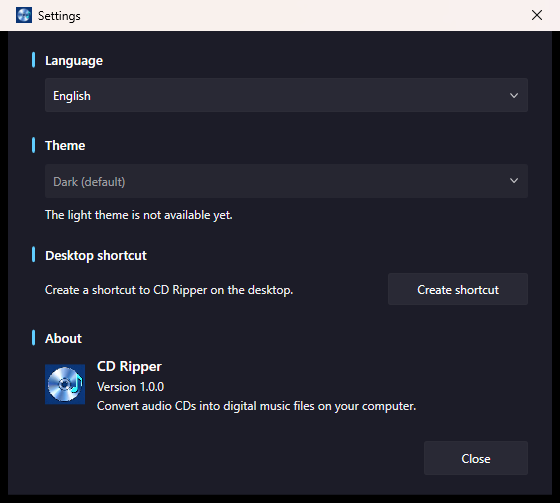
- 语言:简体中文 / English / 日本語 / 한국어 / Русский。切换后需要重启程序才会生效。
- Language: 简体中文 / English / 日本語 / 한국어 / Русский. Restart the app for the change to take effect.
- 主题:目前提供深色主题。
- Theme: the dark theme is currently available.
- 桌面快捷方式:一键在桌面创建快捷方式,已存在时会覆盖。
- Desktop shortcut: creates a desktop shortcut in one click, overwriting an existing one.
- 关于:显示版本号与简介。
- About: shows the version number and a short description.
教程与评分提示Tutorial and rating prompts
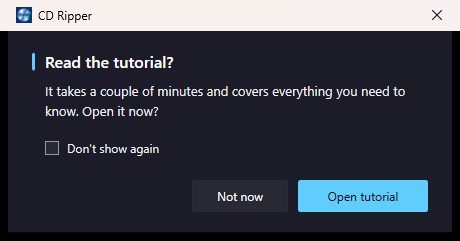
首次启动会自动打开一次在线教程。之后从第 2 次启动开始,每 4 次启动会弹一次教程询问窗。
The online tutorial opens once on first launch. From the second launch onward, a prompt appears every 4th launch.
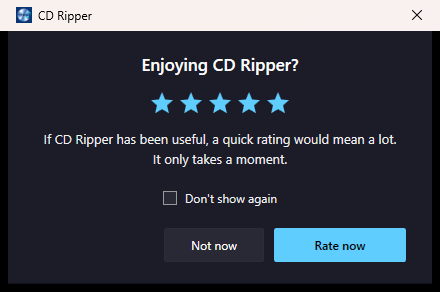
当你使用过抓轨功能、随后关闭程序时,会询问一次是否愿意评分。
After you have used the rip function, closing the app asks once whether you would like to leave a rating.
常见问题FAQ
说明当前光盘不是音频 CD。请换成标准音频 CD;数据光盘和 DVD 都不受支持。
The disc is not an audio CD. Use a standard audio CD; data discs and DVDs are not supported.
先确认网络正常,再点 在线搜索元数据 手动搜索;也可以完全手填专辑与曲目信息,不影响抓轨。
Check your connection, then use Search Metadata Online to search manually — or just fill in the details yourself; ripping still works.
请检查输出文件夹所在磁盘是否写满,或换一种输出格式重试。问题持续可以去日志目录查看详细错误。
Check whether the output drive is full, or try another output format. If it persists, look at the log folder for details.
抓轨、编码、写标签、生成播放列表全部本地完成。只有"自动匹配 / 在线搜索元数据"和"下载封面"需要联网。
Ripping, encoding, tagging and playlist writing are all local. Only metadata lookup and cover download need the network.