
启动与主界面Launch and home screen
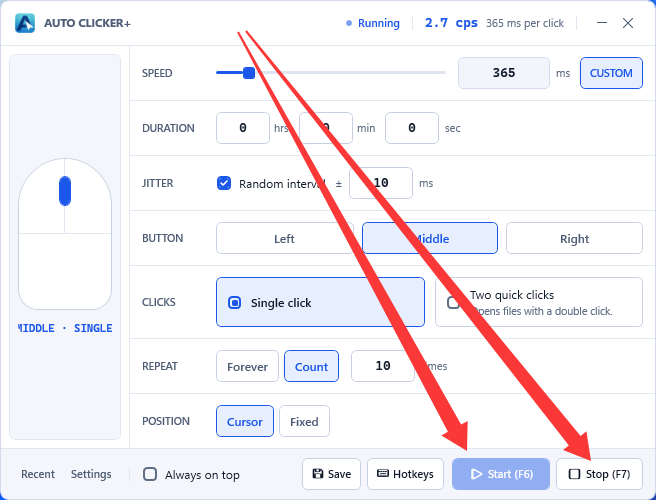
Auto Clicker+ 是一个 Windows 桌面小工具:按你设定的时间间隔,在固定坐标或当前光标处,重复执行鼠标左键 / 中键 / 右键的单击或双击。主窗口是固定尺寸、不可拉伸的卡片,只能用标题栏拖拽移动。窗口分成四块:顶部标题栏(状态指示、速度读数、最小化与关闭)、左侧鼠标示意图、右侧参数行(速度、随机、按键、次数、重复、位置)、底部工具条(Recent / Settings 链接、窗口置顶、Save Settings、Hotkeys、Start / Stop)。 Auto Clicker+ is a small Windows desktop utility: at a fixed interval you choose, it repeats left / middle / right mouse clicks (single or double) either at a fixed screen position or wherever the cursor currently is. The main window is a fixed-size card that cannot be resized; drag it by its title bar. It is split into four parts: the title bar (status, speed readout, minimize and close), the mouse diagram on the left, the setting rows on the right (speed, jitter, button, clicks, repeat, position), and the footer (Recent / Settings links, always-on-top, Save Settings, Hotkeys, Start / Stop).
点击间隔
Interval
毫秒 / 秒 / 分 / 时
ms / sec / min / hrs
随机间隔
Jitter
每次追加随机毫秒
Add random milliseconds
鼠标按键
Button
左键 / 中键 / 右键
Left / Middle / Right
点击类型
Click type
单击 / 连续两次
Single / Two clicks
重复次数
Repeat
永远 / 指定次数
Forever / Count
点击位置
Position
光标处 / 固定坐标
Cursor / Fixed
全局热键
Hotkeys
默认 F6 / F7 / F8
F6 / F7 / F8 by default
配置档案
Profiles
保存并一键套用
Save and re-apply
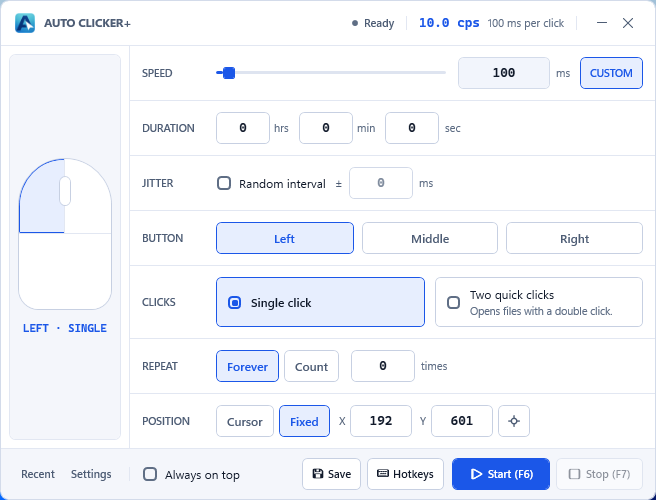
10.0 cps 与 100 ms per click 是按当前间隔换算出来的读数,不是实测速度;运行中标题栏还会追加 “Running...” 字样。The 10.0 cps and 100 ms per click readouts in the title bar are derived from your interval, not measured throughput. While running, the title bar also appends “Running...”.点击速度Click interval
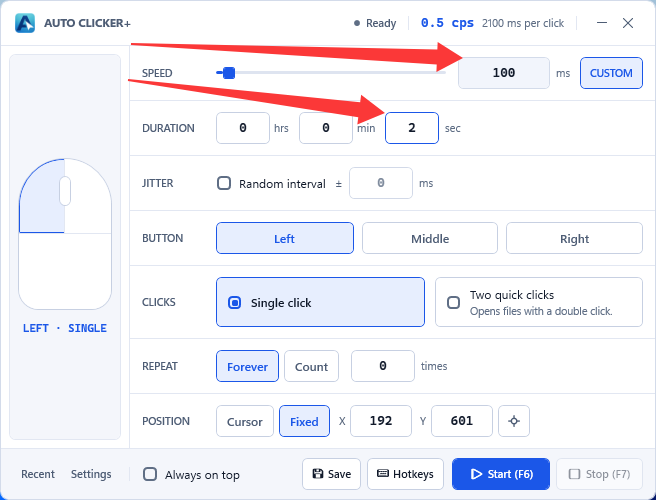
SPEED 行提供两种输入方式:拖动滑块(范围 0–3000 毫秒),或直接在滑块右侧的数值框里输入毫秒数,两者实时联动。需要「秒」或「分钟」量级的间隔时,点击该行右端的 CUSTOM 徽章展开 DURATION 行,分别填写时、分、秒。最终间隔是这四项之和(时 + 分 + 秒 + 毫秒),标题栏的 X ms per click 会显示合计结果。
The SPEED row accepts two kinds of input: drag the slider (0–3000 ms) or type milliseconds directly into the box on its right — the two stay in sync. For intervals of seconds or minutes, click the CUSTOM chip at the end of the row to reveal the DURATION row and fill in hours, minutes and seconds. The effective interval is the sum of all four fields (hours + minutes + seconds + milliseconds), and the X ms per click readout in the title bar shows the total.
随机间隔Random jitter
勾选 JITTER 行的「随机间隔(Random interval)」后,右侧的毫秒输入框变为可用,填写一个上限值 N。开启后每一次点击的间隔都会在基准间隔之上再加一个 0~N 毫秒的随机值,因此点击节奏不再严格等距。 Tick Random interval in the JITTER row to enable the millisecond box beside it, and enter an upper bound N. From then on, every interval gets a random 0–N ms added on top of the base interval, so the rhythm is no longer perfectly even.
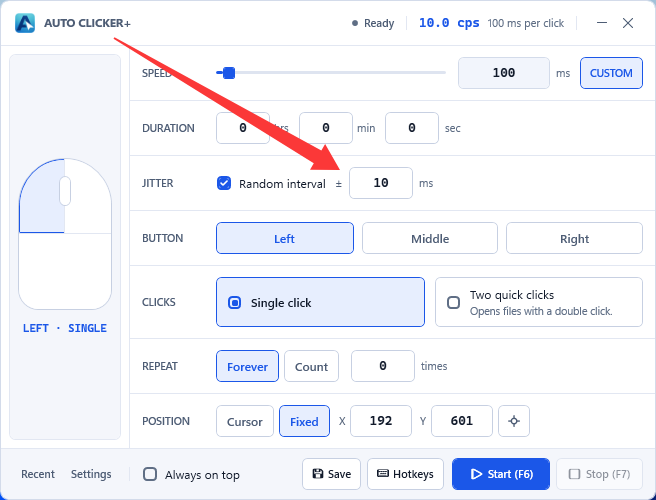
± 只是示意符号:实际执行时随机值是在基准间隔上叠加的,只会让某一次点击变慢,不会比基准间隔更快。The ± glyph is only a visual cue: at runtime the random value is added to the base interval, so a click can only be slower than the base, never faster.鼠标按键Mouse button
有两种方式,效果等价。方式一:点 BUTTON 行的 Left / Middle / Right 三个选项之一。方式二:直接点左侧的鼠标示意图——点左半侧选中左键、点右半侧选中右键、点滚轮那根窄竖条选中键。示意图里的高亮区域(选中的那一半会填色,中键时滚轮会填色)和左下角的文字状态(例如 LEFT · SINGLE)会跟着更新。
Two equivalent ways. Option 1: pick one of Left / Middle / Right in the BUTTON row. Option 2: click the mouse diagram on the left — the left half selects the left button, the right half the right button, and the narrow band over the wheel selects the middle button. The highlight in the diagram (the selected half fills in; the wheel fills for the middle button) and the status text in the lower-left corner (e.g. LEFT · SINGLE) update accordingly.
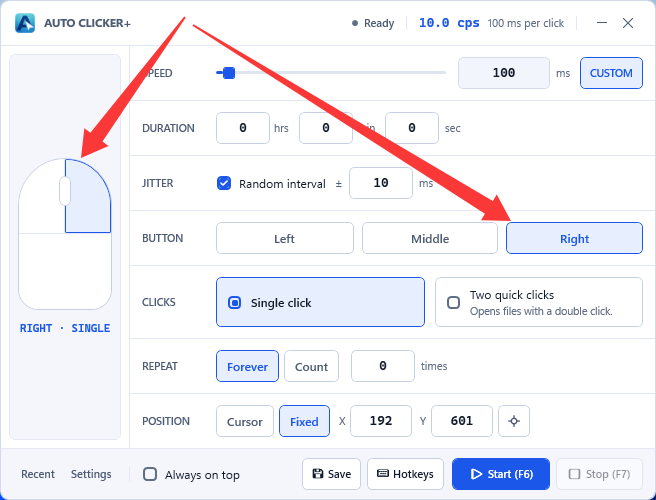
LEFT · SINGLE 是「按键 · 点击类型」的组合状态,用来一眼确认当前配置,不用再回到两个设置行里逐项核对。The LEFT · SINGLE caption in the diagram's lower-left corner is the combined “button · click type” state, so you can confirm the current setup at a glance instead of re-reading both rows.点击类型Click type
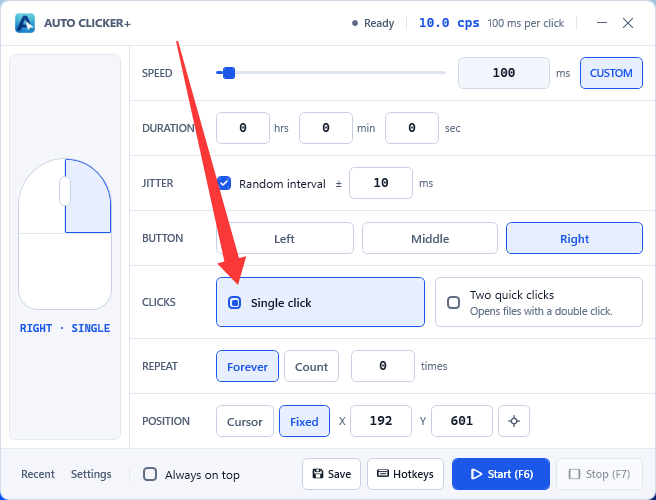
CLICKS 行提供两个选项:Single click(每次点一下)和 Two quick clicks(每次连续点两下,即双击,下方还附带一句适用场景说明 “Opens files with a double click.”)。选择双击时,这两次点击之间不插入额外延时,并且共用同一个点击位置(固定坐标模式下只移动一次光标)。 The CLICKS row offers two options: Single click (one click per cycle) and Two quick clicks (two clicks in a row, i.e. a double click; the tile also carries the hint “Opens files with a double click.”). In double-click mode the two clicks carry no extra delay between them and share the same position — in Fixed mode the cursor is moved only once.
重复次数Repeat count
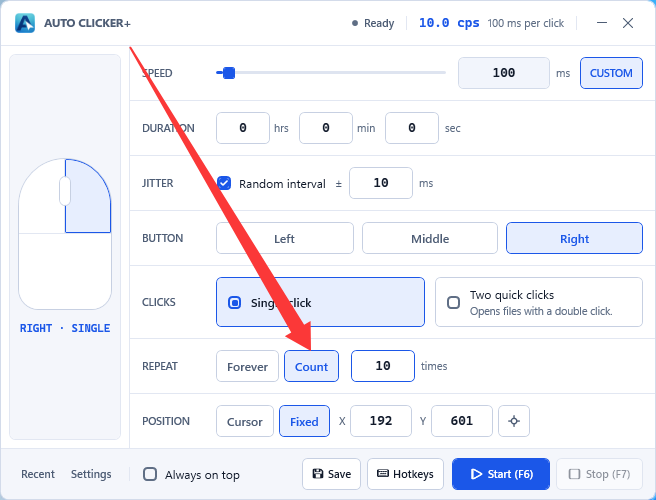
REPEAT 行提供两个选项:Forever(一直点下去,直到你手动停止)和 Count(指定次数)。选择 Count 后在右侧填写一个大于 0 的整数,程序执行完这个次数会自行停止,状态指示回到 Ready。 The REPEAT row offers two options: Forever (keep clicking until you stop it) and Count (a fixed number). With Count selected, enter an integer greater than 0; the run stops by itself once that many clicks have been performed and the status indicator returns to Ready.
点击位置Click position
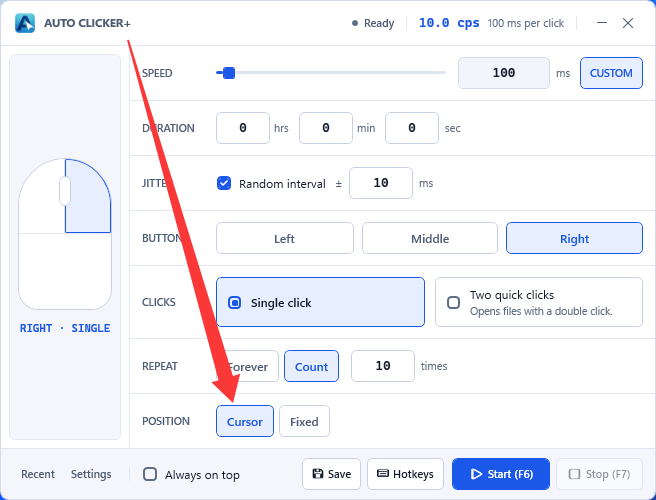
POSITION 行有两个选项。Cursor(光标):每次点击都落在点击发生时鼠标所在的位置,程序不会移动光标,你可以自己把鼠标放到目标上。Fixed(固定):每次点击前先把光标移到 X / Y,再执行点击。选择固定后,右侧出现 X、Y 输入框和一个十字准星按钮,坐标也可以直接手输。 The POSITION row has two options. Cursor: each click lands wherever the mouse is at that moment — the app never moves the cursor, so you position it yourself. Fixed: the cursor is moved to X / Y before every click. With Fixed selected, an X and Y box plus a crosshair button appear; you can also type the coordinates directly.
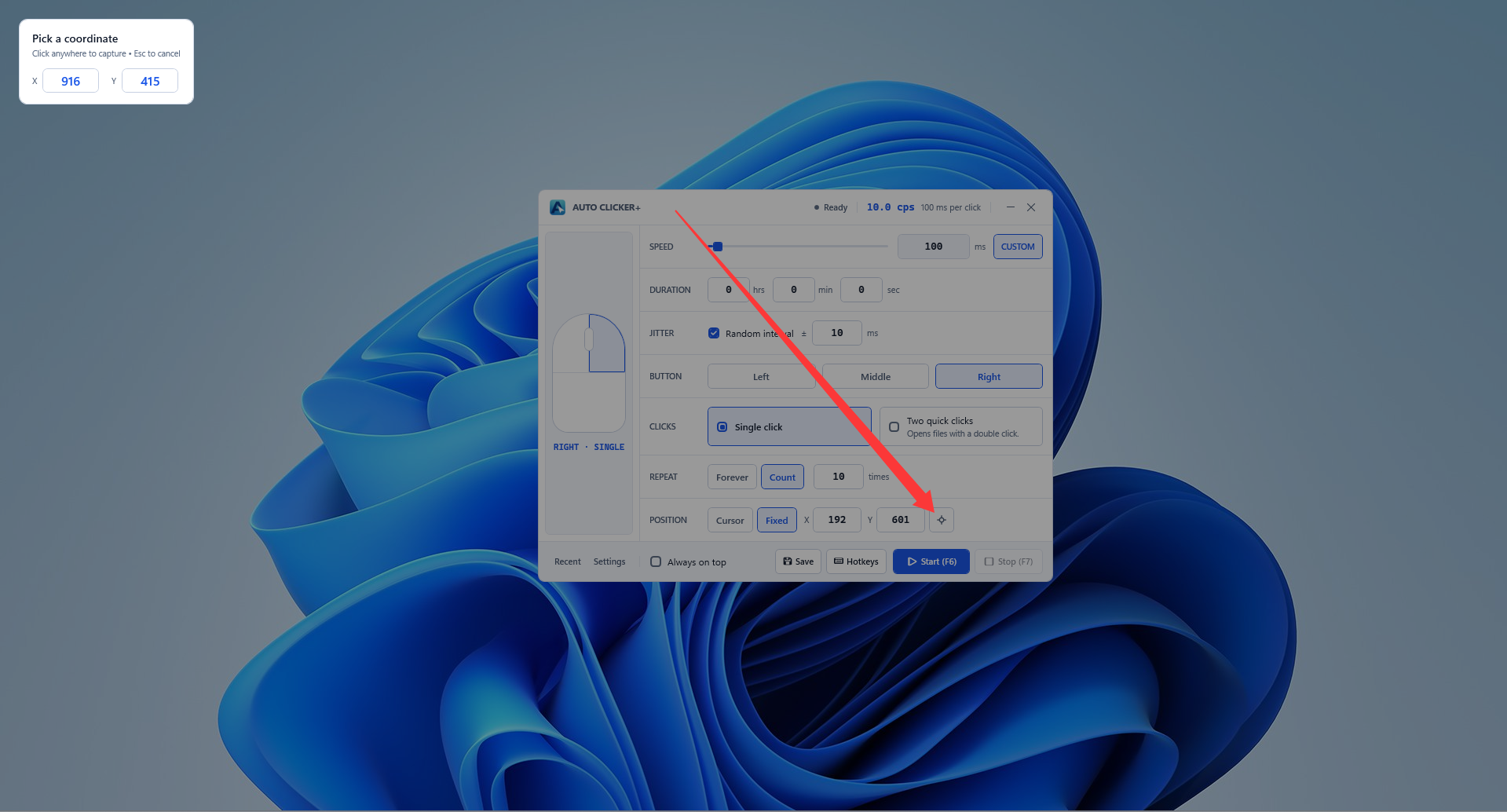
点击 X / Y 右侧的十字准星按钮,屏幕会变暗并进入取点状态:鼠标经过的位置会实时显示 X、Y 坐标,单击鼠标左键即完成取点——坐标自动填入,位置模式也自动切到 Fixed;按 Esc 取消取点并返回。取点窗口覆盖所有显示器,支持多屏取点。 Click the crosshair button next to X / Y: the screen dims and the capture overlay appears. The X and Y readouts follow your mouse live; a left click captures the point — the coordinates are filled in and the mode switches to Fixed automatically. Press Esc to cancel and return. The overlay spans every monitor, so multi-screen capturing works.
开始与停止Start and stop
底部右侧是 Start 与 Stop 按钮,按钮上会显示当前绑定的热键,例如 Start (F6)、Stop (F7)。点击 Start 后:标题栏左侧状态点由 Ready 变为 Running,窗口标题与托盘提示文字追加 “Running...”,窗口与托盘图标切换为运行版图标;点击 Stop(或按停止热键)立即停止。若选了 Count 模式,达到设定次数后会自动停止并回到 Ready。
The Start and Stop buttons sit at the bottom right and show the bound hotkey, e.g. Start (F6) and Stop (F7). After pressing Start the status dot switches from Ready to Running, the window title and tray tooltip gain “Running...”, and the window and tray icons switch to the running variant. Press Stop (or the stop hotkey) to halt immediately. In Count mode the run also stops by itself once the click budget is exhausted and returns to Ready.
全局热键Global hotkeys
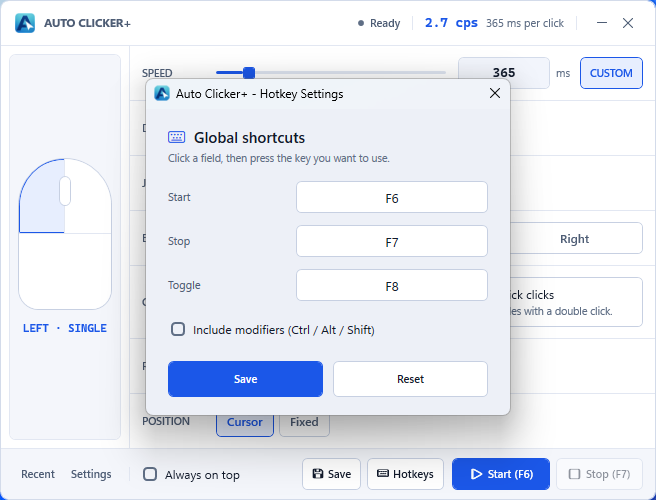
点击底部的 Hotkeys 按钮打开热键设置窗口(在主页面按 Ctrl + CapsLock 也能打开)。窗口里有 Start / Stop / Toggle 三个输入框:先点一下要改的那个框,再按你想用的按键即可,字段名会立即更新。默认是 F6 / F7 / F8,其中 Toggle 是「开始/停止」二合一。勾选 「包含修饰键(Ctrl / Alt / Shift)」后,会同时注册这些组合键(例如 Ctrl+F6 也能启动)。改完点 Save 生效并写入配置文件;点 Reset 恢复默认的 F6 / F7 / F8。
Press Hotkeys in the footer to open the hotkey window (or press Ctrl + CapsLock on the home screen). It has three fields — Start / Stop / Toggle: click the field you want to change, then press the key, and the field updates immediately. Defaults are F6 / F7 / F8, where Toggle starts or stops depending on the current state. Tick “Include modifiers (Ctrl / Alt / Shift)” to also register those combinations (e.g. Ctrl+F6 starts a run). Press Save to apply and persist; Reset restores F6 / F7 / F8.
保存与最近配置Save and recent profiles
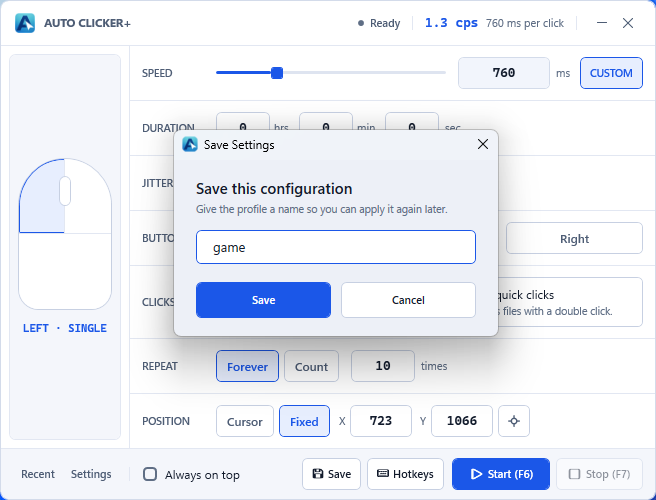
点击底部的 Save Settings,弹出命名窗口:给这套参数起一个名字(必填)后点 Save。保存的内容是当前全部点击参数——间隔(时/分/秒/毫秒)、随机间隔、按键、点击类型、重复方式与次数、位置模式与坐标。同名保存会覆盖之前那条记录,列表最多保留 20 条。 Press Save Settings in the footer, give the profile a name (required) in the dialog, then press Save. The saved payload is the full click configuration: interval (hrs/min/sec/ms), jitter, button, click type, repeat mode and count, position mode and coordinates. Saving under an existing name replaces that entry, and the list keeps at most 20 profiles.
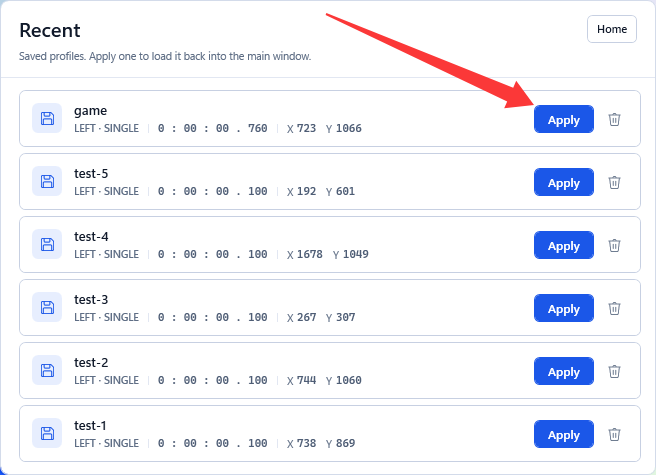
点击底部的 Recent 进入「最近保存」页。每一行显示配置名称,以及这份配置的关键参数:点击方式(如 LEFT · SINGLE)、间隔(如 0:00:00.500)、位置(固定坐标或 Cursor)。点 Apply 会把该配置载入主界面并自动返回主页面;点右侧的垃圾桶图标删除该条记录,删除后列表即时更新。列表为空时页面会提示先去主页面保存一套配置。
Press Recent in the footer to open the recent profiles page. Each row shows the profile name plus its key parameters: click mode (e.g. LEFT · SINGLE), interval (e.g. 0:00:00.500) and position (fixed coordinates or Cursor). Apply loads that profile into the main window and returns you to the home screen; the bin icon on the right deletes the entry and the list updates immediately. When the list is empty the page explains how to save your first profile.
系统托盘System tray
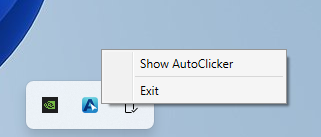
程序启动后会常驻系统托盘(任务栏右下角)。单击托盘图标弹出菜单:Minimize to tray(把主窗口隐藏起来,程序继续在后台运行)、Show AutoClicker(重新显示窗口)、Exit(退出程序)。菜单会根据窗口当前是显示还是隐藏,在「最小化到托盘」与「显示」两项之间切换。 The app keeps an icon in the system tray (bottom-right of the taskbar) while running. A left click opens a menu with Minimize to tray (hide the window and keep working in the background), Show AutoClicker (bring the window back) and Exit (quit). The menu swaps between “minimise to tray” and “show” depending on whether the window is currently hidden.
外观与语言Appearance and language
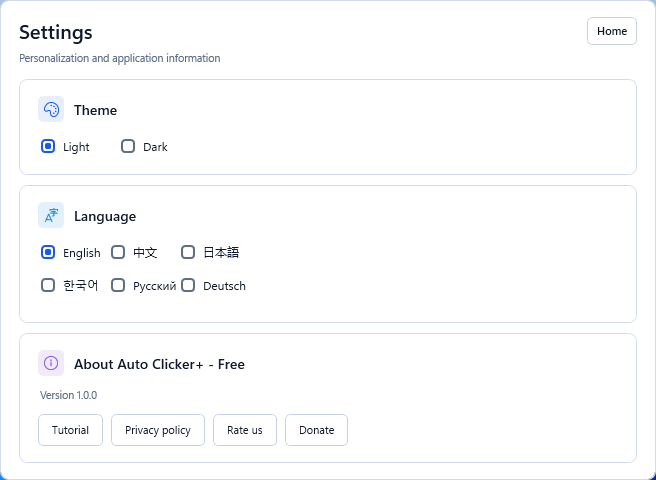
点击底部的 Settings 进入设置页。Theme 区域提供 Light / Dark 两种主题:首次运行会跟随 Windows 的应用主题,手动选择后会记住你的选择并立即生效。Language 区域列出 6 种语言——English、中文、日本語、한국어、Русский、Deutsch,每项用该语言自身的写法标注;选择后界面立即切换并保存。 Press Settings in the footer to open the settings page. Theme offers Light and Dark: on first run it follows the Windows app theme, and once you pick one manually that choice is remembered and applied immediately. Language lists six languages — English, 中文, 日本語, 한국어, Русский, Deutsch — each labelled in its own script; picking one switches the UI instantly and persists the choice.
常见问题FAQ
常见原因有两种:一是间隔合计为 0 毫秒;二是重复方式选了 Count 但次数为 0。把这两处补齐后按钮会自动恢复可用。
Two common causes: the total interval is 0 ms, or Count is selected with a value of 0. Fill those in and the button becomes available again.
标题栏的 cps 读数只是按间隔换算出的理论值。实际速度还取决于系统注入鼠标事件的耗时以及目标程序的响应速度,间隔设得越小,实际值与理论值的差距越明显。
The cps readout is only a theoretical value derived from your interval. The real rate also depends on how long the OS takes to inject mouse events and how fast the target program responds; the smaller the interval, the wider the gap between theory and reality.
先确认 Start / Stop / Toggle 三个热键没有重复;再确认这些键没有被其它程序占用(被占用时保存会弹出注册失败提示)。另外,切换热键后需要点 Save 才会生效。
First check that Start / Stop / Toggle are three different keys, then check that no other program has claimed them (a failed registration is reported when you save). Also remember that changes only take effect after pressing Save.
先检查 POSITION 是不是选了 Fixed:固定坐标是屏幕绝对坐标,目标窗口一移动就会偏。另外 Windows 会隔离不同权限级别的窗口——以普通权限运行的自动点击通常无法把输入送进以管理员身份运行的程序,需要以相同权限级别运行才可能生效。
Check whether POSITION is set to Fixed: those are absolute screen coordinates, so they miss as soon as the target window moves. Windows also isolates windows of different integrity levels — an auto-clicker running with normal privileges generally cannot deliver input to a program running as administrator; both sides need to run at the same level.
都在 %AppData%\AutoClickerPlus\ 目录下:AutoClicker_Settings.json 保存当前点击参数、热键与最近配置;AutoClicker_SettingsMine.json 保存主题、语言、启动次数等偏好。它们是普通 JSON 文件,删除后程序会回到默认状态。
Both live in %AppData%\AutoClickerPlus\: AutoClicker_Settings.json holds the current click parameters, hotkeys and recent profiles; AutoClicker_SettingsMine.json holds preferences such as theme, language and launch count. They are plain JSON files; deleting them resets the app to defaults.
支持。取点窗口会覆盖所有显示器,可以跨屏取点。如果副屏位于主屏的左侧或上方,坐标会出现负值,这是 Windows 正常的屏幕坐标表现。
Yes. The capture overlay spans all monitors, so you can pick points on any screen. If a secondary monitor sits left of or above the primary one, coordinates turn negative — that is normal for Windows screen coordinates.
首次运行时,程序会在启动约 3 秒后打开一次产品主页,之后不再自动打开。
On the very first run the app opens the product page about three seconds after startup. It does not do this again afterwards.
不会。点标题栏的 × 会结束整个程序。若希望它留在后台待命,请用托盘菜单的 Minimize to tray 隐藏窗口,需要时再从托盘菜单 Show AutoClicker 调出。
No. The × button exits the app entirely. If you want it to stay in the background, hide the window with Minimize to tray and bring it back later with Show AutoClicker.