

快速入门Quick Start
- 启动 WBMP Image Viewer。Launch WBMP Image Viewer.
- 点击顶部工具栏的 Open 按钮(或按 Ctrl + O),选择一个
.wbmp文件。Click the Open button on the top toolbar (or press Ctrl + O) and select a.wbmpfile. - 图片会显示在中央区域。右侧图片列表会自动展开,方便切换浏览。The image appears in the center. The image list panel opens automatically on the right for easy navigation.
- 用鼠标滚轮缩放,按住左键拖动来平移。双击图片可在适应窗口与实际尺寸间切换。Use the mouse wheel to zoom, hold left-click to pan. Double-click to toggle between fit and actual size.
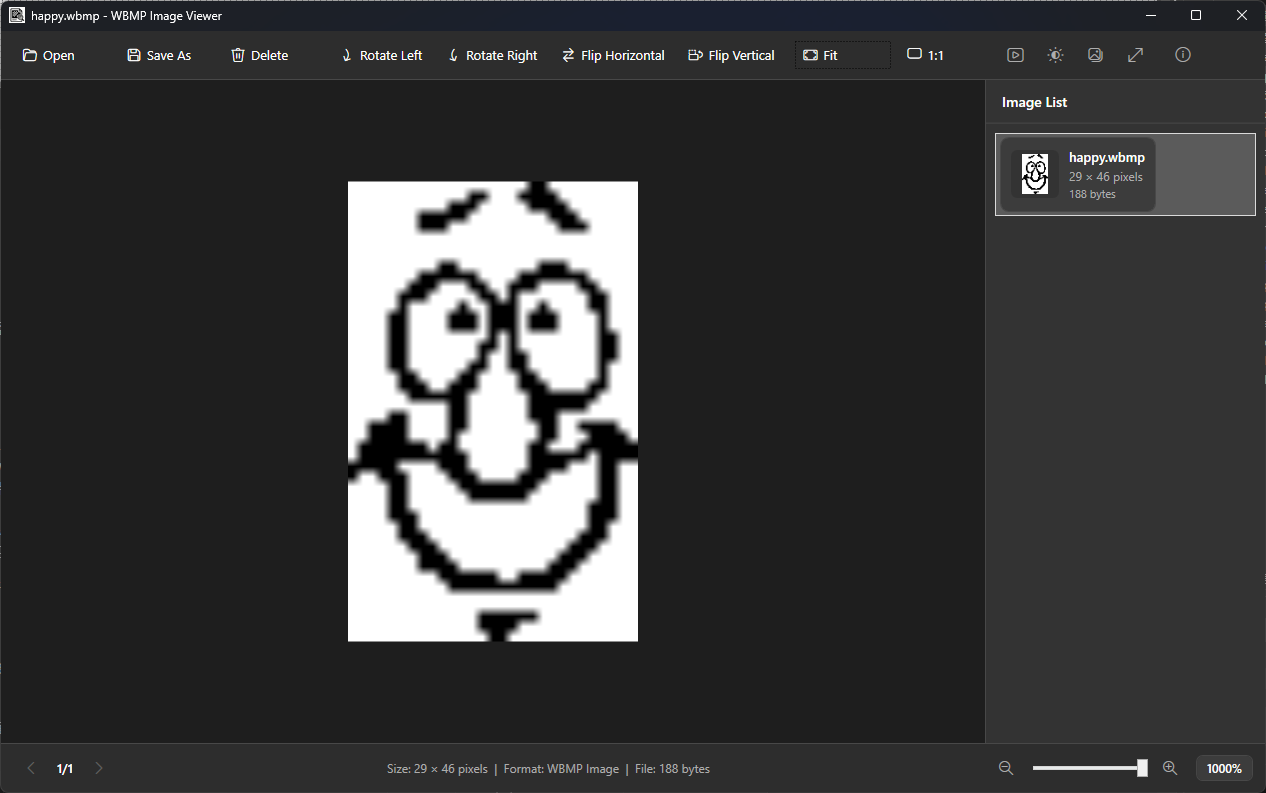
打开文件
Open File
支持 WBMP 格式及 PNG、JPEG、BMP、GIF、TIFF。
Supports WBMP plus PNG, JPEG, BMP, GIF, TIFF.
缩放与平移
Zoom & Pan
滚轮缩放,拖拽平移,双击切换适应/实际尺寸。
Scroll to zoom, drag to pan, double-click to toggle fit/actual.
多格式导出
Export
导出为 PNG、JPEG、BMP、GIF、TIFF。
Export to PNG, JPEG, BMP, GIF, or TIFF.
全屏与幻灯片
Fullscreen & Slideshow
沉浸式全屏查看,自动循环幻灯片放映。
Immersive fullscreen with auto-cycling slideshow.
界面概览Interface Overview
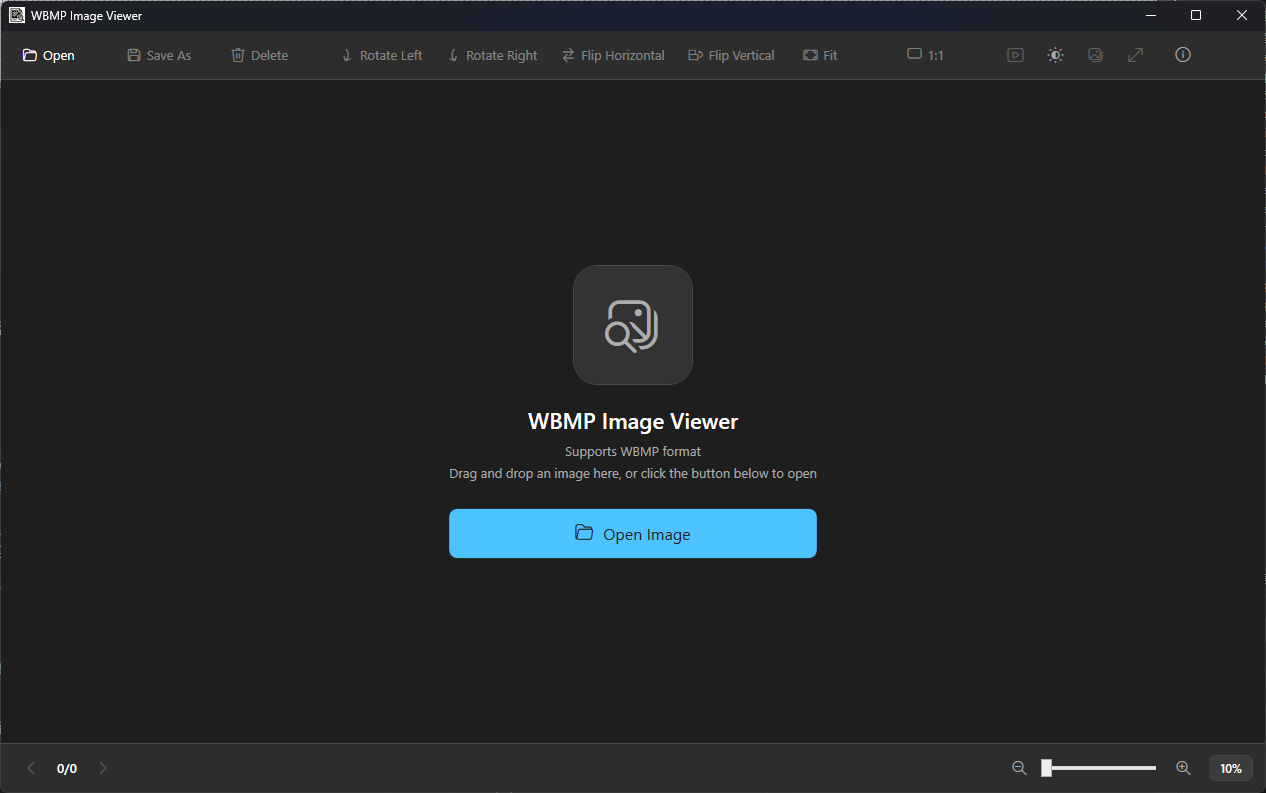
顶部工具栏: 从左到右依次为文件操作(打开、导出、删除)、旋转/翻转、缩放适配(Fit / 1:1)。右侧为视图选项(幻灯片、主题、图片列表、全屏)。
Top toolbar: from left to right: File operations (Open, Export, Delete), Rotate/Flip, Zoom Fit (Fit / 1:1). Right side: View options (Slideshow, Theme, Image List, Fullscreen).
中央显示区: 显示当前图片,支持缩放、平移、右键菜单。
Central display area: shows the current image with zoom, pan, and context menu support.
右侧图片列表: 显示当前目录所有图片的缩略图、文件名、尺寸和大小。点击可快速切换。
Right image list: shows thumbnails, filenames, dimensions, and sizes for all images in the current folder. Click to switch.
底部状态栏: 显示导航(上一张/下一张)、文件信息、缩放控件和缩放比例。
Bottom status bar: shows navigation (Previous/Next), file info, zoom controls, and zoom level.
打开文件Opening Files
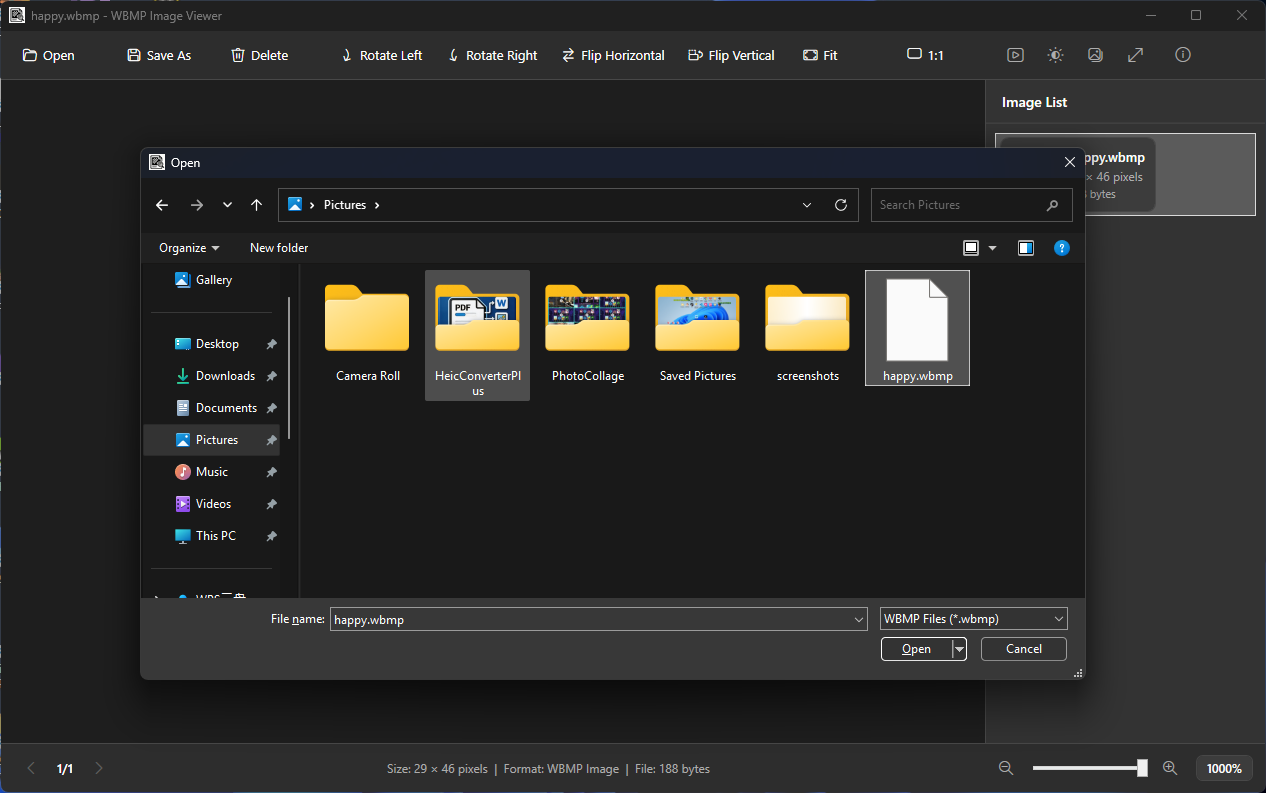
方式一:通过工具栏打开
Method 1: Open from the toolbar
- 点击顶部工具栏的 Open 图标。Click the Open icon on the top toolbar.
- 在文件对话框中选择一个
.wbmp文件。Select a.wbmpfile in the file dialog.
方式二:拖拽打开
Method 2: Drag and drop
- 在文件资源管理器中选中一个或多个图片文件。Select one or more image files in File Explorer.
- 拖拽到 WBMP Image Viewer 窗口中释放。Drag them into the WBMP Image Viewer window.
方式三:命令行打开
Method 3: Command line
可以将 .wbmp 文件关联到 WBMP Image Viewer,然后双击打开;或者在命令行运行:
You can associate .wbmp files with WBMP Image Viewer and double-click them, or run from the command line:
WBMPViewer.exe "C:\path\to\image.wbmp"提示: 打开一个文件后,程序会自动加载同目录下的所有支持格式的图片,你可以用左右方向键或右侧列表快速切换。
Tip: after opening a file, the app automatically loads all supported images in the same folder. Use the Left/Right arrow keys or the side panel to switch quickly.
缩放与平移Zoom & Pan
缩放
Zoom
- 鼠标滚轮:向上放大,向下缩小。Mouse wheel: scroll up to zoom in, down to zoom out.
- 工具栏按钮:放大 + / 缩小 -。Toolbar buttons: Zoom In + / Zoom Out -.
- 适应窗口 Ctrl + 0:让图片完整显示在窗口中。Fit to Window Ctrl + 0: fit the entire image inside the window.
- 实际像素 Ctrl + 1:按 1:1 原始尺寸显示。Actual Size Ctrl + 1: display at 1:1 original size.
平移
Pan
- 按住 鼠标左键 拖动来平移图片。Hold the left mouse button and drag to pan.
- 双击 可在"适应窗口"和"实际像素"之间快速切换。Double-click to quickly toggle between "Fit to Window" and "Actual Size".
旋转与翻转Rotate & Flip
点击顶部工具栏的旋转/翻转按钮,图片会实时变换。旋转以 90° 步进。这些操作不会修改原文件。
Click the rotate/flip buttons on the top toolbar. The image transforms in real time. Rotation steps by 90°. These operations do not modify the original file.
也可以在图片上 右键 打开上下文菜单,选择旋转/翻转操作。
You can also right-click the image to open the context menu and choose rotate/flip operations.
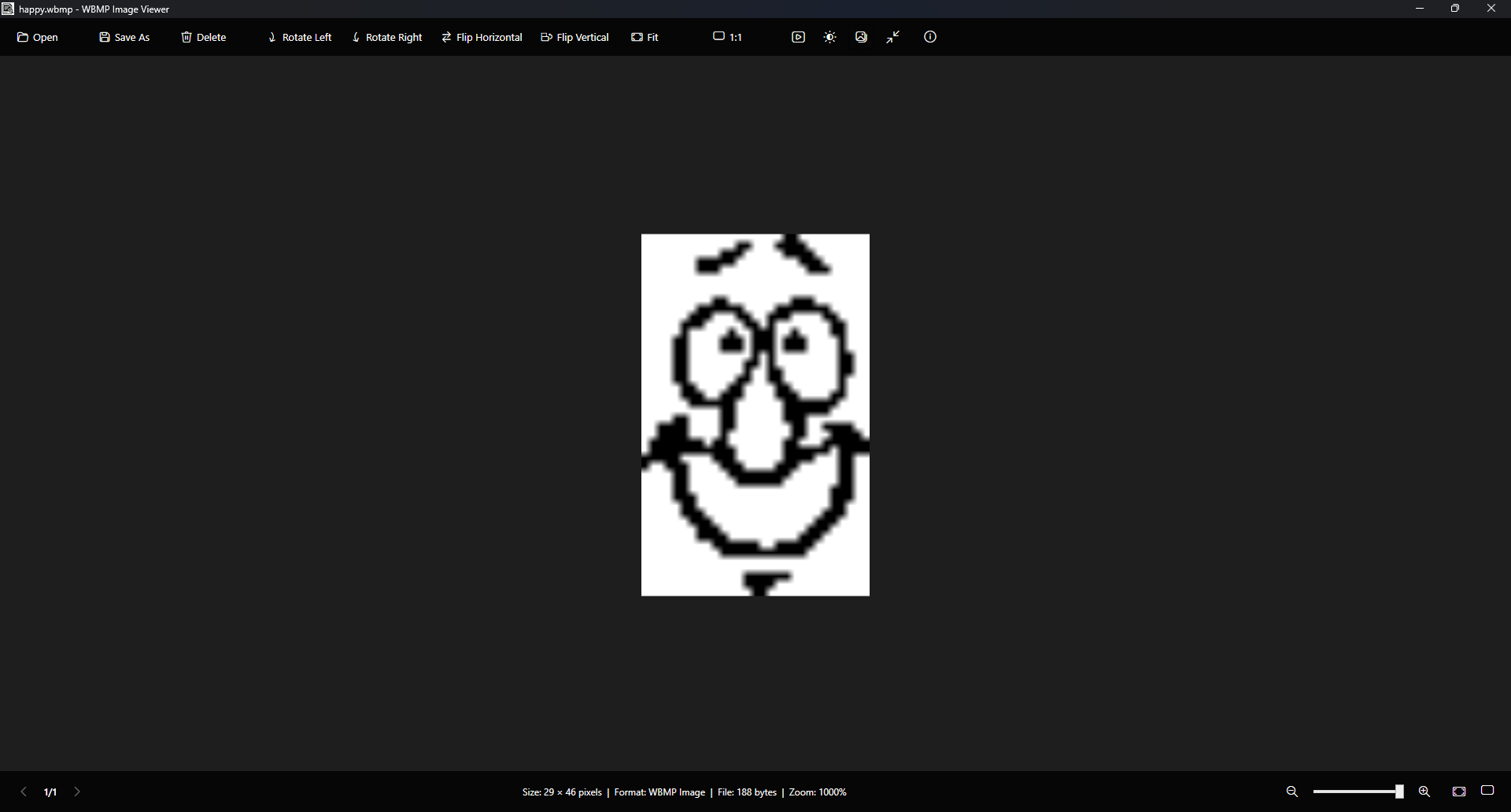
全屏模式Fullscreen
- 按 F 或 F11 进入全屏模式。Press F or F11 to enter fullscreen.
- 全屏模式下,工具栏和状态栏会在 3 秒后自动隐藏,鼠标移动时重新显示。In fullscreen, the toolbar and status bar auto-hide after 3 seconds and reappear on mouse movement.
- 再次按 F、F11 或 Esc 退出全屏。Press F, F11, or Esc again to exit fullscreen.
幻灯片放映Slideshow
按 F5 或点击工具栏的播放按钮,开始幻灯片放映。程序会自动循环浏览同目录下的所有图片,每 3 秒切换一张。
Press F5 or click the play button to start a slideshow. The app cycles through all images in the folder every 3 seconds.
- 确保已打开至少一张图片(程序需要知道图片所在目录)。Make sure at least one image is open (the app needs to know the folder).
- 按 F5 启动放映,程序会自动切换到全屏模式。Press F5 to start. The app automatically switches to fullscreen.
- 按 Esc 或再次按 F5 停止放映。Press Esc or F5 again to stop the slideshow.
导出图片Export Image
- 打开一张图片。Open an image.
- 点击顶部工具栏的 Save As 按钮(或按 Ctrl + S)。Click the Save As button on the toolbar (or press Ctrl + S).
- 在保存对话框中选择位置、格式和文件名,点击保存。Choose the location, format, and filename, then click Save.
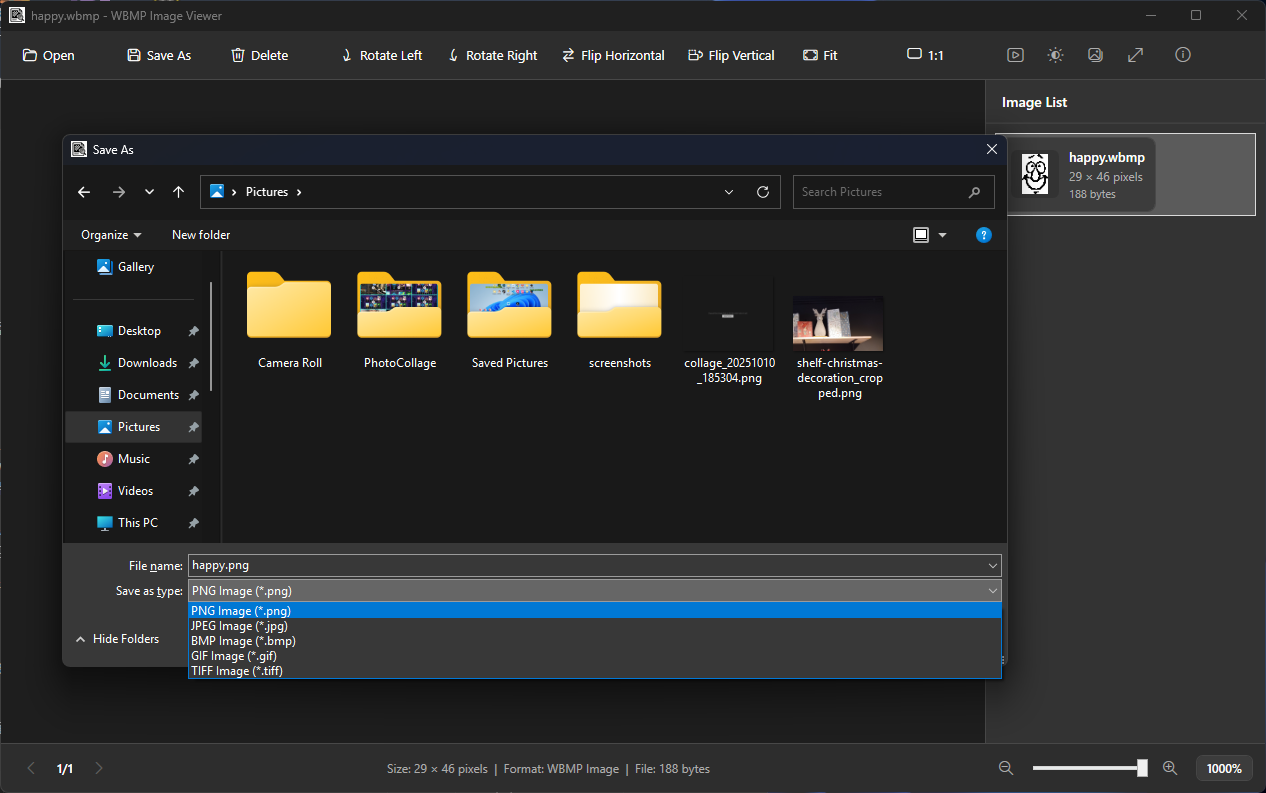
| 格式 | Format | 说明 | Notes |
|---|---|---|---|
| PNG | PNG | 无损压缩,推荐用于图标和截图 | Lossless, ideal for icons and screenshots |
| JPEG | JPEG | 有损压缩,适合照片类图片 | Lossy, good for photos |
| BMP | BMP | 无压缩位图 | Uncompressed bitmap |
| GIF | GIF | 适合简单图形 | Suitable for simple graphics |
| TIFF | TIFF | 高质量无损格式 | High-quality lossless format |
注意: WBMP 是 1 位黑白格式。导出为彩色格式时,图片会以黑白形式保存。
Note: WBMP is a 1-bit black-and-white format. When exporting to color formats, the image is saved in grayscale.
删除图片Delete Image
- 选中要删除的图片。Select the image to delete.
- 点击工具栏的 Delete 按钮,或按 Delete 键。Click the Delete button on the toolbar, or press Delete.
- 在确认对话框中点击"是",文件会被永久删除。Click "Yes" in the confirmation dialog. The file is permanently deleted.
注意: 删除操作不可撤销,请谨慎使用。
Note: deletion is irreversible. Use with caution.
快捷键Keyboard Shortcuts
| 操作 | Action | 快捷键 | Shortcut |
|---|---|---|---|
| 打开文件 | Open file | Ctrl + O | Ctrl + O |
| 导出图片 | Export image | Ctrl + S | Ctrl + S |
| 复制到剪贴板 | Copy to clipboard | Ctrl + C | Ctrl + C |
| 删除图片 | Delete image | Delete | Delete |
| 上一张 | Previous image | ← | ← |
| 下一张 | Next image | → | → |
| 放大 | Zoom in | Ctrl + + | Ctrl + + |
| 缩小 | Zoom out | Ctrl + - | Ctrl + - |
| 适应窗口 | Fit to window | Ctrl + 0 | Ctrl + 0 |
| 实际像素 | Actual size | Ctrl + 1 | Ctrl + 1 |
| 旋转左 | Rotate left | L | L |
| 旋转右 | Rotate right | R | R |
| 水平翻转 | Flip horizontal | H | H |
| 垂直翻转 | Flip vertical | V | V |
| 全屏切换 | Toggle fullscreen | F / F11 | F / F11 |
| 幻灯片放映 | Slideshow | F5 | F5 |
| 主题切换 | Toggle theme | T | T |
| 退出全屏/取消 | Exit fullscreen / Cancel | Esc | Esc |
常见问题FAQ
%LOCALAPPDATA%\wbmp\settings.json,包含启动次数和教程状态等信息。%LOCALAPPDATA%\wbmp\settings.json, including launch count and tutorial state.