
快速入门Quick Start
- 启动应用,点击「📁 导入文件」或直接拖拽文件到窗口Launch the app and click "📁 Import Files" or drag files into the window
- 在左侧规则面板配置规则(前缀/后缀/替换/正则等),右侧列表实时预览Configure rules in the left panel (prefix/suffix/replace/regex); the right list previews in real time
- 确认无冲突后,点击底部「▶ 执行重命名」Verify no conflicts, then click "▶ Execute Rename"
- 如需恢复,点击工具栏「↩ 撤销」一键还原所有原名To restore, click "↩ Undo" on the toolbar to revert all names
基础规则
Basic Rules
前缀、后缀、替换、序号、大小写
Prefix, suffix, replace, sequence, case
正则表达式
Regex
高级匹配替换,支持分组捕获
Advanced match & replace with group capture
实时预览
Live Preview
输入即见效果,冲突即时标红
See results as you type; conflicts highlighted
一键撤销
One-click Undo
自动保存映射,随时恢复原名
Mapping auto-saved; restore anytime
模板复用
Templates
保存常用规则组合,一键加载
Save rule sets and reload instantly
多语言
Multilingual
7 种界面语言,自动检测系统
7 UI languages, auto system detection
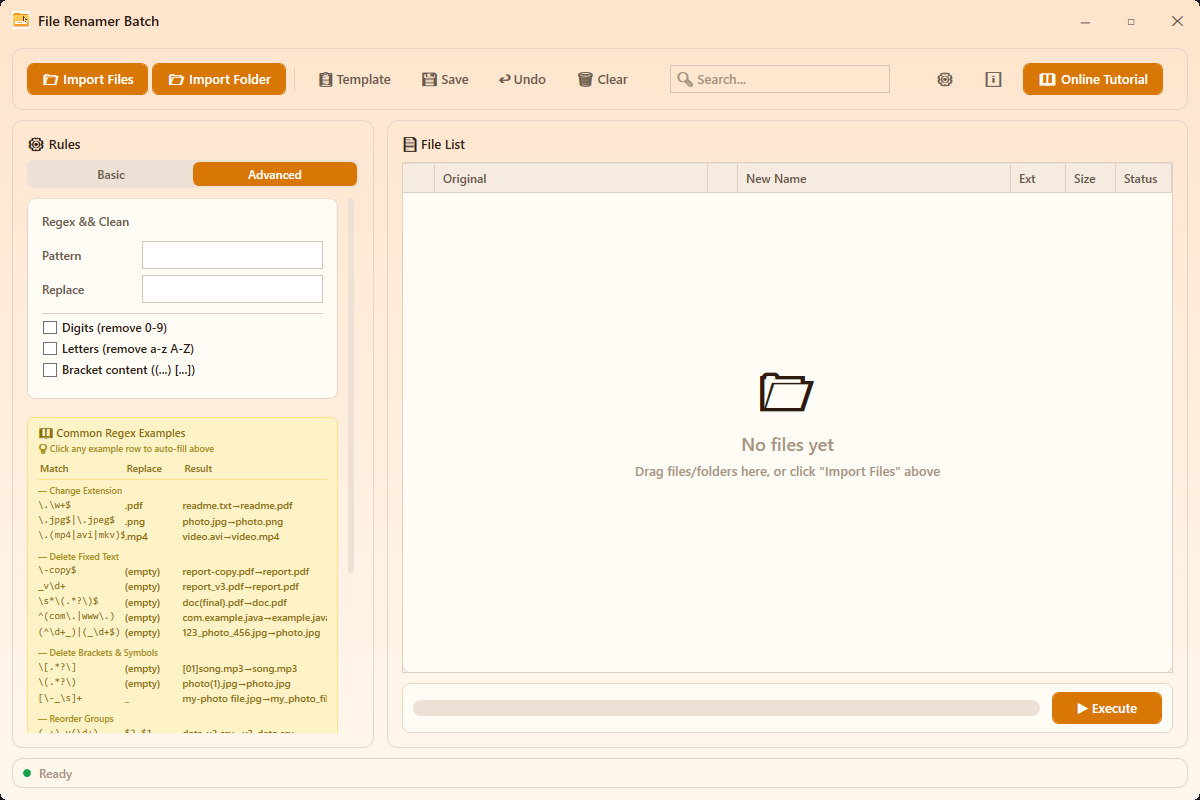
界面概览Interface Overview
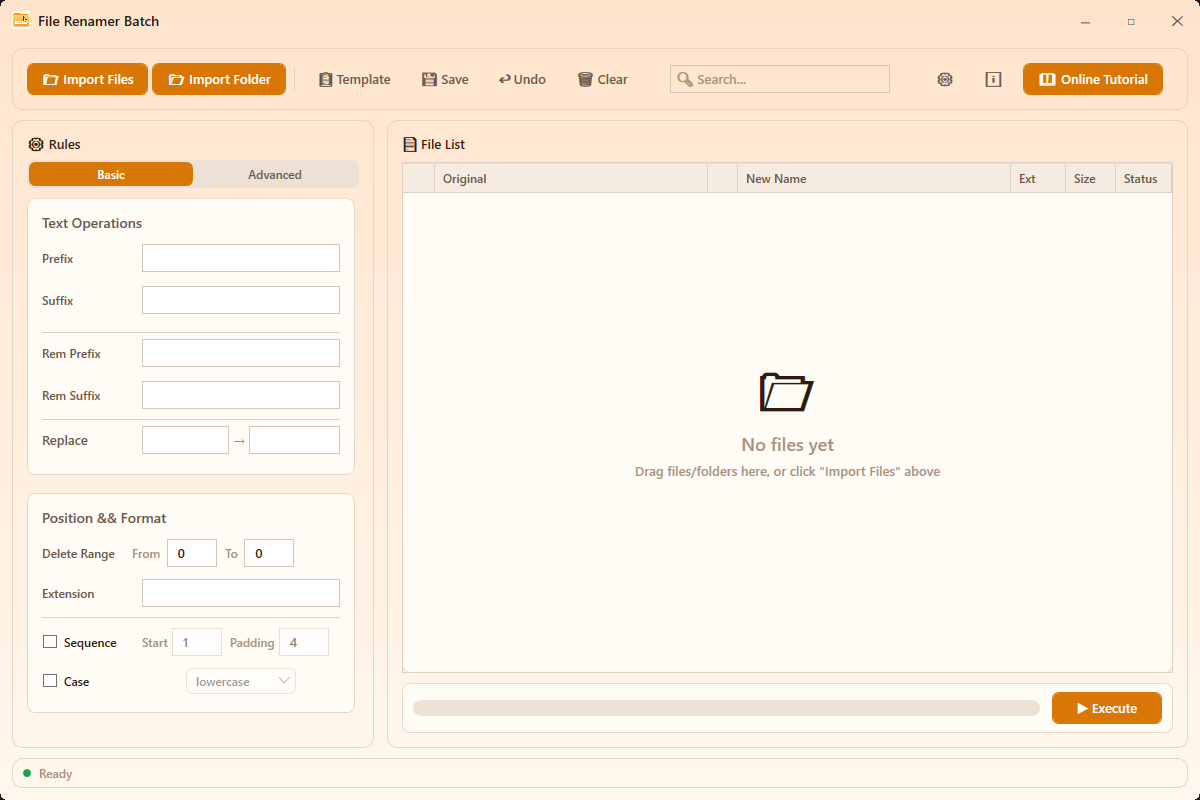
- 左侧规则面板Left Rules Panel — 配置改名规则,「普通」与「高级」两个标签页Configure rules; Basic and Advanced tabs
- 右侧文件列表Right File List — 原文件名 → 新文件名预览,状态图标标识就绪/冲突/非法字符Original → new name preview; status icons show ready/conflict/invalid
- 顶部工具栏Top Toolbar — 导入文件、导入文件夹、模板、保存、撤销、清空、搜索、设置、关于、在线教程Import files/folder, template, save, undo, clear, search, settings, about, online tutorial
- 底部操作栏Bottom Bar — 执行重命名按钮 + 实时进度条Execute button + progress bar
如何批量修改文件扩展名?How to batch change the file extension?
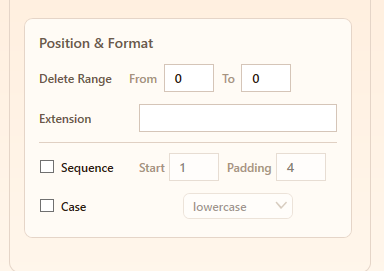
- 导入文件后,在「普通」标签页的「位置与格式」分组中找到「改后缀」输入框
- Import files, then find the "Extension" box in the "Position & Format" group on the Basic tab
- 输入新扩展名(可带点也可不带点,如
.pdf或pdf;留空保持不变) - Type the new extension with or without the dot, e.g.
.pdforpdf(leave empty to keep) - 右侧列表实时预览,确认无误后执行重命名
- The list previews in real time; execute when it looks right
| 匹配 | Match | 替换 | Replace | 效果 | Result |
|---|---|---|---|---|---|
\.\w+$ | .pdf | readme.txt → readme.pdf | |||
\.jpg$|\.jpeg$ | .png | photo.jpg → photo.png |
如何删除固定文字?How to delete fixed text?
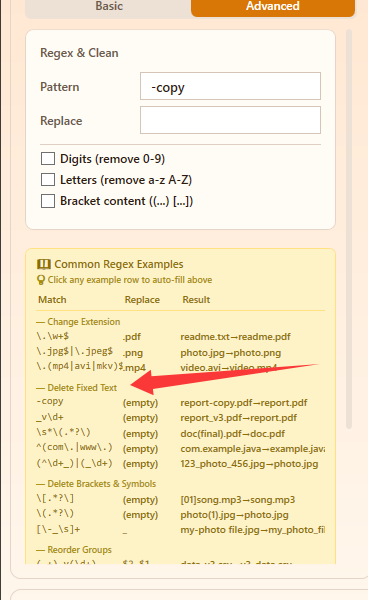
在「文本操作」分组中,「删前缀」输入框删除文件名开头的文字,「删后缀」输入框删除结尾的文字。规则作用于文件名主体(不含扩展名),不区分大小写。
In the "Text Operations" group, "Rem Prefix" strips text from the start of names and "Rem Suffix" strips it from the end. These rules apply to the name only (not the extension) and are case-insensitive.
| 匹配 | Match | 替换 | Replace | 效果 | Result |
|---|---|---|---|---|---|
-copy | (留空) | (empty) | report-copy.pdf → report.pdf | ||
_v\d+ | (留空) | (empty) | report_v3.pdf → report.pdf | ||
\[.*?\] | (留空) | (empty) | [01]song.mp3 → song.mp3 |
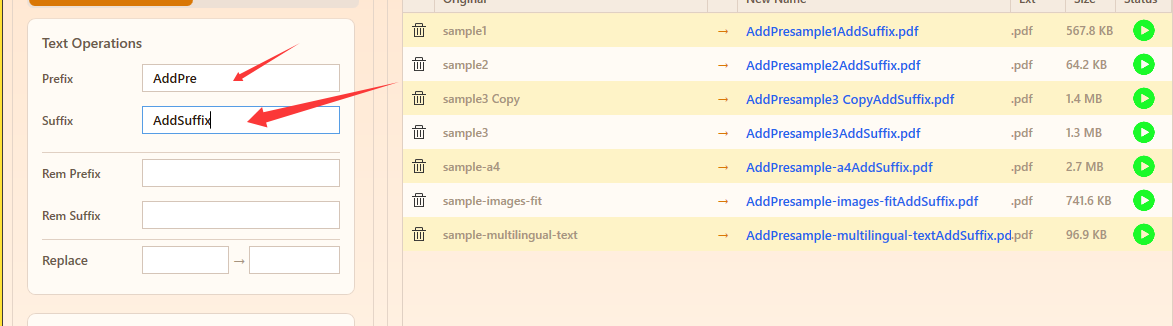
如何添加前缀或后缀?How to add prefix or suffix?
- 在「文本操作」分组的「前缀」输入框填写要加到开头的文字
- Type text into "Prefix" (Text Operations group) to prepend it
- 在「后缀」输入框填写要加到结尾(扩展名之前)的文字
- Type text into "Suffix" to append it before the extension
- 右侧列表实时预览新文件名
- Watch the live preview on the right
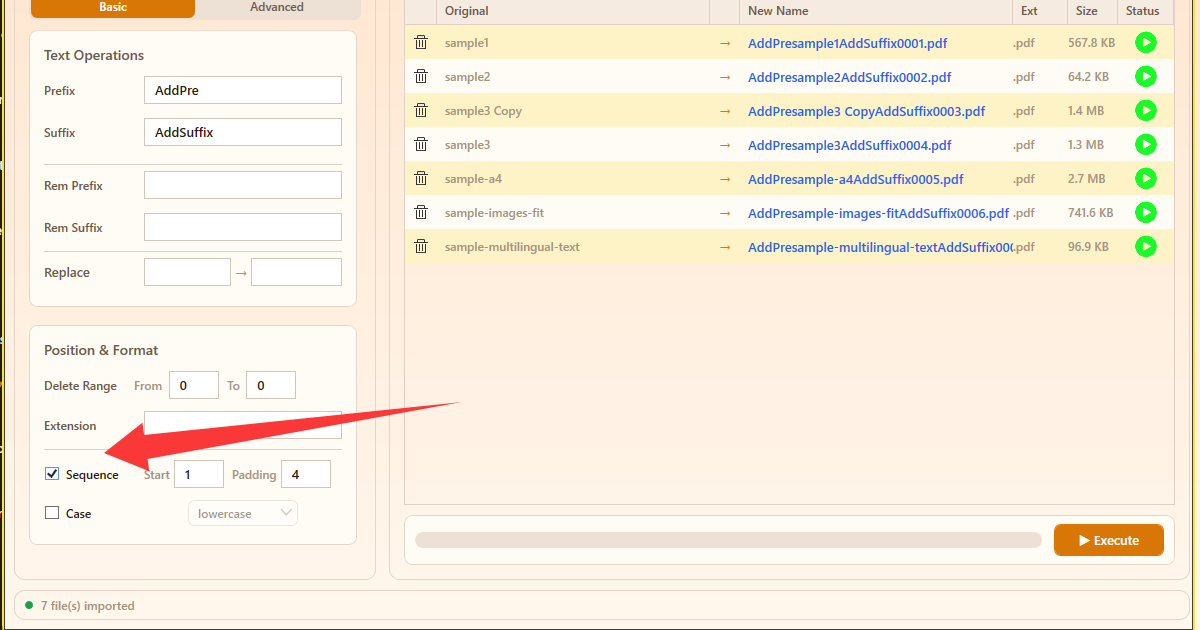
如何添加序号?How to add sequence numbers?
- 勾选「序号」(Sequence) 复选框启用
- Check the "Sequence" checkbox to enable it
- 「起始」(Start) 默认 1,「补零」(Padding) 默认 4 位(如 0001)
- "Start" defaults to 1 and "Padding" to 4 (e.g. 0001)
- 序号自动加在文件名末尾(扩展名之前),无需选择位置
- Numbers are appended at the end of the name (before the extension) — no position choice needed
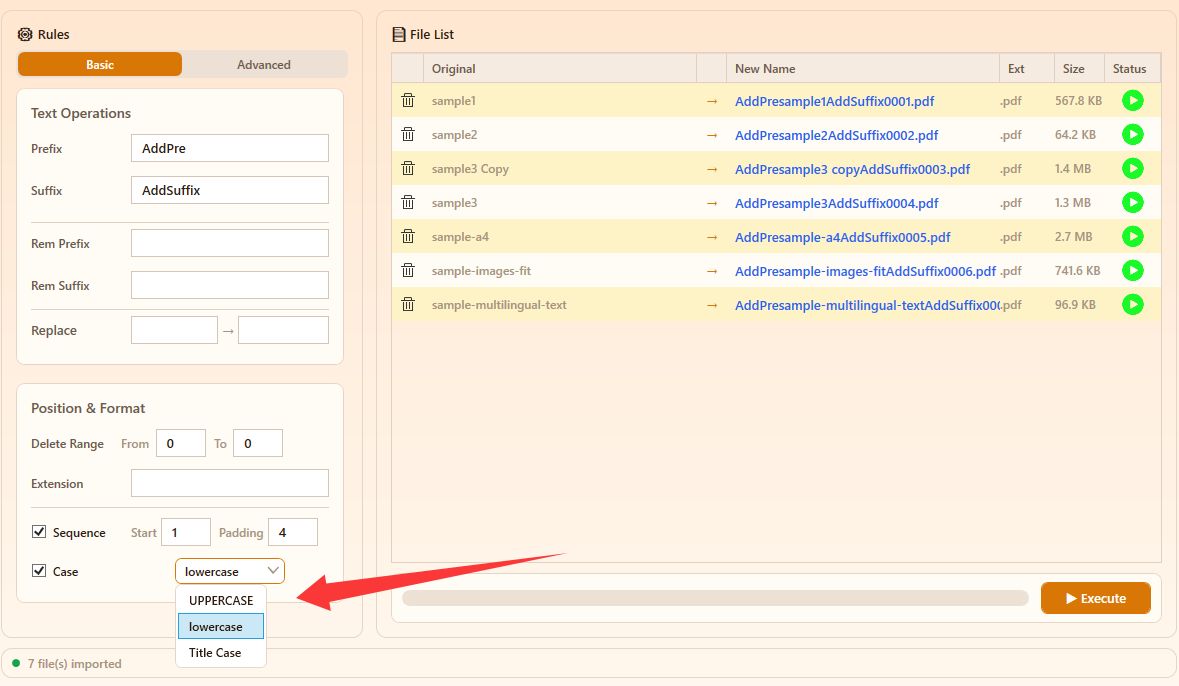
如何转换大小写?How to change letter case?
- 勾选「大小写」(Case) 复选框
- Check the "Case" checkbox
- 在下拉框选择转换方式:全大写、全小写或首字母大写
- Pick a mode from the dropdown: UPPERCASE, lowercase, or Title Case
如何查找替换文本?How to find and replace text?
- 在「文本操作」分组的「替换」行,第一个输入框输入要查找的文字
- In the "Replace" row of "Text Operations", type the text to find in the first box
- 在「→」后面的输入框输入替换内容(留空则删除)
- Type the replacement after the "→" (empty = delete)
- 所有匹配项会全部替换,列表实时预览
- Every match is replaced; the list previews live
如何使用正则表达式?How to use regex?
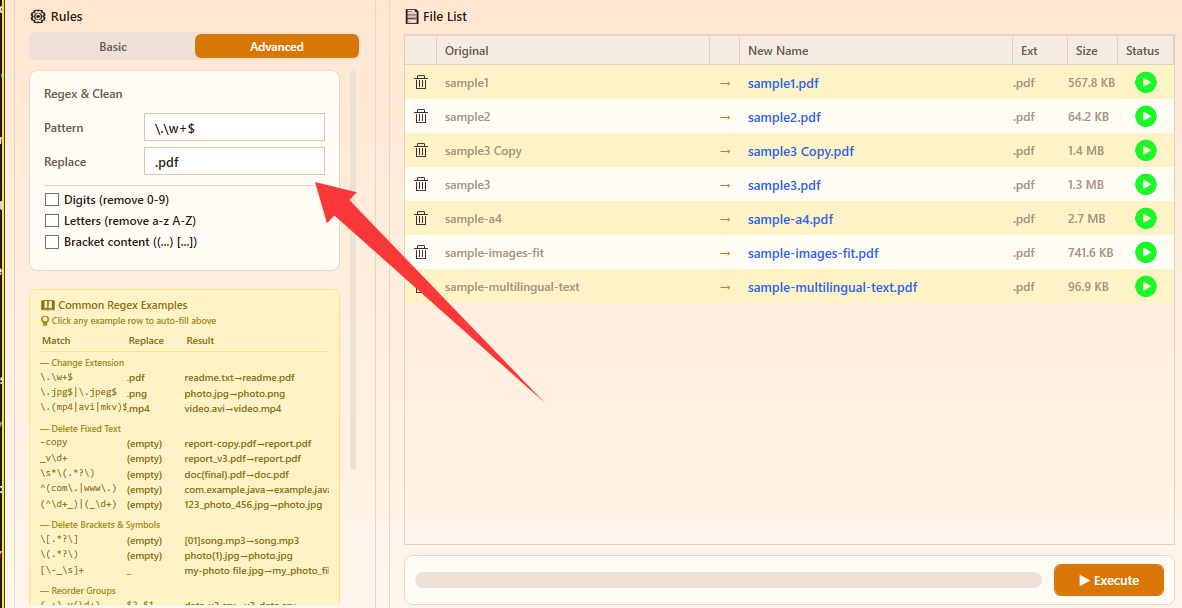
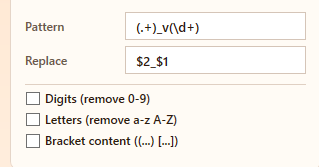
切换到「高级」标签页,在「正则与清理」分组中:在「正则」(Pattern) 框输入匹配模式,「替换」(Replace) 框输入替换文本(用 $1 $2 引用分组)。正则作用于完整文件名(含扩展名)。
Switch to the Advanced tab; in the "Regex & Clean" group, enter a pattern in the "Pattern" box and replacement in the "Replace" box (use $1 $2 for groups). Regex works on the full filename including extension.
| Symbol | 含义 | Meaning |
|---|---|---|
. | 任意单个字符 | Any character |
\d | 数字 0-9 | Digit 0-9 |
\w | 字母数字下划线 | Word char |
+ | 一次或多次 | One or more |
* | 零次或多次 | Zero or more |
^ | 字符串开头 | Start of string |
$ | 字符串结尾 | End of string |
| | 或 | OR |
( ) | 分组,可用 $1 $2 引用 | Group, reference with $1 $2 |
\ | 转义特殊字符 | Escape special chars |
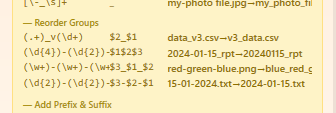
. \ $ ^ ( ) [ ] { } + * ? | 都有特殊含义,匹配字面值需加 \ 转义。Escape . \ $ ^ ( ) [ ] { } + * ? | with \ to match literally.| 匹配 | Match | 替换 | Replace | 效果 | Result |
|---|---|---|---|---|---|
(.+)_v(\d+) | $2_$1 | data_v3.csv → v3_data.csv | |||
(\d{4})-(\d{2})-(\d{2}) | $1$2$3 | 2024-01-15_rpt → 20240115_rpt | |||
(.+)_(\d+) | $2_$1 | backup_2024.txt → 2024_backup.txt |
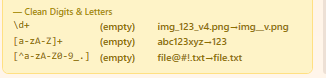
| 匹配 | Match | 替换 | Replace | 效果 | Result |
|---|---|---|---|---|---|
\d+ | (留空) | (empty) | img_123_v4.png → img__v.png | ||
[^a-zA-Z0-9_.] | (留空) | (empty) | file@#!.txt → file.txt | ||
[\-_\s]+ | _ | my-photo file.jpg → my_photo_file.jpg |
如何导入文件?How to import files?
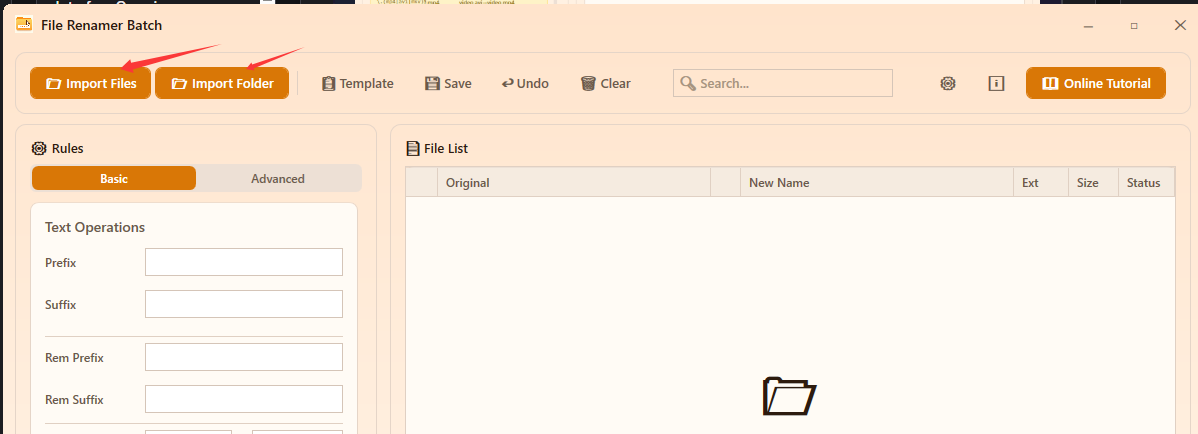
- 方式一:点击「📁 导入文件」,多选文件
- Method 1: click "📁 Import Files" and multi-select files
- 方式二:点击「📂 导入文件夹」,递归添加整个目录
- Method 2: click "📂 Import Folder" to add a whole directory recursively
- 方式三:直接拖拽文件/文件夹到窗口
- Method 3: drag files/folders into the window
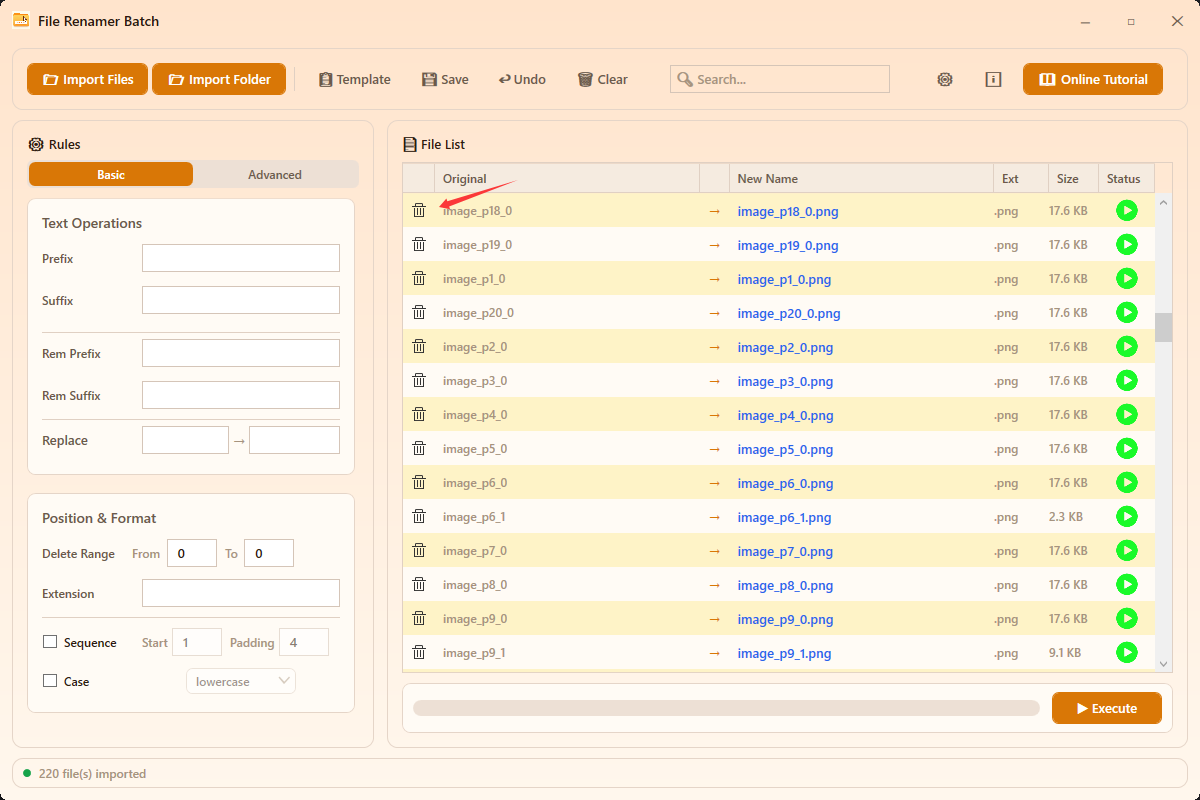
- 每行左侧 🗑 按钮可单独移除文件
- Use the 🗑 button on each row to remove files
如何执行与撤销重命名?How to execute and undo a rename?
- 确认右侧列表状态均为「就绪」(无红/黄标记)
- Verify all rows show "Ready" (no red/yellow marks)
- 点击底部「▶ 执行重命名」按钮
- Click the "▶ Execute Rename" button
- 进度条显示执行进度,完成后弹出结果窗口(成功/失败统计)
- Progress bar shows progress; a result window appears when done
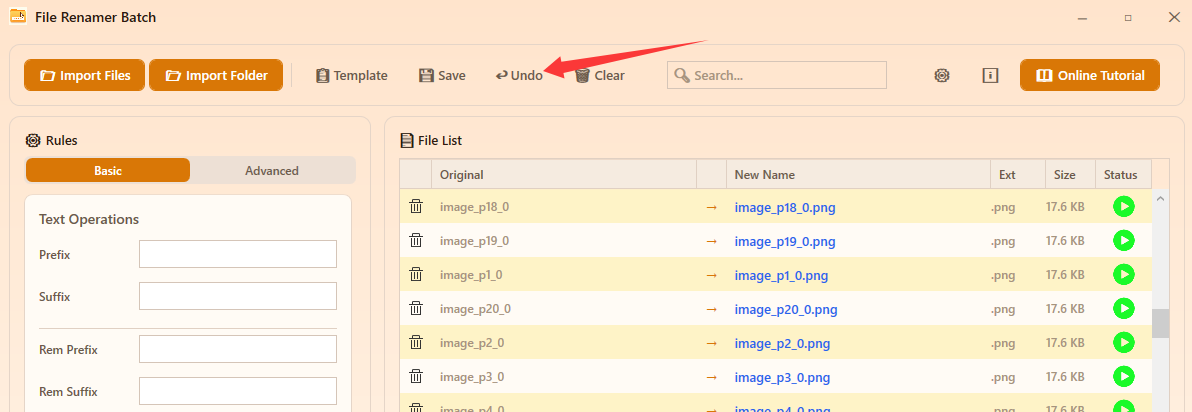
- 如需恢复,点击工具栏「↩ 撤销」一键还原
- Click "↩ Undo" to restore all names
如何保存和加载模板?How to save and load templates?
- 配置好一组常用规则
- Configure a set of frequently used rules
- 点击工具栏「💾 保存」,在文件夹对话框中选择保存位置(默认模板目录,直接确认即可),自动生成「模板_日期时间.json」文件
- Click "💾 Save", pick a folder in the dialog (the default template folder works as-is), and a "模板_日期时间.json" file is created automatically
- 下次点击「📋 模板」,在文件对话框中选择 .json 模板,规则自动载入并预览
- Next time click "📋 Template", pick a .json template in the file dialog, and the rules are applied and previewed
如何切换主题和语言?How to switch theme and language?
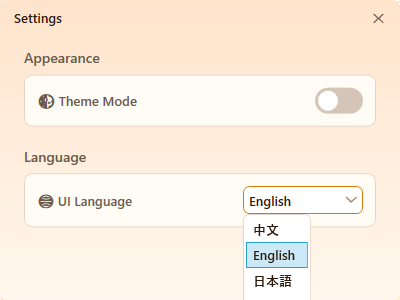
- 点击工具栏 ⚙️ 打开设置
- Click the ⚙️ toolbar button
- 「外观」区切换浅色/深色主题
- Toggle light/dark in "Appearance"
- 「语言」下拉框选择 7 种语言之一
- Pick one of 7 languages
- 首次启动自动检测系统语言
- System language auto-detected on first launch
使用技巧Tips
- 点击示例自动填充——正则示例行可点击,快速应用常用模式
- Click examples to auto-fill — click regex examples to apply patterns instantly
- 搜索筛选——工具栏搜索框输入关键词实时筛选文件
- Search filter — type in the toolbar search box to filter files
- 手动编辑——双击「新文件名」列可直接修改单个文件
- Manual edit — double-click the New Name column to edit individual files
- 模板优先——重复性任务先存模板,节省时间
- Use templates — save templates for repetitive tasks
常见问题FAQ
红色 = 重名冲突,黄色 = 非法字符。调整规则消除后即可执行。
Red = conflict, Yellow = invalid chars. Adjust rules to resolve.
可以。点击「↩ 撤销」一键恢复全部原名,映射自动保存。
Yes. Click "↩ Undo" to restore all names; mappings are auto-saved.
所有类型,包括无后缀文件。
All types, including files without extensions.
纯本地运行,无网络请求,无数据库,文件不会离开设备。
Fully offline, no network requests, no database. Files never leave your device.