Feature Overview功能概览
EPS Image Viewer opens and renders Encapsulated PostScript (.eps) vector images. It also supports common bitmap formats (PNG, JPEG, BMP, TIFF, etc.).
EPS Image Viewer 可以打开并查看 Encapsulated PostScript (.eps) 格式的矢量图片,同时也支持常见的位图格式(PNG、JPEG、BMP、TIFF 等)。
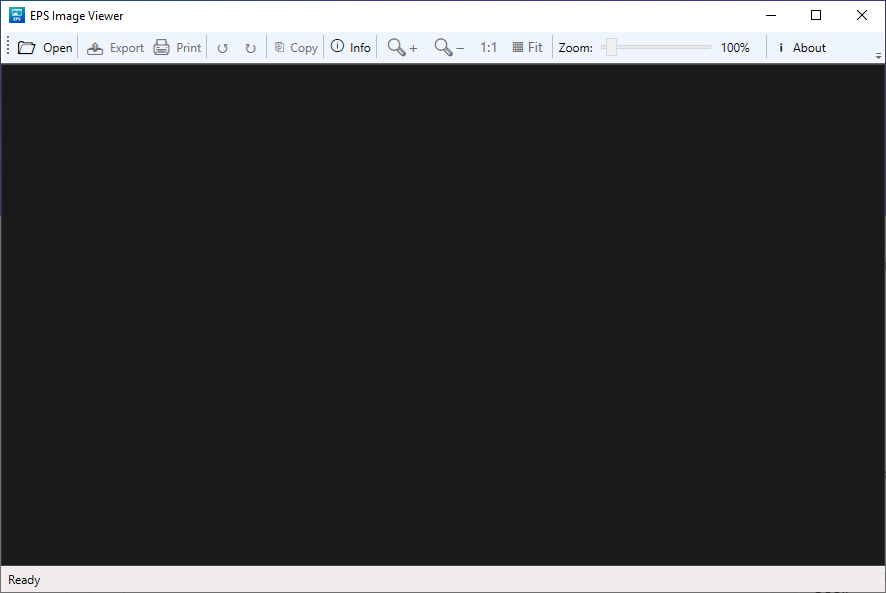
Open EPS
打开 EPS
Renders EPS files via the built-in Ghostscript engine.
通过内置 Ghostscript 引擎渲染 EPS 文件。
Free Zoom
自由缩放
10% to 1000% zoom range via wheel and slider.
10% ~ 1000% 缩放范围,支持滚轮与滑块。
Rotate
旋转
Clockwise / counter-clockwise 90° rotation with live preview.
顺时针 / 逆时针 90° 旋转,实时预览。
Export PNG
导出 PNG
Export the current view as a PNG image.
将当前视图导出为 PNG 图片文件。
Clipboard
剪贴板
Copy the image to the system clipboard in one click.
一键复制图片到系统剪贴板。
Opening Files打开图片
EPS Image Viewer provides multiple ways to open image files:
EPS Image Viewer 提供多种方式打开图片文件:
Method 1: Toolbar Button
方式一:工具栏按钮
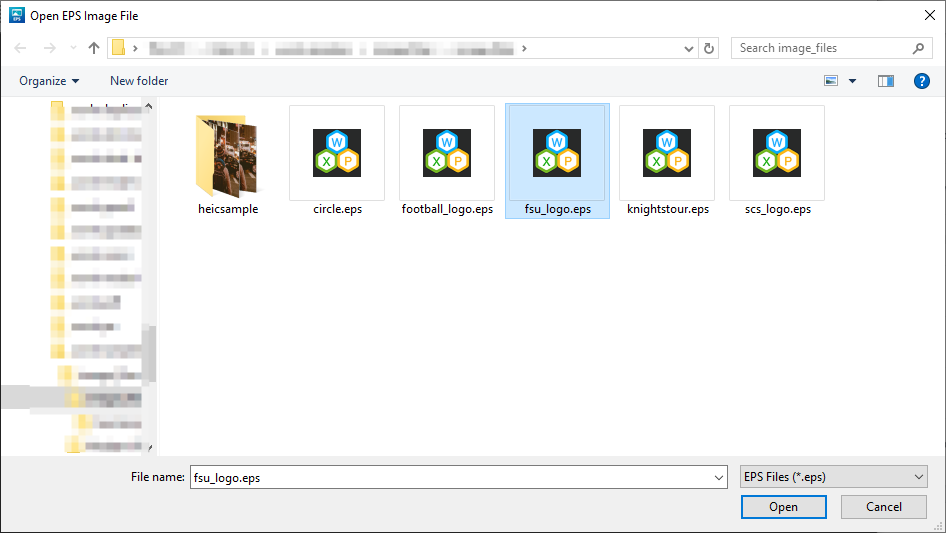
- Click the Open button on the top toolbar (or press Ctrl + O).点击顶部工具栏的 Open 按钮(或按 Ctrl + O)。
- Select an EPS or other image file in the dialog.在文件对话框中选择 EPS 或其他图片文件。
- The image will render and display in the main area.图片将在主显示区域渲染并显示。
Method 2: Drag & Drop
方式二:拖拽文件
Select an image file in File Explorer and drag it into the EPS Image Viewer window.
在文件资源管理器中选中图片文件,直接拖拽到 EPS Image Viewer 窗口中释放即可。
Note: Supported formats include: EPS, PNG, JPEG, BMP, TIFF, GIF, WEBP, ICO, and more.
说明: 支持的文件格式包括:EPS、PNG、JPEG、BMP、TIFF、GIF、WEBP、ICO 等。
Zoom & Pan缩放与平移
Zoom
缩放
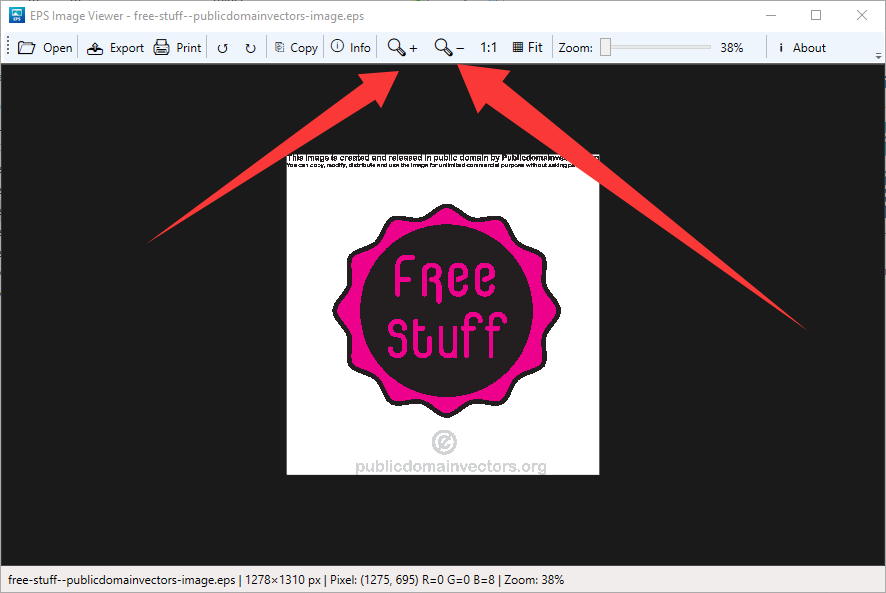
- Mouse wheel: scroll up to zoom in, down to zoom out.鼠标滚轮:向上滚动放大,向下滚动缩小。
- Toolbar slider: drag to adjust zoom level in real time (10% ~ 1000%).工具栏滑块:拖动滑块实时调整缩放比例(10% ~ 1000%)。
- Fit to Window Fit: fit the image to the current window size.适应窗口 Fit:让图片适配当前窗口大小。
- Actual Size Ctrl + 0: display at 1:1 original size.实际像素 Ctrl + 0:按 1:1 原始尺寸显示。
Pan
平移
When the image is zoomed in beyond the window, use the scrollbars or drag to pan the view.
当图片放大超出窗口时,使用 ScrollViewer 的滚动条或鼠标拖动来平移视图。
Rotation旋转图片
Click the rotation buttons on the toolbar to rotate the image in 90° steps:
点击工具栏的旋转按钮,图片会按 90° 步进旋转:
- Counter-clockwise: rotate left 90°
- 逆时针旋转:向左旋转 90°
- Clockwise: rotate right 90°
- 顺时针旋转:向右旋转 90°
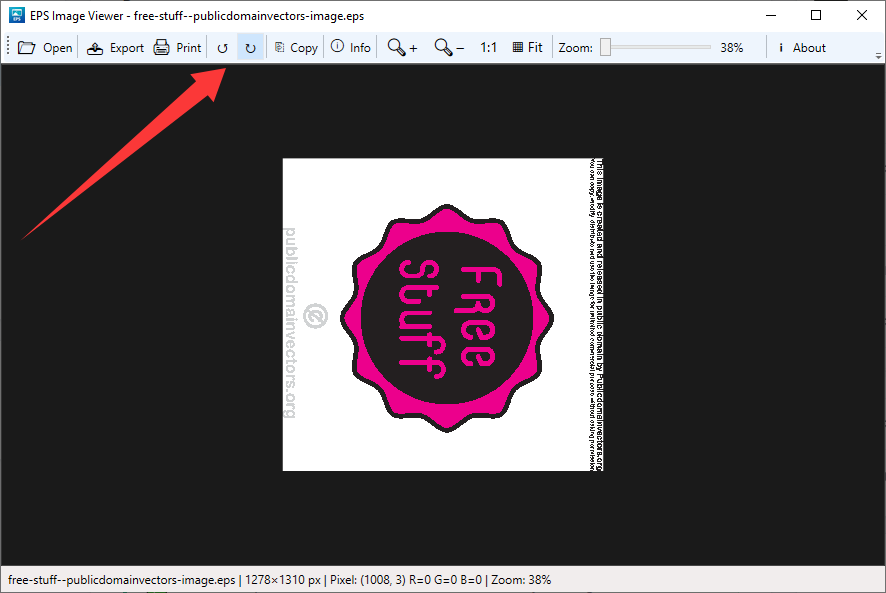
Rotation is previewed in real time and does not modify the original file.
旋转是实时预览的,不会修改原始文件。
Info Panel信息面板
The info panel on the right side shows detailed information about the current image:
信息面板位于窗口右侧,显示当前图片的详细信息:
| Field | 字段 | Description | 说明 |
|---|---|---|---|
| Name | Name | File name | 文件名 |
| Size | Size | File size in bytes | 文件大小(字节) |
| Dimensions | Dimensions | Image width × height in pixels | 图片宽度 × 高度(像素) |
| Zoom | Zoom | Current zoom level | 当前缩放比例 |
| Rotation | Rotation | Current rotation angle | 当前旋转角度 |
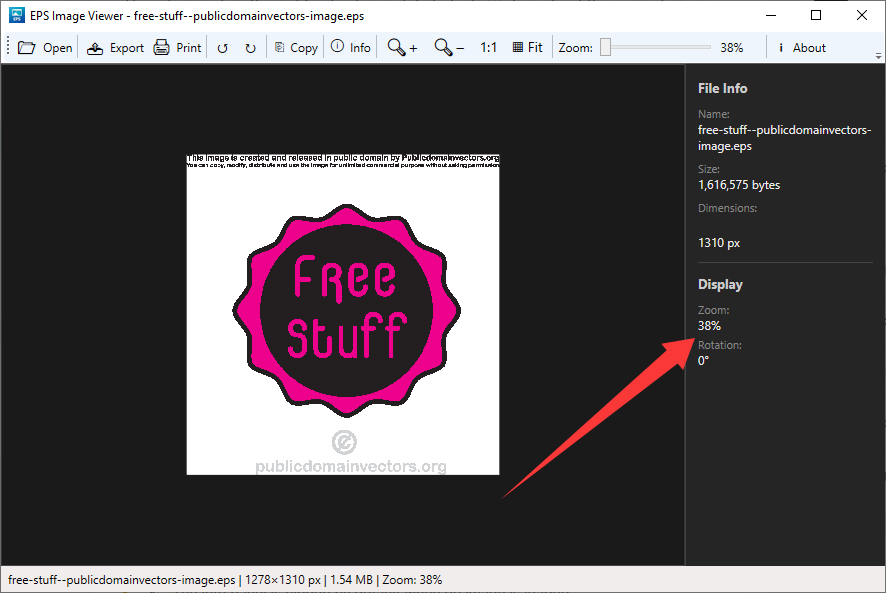
Click the Info button on the toolbar (or press Ctrl + I) to toggle the info panel.
点击工具栏的 Info 按钮(或按 Ctrl + I)可切换信息面板的显示与隐藏。
The info panel is hidden by default when no image is loaded.
未打开图片时,信息面板默认隐藏。
Export & Copy导出与复制
Export as PNG
导出为 PNG
- Click the Save button on the toolbar (or press Ctrl + S).点击工具栏的 Save 按钮(或按 Ctrl + S)。
- Choose the save location in the dialog. The filename is auto-filled with the original name.在保存对话框中选择保存路径,文件名会自动填充为原文件名。
- Click Save.点击保存即可。
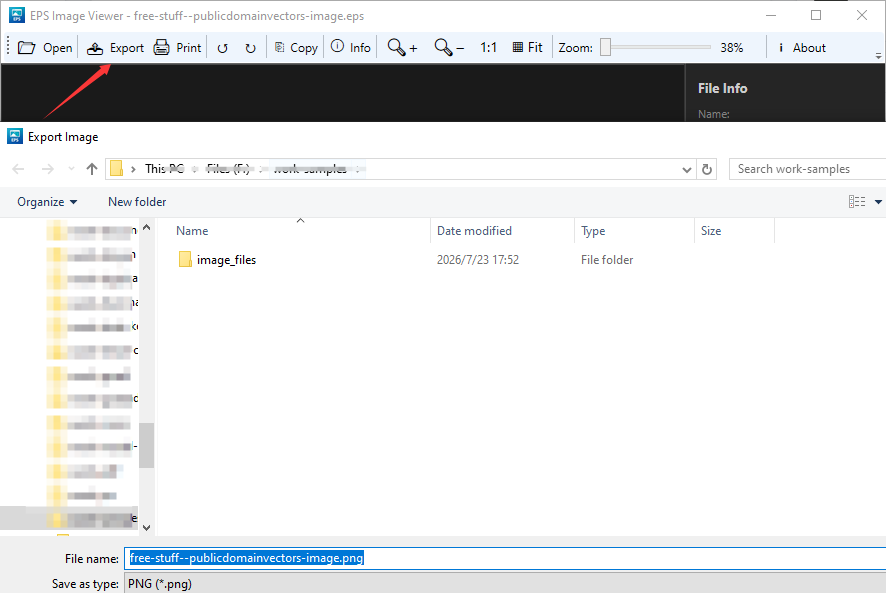
Copy to Clipboard
复制到剪贴板
Click the Copy button on the toolbar (or press Ctrl + C). The image will be copied to the system clipboard and can be pasted into other apps.
点击工具栏的 Copy 按钮(或按 Ctrl + C),图片将被复制到系统剪贴板,可在其他应用中粘贴。
Keyboard Shortcuts快捷键
| Action | 操作 | Shortcut |
|---|---|---|
| Open file | 打开文件 | Ctrl + O |
| Export PNG | 导出 PNG | Ctrl + S |
| Copy to clipboard | 复制到剪贴板 | Ctrl + C |
| Zoom in | 放大 | Ctrl + + |
| Zoom out | 缩小 | Ctrl + - |
| Reset zoom | 重置缩放 | Ctrl + 0 |
| Toggle info panel | 切换信息面板 | Ctrl + I |
FAQ常见问题
EPS files require Ghostscript for rendering. Please install Ghostscript and try again. The dialog provides detailed installation instructions.
EPS 文件需要 Ghostscript 进行渲染。请安装 Ghostscript 后重试。程序会在弹出窗口中提供详细的安装指引。
Primarily EPS (requires Ghostscript), plus PNG, JPEG, BMP, TIFF, GIF, WEBP, ICO, and other common bitmap formats.
主要支持 EPS(需要 Ghostscript),同时也支持 PNG、JPEG、BMP、TIFF、GIF、WEBP、ICO 等常见位图格式。
A save dialog lets you choose the location. By default, it saves to the same directory as the original file.
导出时会弹出保存对话框让你选择路径。如果未更改,默认保存在与原文件相同的目录。
Click the Info button on the toolbar, or press Ctrl + I to toggle it.
点击工具栏的 Info 按钮,或按 Ctrl + I 即可切换显示。
If you opened an image during this session, a review request popup appears when closing. You can click "Leave a Review" or "Maybe Later" to skip.
如果你在本次会话中打开过图片,关闭窗口时会弹出一个求好评弹窗。你可以点击 "Leave a Review" 去评价,或点击 "Maybe Later" 跳过。